In the system, you can run employee evaluations in different formats.
This tool helps you get a complete picture of your team’s strengths, areas for development, and how well employees match the requirements of their positions.

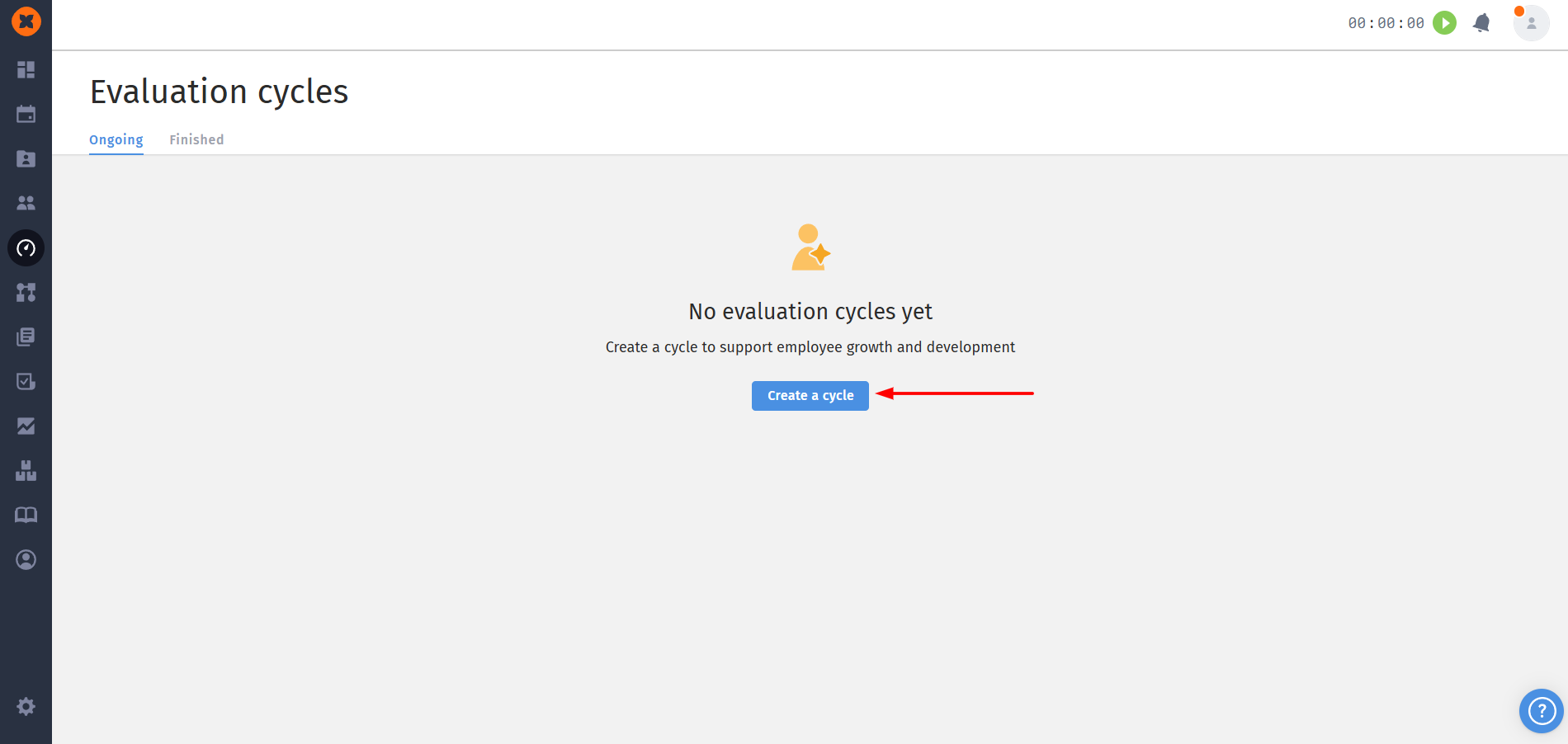
To create an employee evaluation cycle, go to “Performance“ - “Evaluation cycles“ and click the “Create cycle“ button.
On this page you need to enter the main settings, namely:
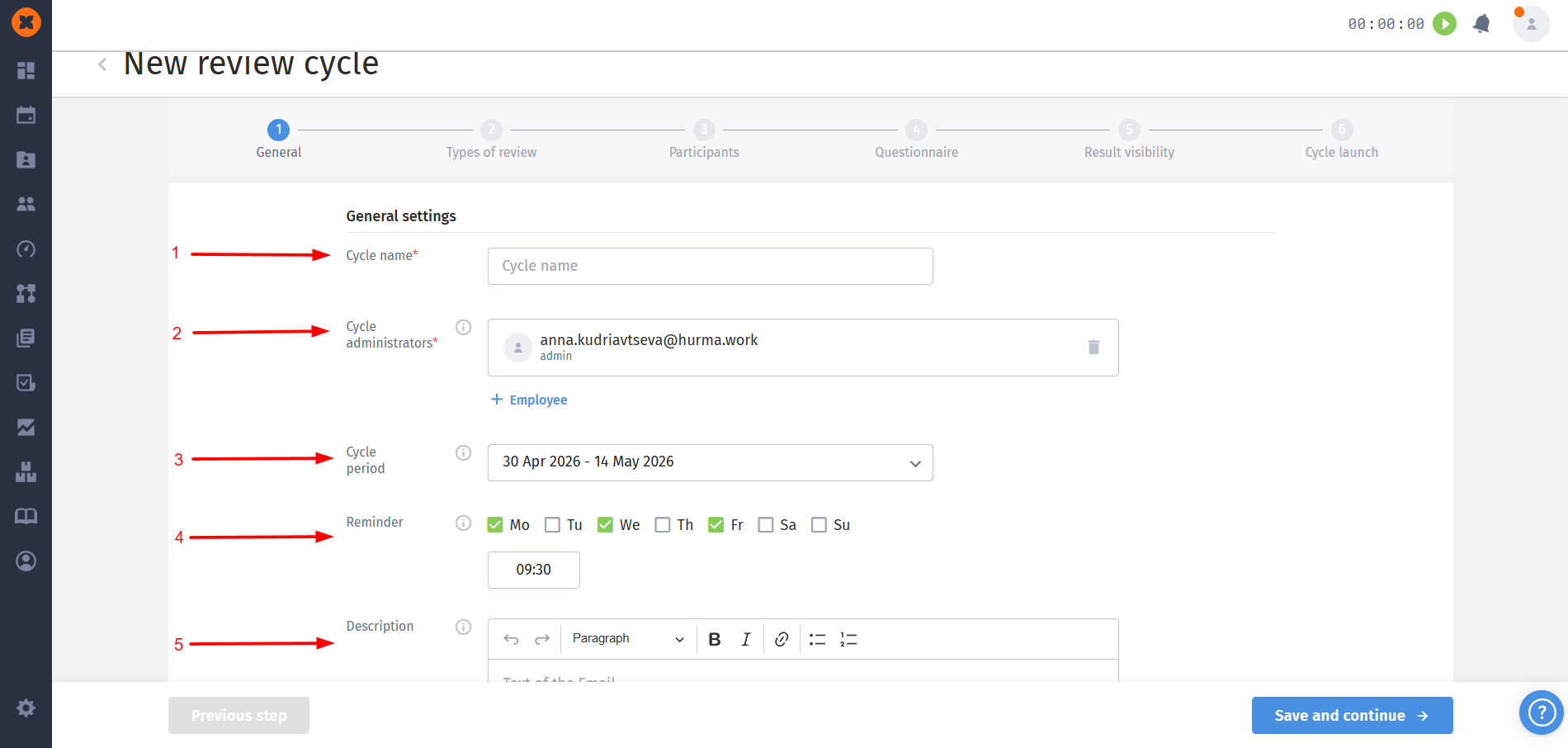
Cycle name - the name of this review cycle;
Cycle administrators - employees who are responsible for organizing and running the review cycle. These employees can edit the cycle settings, view progress reports, and have access to the review results in the cycle;
Cycle period - on the start date, all participants will receive an invitation and the cycle will start automatically. The end date of the cycle is a soft deadline for reminders.
Reminders - let you set up how often notifications are sent to remind people about unfinished tasks.
Description- helps the people involved in the review get familiar with the purpose, goals, rules, and stages of the assessment. This information will be available when they are submitting their answers for the review.
In this block you can define who will take part in reviewing an employee. These settings help you flexibly set up the review format according to your company’s needs.
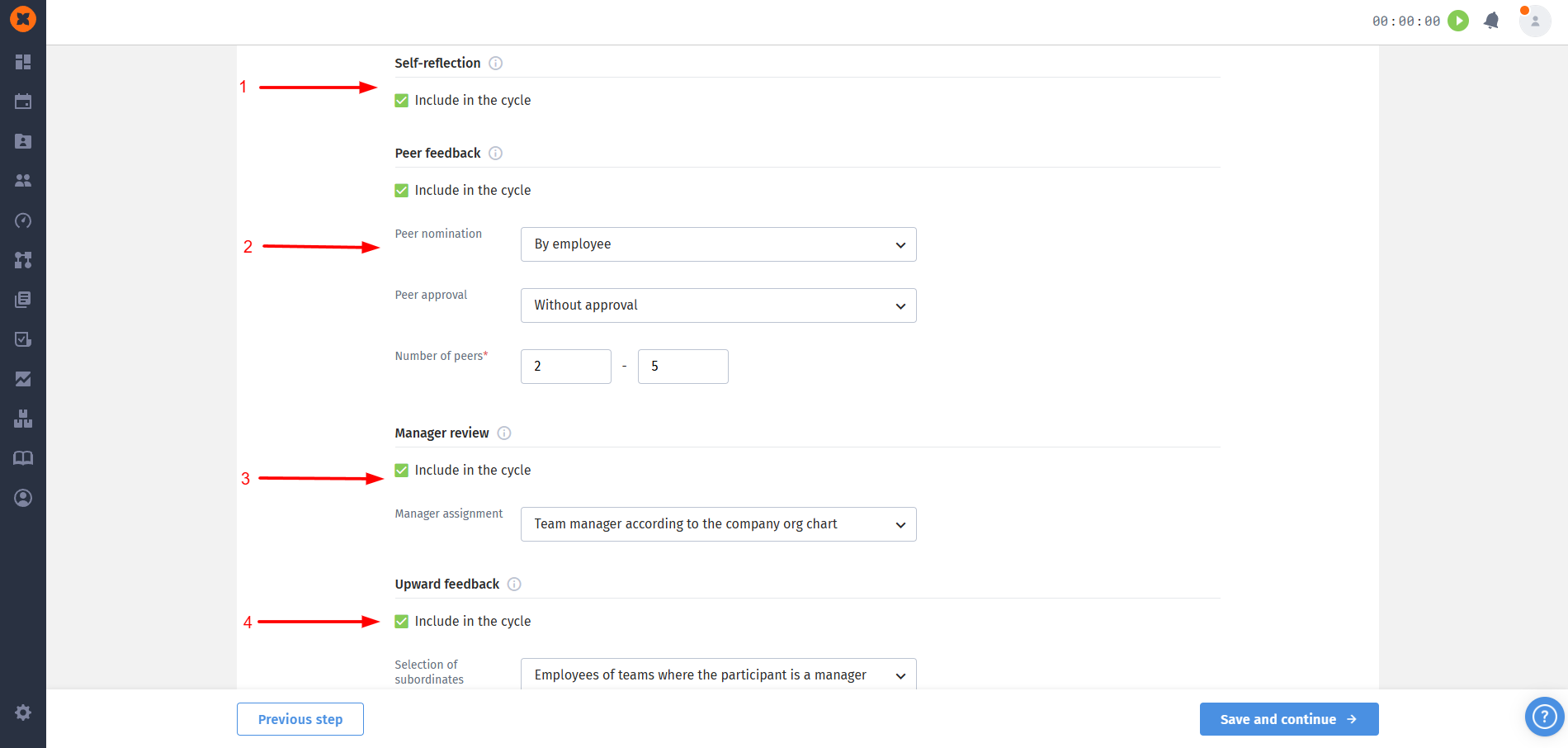
Self-reflection- the employee evaluates themselves according to the attached questions;
Peer feedback - selected colleagues provide an assessment of the employee;
In this block, you can configure who is responsible for choosing colleagues for the assessment, whether the colleague selection needs to be approved, and how many colleagues will provide an assessment.
Manager review - managers assigned in the cycle settings provide an assessment according to the attached questions.
The manager can be assigned automatically according to the company structure or manually by selecting specific employees to take part in the assessment.
Upward feedback - a type of assessment that lets subordinates evaluate their managers within the 360 methodology.
By default, subordinates are considered to be the employees of the team where the person being evaluated is the manager. You can also choose options where the person being evaluated is a team lead, or manually specify particular teams or selected employees; additionally, you can add exceptions for employees who will not be treated as subordinates in the evaluation, even if they match the selected criteria.
This block is used for automatically filtering employees from the entire database according to the specified conditions.
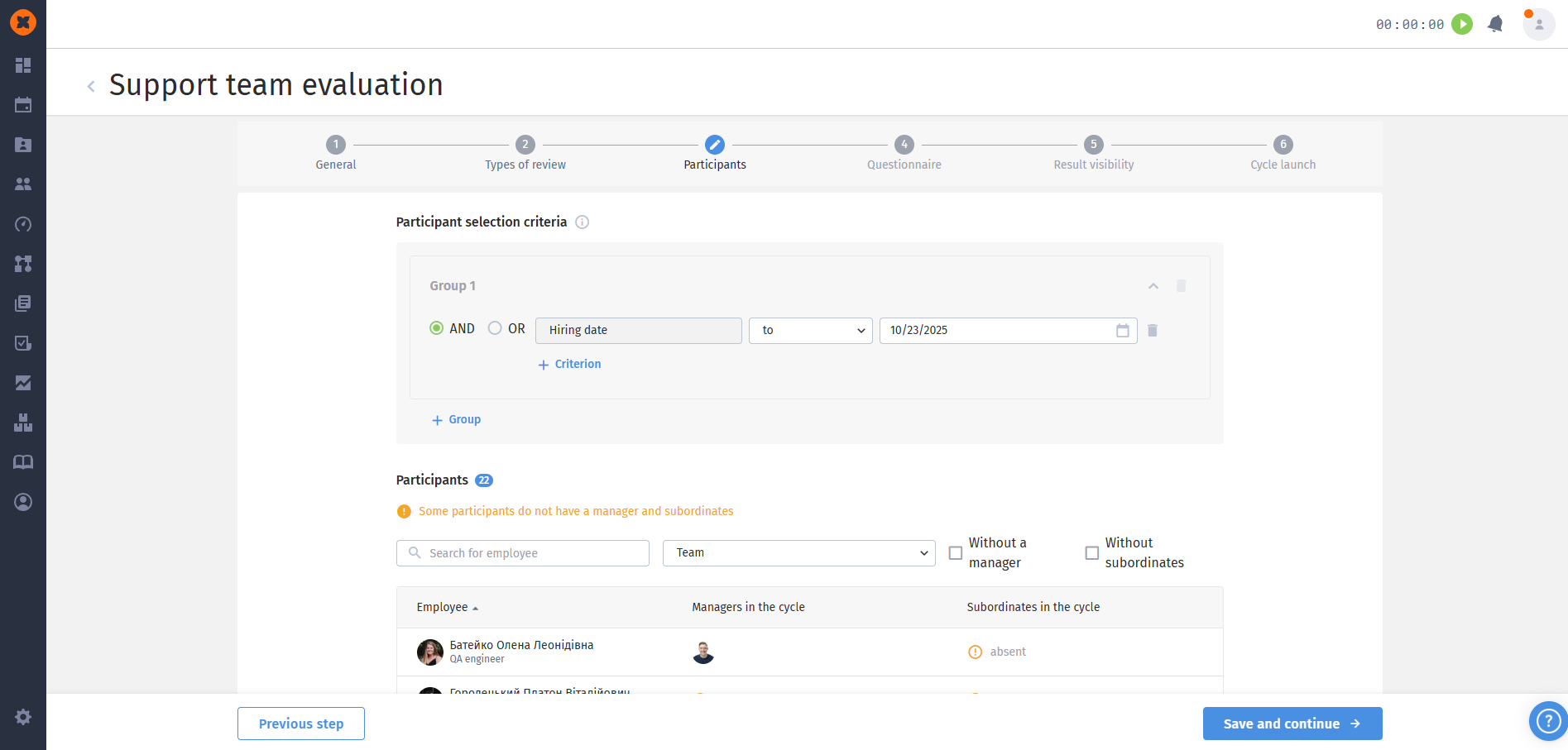
Logical operators: You can use the operators AND or OR to link several conditions.
AND: The employee must meet all conditions;
OR: The employee must meet at least one condition.
Selection criteria:
Employee field (for example, full name): a field in the employee profile that is used for filtering (for example, full name, team, cooperation format, tag, etc.);
Operator (for example, equals): defines how to compare the field with the value (for example, equals, does not equal, before, after);
Value (for example, 01.05.2025): the specific value for comparison.
Example in the screenshot: participants will be all employees whose hire date is earlier than 01.05.2025.
+ Criterion: lets you add an additional condition to the current group.
+ Group: lets you create a new set of conditions combined by a logical operator.
Participants: this block shows the actual list of employees who were selected to take part in the cycle after applying the selection criteria.
Employee search: manual search for quickly finding a specific person in the list;
"Team" filter: filtering the displayed list by department/team membership.
Without manager: a checkbox for filtering participants who don’t have a direct manager specified (which can be critical for some types of evaluation).
Without subordinates: a checkbox for filtering employees who don’t have subordinates (shown if the corresponding type of evaluation is enabled).
This step lets the author of the evaluation cycle create the structure of the evaluation form.
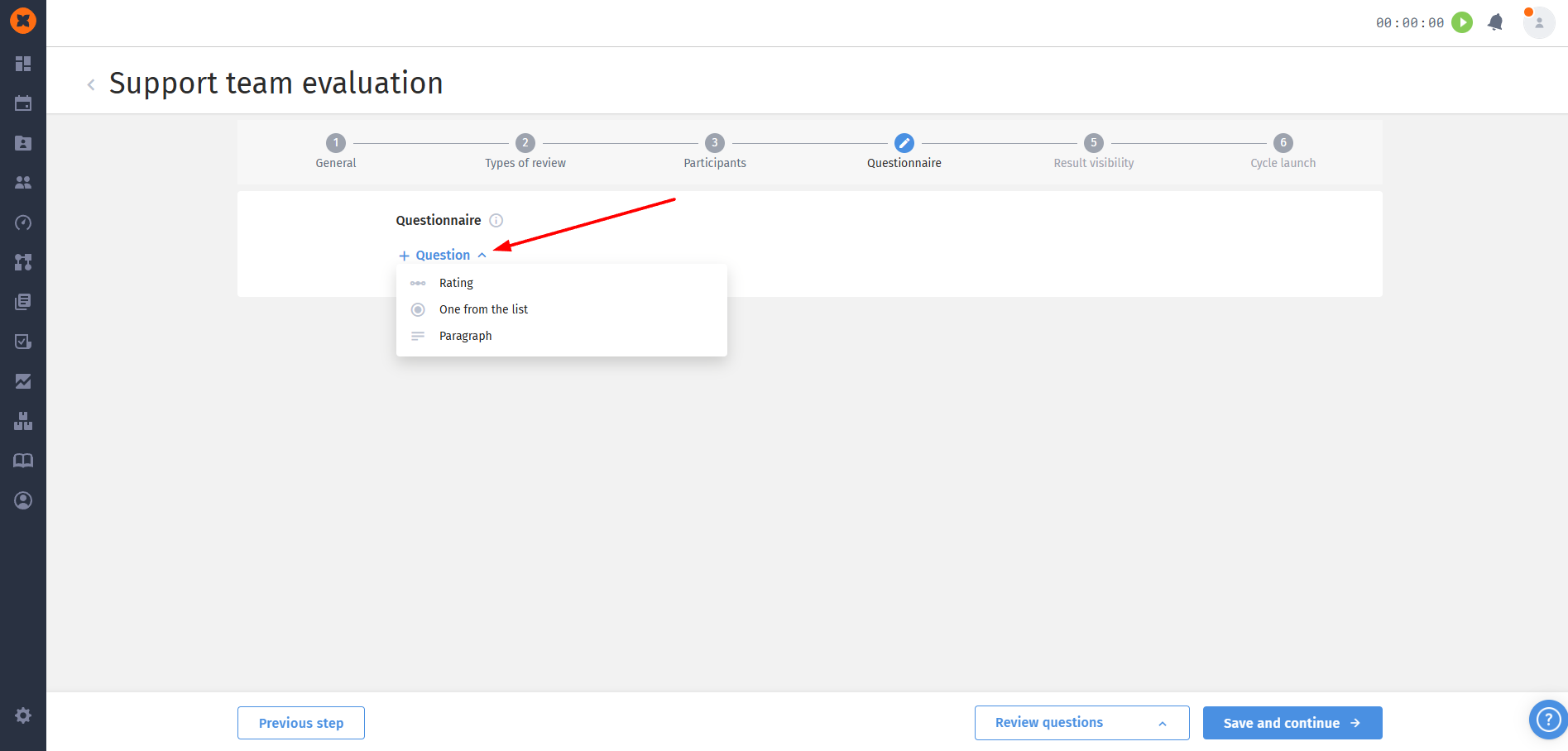
You can add three types of questions:
Rating: a "Rating" type question is meant for quantitative evaluation on a given scale.
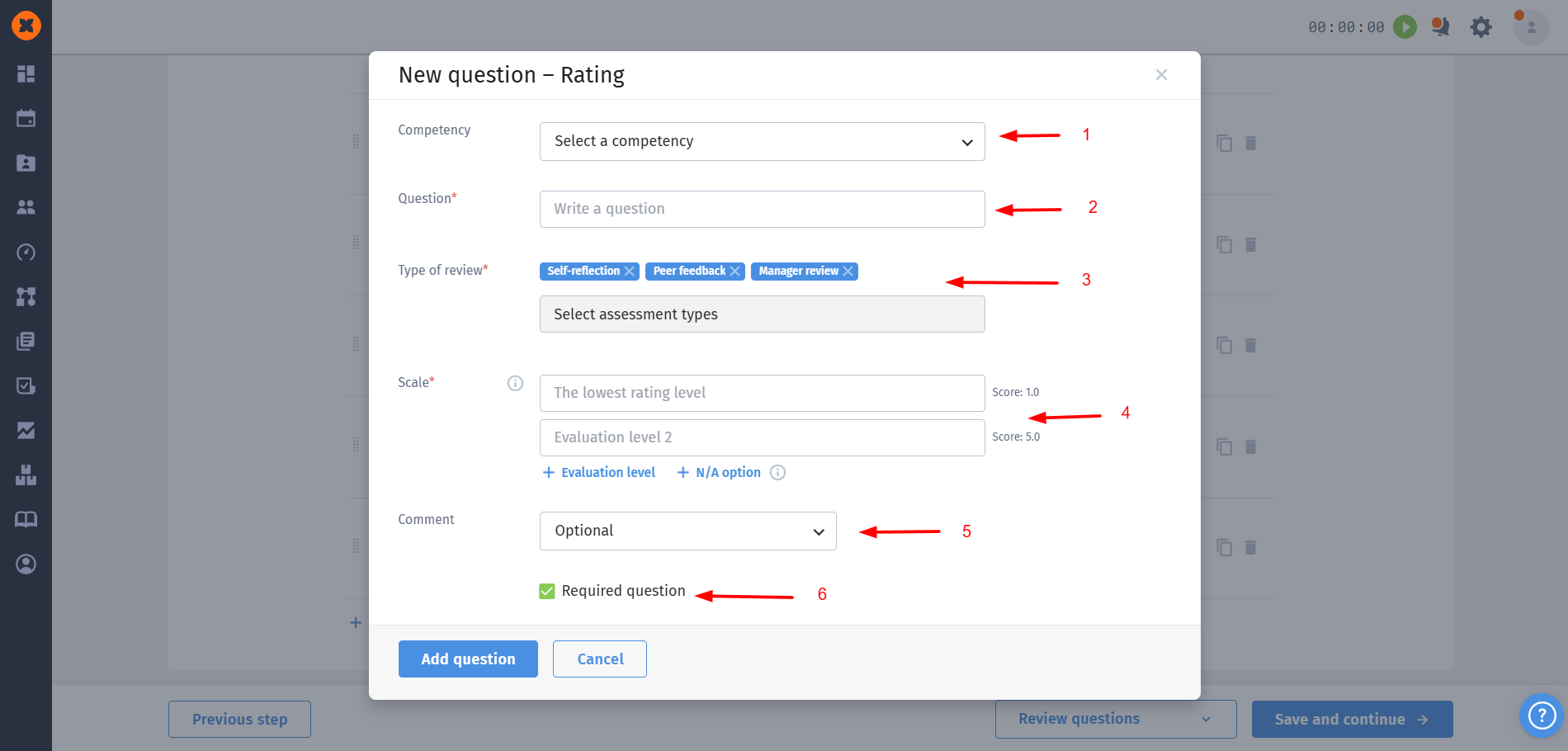
Configuration elements:
Competency: an optional field that allows you to link one of the active competencies to the question. The competency name will be displayed above the question;
Question: a field for entering the text of the question itself, for example: "Rate the level of proficiency in skill X", "How effectively does employee Y achieve goals?";
Type of reviews: defines who will perform the evaluation. You can choose one or several options;
Scale (Required): defines the evaluation range. It’s configured by entering the names of the levels and assigning specific points
+ Evaluation level: the option to add more intermediate evaluation levels. You can add up to 10 levels to the evaluation scale.
“N/A option“: allows the respondent to choose this option if they don’t have enough information to give a rating.
Comment: lets you set whether there will be a field for a text comment on the rating and whether it’s required;
Required question: a checkbox that defines whether the respondent must give an answer to this question to finish the evaluation.
One from the list: lets the respondent choose only one answer option from the suggested list.
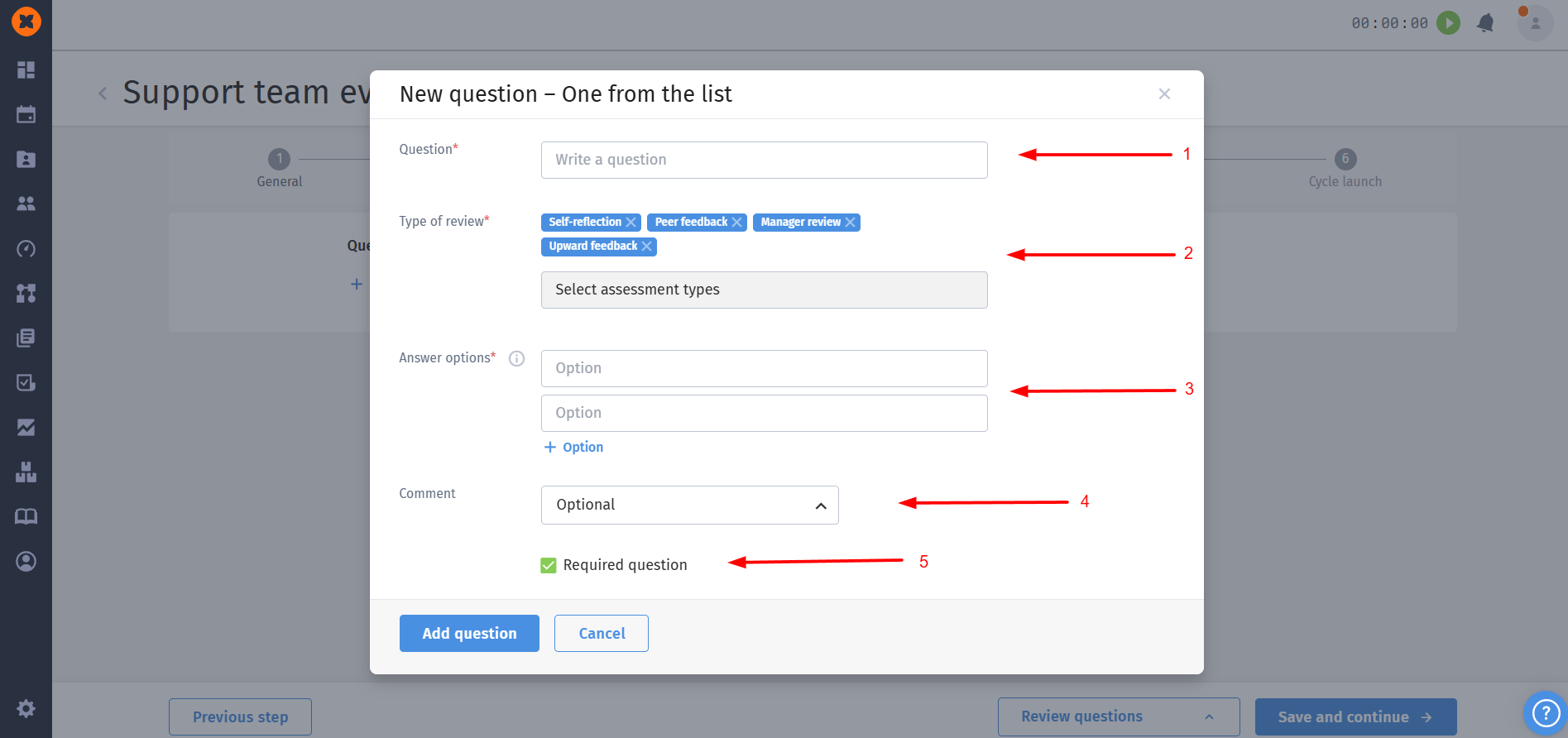
Question: a field for entering the text of the question itself;
Type of review: defines who will do the evaluation. You can choose one or several options;
Answer options: a field for entering the text of each possible answer option. The respondent will be able to choose only one of them;
+ Option: A button for adding extra answer options. You can add up to 20 answer options inclusive.
Comment: lets you configure whether there will be a field for a text comment on the rating and whether it’s required;
Required question: a checkbox that defines whether the respondent must provide an answer to this question to complete the evaluation.
Paragraph: planned for collecting free-form text feedback.
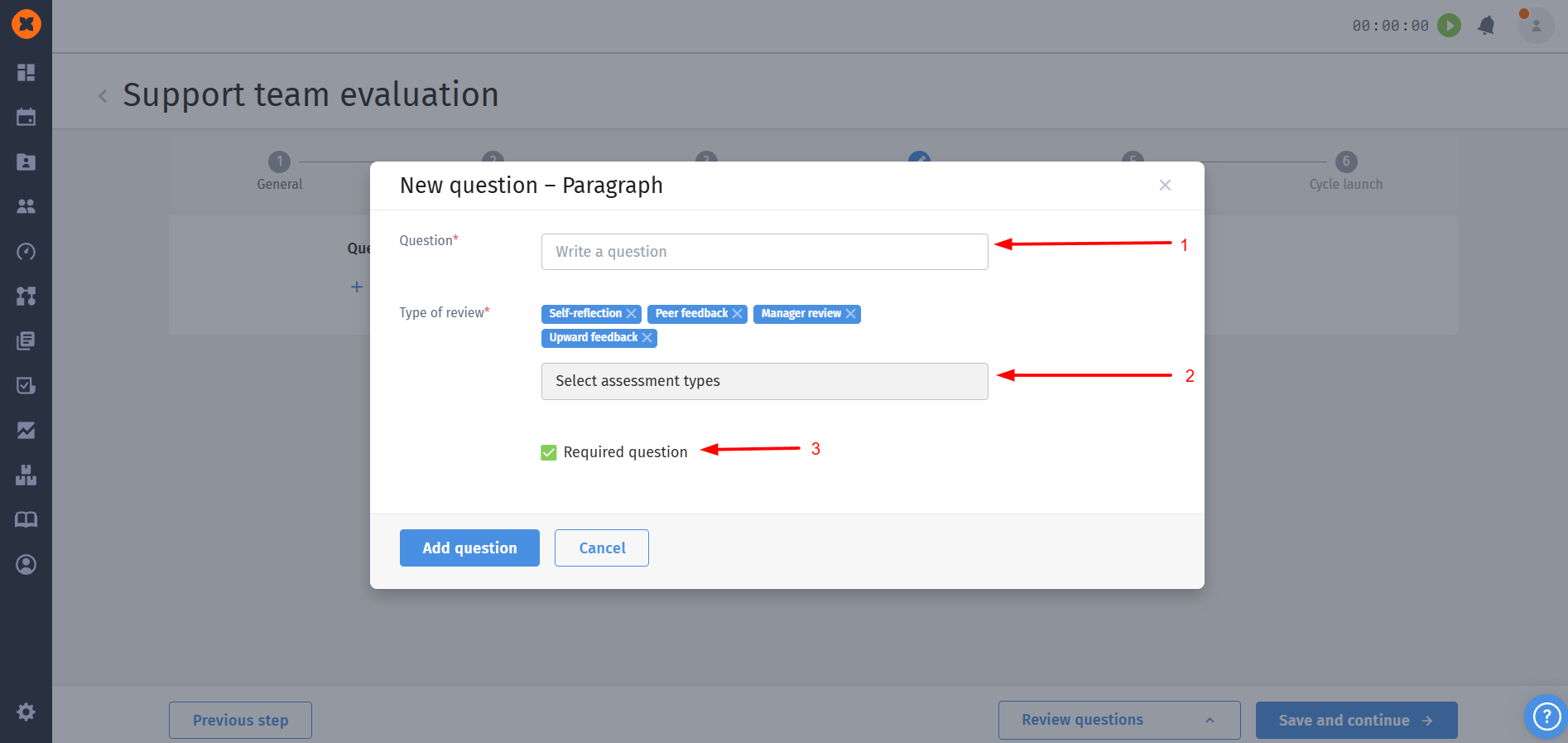
Question: a field for entering the text of the question itself;
Type of review: defines who will be doing the evaluation. You can choose one or several options;
Required question: a checkbox that defines whether the respondent must provide an answer to this question to complete the evaluation.
This section of the evaluation cycle defines which specific results and to what extent will be available to different categories of users after the evaluation is completed.
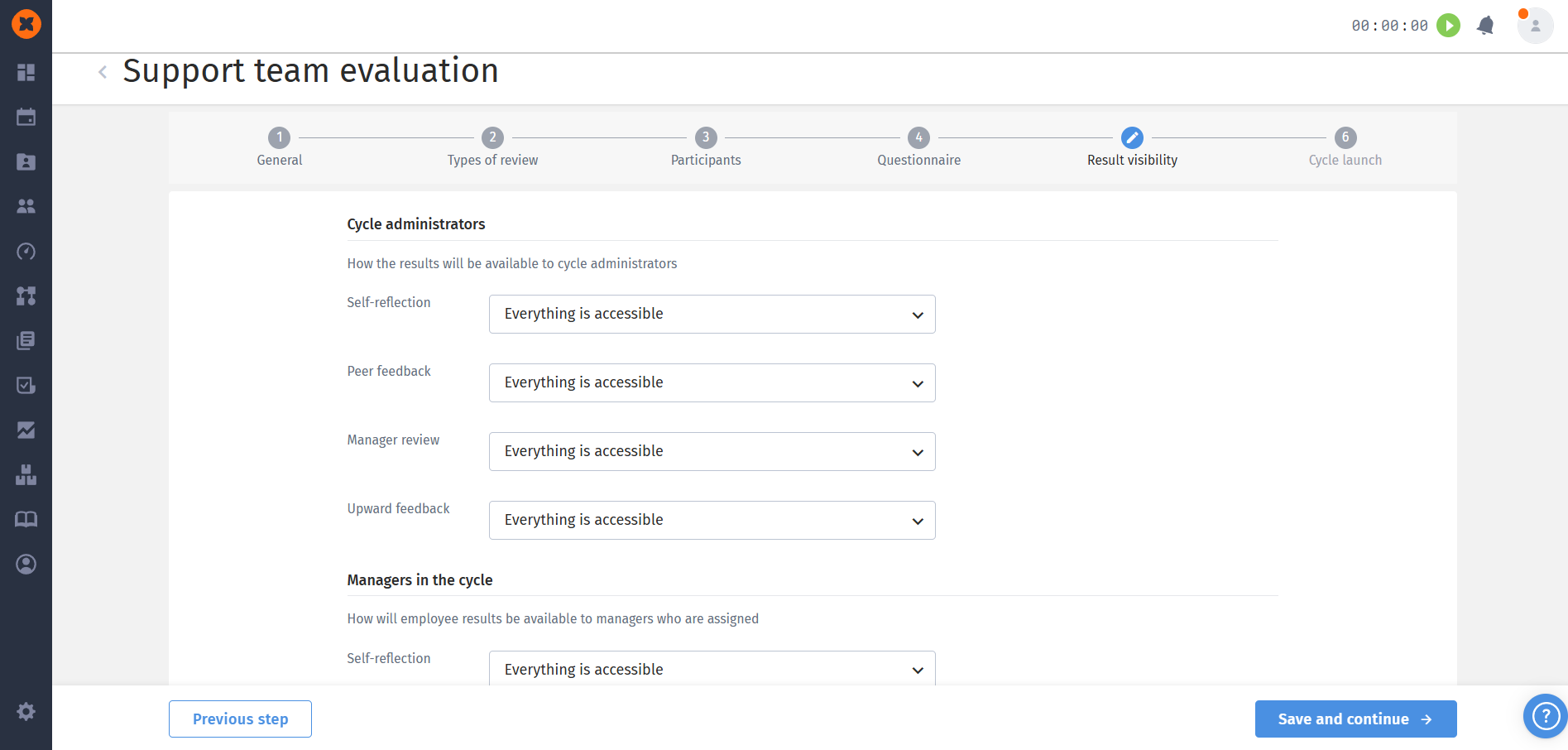
Available visibility options:
No access: the employee doesn’t see any results of the evaluation that is being configured;
Summarized average scores: the employee only sees aggregated, average scores across all questions or competency groups. Detailed scores for each question and comments are hidden;
Detailed scores without name and without comments: the employee sees numerical scores (points) for each question but doesn’t see the text comments from the employee who did the evaluation;
Detailed scores without name and with comments: the employee sees numerical scores for each question and all text comments from the employee who did the evaluation. The name of that employee stays hidden;
Detailed scores with name and without comments: the employee sees numerical scores for each question and the name of the employee who did the evaluation, but the comments are hidden;
Everything is accessible: the employee sees all details: numerical scores for each question, text comments, and the name of the employee who did the evaluation.
This section shows all the settings applied for this review, lets you check if they’re correct, and edit them if needed.
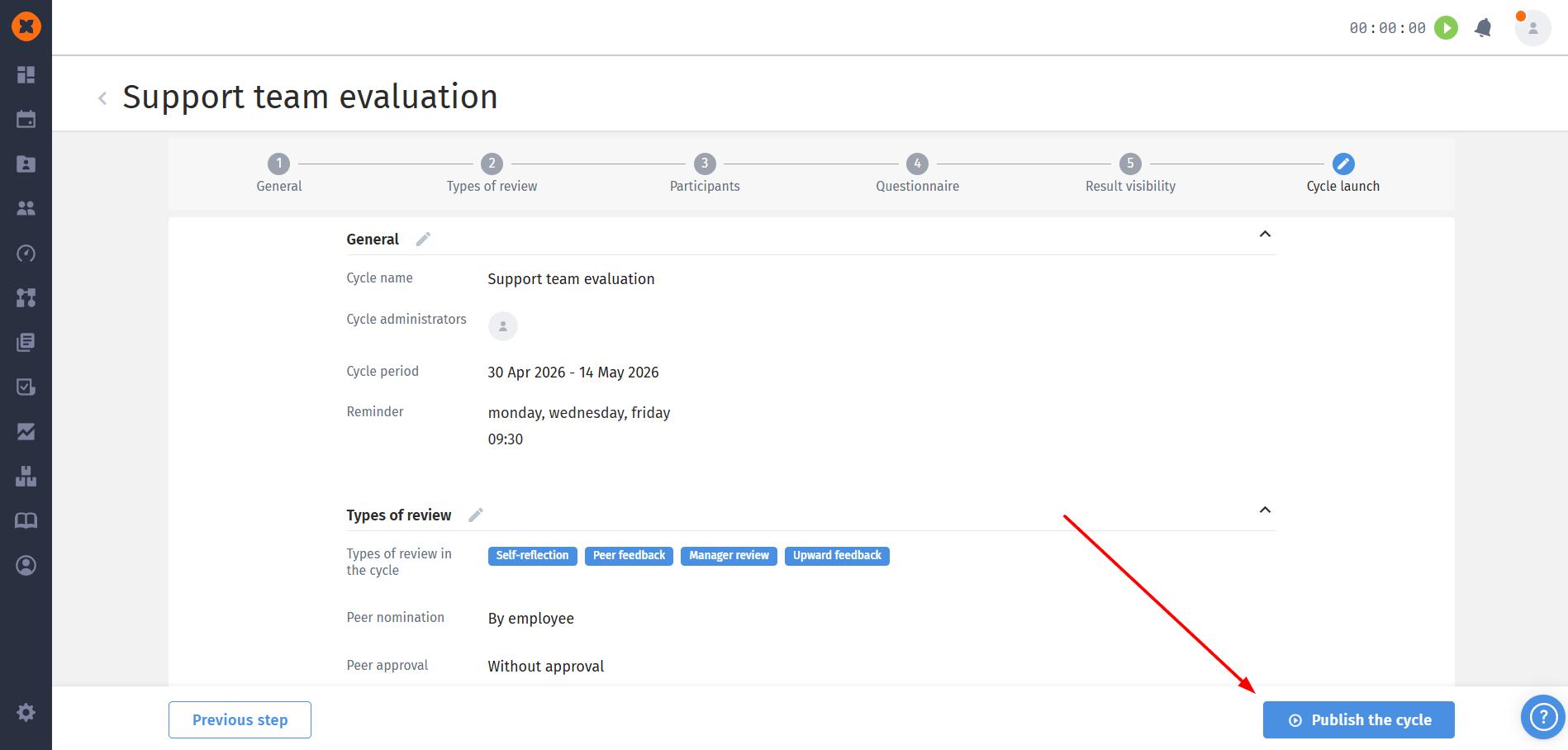
To publish the cycle, you need to click the “Publish the cycle“ button.