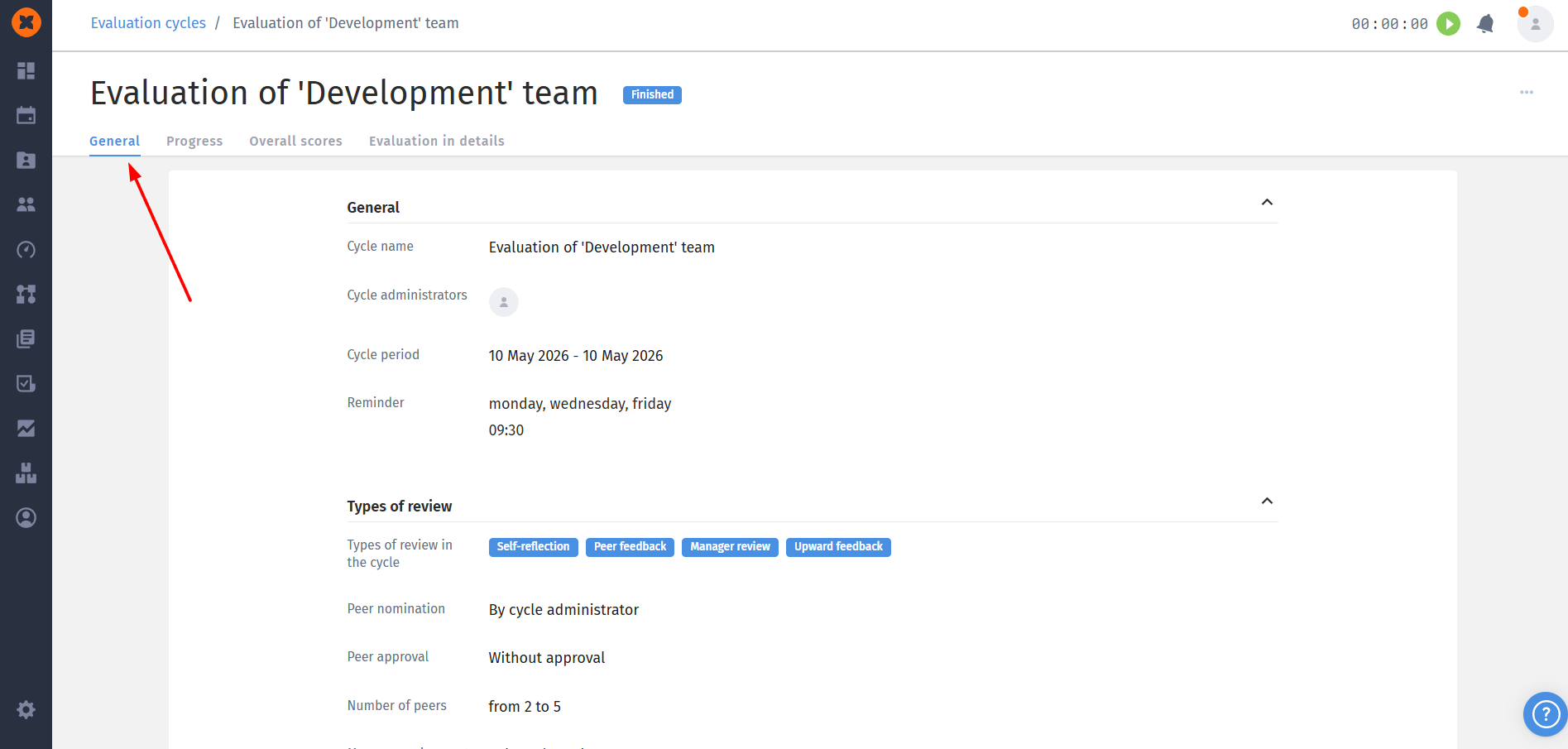
This block gives cycle admins centralized access to all key aspects of the cycle: from basic settings and progress tracking to detailed analysis of the collected results.
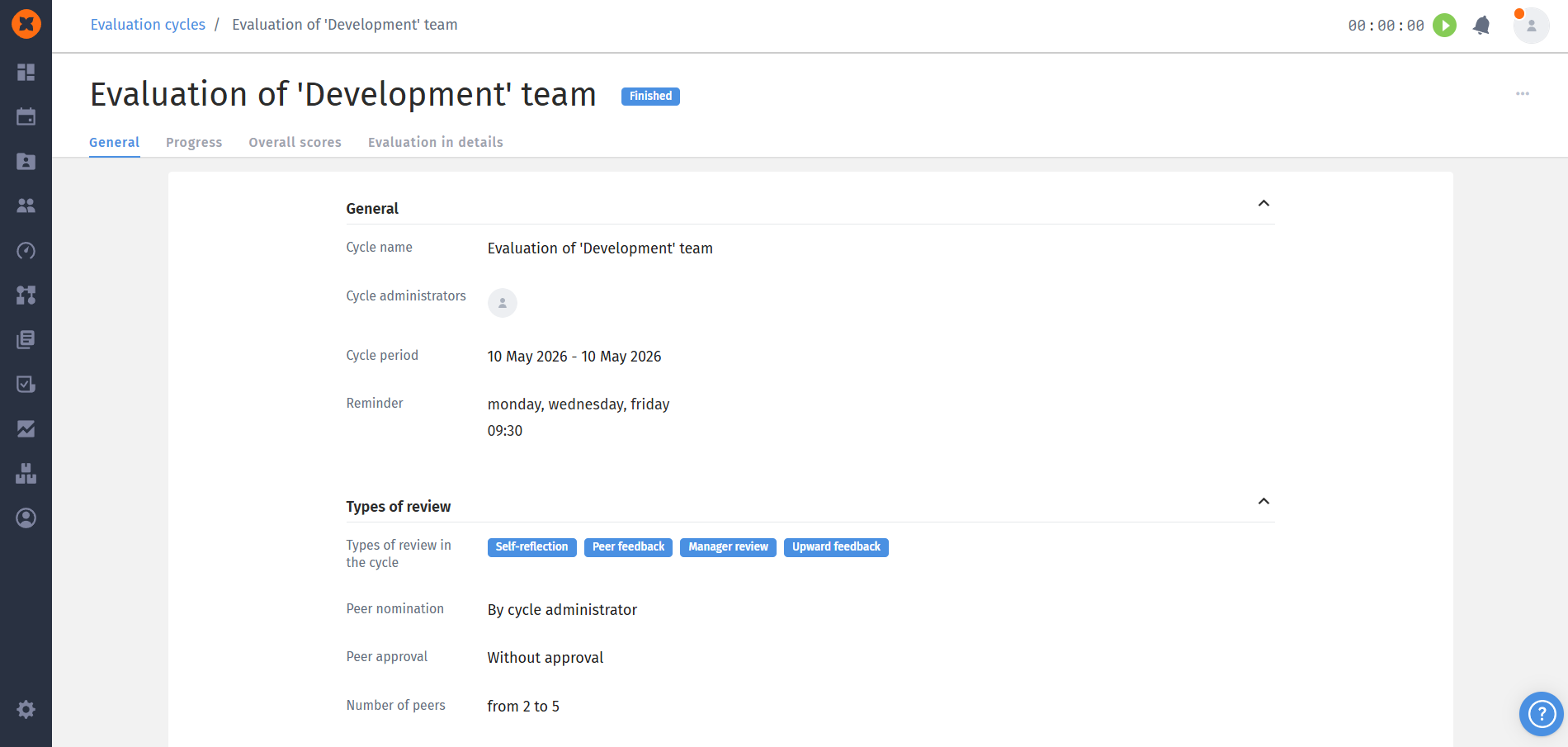
This page shows all the settings that were configured by the cycle author.
The "Progress" tab is a key tool for cycle admins, who are responsible for the successful and timely completion of the review cycle. It gives an overview of the total work done and a detailed status of how each employee is progressing with their review.
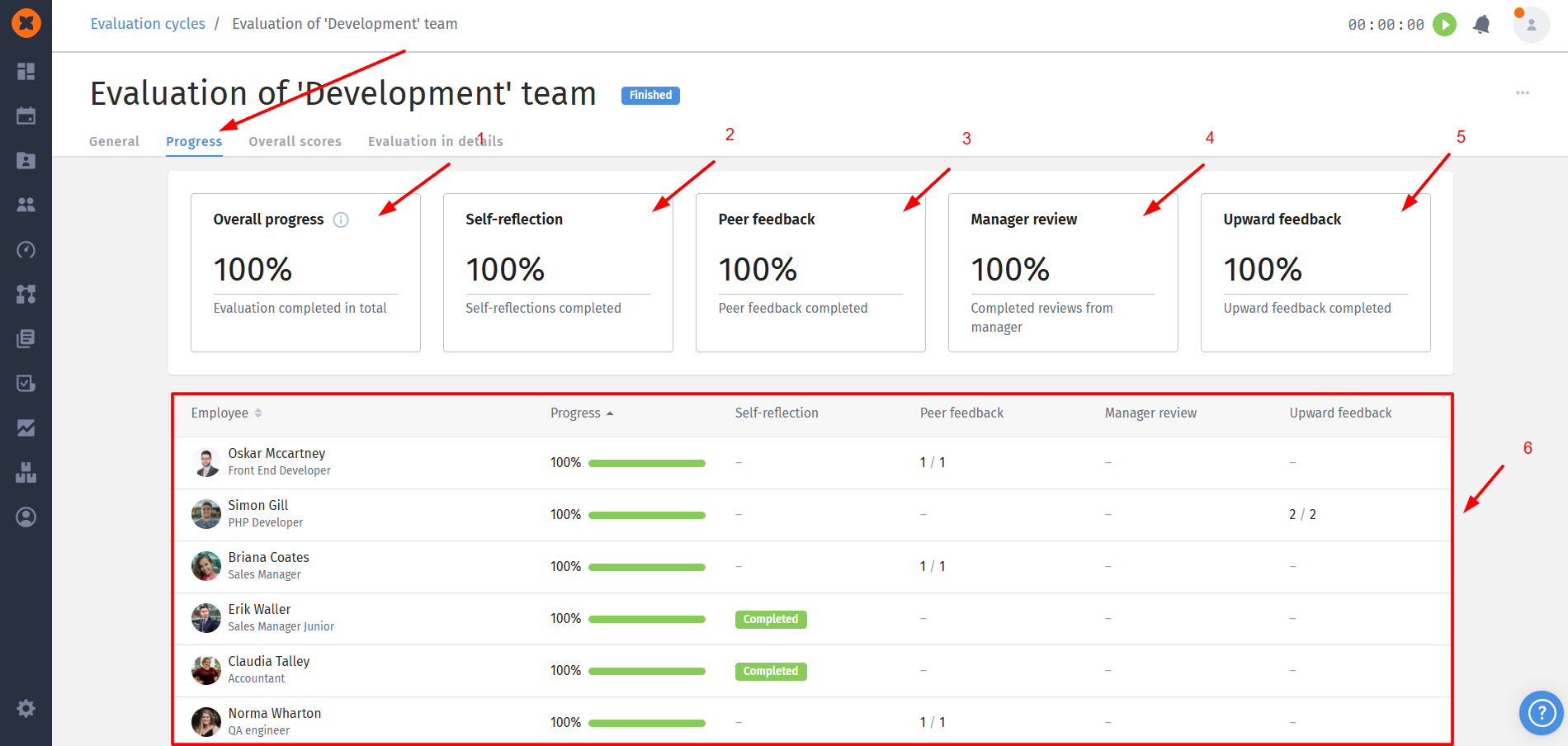
Overall progress: the percentage of all required evaluations (self-evaluation, from peers, from manager) for all participants that have already been completed;
Self-reflection: the percentage of all participants who have completed their self-evaluation;
Peer feedbac: the percentage of all required peer evaluations that have been completed;
Manager review: the percentage of all required manager evaluations that have been completed;
Upward feedback: the percentage of all required subordinates evaluations that have been completed;
Completion table: the table provides detailed information about the evaluation completion status for each employee participating in the cycle.

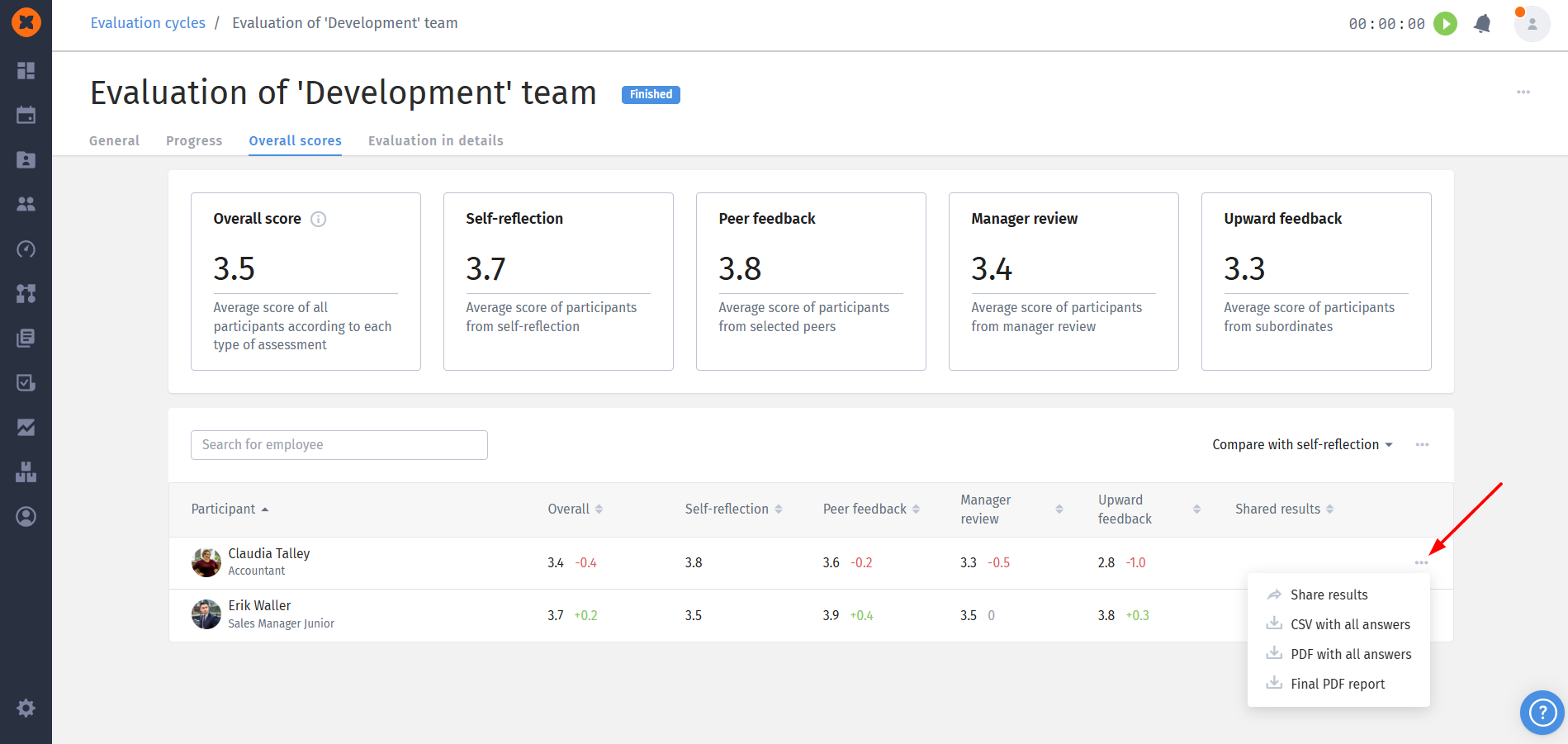
The "Overall scores" tab is meant for viewing and analyzing the aggregated quantitative results of the evaluation cycle.
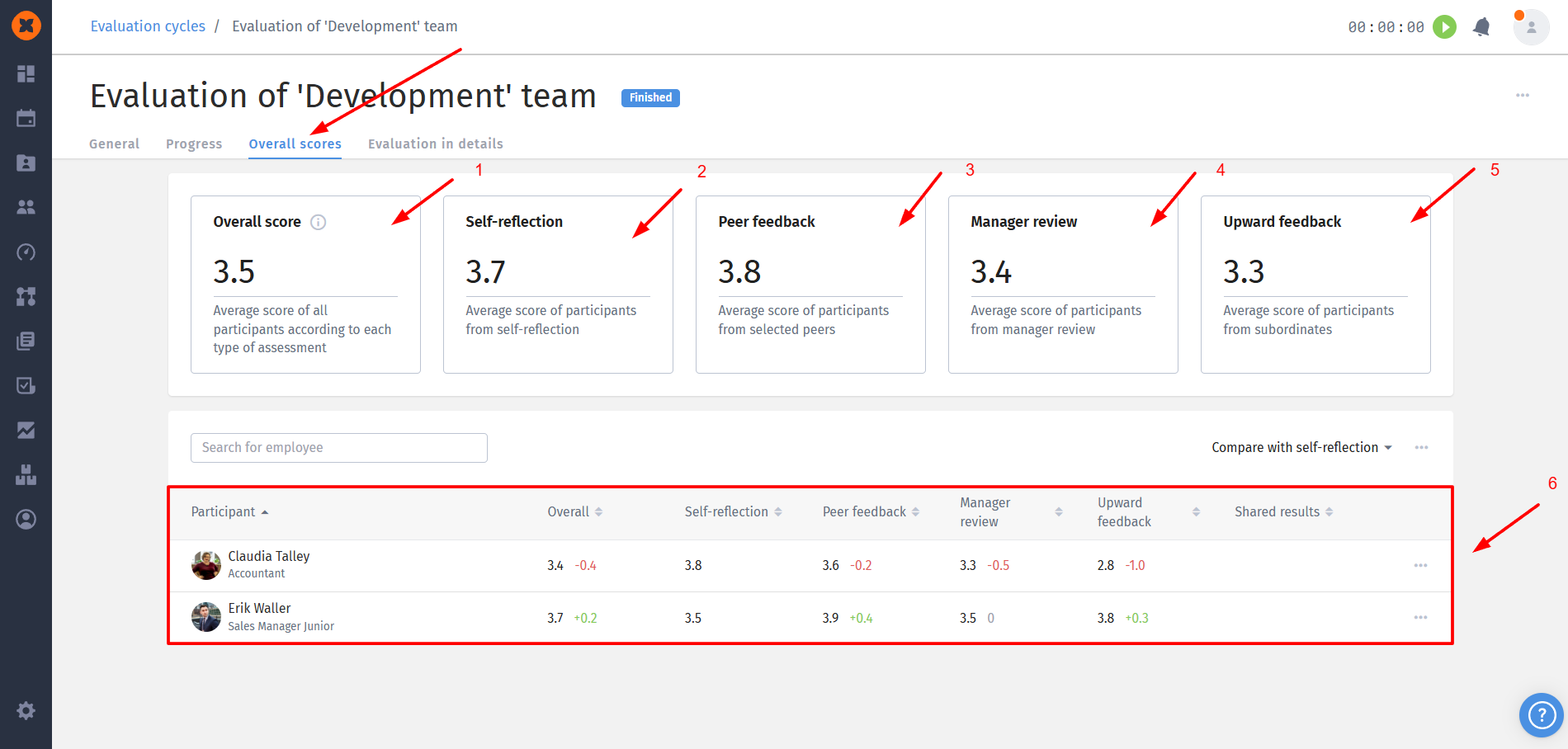
Overall score: the average score calculated based on all evaluations (self-assessment, from peers, from managers) of all participants in the cycle;
Self-assessment: the average score that participants gave themselves;
Peer review: the average score given by selected peers;
Manager review: the average score given by managers;
Upward feedback: the average score given by subordinates;
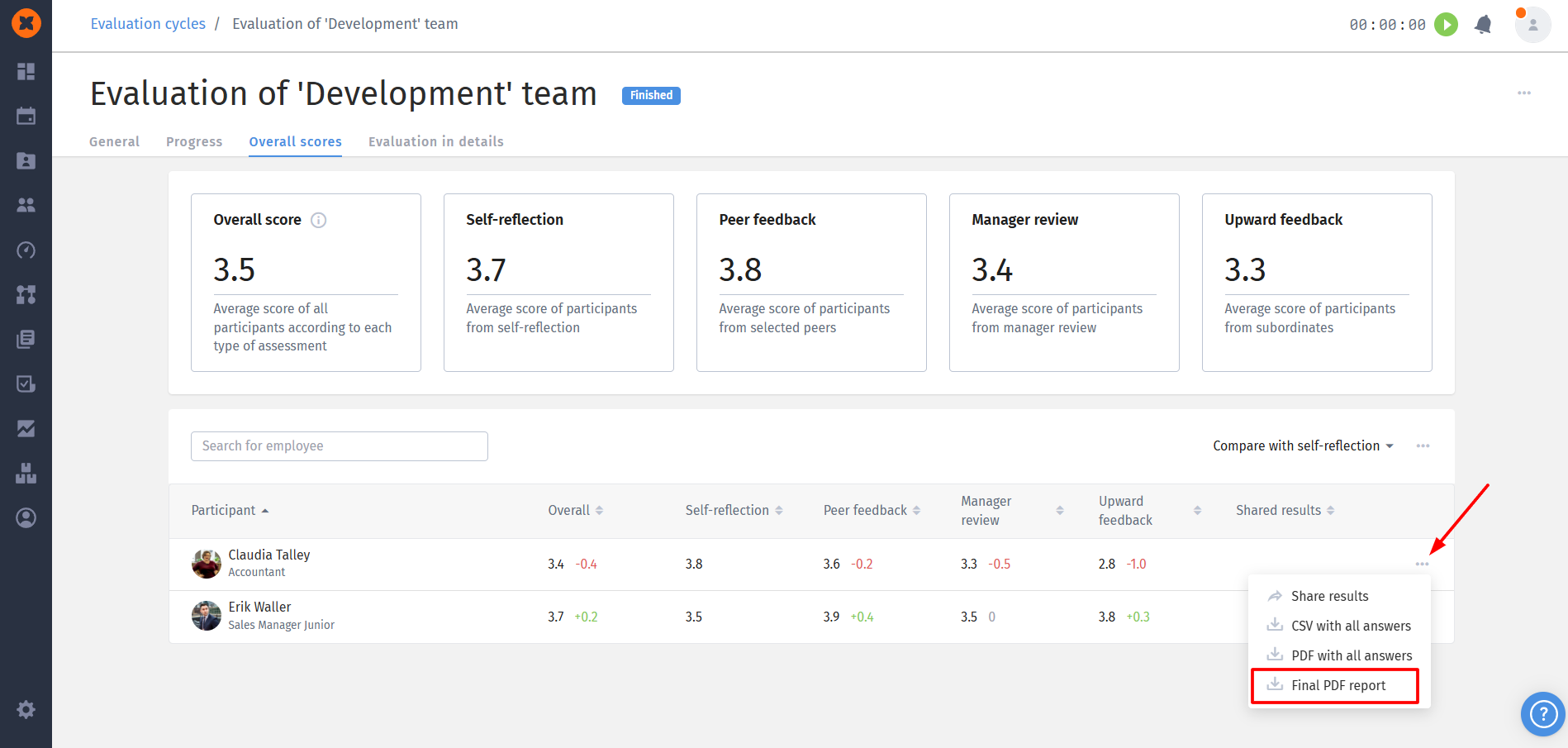
Breakdown by employees and comparison with the seleced evaluation type: the table shows the final results for each evaluated employee, as well as a comparative analysis, which is critically important for spotting discrepancies.
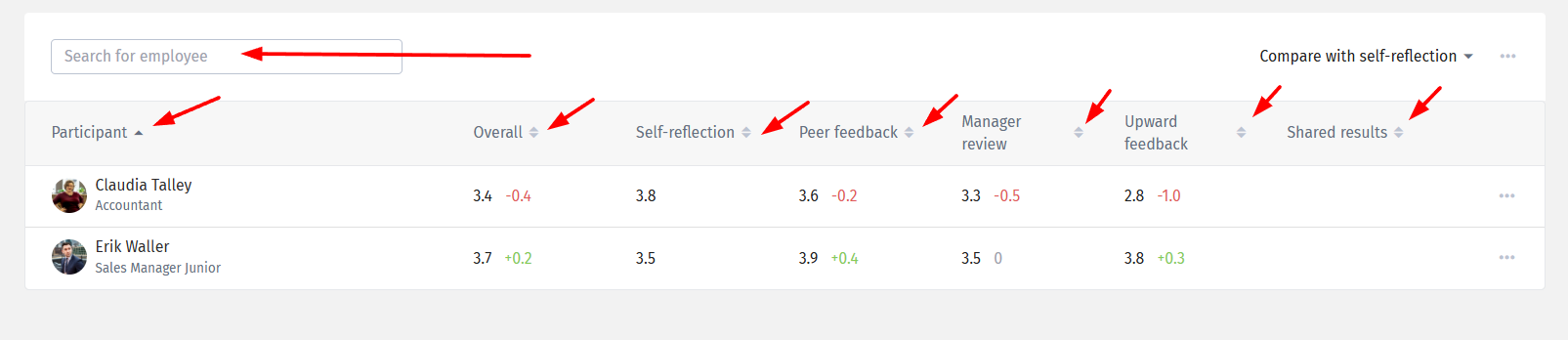
Sorting is also available in the table with employee results.
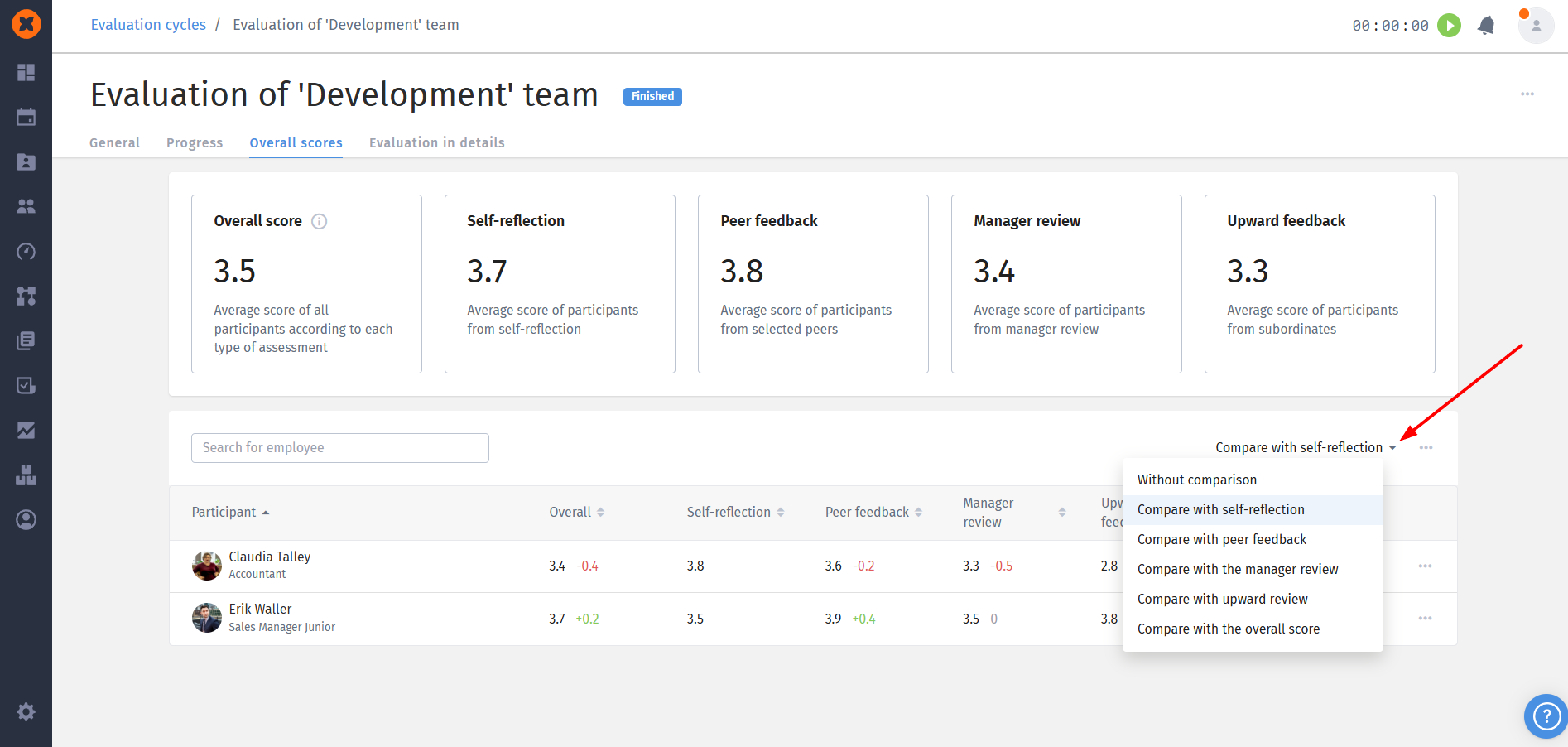
You can also choose to compare with another type of evaluation for a more detailed analysis of the results or turn off comparison.
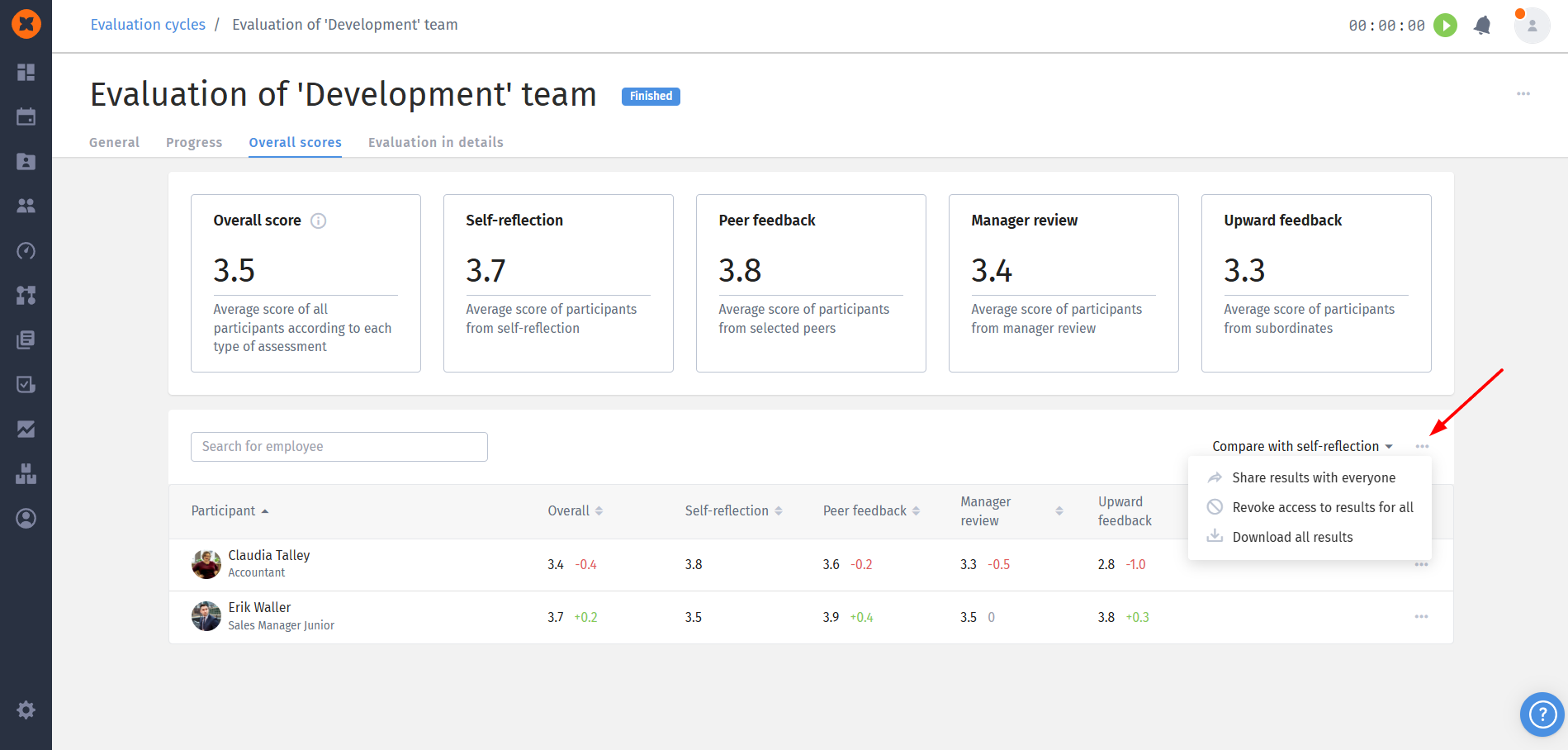
You can share the results with the assessed employees and export them individually or in bulk.
The "Evaluation in details" tab lets the cycle admin dive deep into the results for each individual employee. This is the level of analysis you need for one-on-one feedback sessions and development planning.
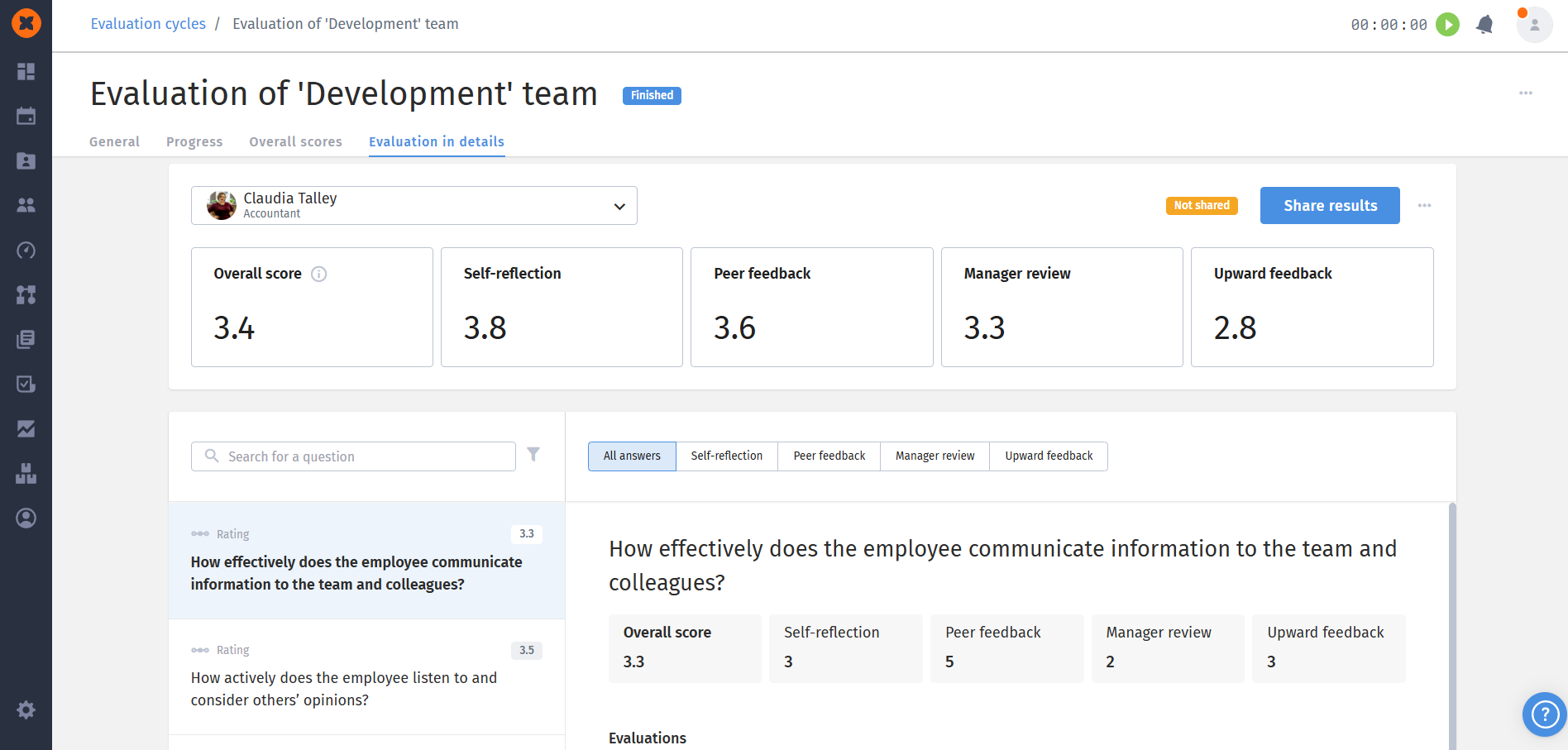
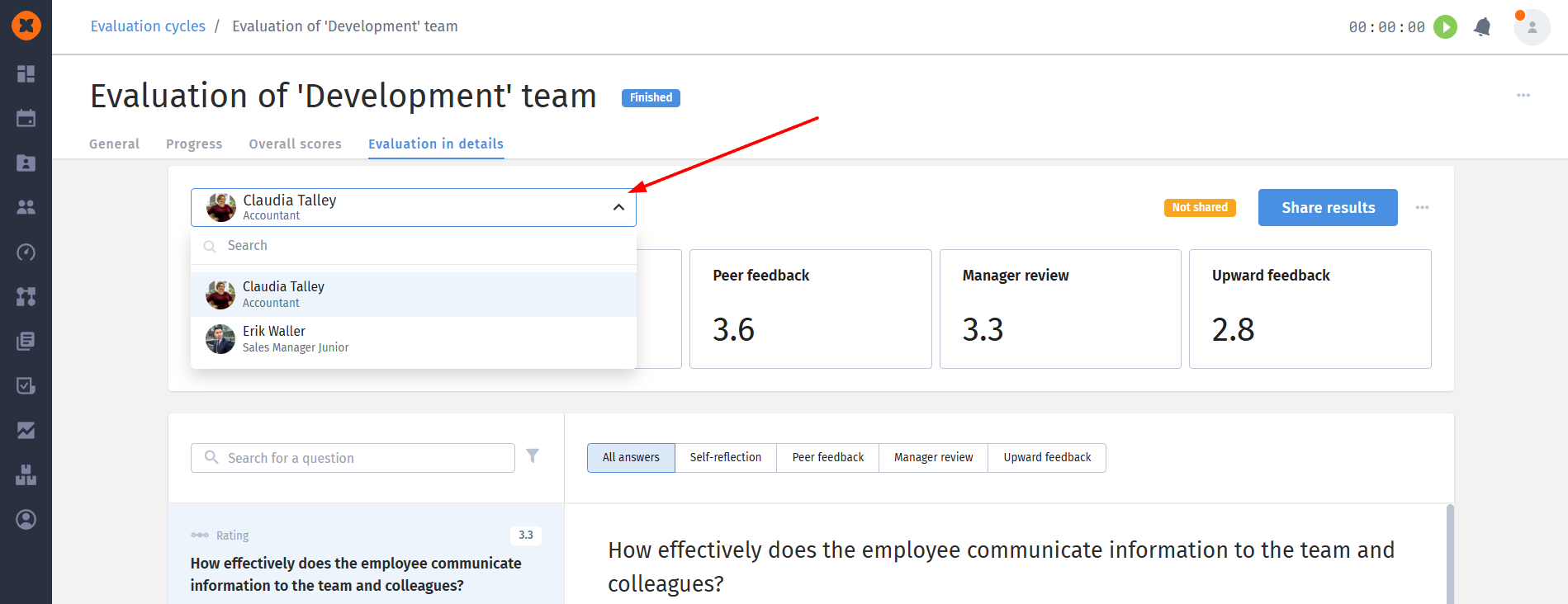
At the top of the panel, the admin can choose any participant in the assessment cycle to view their detailed results.
You can see the status of access to the results for the employee themselves. The "Grant access to results" button lets you turn on visibility according to the settings.
The average scores received by this employee are also displayed.
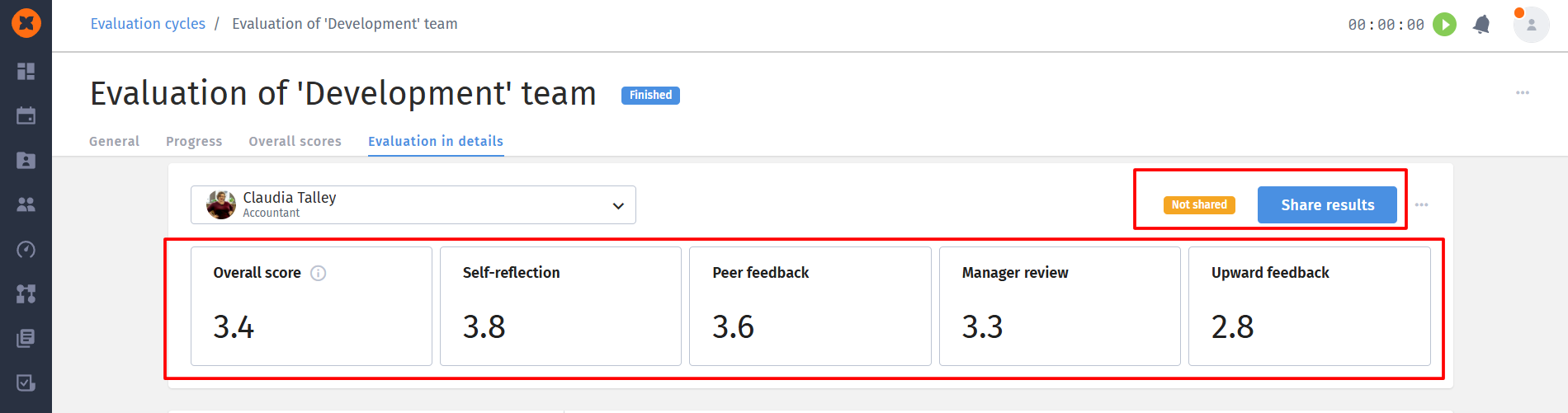
This is the main part of the page that provides details for each evaluation question and lets you see in which specific competencies or areas of activity the employee got the highest or lowest scores.
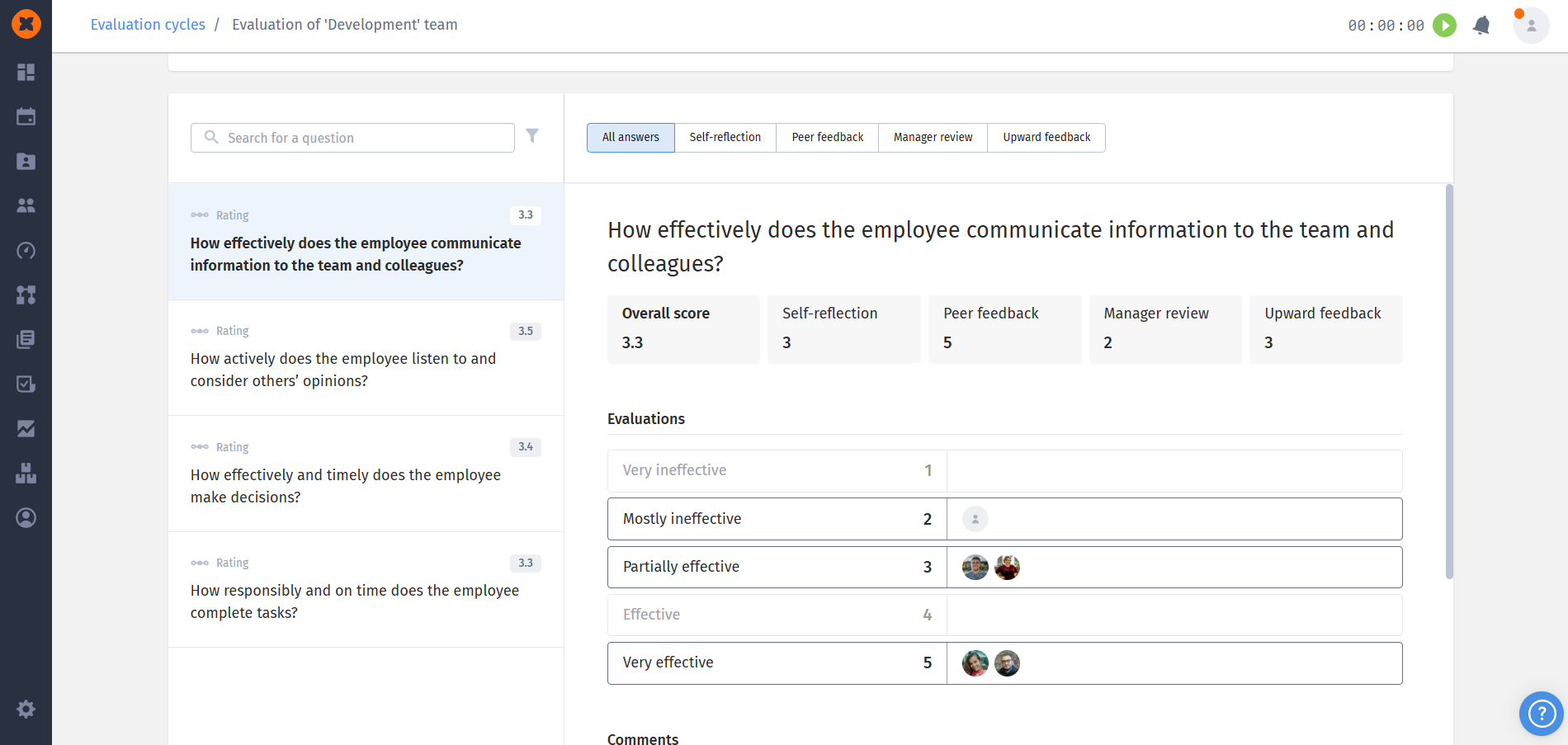
The page can also show text comments (depending on the question type and visibility settings), which gives qualitative context to the quantitative scores.
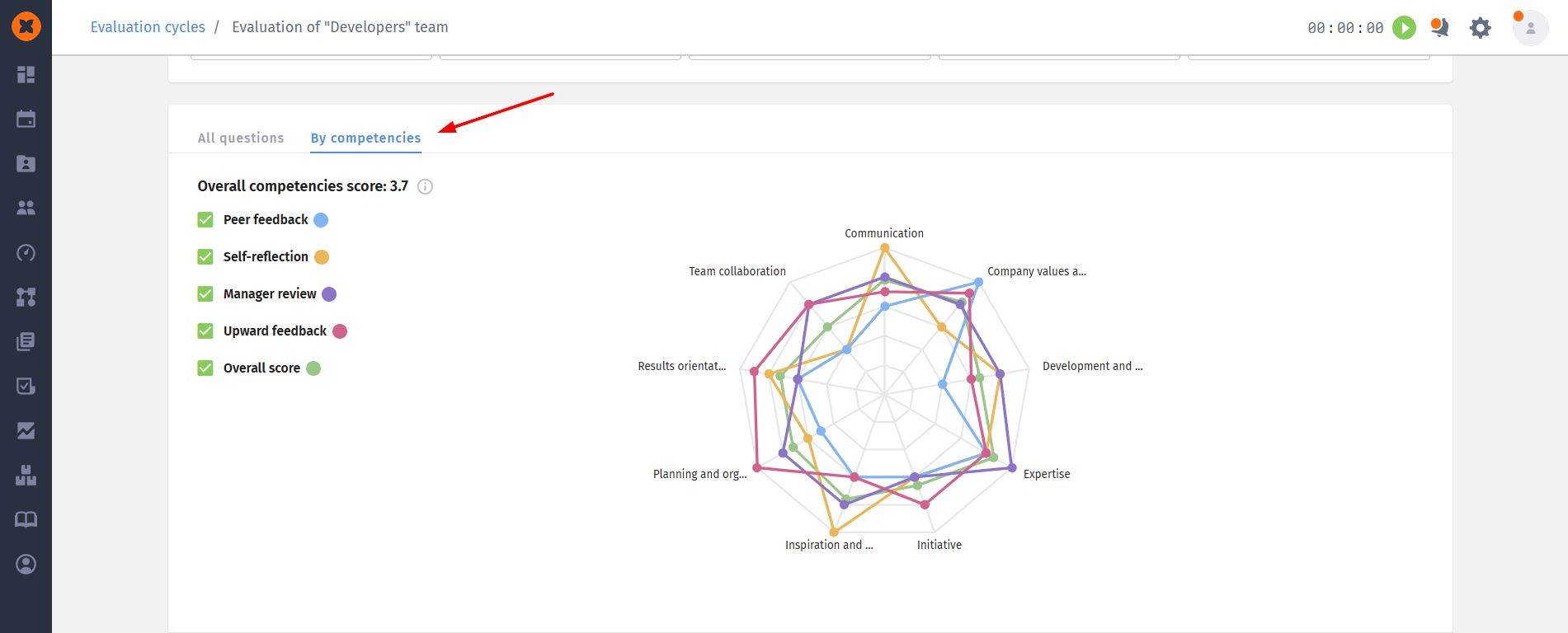
The "By Competencies" tab is available only if at least one competency has been added to the review cycle.
Competency chart: the chart is displayed when at least three competencies have been evaluated. It shows the overall score as well as scores by reviewer type. Hovering over a competency axis displays its full name, the reviewer type, and the average score;
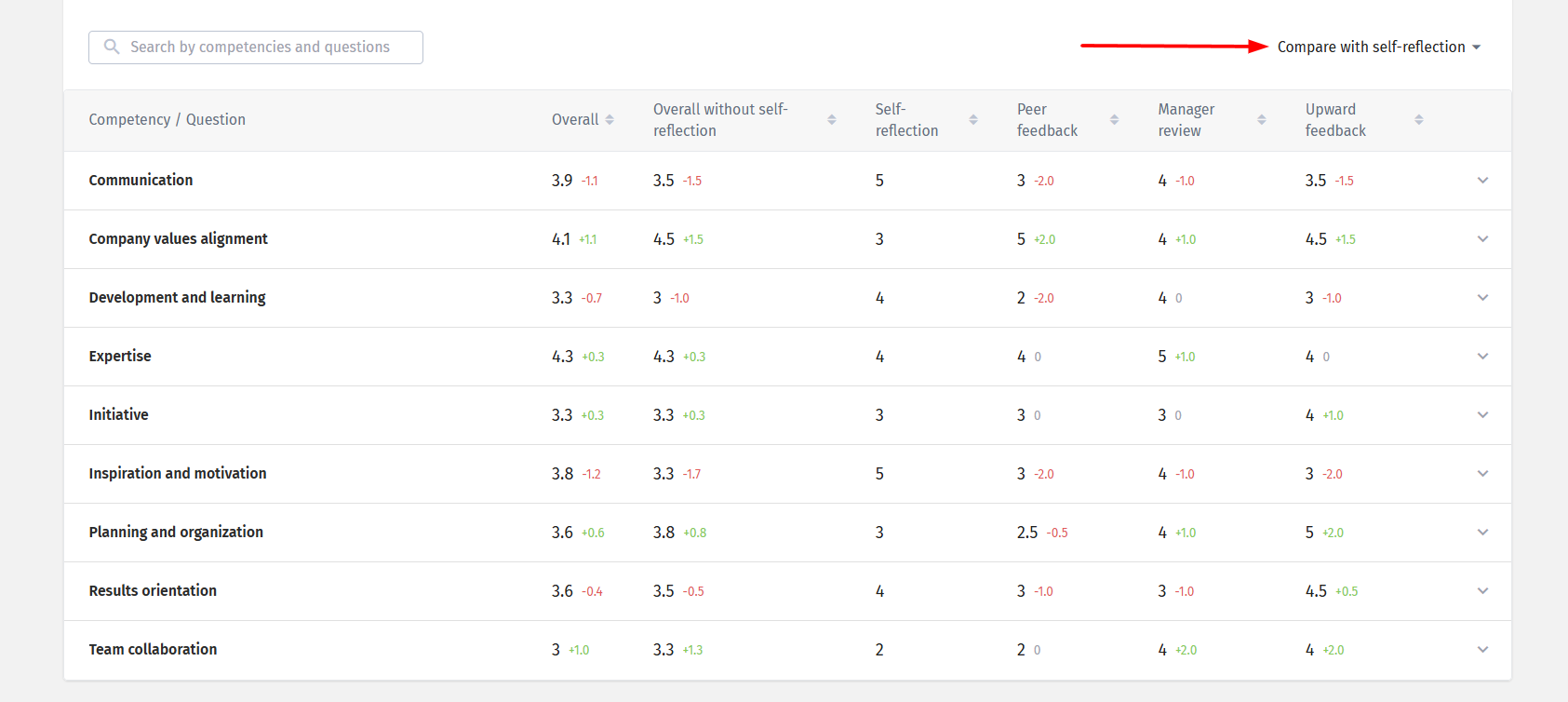
Table: all questions are grouped by competency. Clicking a competency name expands the table to display the list of questions associated with that competency. The table also includes a column showing the overall competency score. Additionally, you can enable comparison with a selected reviewer type.
This feature lets admins flexibly create PDF reports for the evaluated employee based on the selected evaluation types, questions, and comment visibility settings. You can generate a report both for new cycles and for those that were completed before the update.
To open the report builder, in the dropdown menu on the "Overall scores" tab, select "Final PDF report" (or do this for a specific participant on the "Evaluation in details" tab).
After clicking, a modal window will open with the following settings:
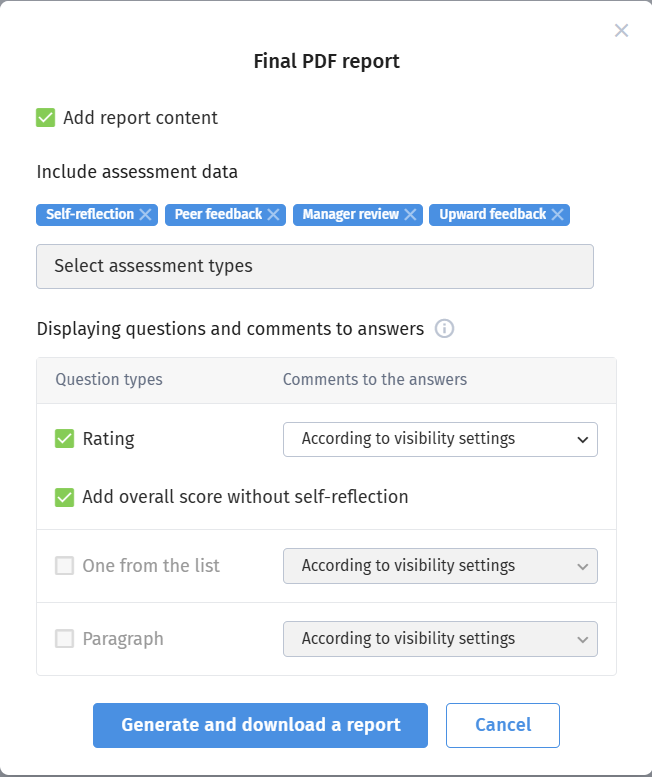
Add report content: by default the checkbox is enabled, it controls whether the table of contents appears on the second page of the generated document.
Evaluation types: you can choose which evaluation types (self-review, from a colleague, from a manager, etc.) will be included in the report. At least one type has to be enabled, otherwise in the system you’ll see a validation error.
Add overall score wothout self-reflection: this checkbox becomes active if the cycle includes a self-review and at least one other evaluation type. When it’s enabled, the report will show a separate column with an average score that doesn’t include the self-review.
Question display: you can choose the question types (rating, one from the list, paragraph) that you want to include in the report. The report is generated if at least one question type is selected.
Comments to the answers: for each question type there is a comments selector available. You can choose:
According to visibility settings: comments and author names will be displayed according to how it’s configured for the admin in the cycle itself (with name, without name, or only the text “Employee” if there’s no access to the name).
Anonymous: all comments will be labeled simply with the text “Employee” to fully preserve confidentiality.
Do not include in the report: the comments block will not be added to the document. (For text questions the “do not include” option is not available).
By clicking "Generate and download report", you’ll get a file that consists of:
Title page: contains the name of the cycle, full name and position of the evaluated employee, and the cycle end date.
Table of contents (if selected in the builder).
Block of rating questions: displayed as a table with average scores from the selected parties and a column with the overall score (including a calculation without self-assessment if it was enabled). Relevant comments are placed under the table.
Block of “One from the list” questions: contains the question text, answer options, the number and percentage of employees who chose them, as well as a graphical display in the form of squares. Comments are shown under the questions.
If the evaluation includes questions linked to competencies, the results are grouped by competency, with the average score displayed for each competency. Questions that are not linked to any competency are grouped separately.
Block of text questions: only those questions are displayed that have at least one answer according to the evaluation types selected in the builder and the visibility settings
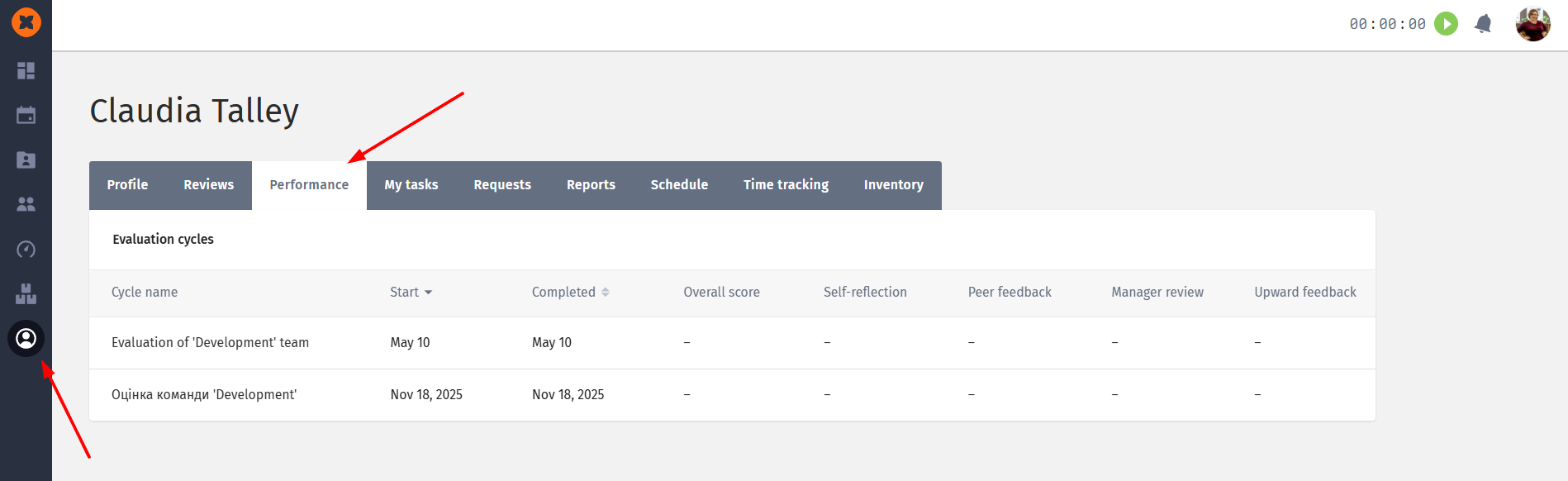
A “Performance” block has been added to employee profiles, where all their assessment results are stored.
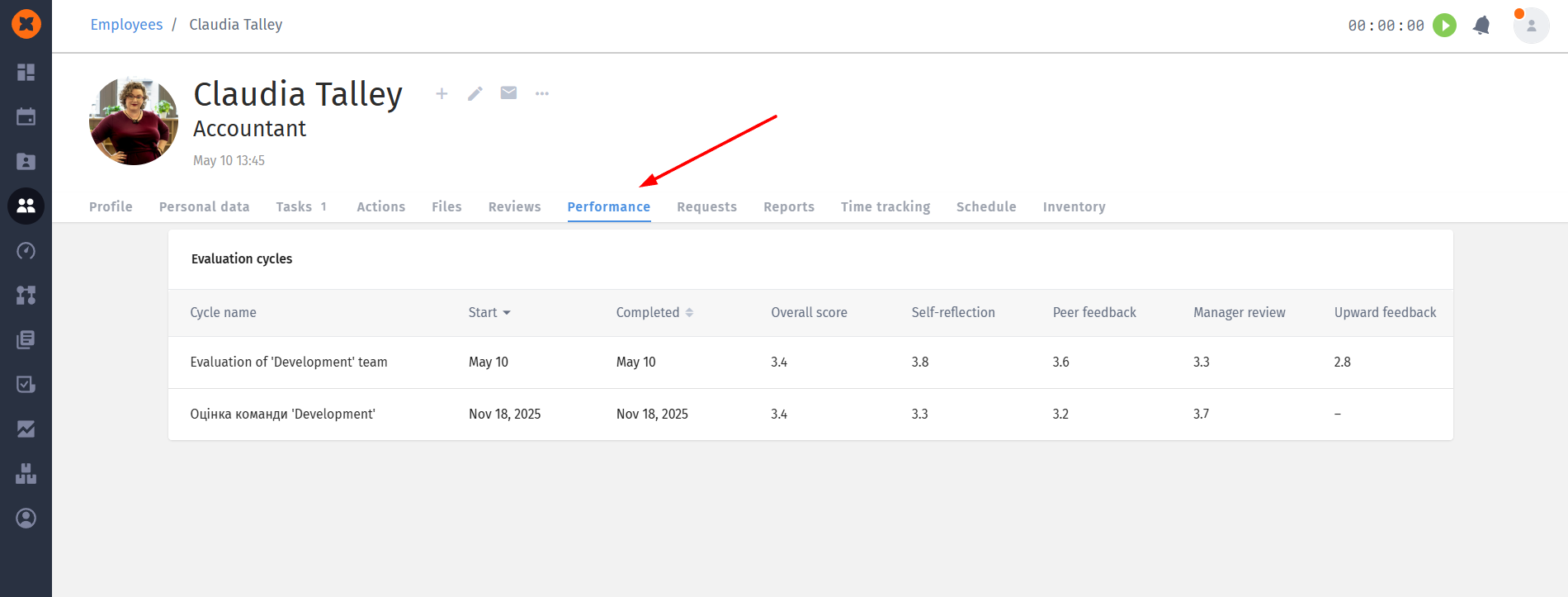
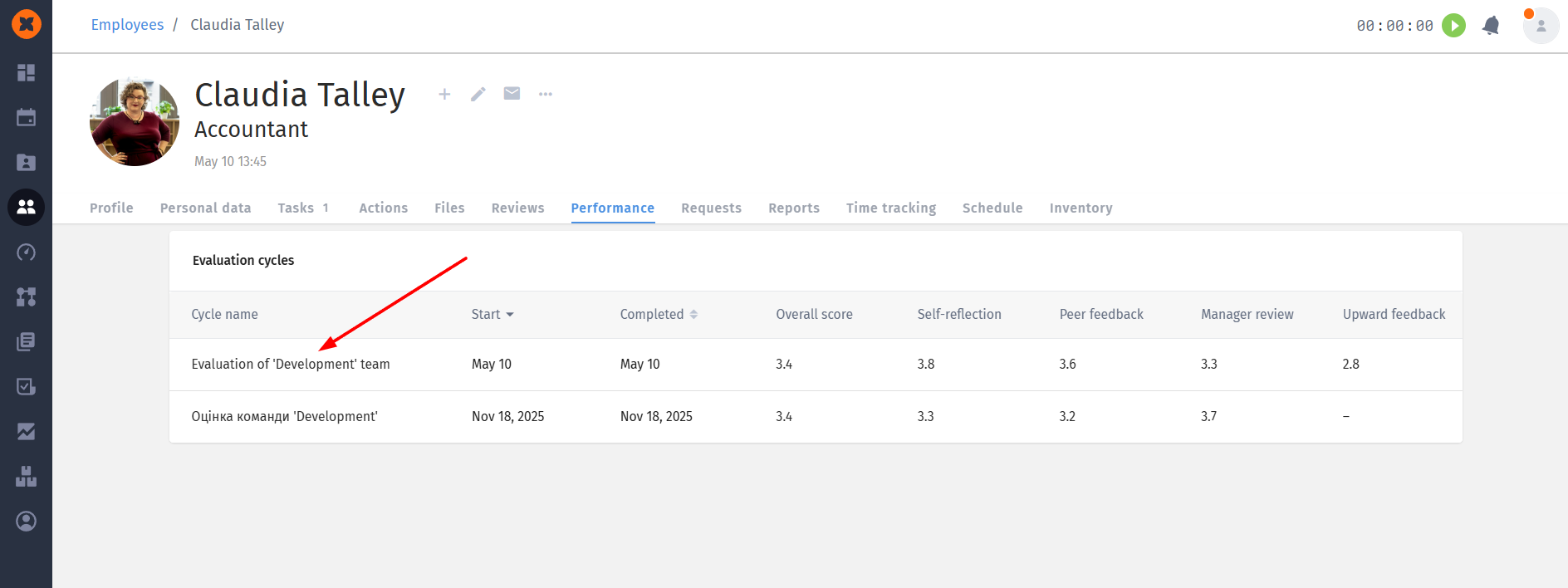
You can go to detailed information about the assessment and results by clicking on the desired name.
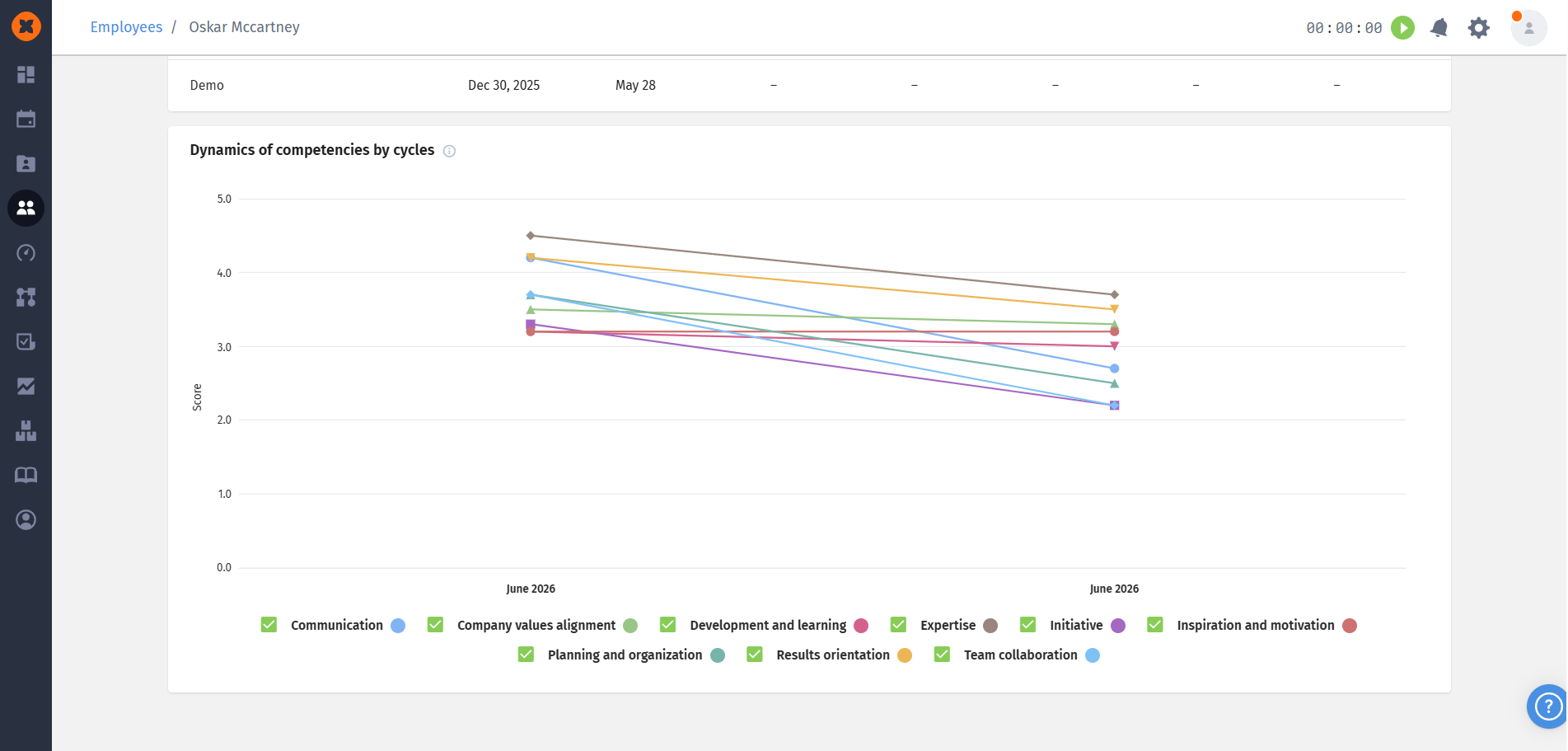
If an employee has completed evaluation cycles that include assessed competencies, the Performance section displays the “Dynamics of competencies by cycles” chart. It shows the average competency scores across the employee's last 8 evaluation cycles.
Each employee will also be able to view the results of their assessment in the “My profile” section.