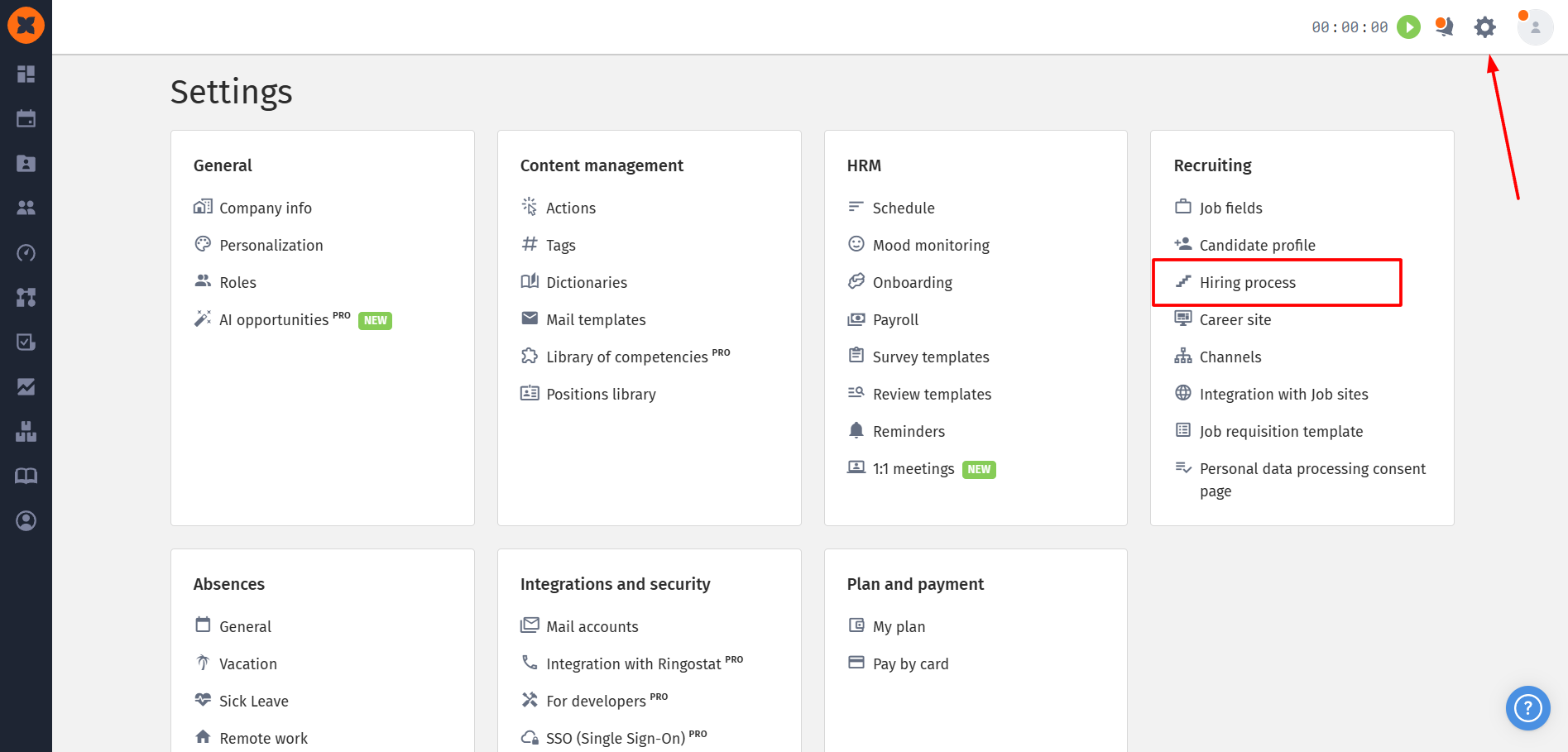
In the “⚙Settings“ - “Hiring process“ - “Job stages“ section, you can manage the candidate selection stages.
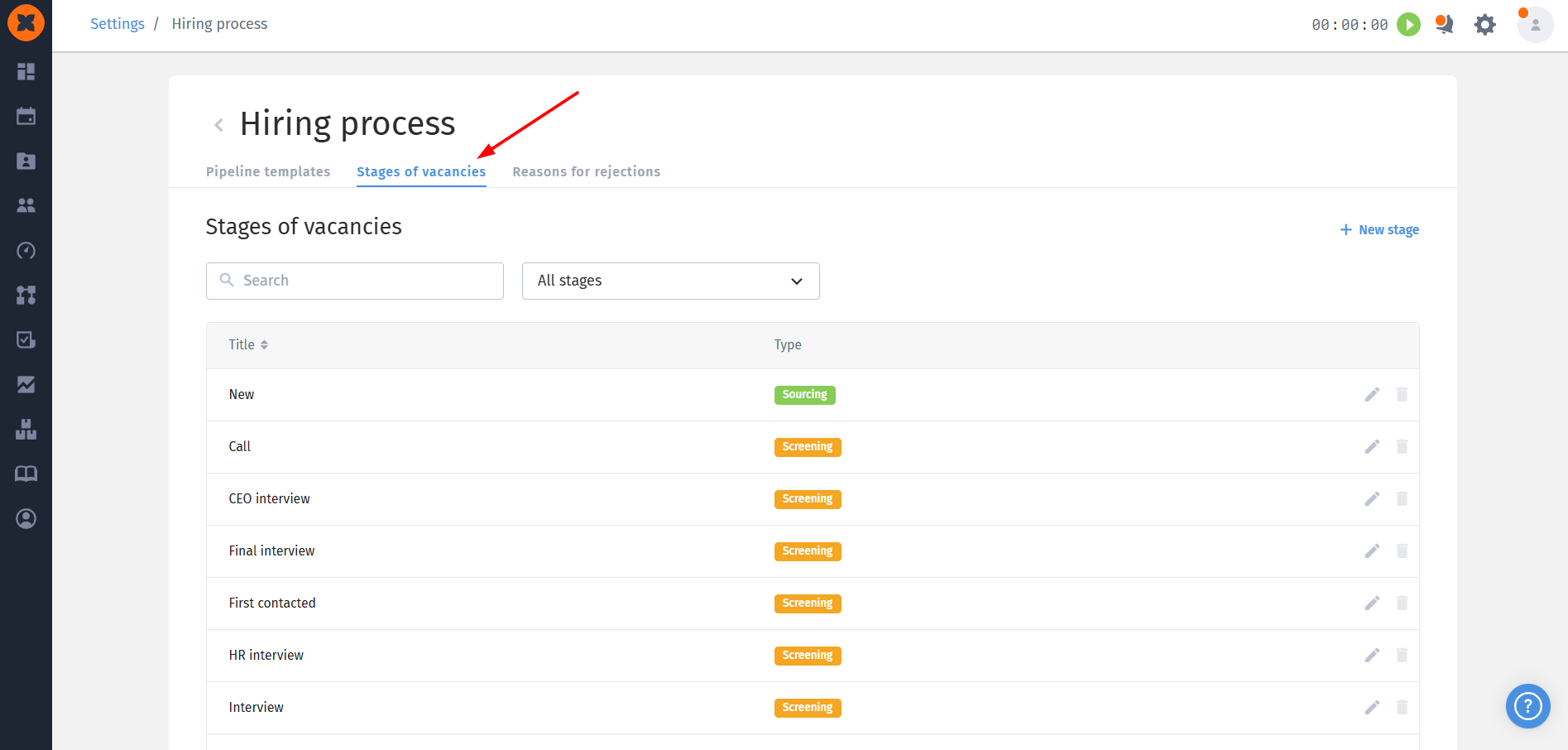
The page displays a list of all stages, including their names and types (for example: sourcing, screening, offer, hiring). You can also quickly find the stage you need by name using the search field.
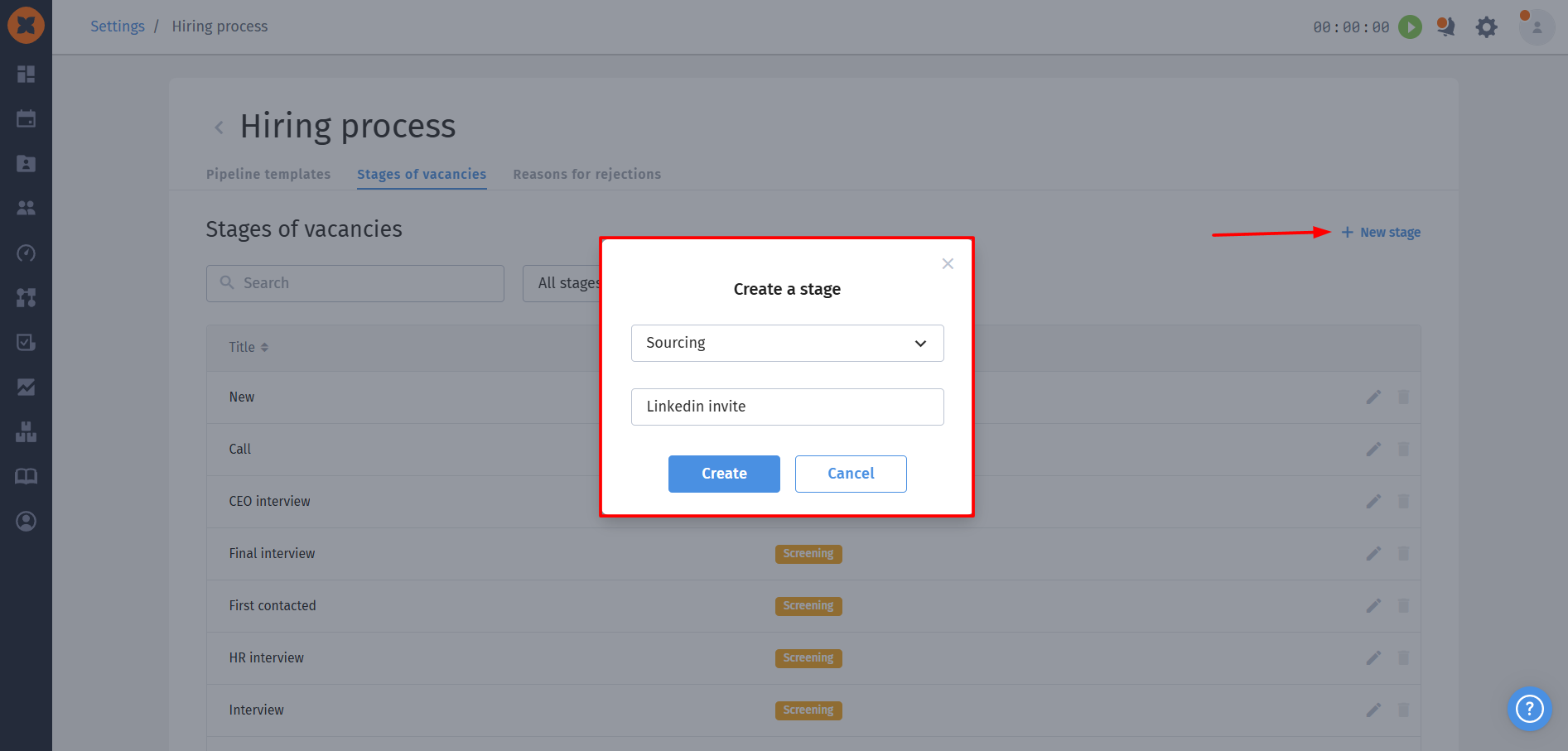
The “+New stage” button lets you add a new stage to the recruitment process.
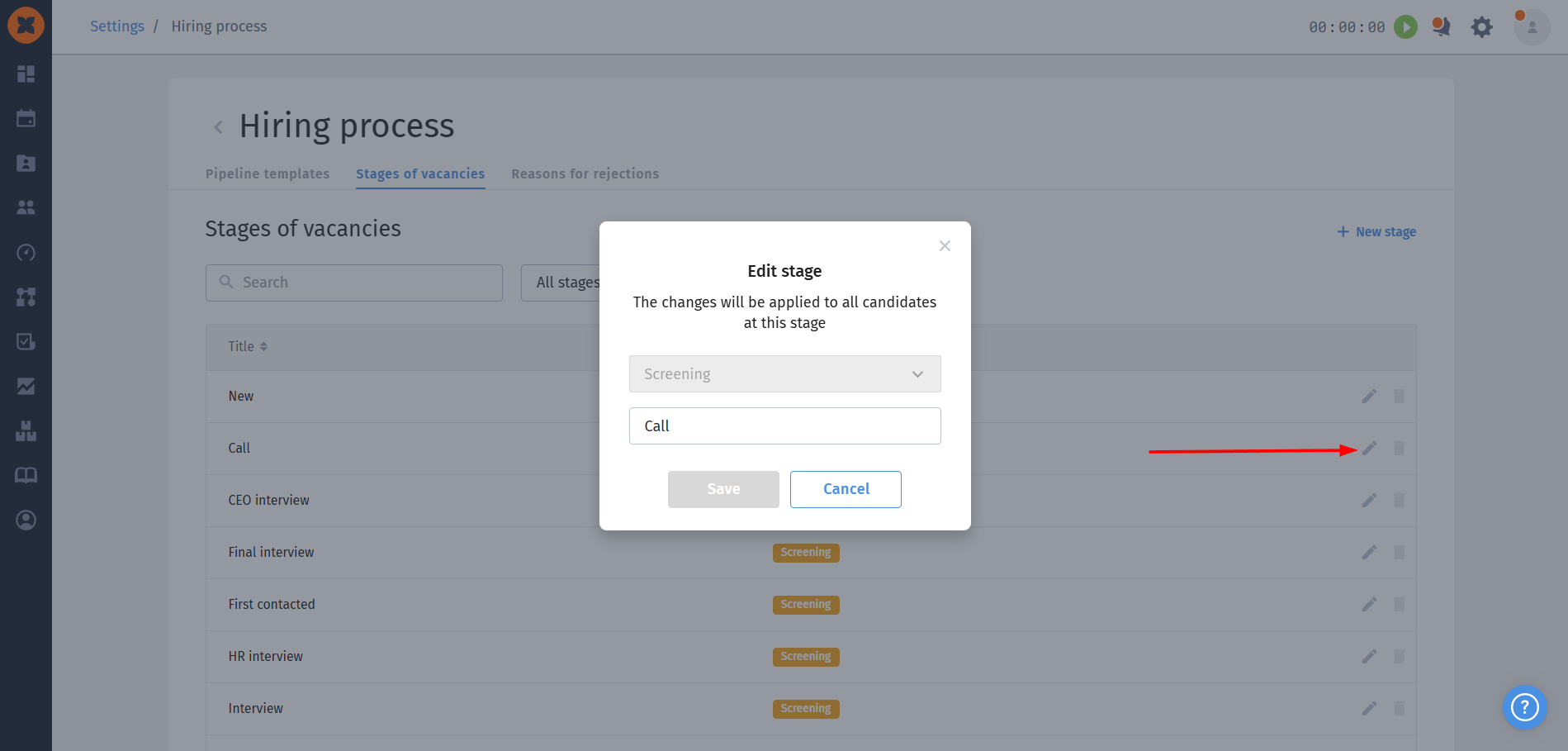
Editing a stage: lets you change the stage name using the edit button.

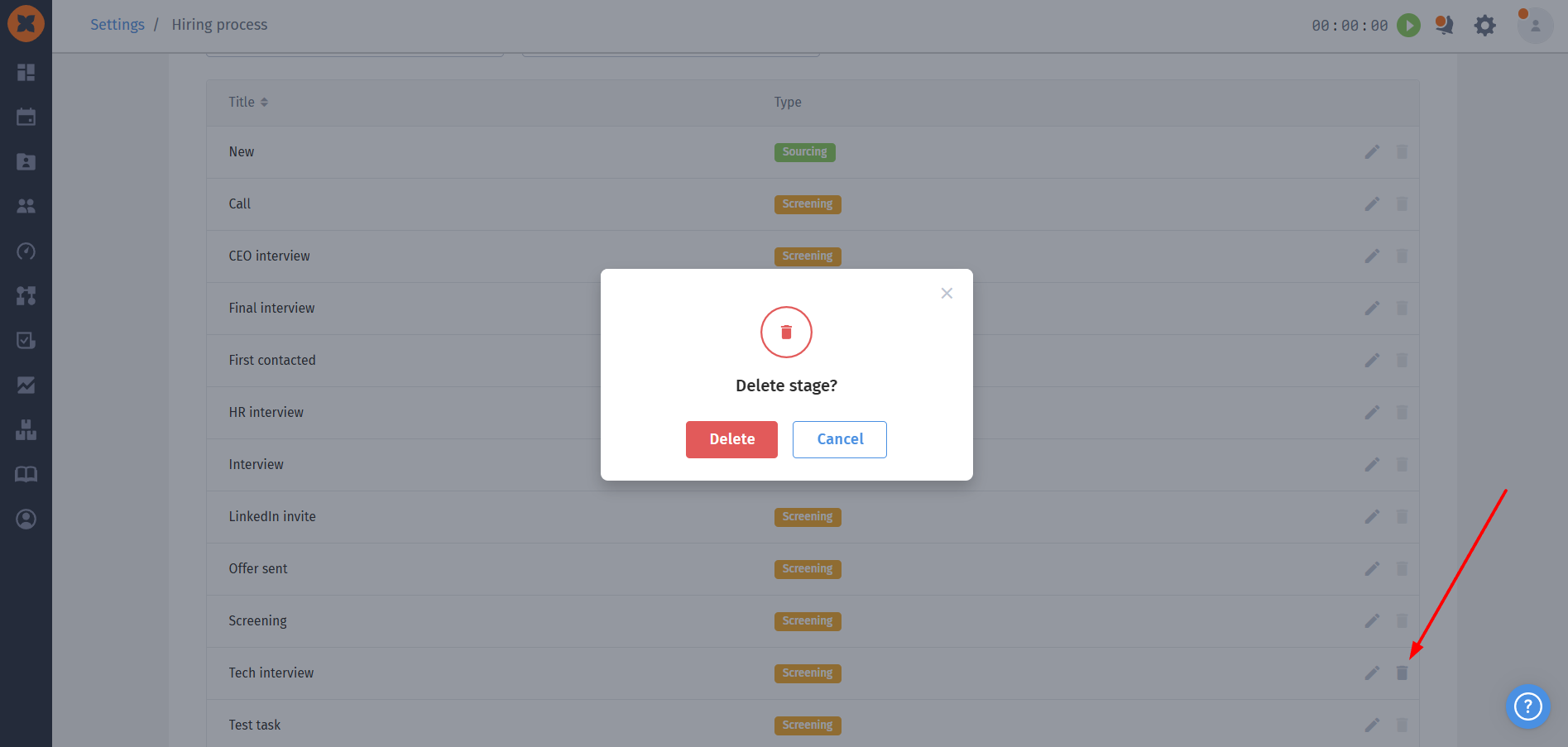
Deleting a stage: allows you to delete outdated stages.

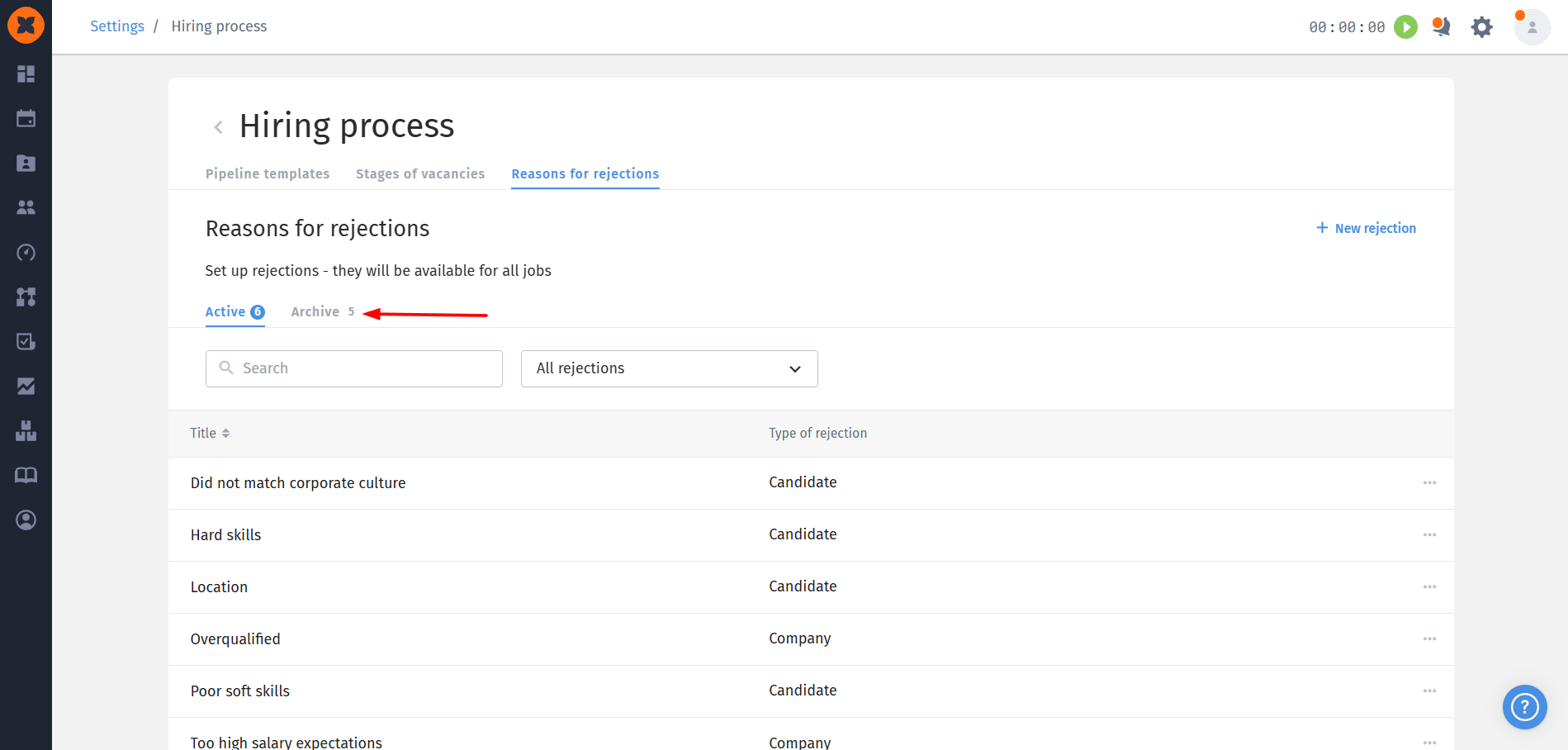
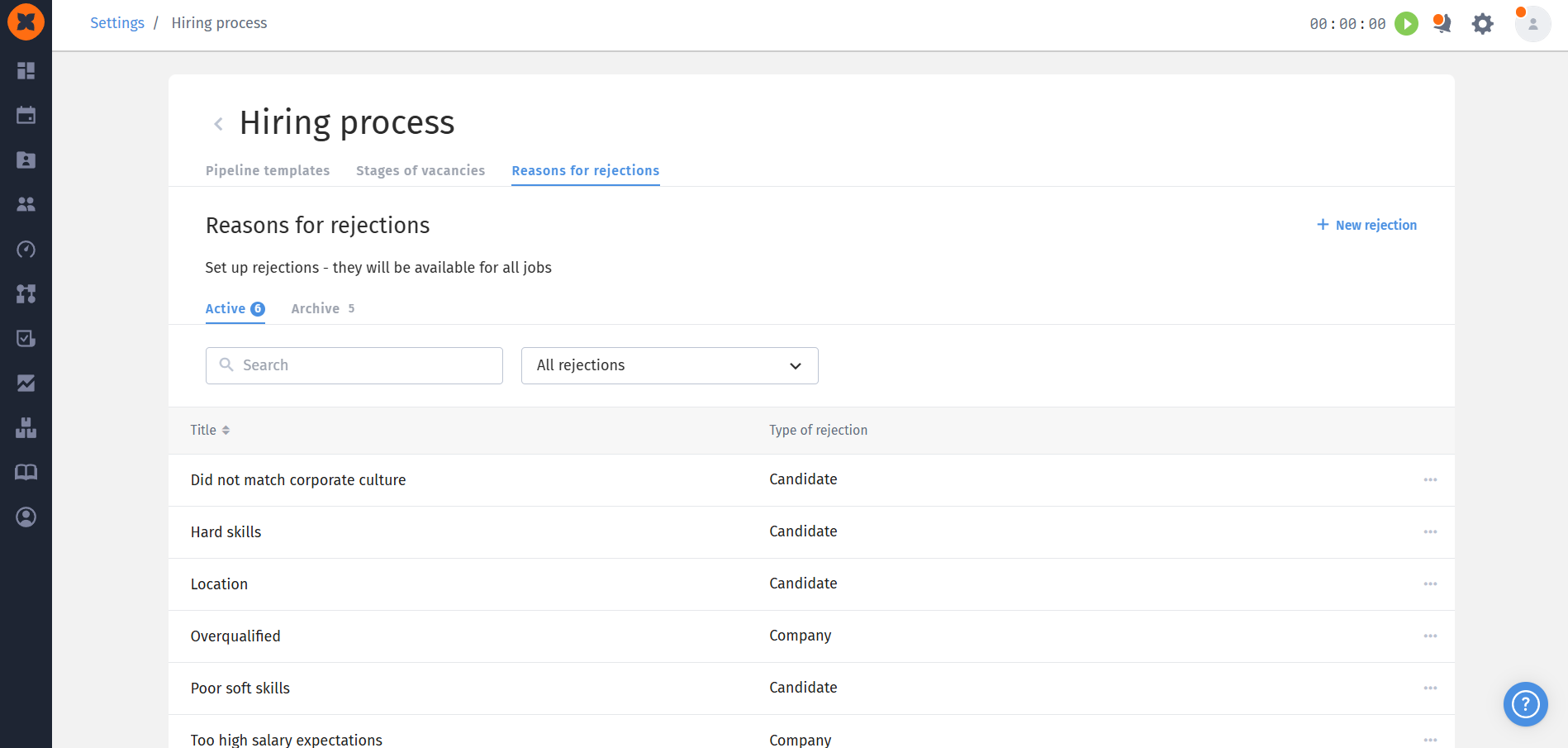
In the “⚙ Settings“ - “Hiring process“ - “Rejection peasons“ section, you can configure the reasons why a candidate or company declines to continue the hiring process.
The page displays a list of all available reasons and their types:
Company rejections - rejection by the employer;
Candidate rejections - rejection by the candidate.
Filtering is also available (for example, showing only candidate or company rejection reasons), as well as searching by name.
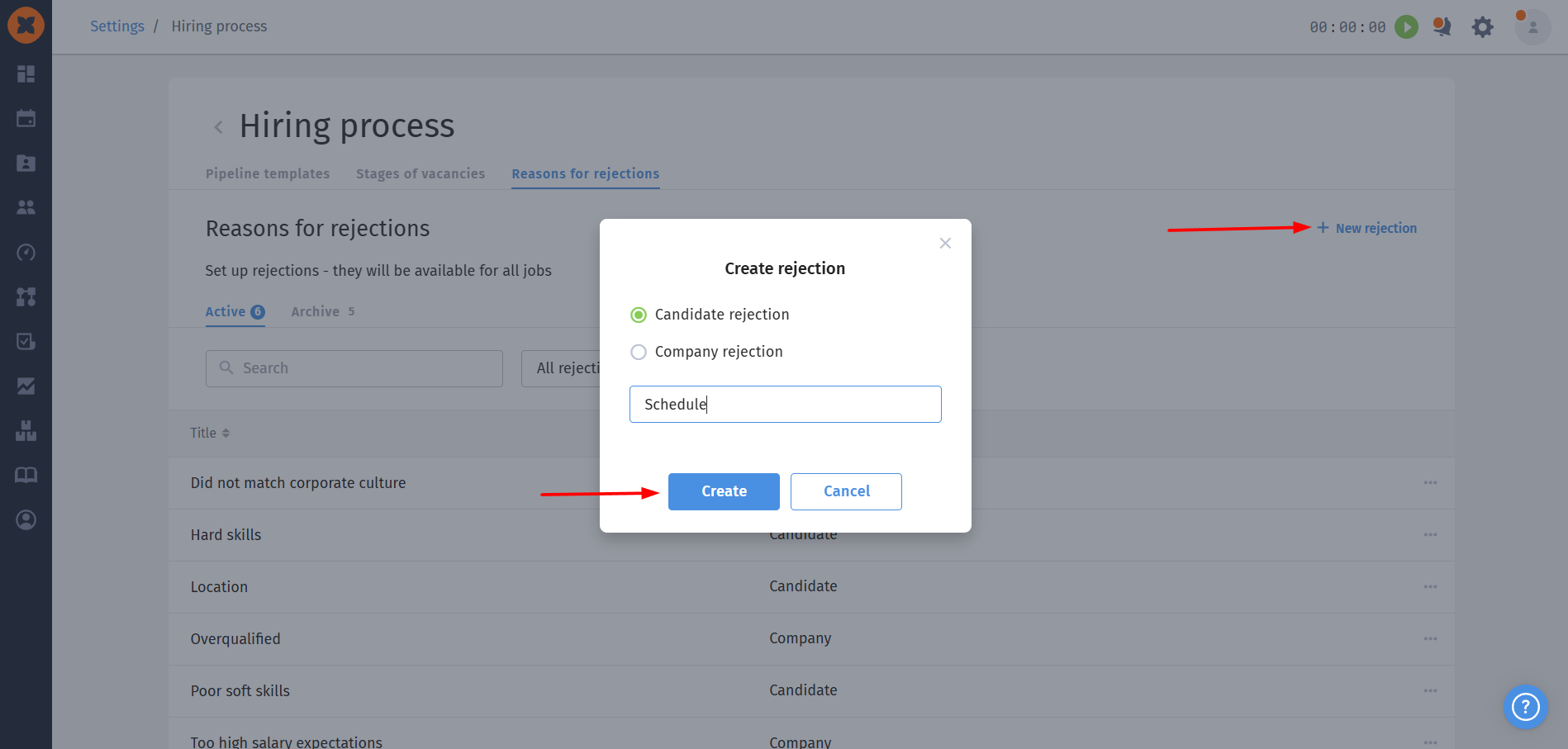
The “+New rejection” button lets you add a new reason that will be available for all vacancies.
To create one, you need to specify the rejection type and enter its name.
editing a reason: you can edit the name of the selected reason;
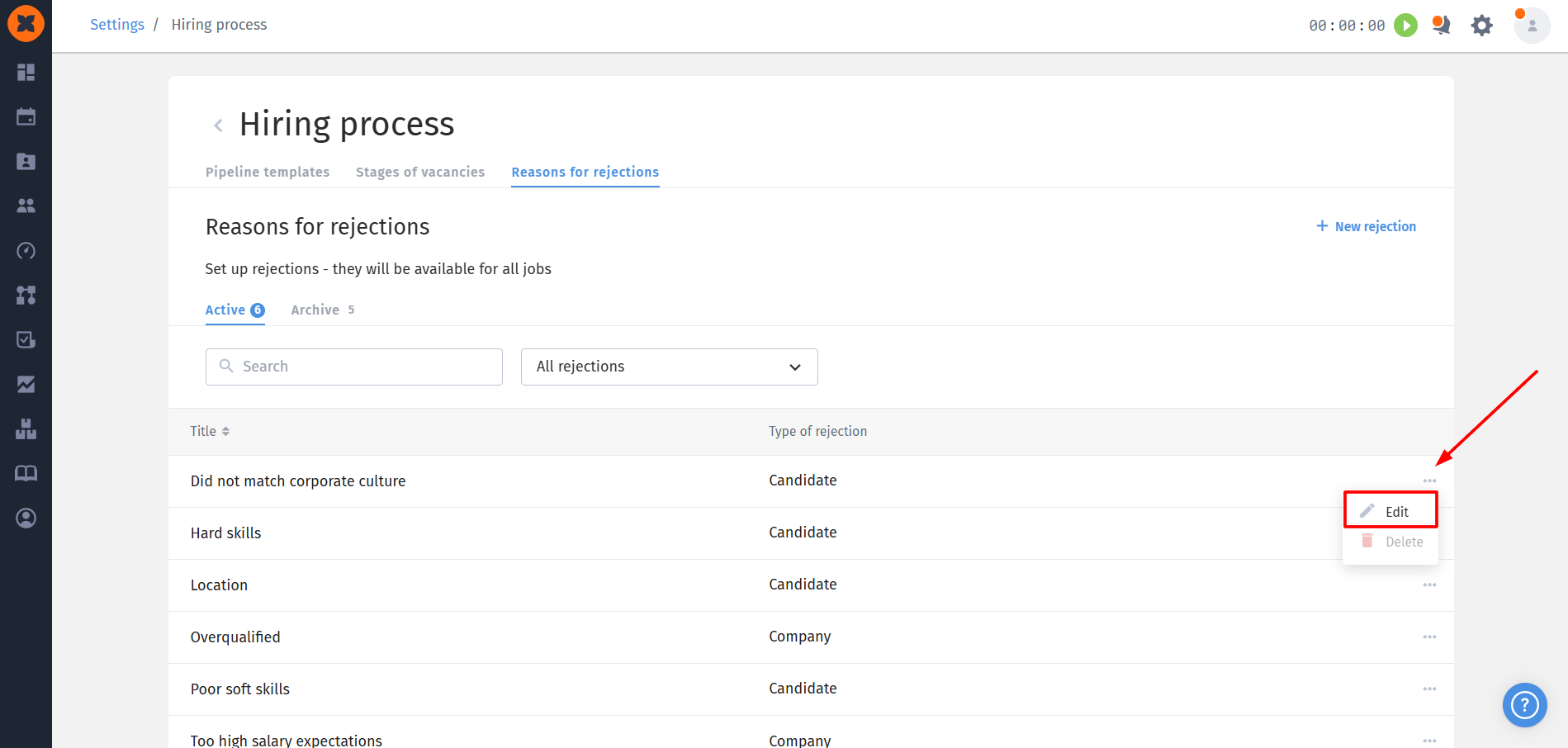
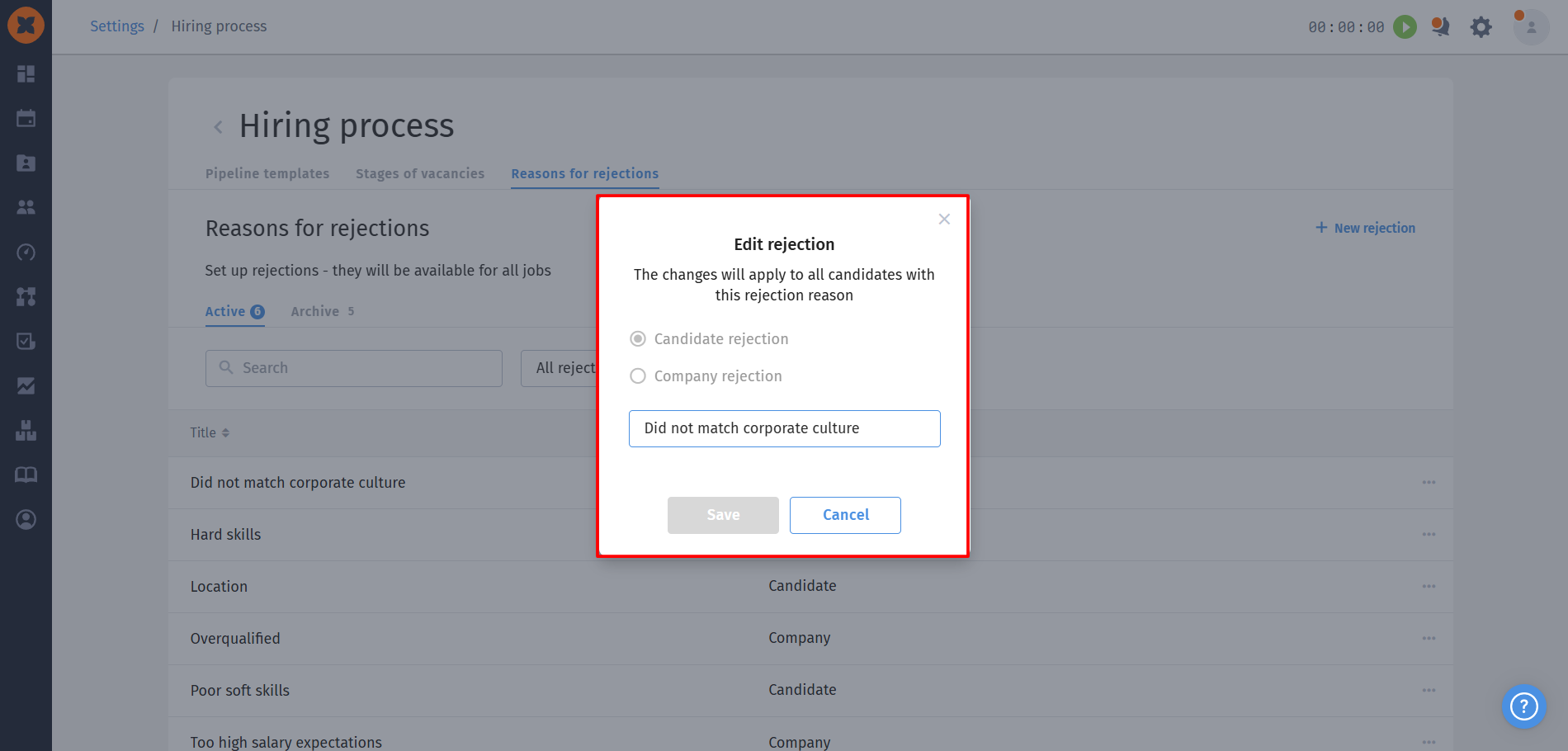
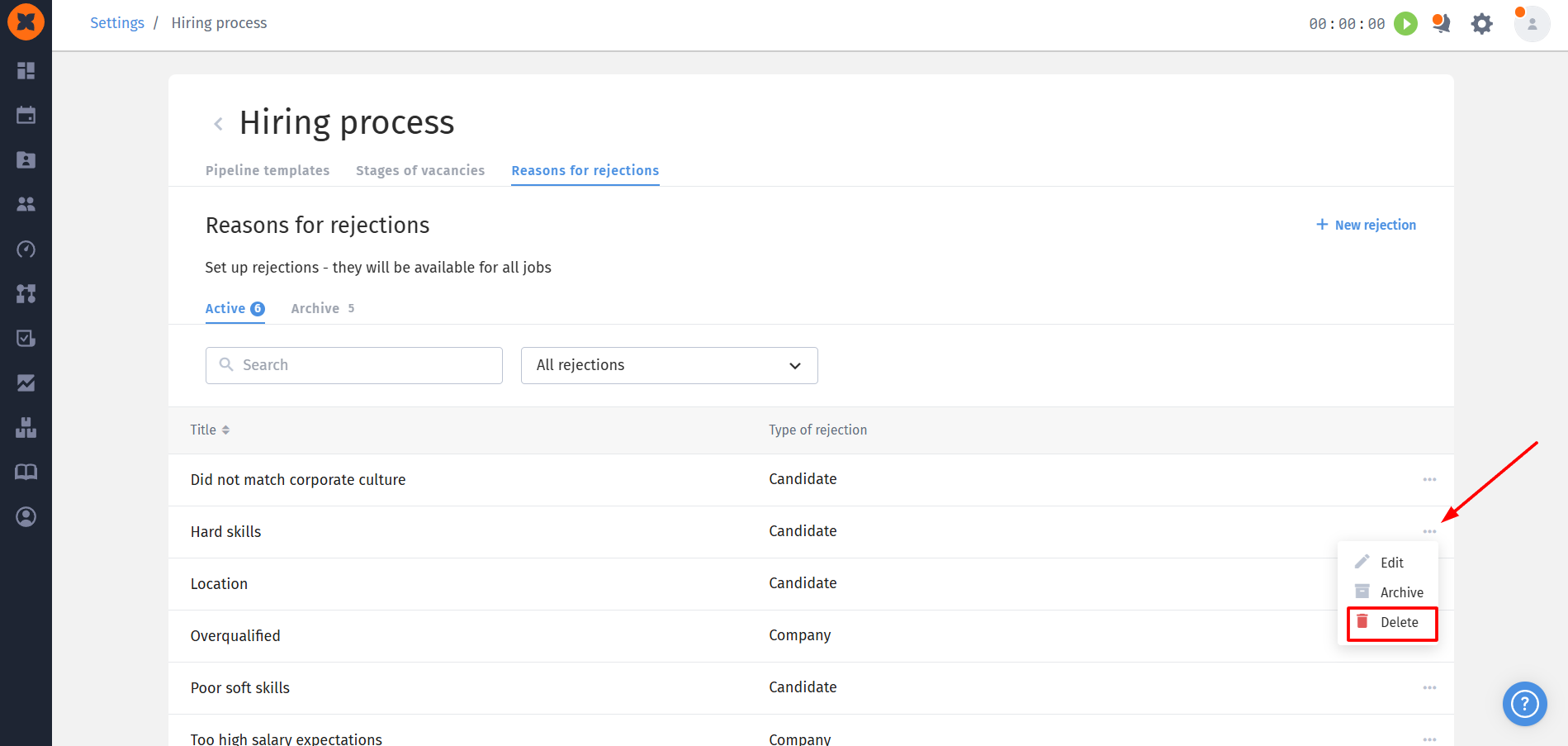
deleting a reason: lets you delete outdated reasons.
archiving rejection reasons: if you have outdated rejection reasons that are still used in other vacancies and cannot be deleted because they are needed to preserve historical data and analytics, you can archive these rejection reasons.
Once archived, they will no longer be available for selection when rejecting a candidate, while historical statistics will remain unchanged.
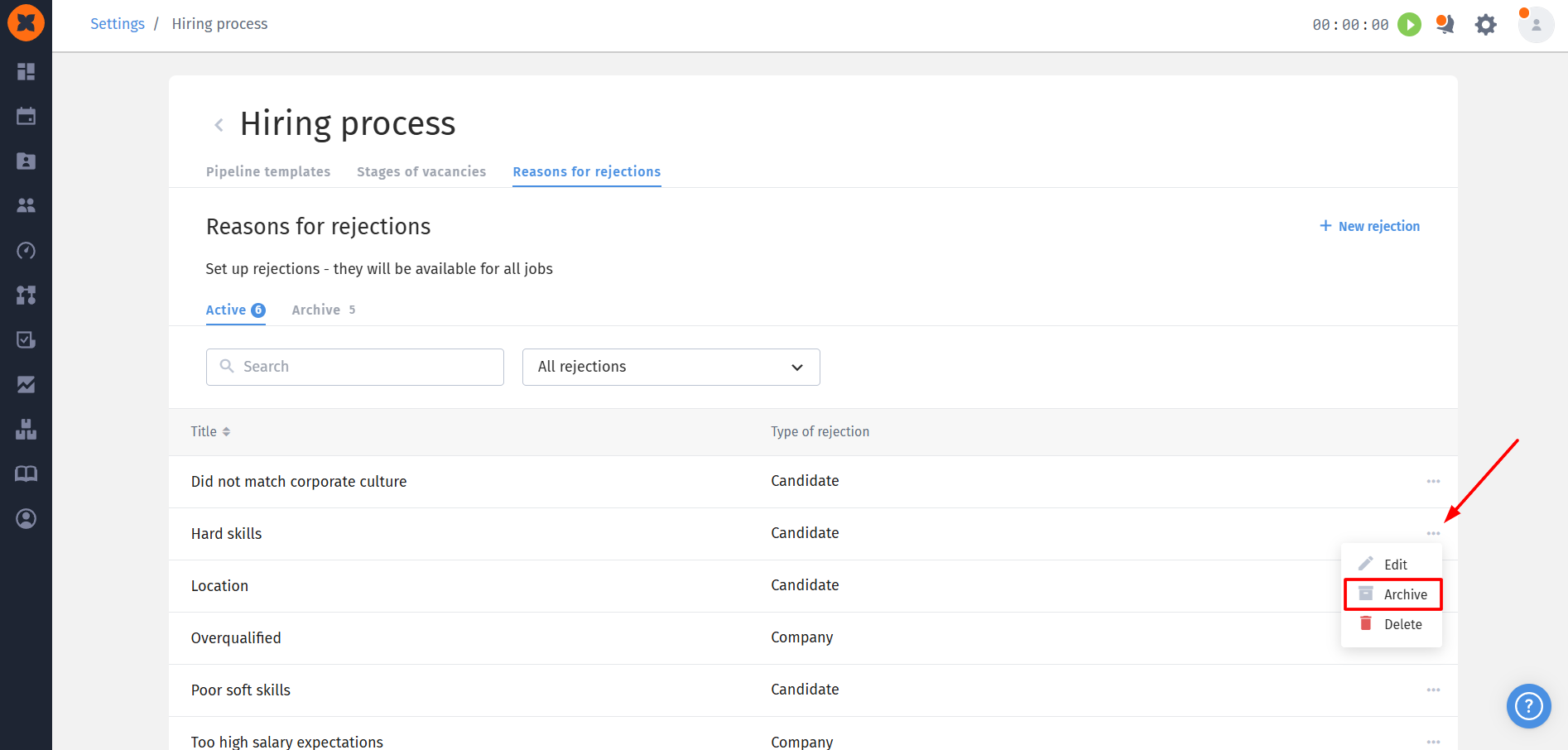
You can view all archived rejection reasons in the “Archive” tab.