Recruiters often spend a significant amount of time manually reviewing irrelevant resumes, and the approach to initial screening within a team can often be inconsistent. This frequently leads to longer time-to-hire, decreased overall team productivity, and the loss of top talent simply because their application wasn't spotted in time.
To solve this problem, we have introduced AI Screening (Candidate Evaluation) - a smart assistant within your HURMA system that helps automate routine application processing. The tool automatically extracts key requirements from the job description, allows recruiters to easily review and edit them, and then instantly calculates a matching percentage for candidates. This enables you to unify your selection process and focus exclusively on the most relevant applicants.
The "AI Screening Assistant" functionality is available in the "ATS PRO" plan and operates using additional AI credits.
To upgrade your plan, please contact your dedicated personal manager or reach out to us at [email protected].This feature is currently in beta testing. As we continue to refine and expand its capabilities, updates may occur, and changes to availability or pricing are possible. We appreciate your patience and look forward to your feedback! 🧡How to activate the feature

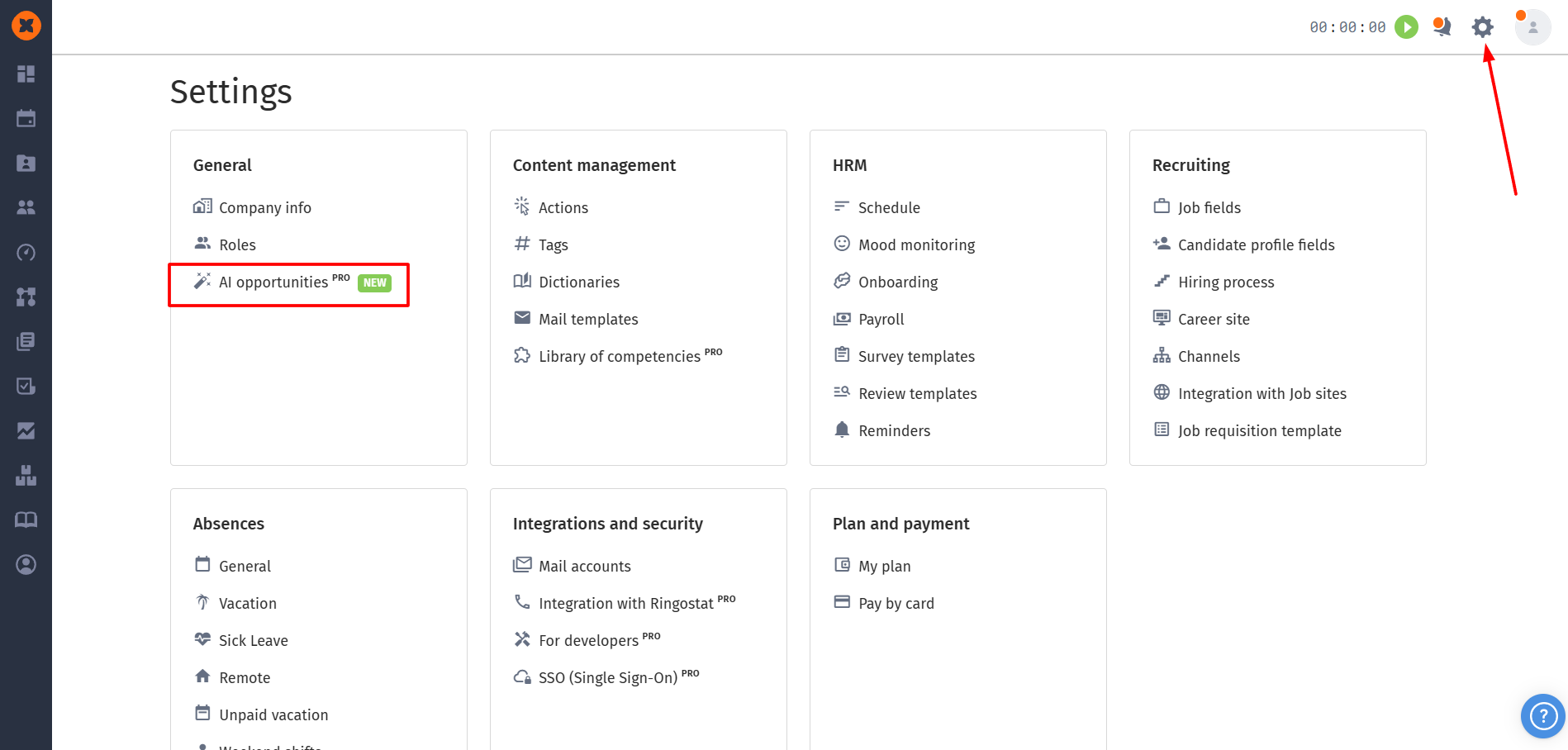
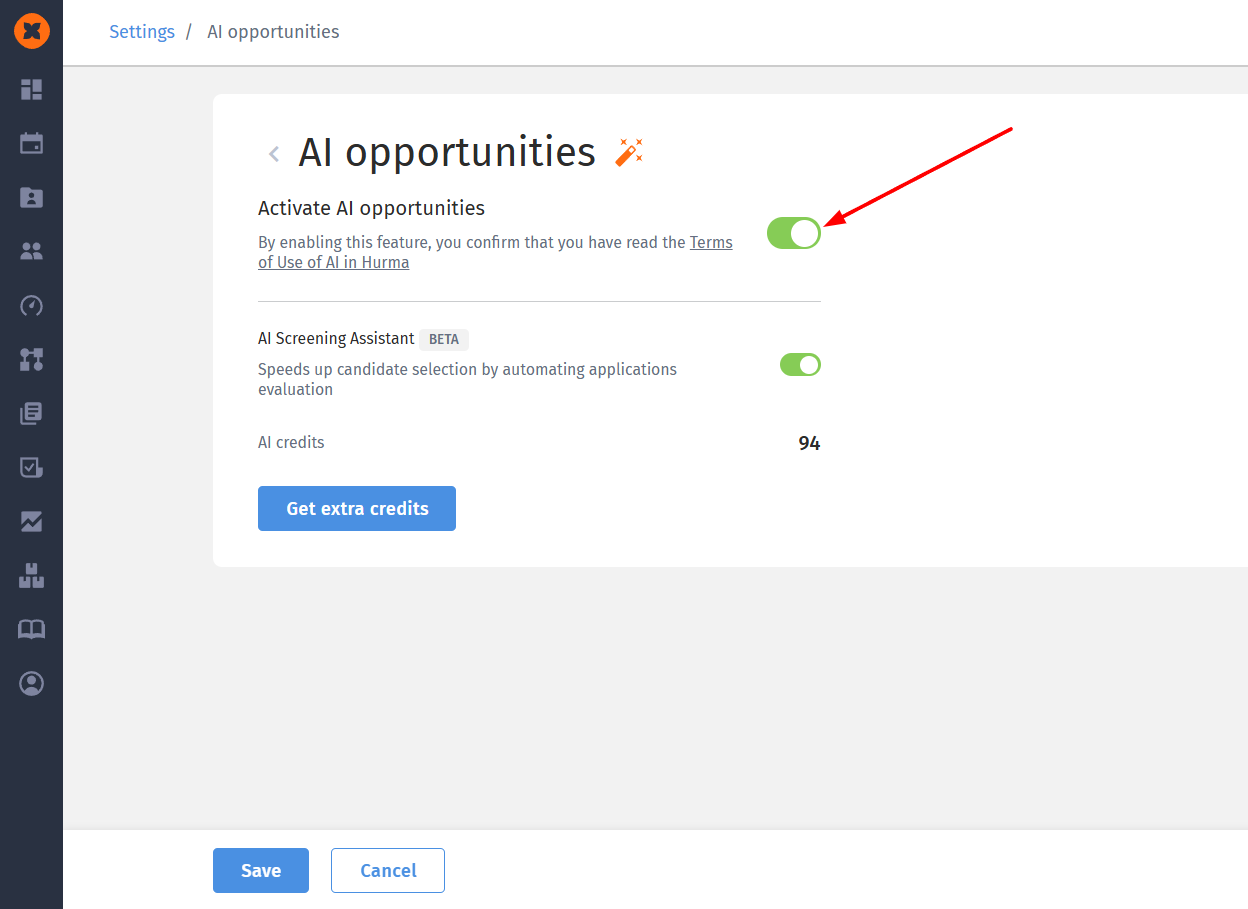
To enable the tool, go to the "⚙" page - "AI opportunities" and toggle the switch to allow the system to activate the functionality.
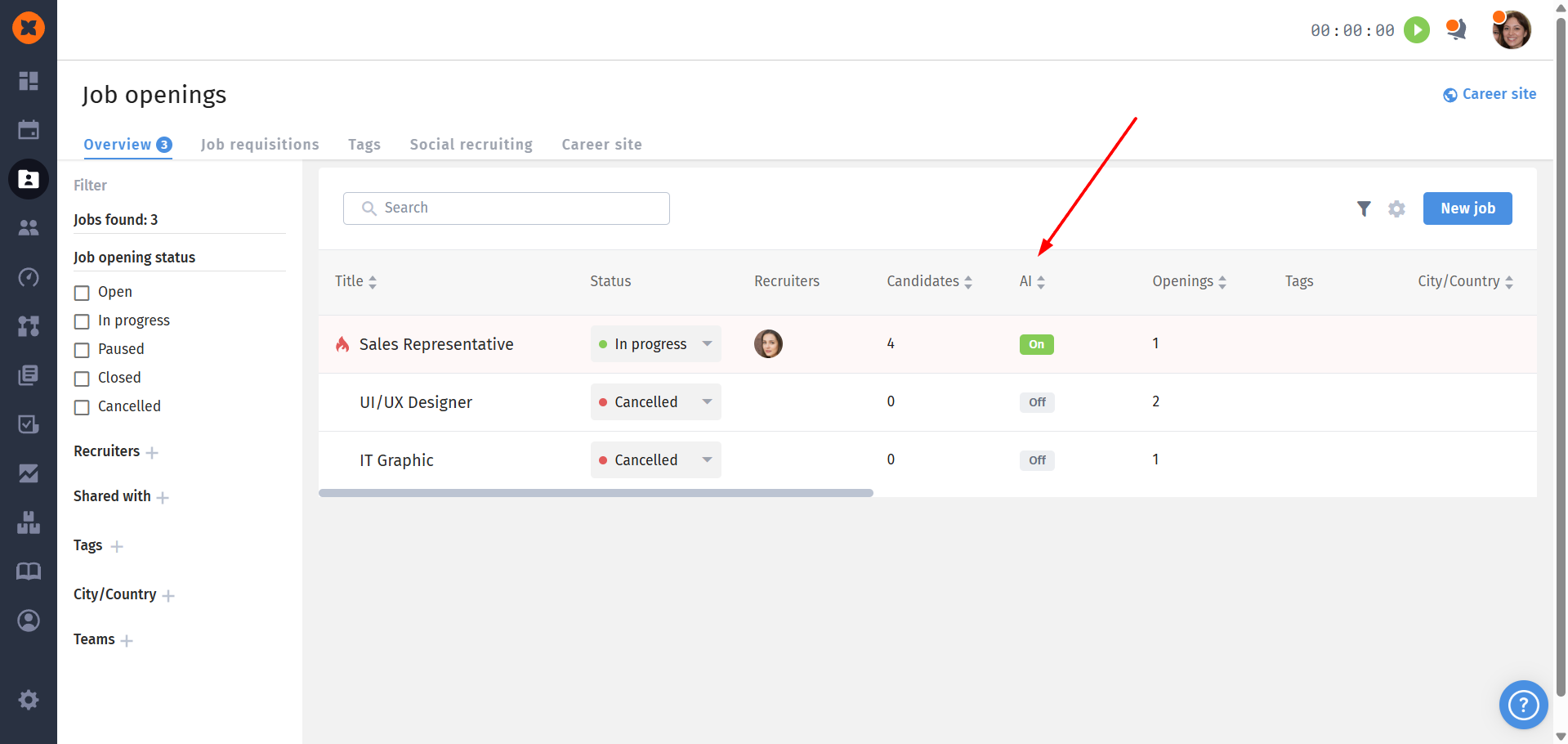
After this, an "AI" column will appear in the general vacancy list, indicating whether the evaluation is enabled or disabled for a specific vacancy.
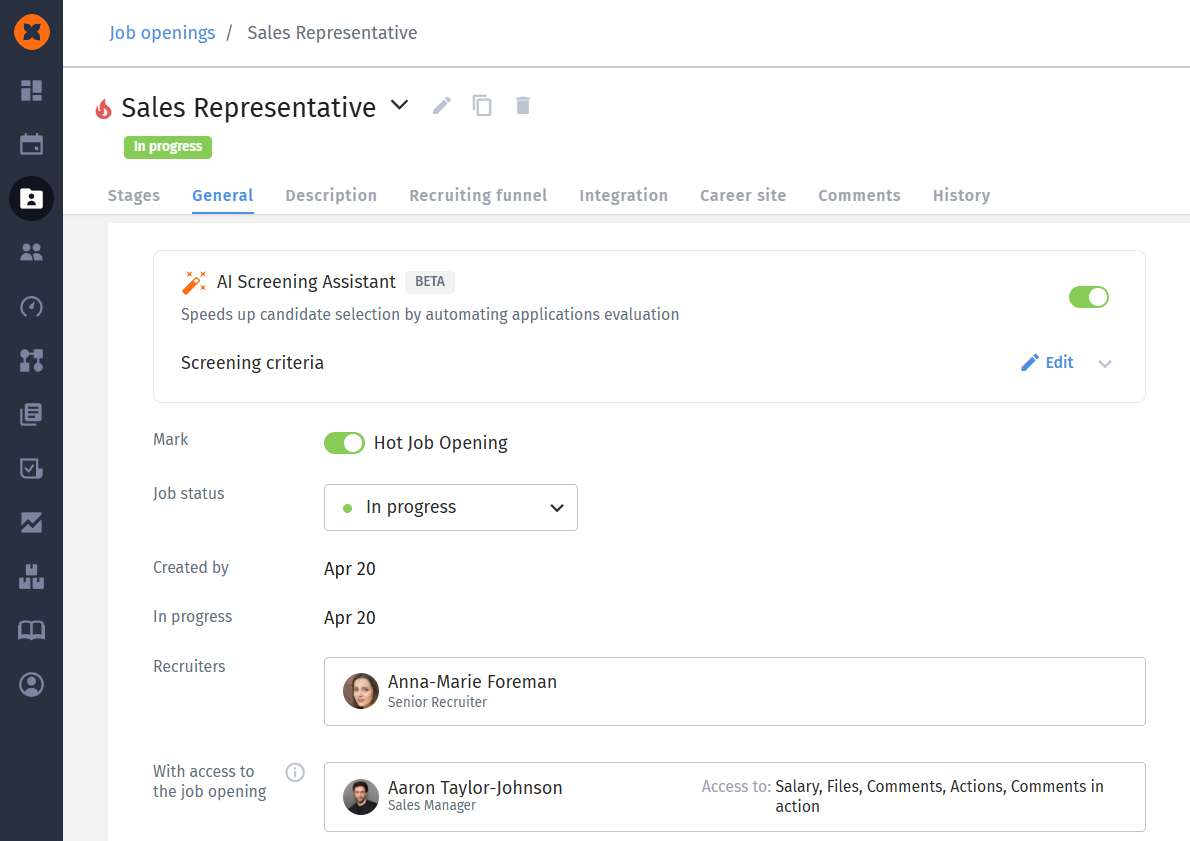
Under the "General" tab within each vacancy card, a new "AI Screening Assistant" block will appear. In this section, you can enable or disable AI screening and edit the evaluation criteria.
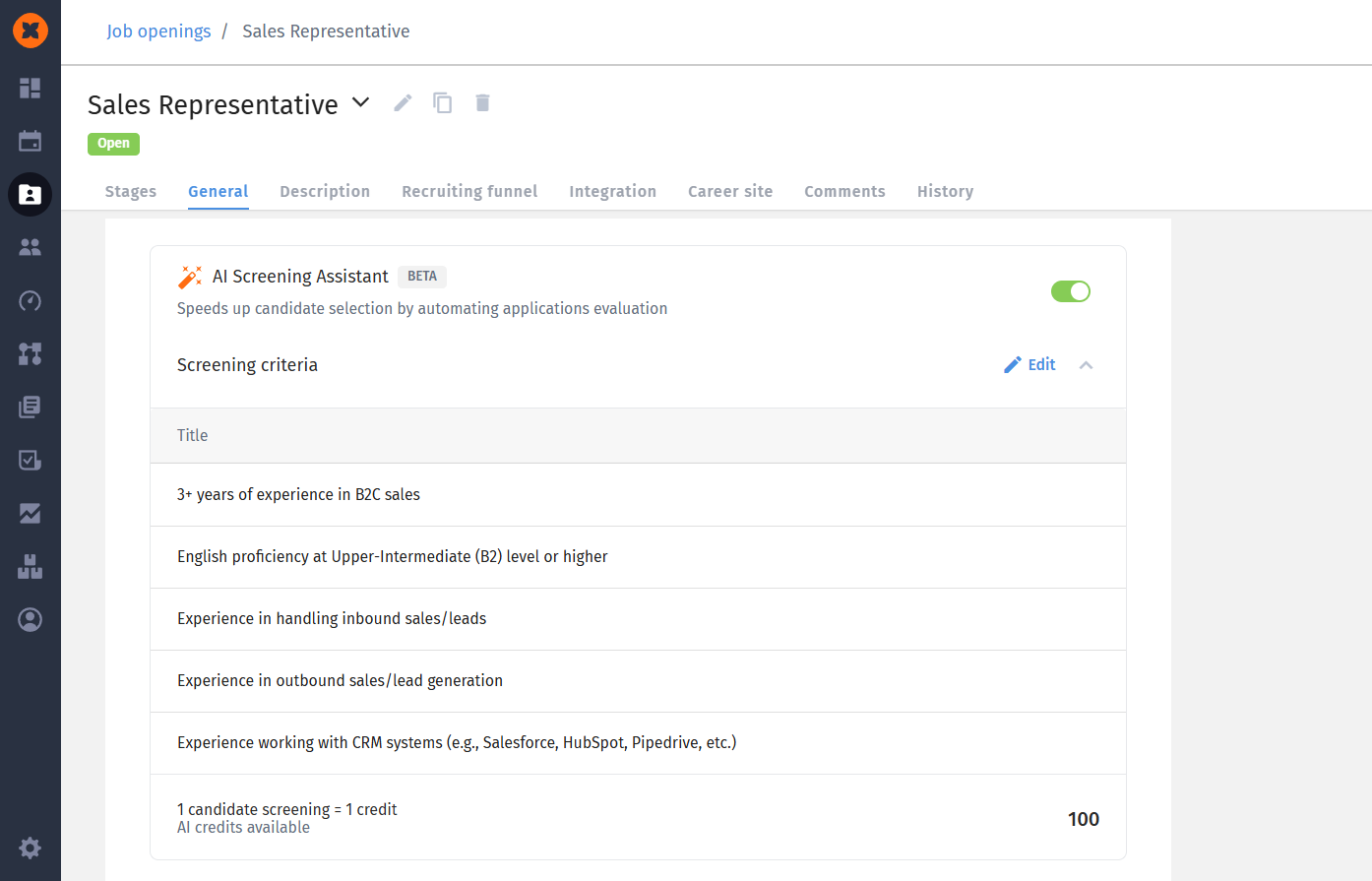
Once the "AI Screening assistant" is activated, the evaluation criteria are generated automatically. These criteria are generated only once based on your job description; however, you have the flexibility to manually customize this list later: you can keep the generated items, remove unnecessary ones, or add your own (for example, a specific residency or city requirement).
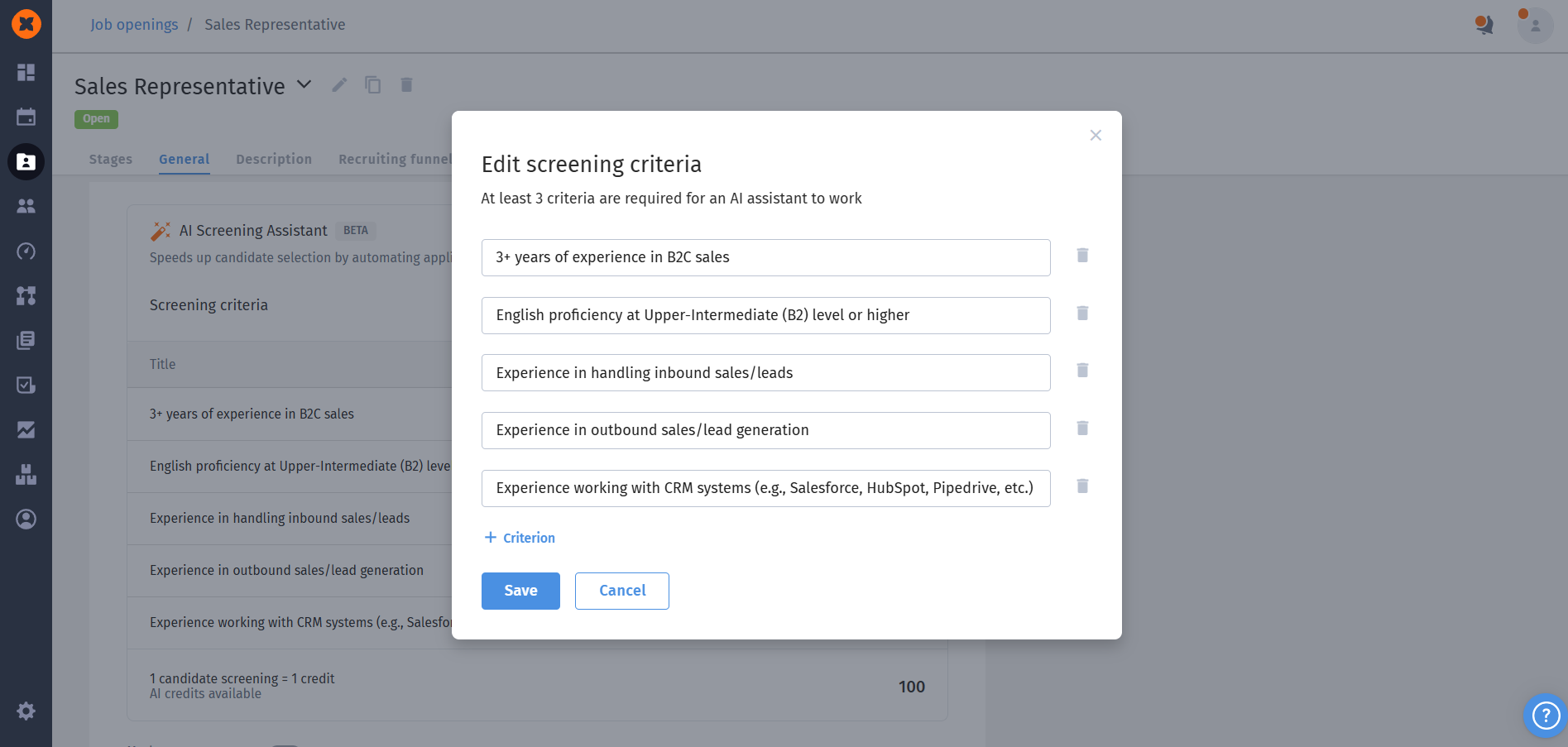
You can configure between 3 and 10 unique criteria, and the system will not allow you to save two identical names.
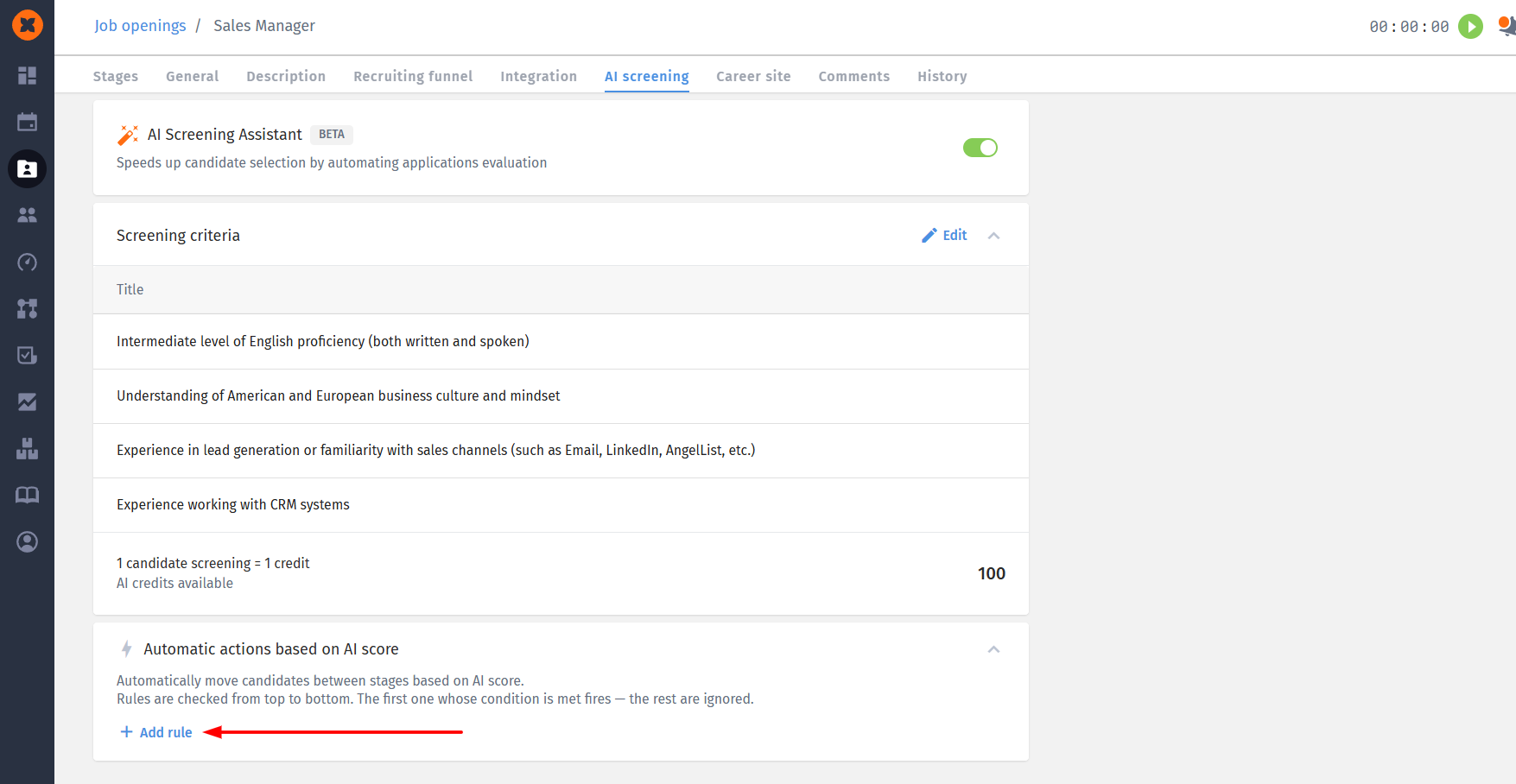
The “AI Screening” tab includes a section that allows you to automate candidate movement through the hiring pipeline based on their AI score.
To create an automatic action, click "Add Rule" and configure the following settings in the pop-up window:
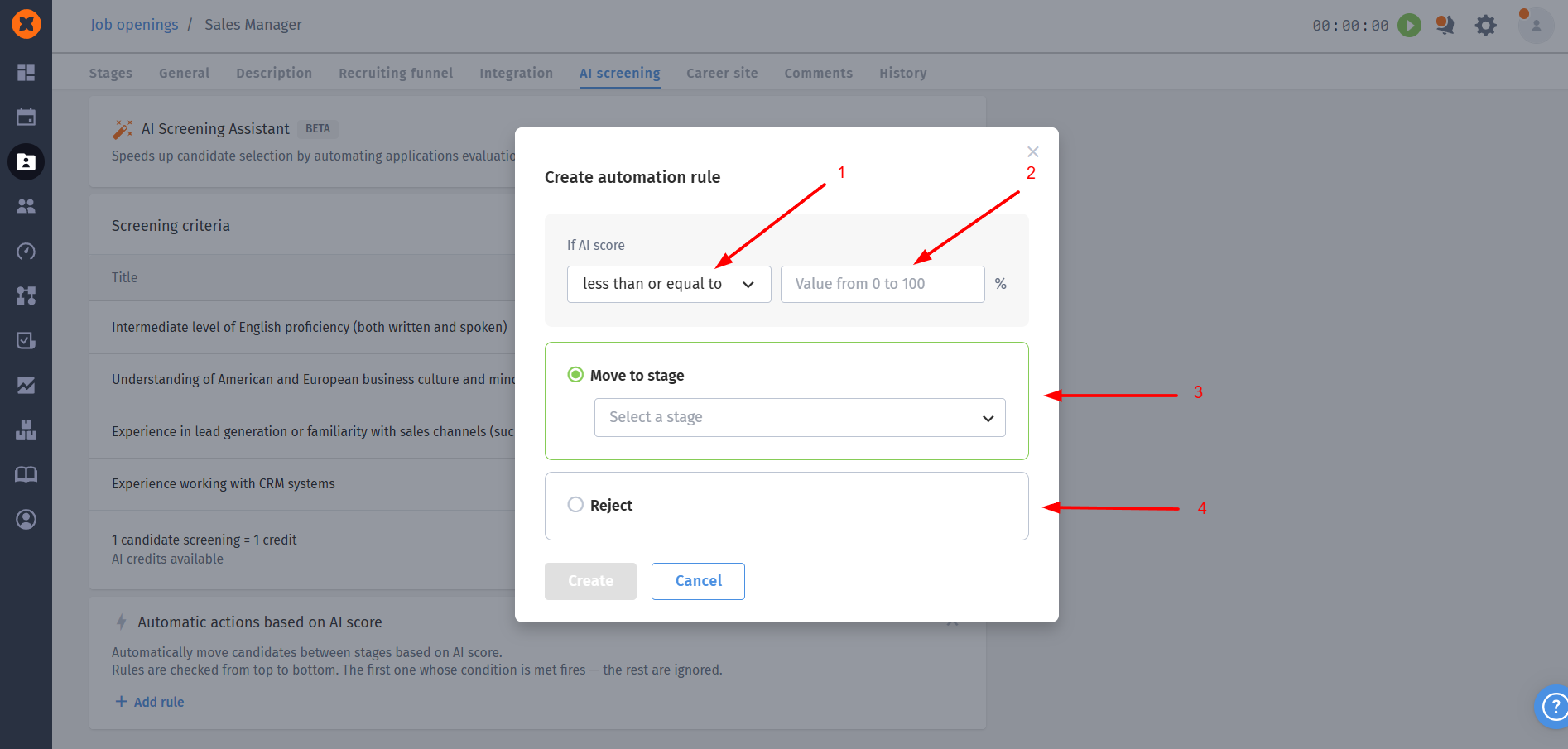
Operator: select one of the available operators (Less than, Less than or equal to (default), Greater than, or Greater than or equal to);
Value: enter the required match percentage;
Stage: select the pipeline stage to which the candidate should be moved (for example, if the AI score is ≥ 80%, move the candidate to the "Offer" stage);
Rejection: to create a rule for automatic rejection, enable the "Reject" option, select the rejection type (Company Rejection or Candidate Rejection), and specify the rejection reason.
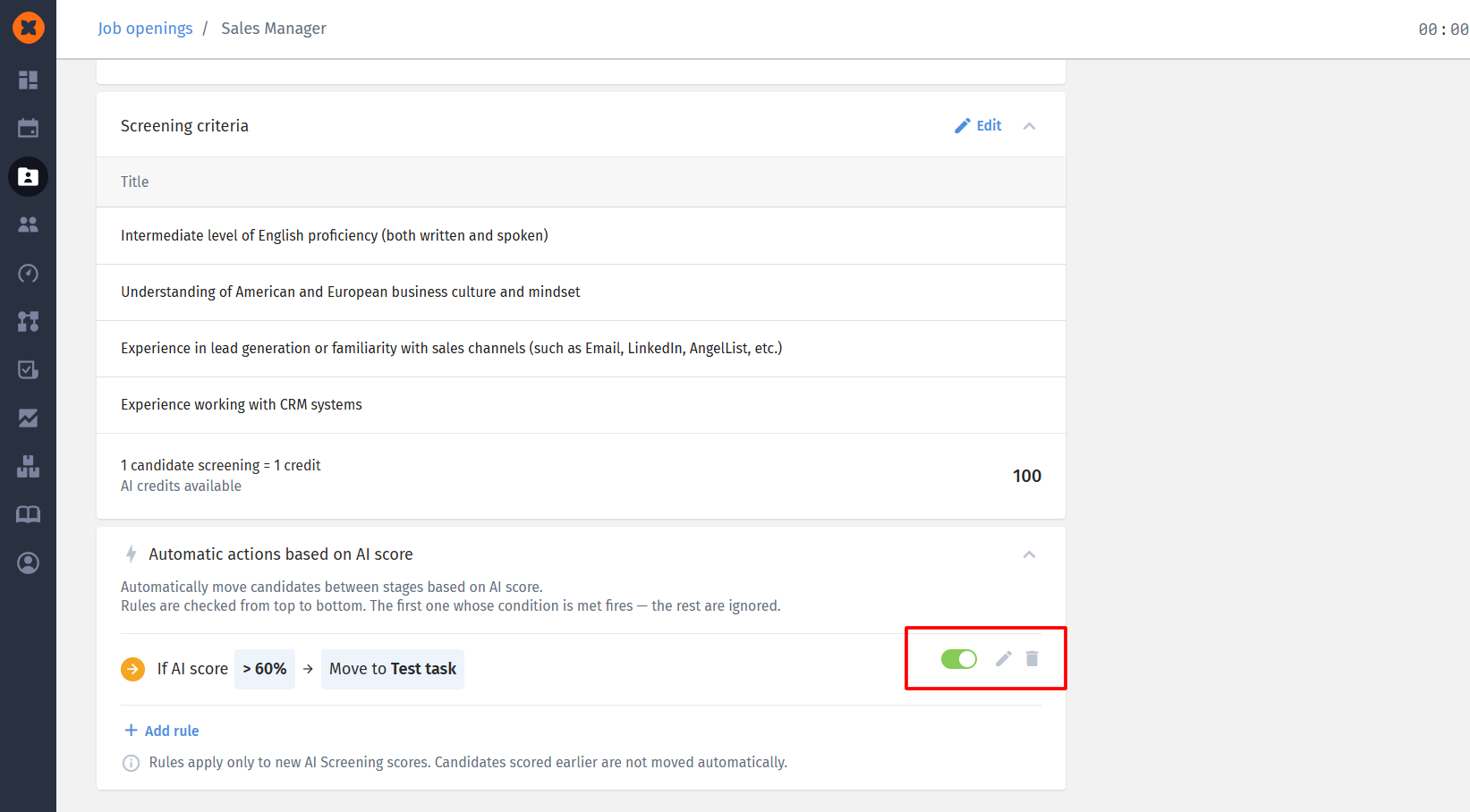
All created rules can be edited (change the stage, percentage, or operator), deleted, and enabled or disabled using the toggle switch.
Candidates can only be moved forward through the hiring pipeline (to the next stages) or to a rejection stage. The system will not move candidates back to previous stages;
If a candidate matches multiple configured rules, only the first rule in the list is applied. Once the candidate is moved, no further rules are evaluated;
If a candidate does not match any rule, or if the target stage defined in the rule is the same as the candidate's current stage, the candidate remains at their current stage;
If a candidate is added directly to a stage of the “Rejection”, “Offer”, or “Hired” type, automatic actions are not applied. The candidate will still receive an AI evaluation but will not be moved automatically.
Once you activate the assessment, all new candidates added to the vacancy will be analyzed by the system within 1-2 minutes. Candidates who were already assigned to the vacancy before the feature was enabled, or those who have reapplied (e.g., duplicate applications), will not be automatically re-evaluated.

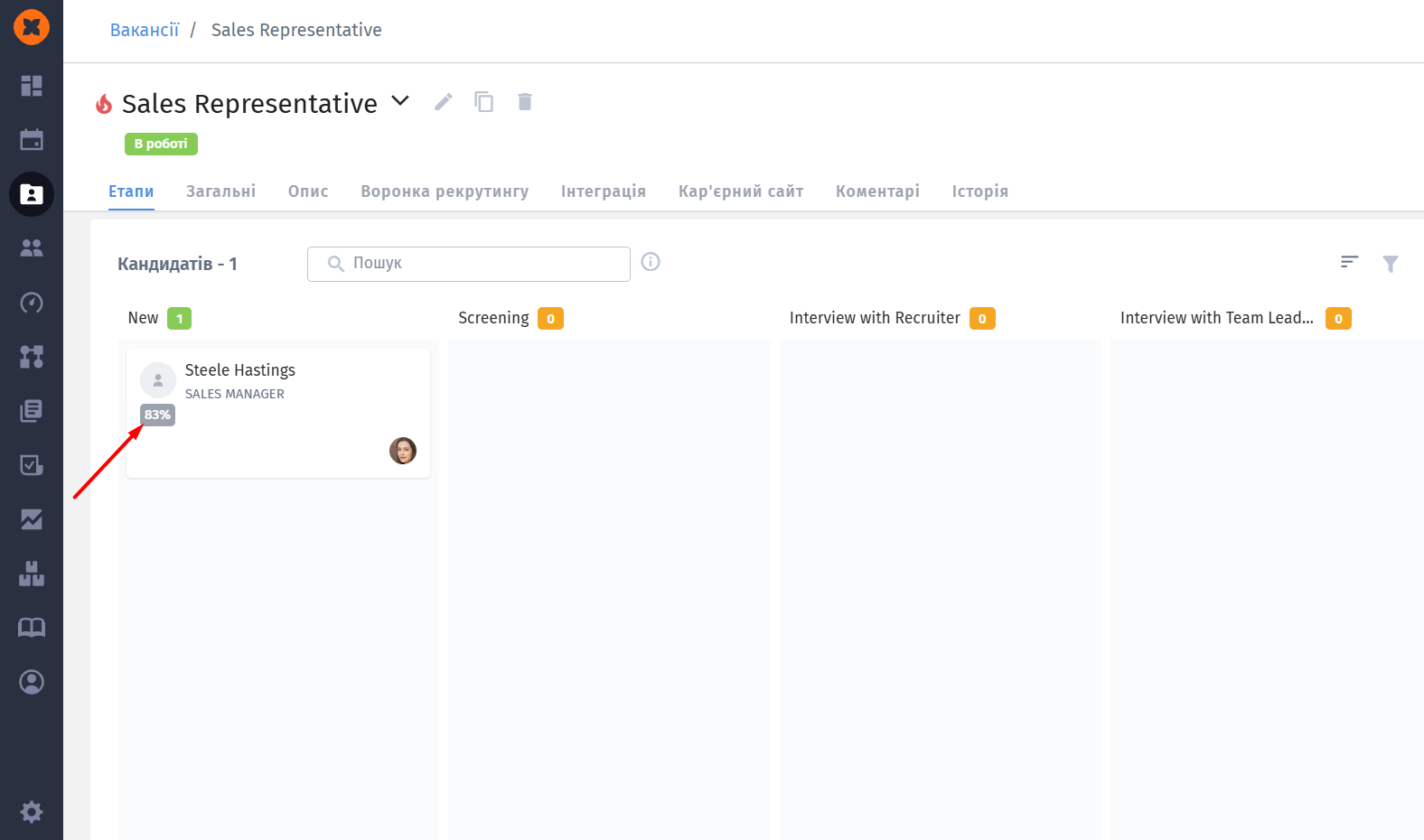
The evaluation is based on data from the profile and resume. By hovering your cursor over the score, you can see detailed information: which specific criteria the candidate meets and which they do not.
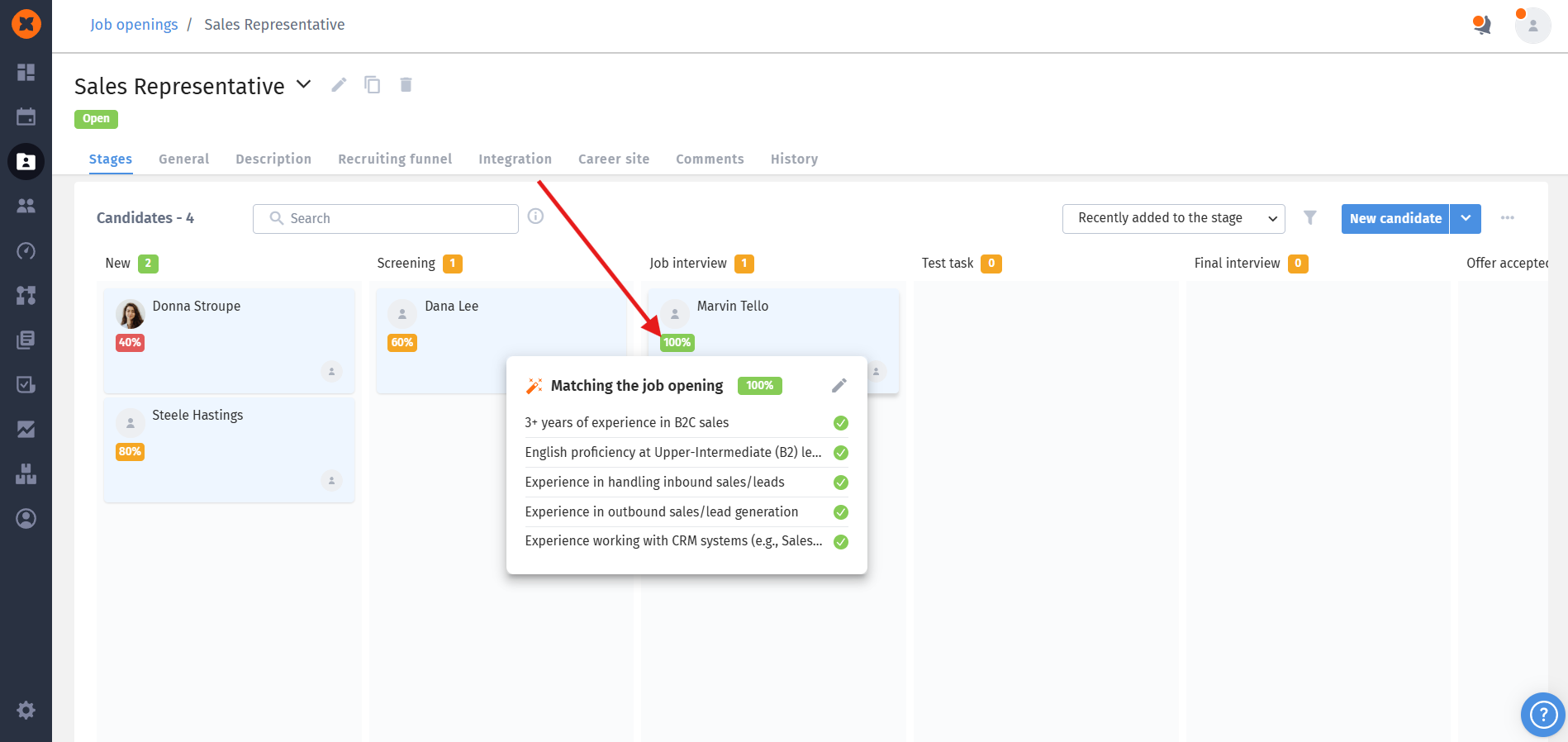
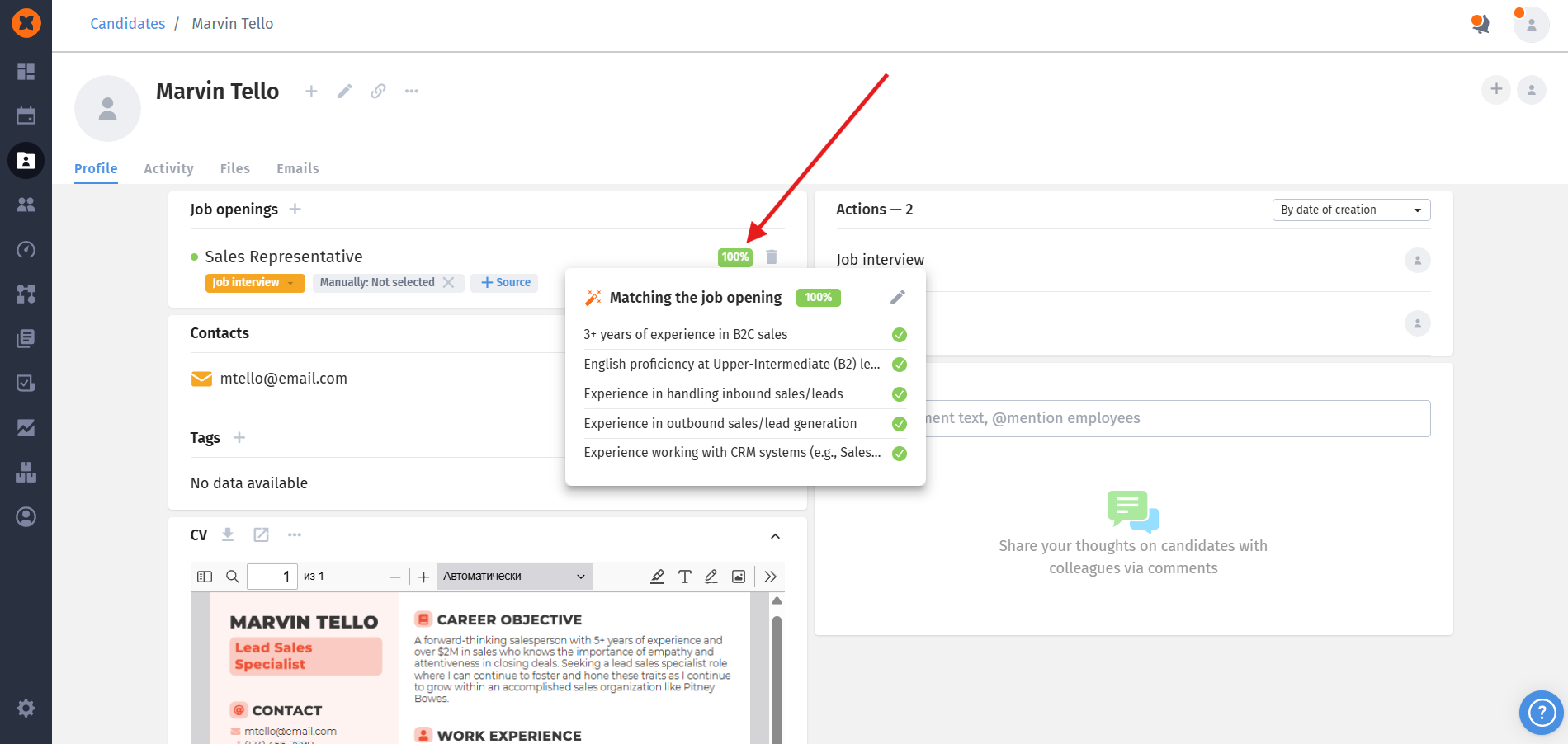
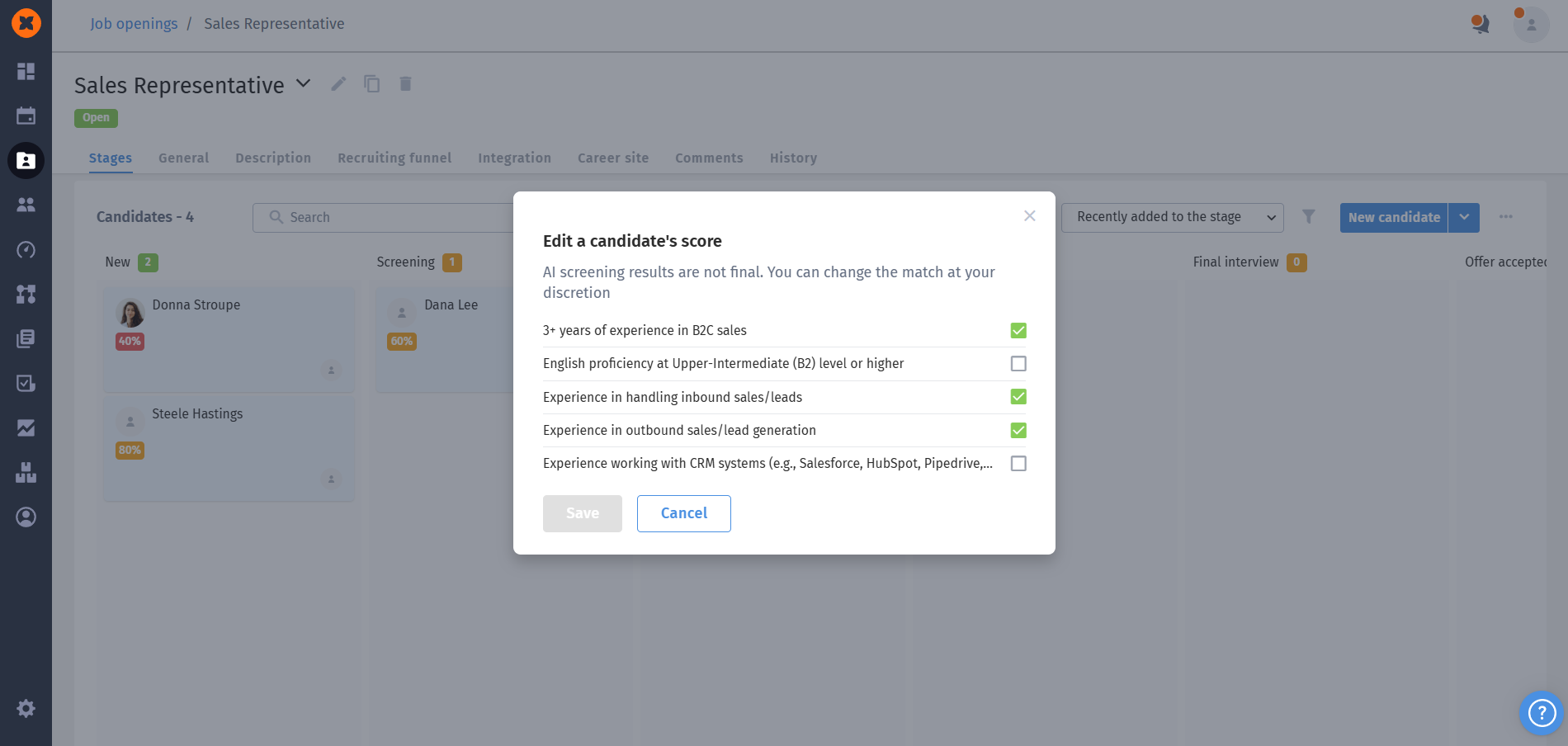
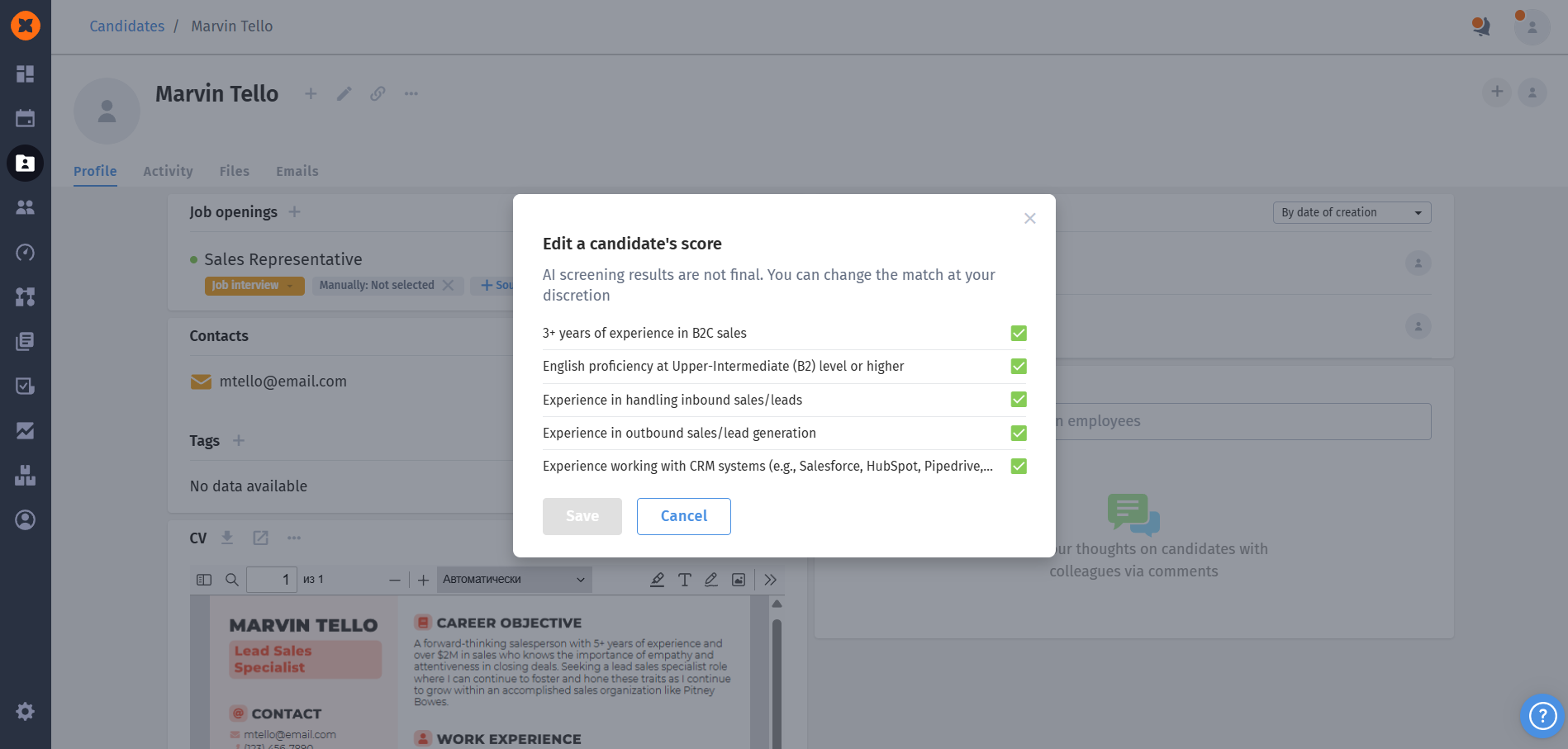
Recruiters can edit the results manually. If new information comes to light during an interview, you can click the edit icon next to the score and update the matching status - the candidate's overall score will then be automatically recalculated.
Hiring managers can view candidates' scores and criteria on the Kanban board, but they will not be able to edit them.
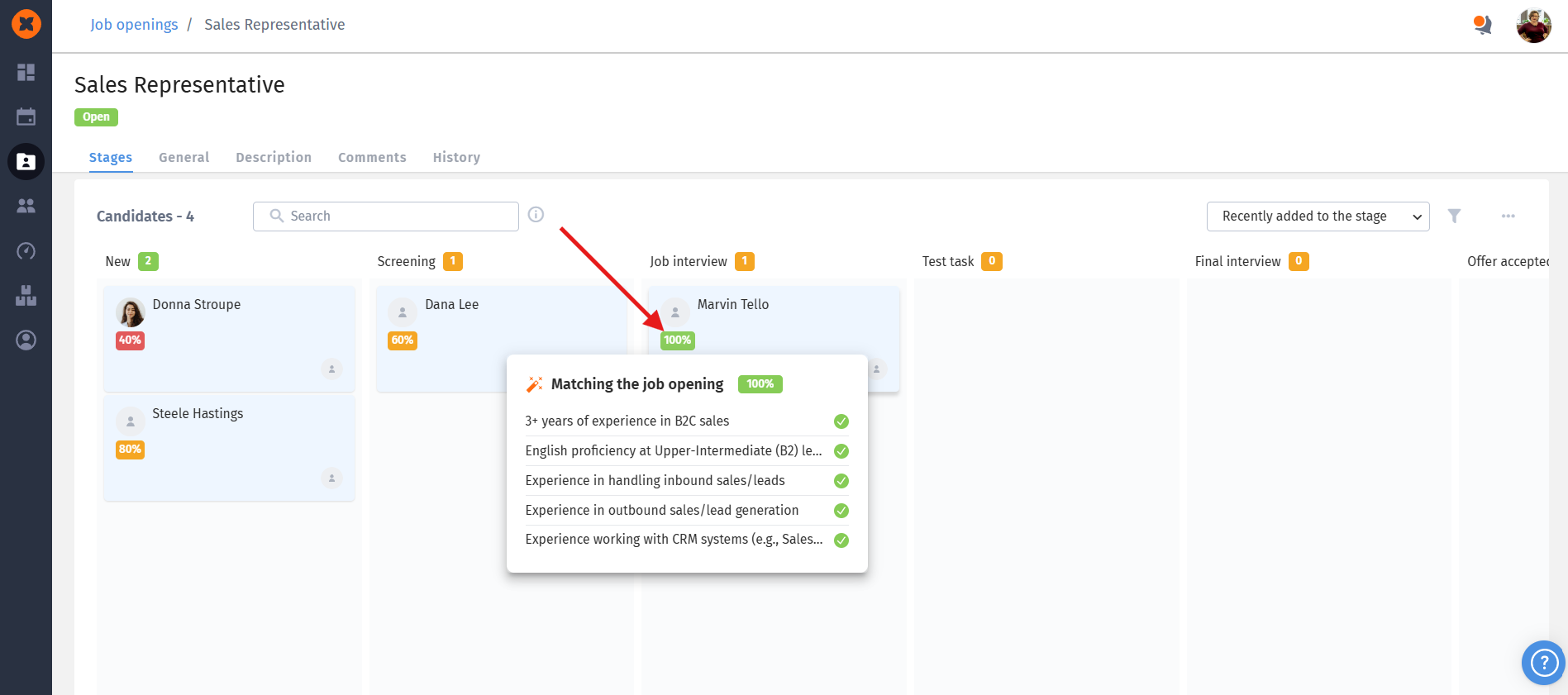
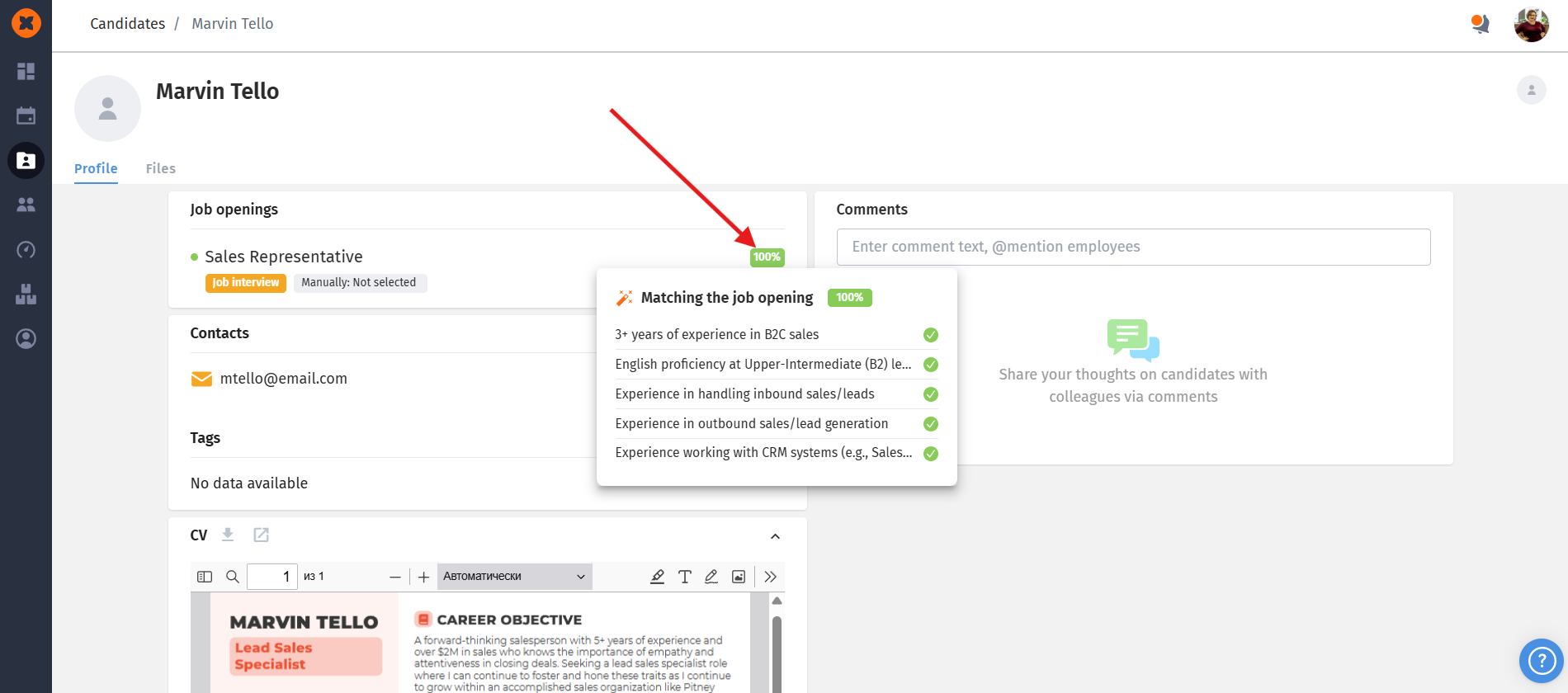
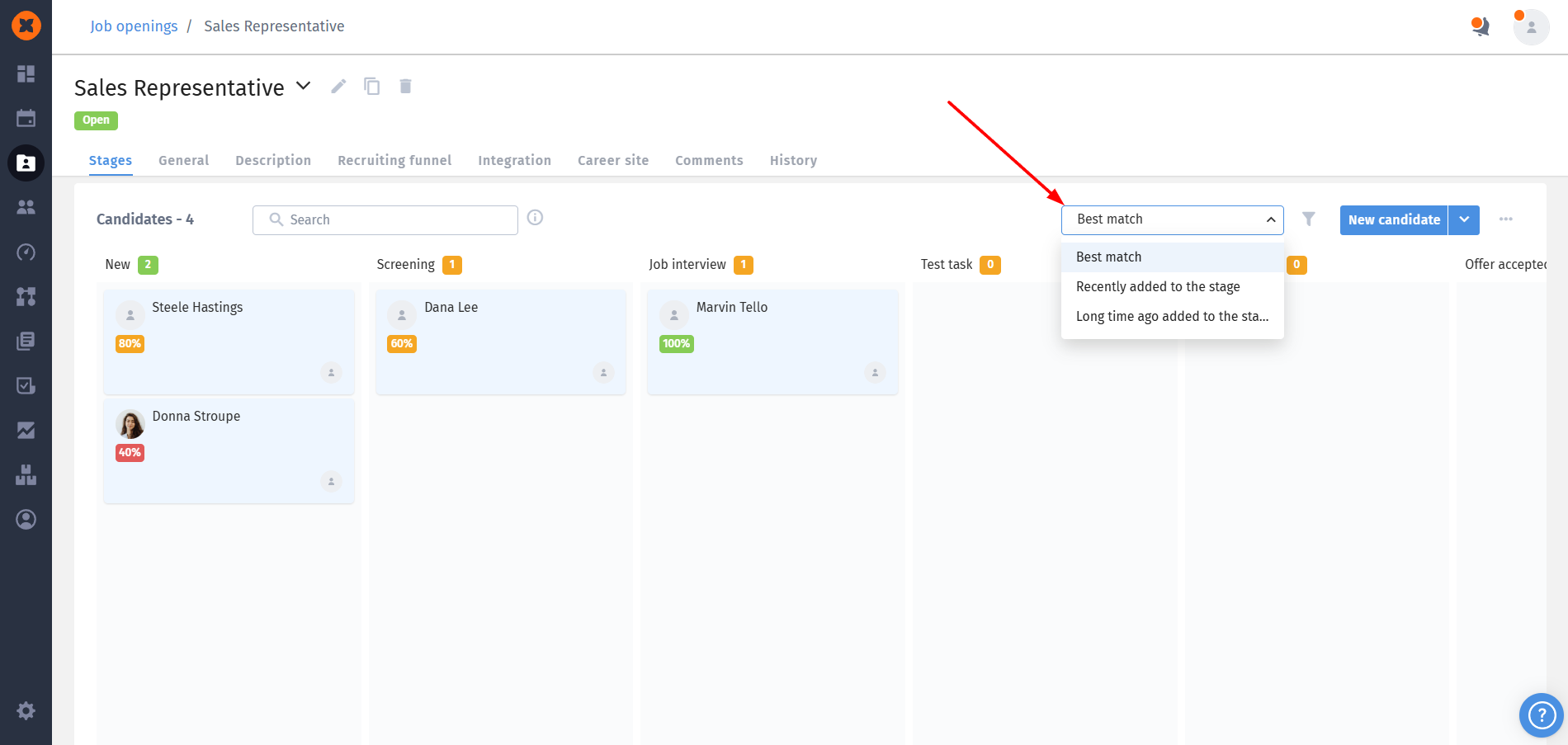
Once evaluated candidates appear for a vacancy, a convenient "Best match" sorting option becomes available, allowing you to prioritize those with the highest scores;
When moving a candidate to other stages of the pipeline, their evaluation score is fully preserved;
If a vacancy is moved to "Closed" status, automatic evaluation is disabled, and the criteria are locked for editing until the vacancy is restored;
Even if the tool is completely disabled in the general settings, all previously assigned scores will remain in the candidates' profiles for your records;
In the candidate profile (Actions and Activity tabs), system will be displayed as the author of all automatic stage movements.
Additionally, all actions related to automation rules - including creating, editing, deleting, enabling, and disabling rules - are logged in the “History” tab of the vacancy profile.
One candidate evaluation is equal to one credit. Credits are automatically deducted the moment a new candidate is added to a vacancy where the evaluation feature is enabled;
You can view your AI credit balance on the "Settings" - "AI opportunities" page;
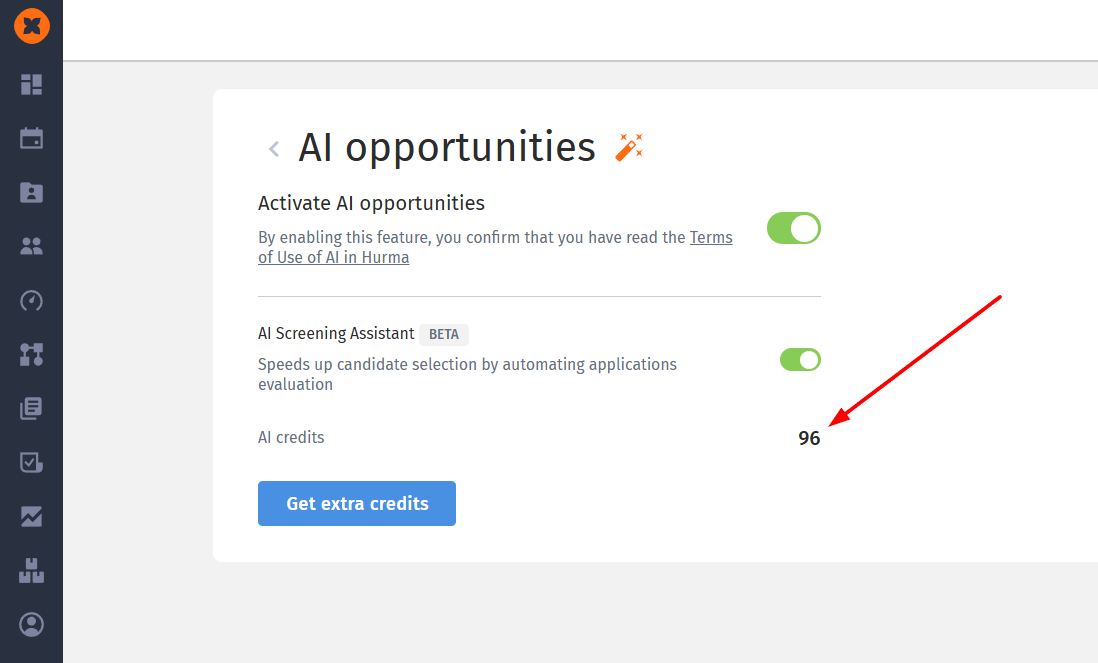
No credits are deducted for the automatic generation of the screening criteria list;
AI credits are not consumed for automatic actions that move candidates between hiring stages;
If your account runs out of credits, automatic evaluation will be suspended, and new candidates will not receive scores. However, you will still be able to edit the criteria themselves for future use;
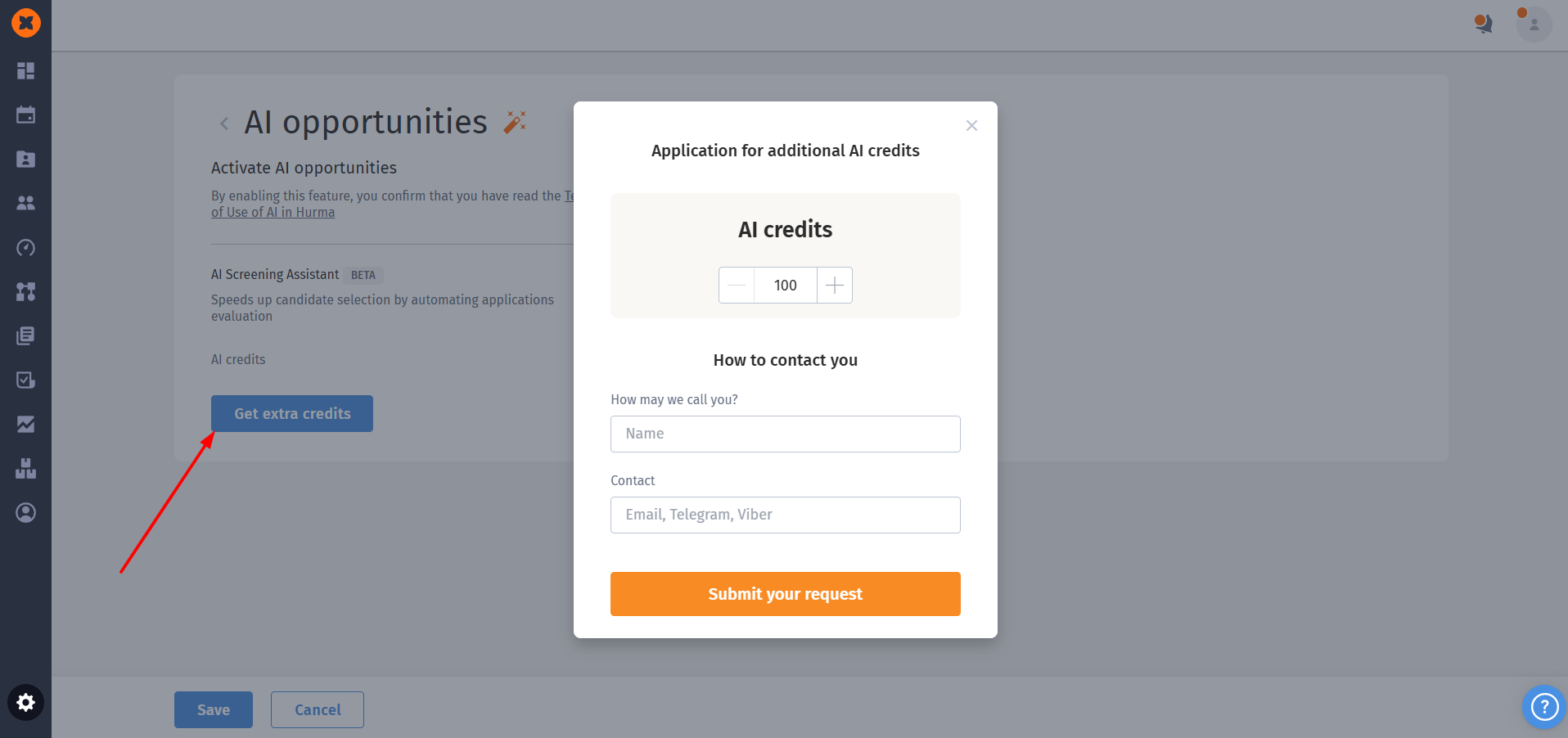
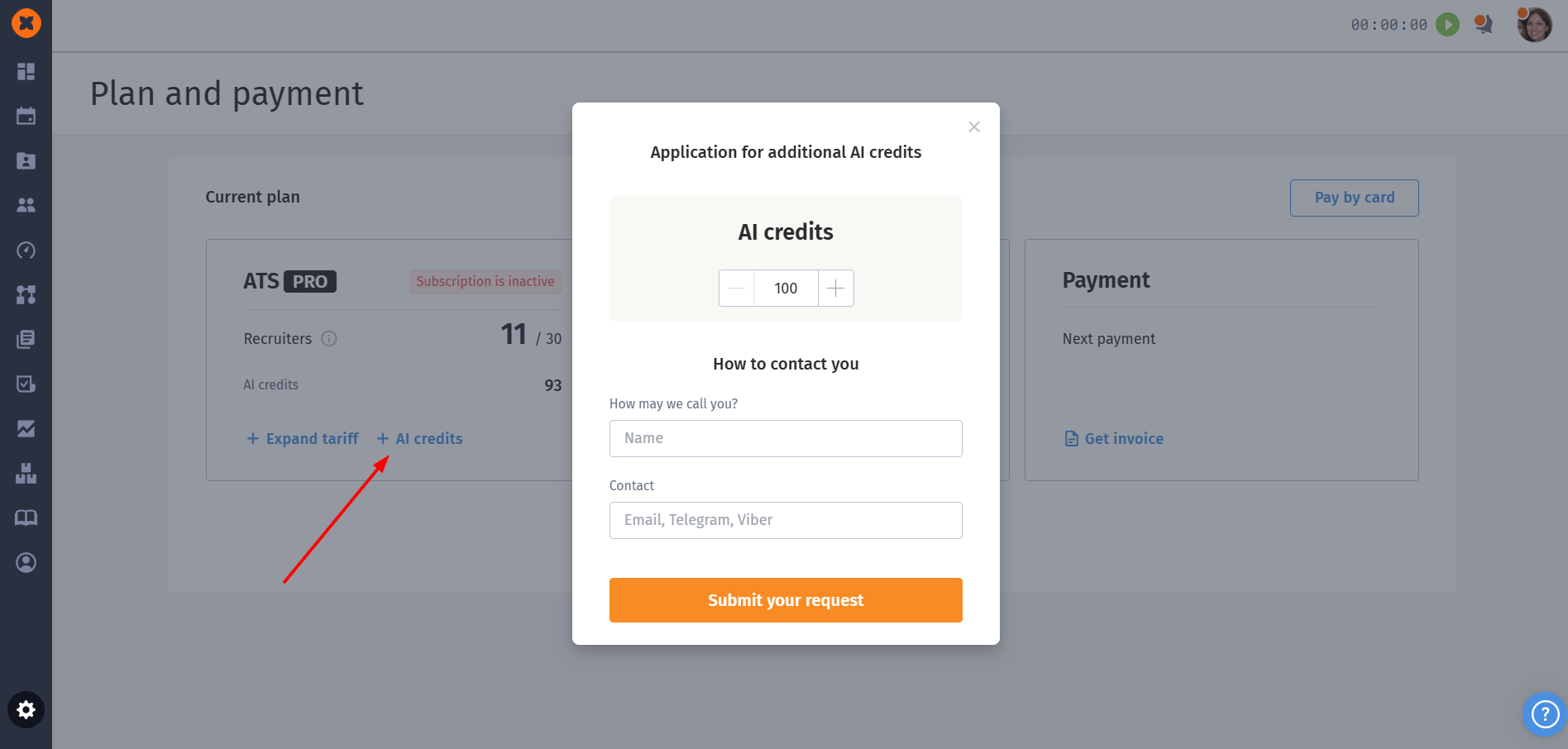
You can top up your balance by submitting a request via the "Get additional credits" button directly on the "Settings" - "AI opportunities" page or on the "Settings" - "Plan & Payment" page.