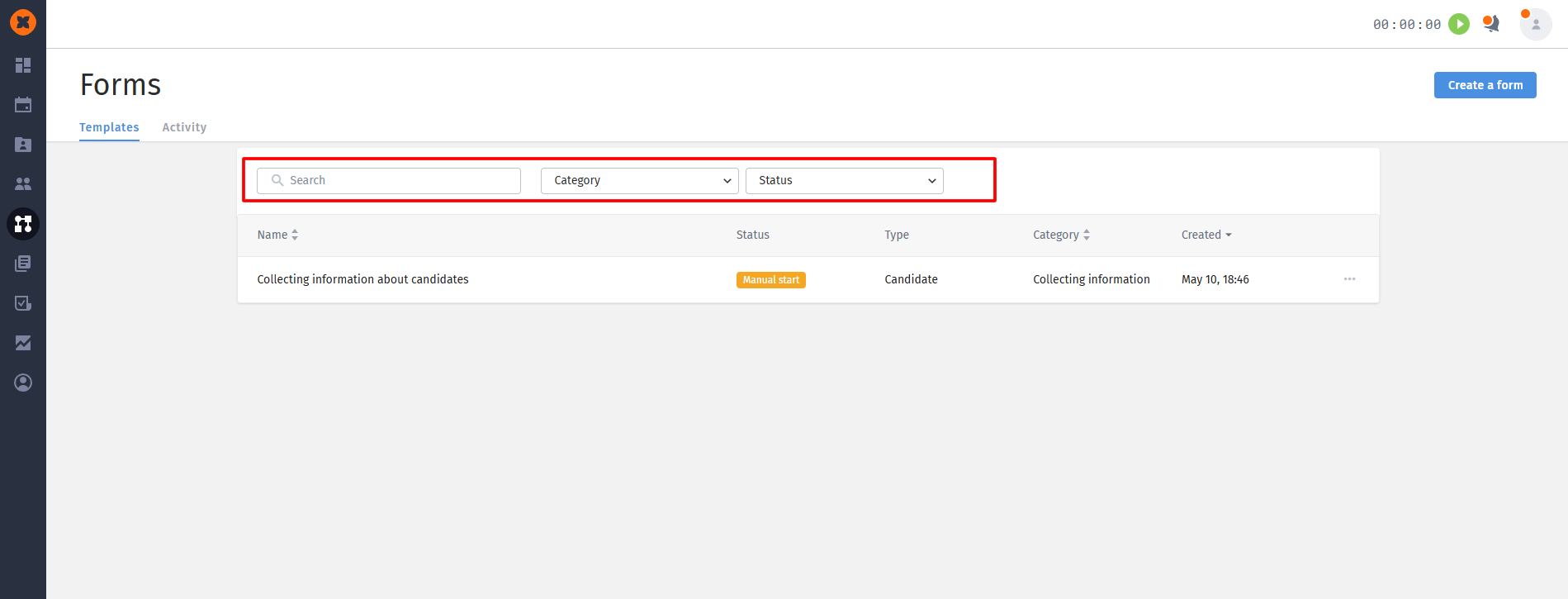
All created forms are located in the “Templates” tab. They can have two statuses:
Manual start: the form is fully set up and ready to be sent.
Draft: the form is not filled in completely.
The following actions are available for templates: edit, duplicate, delete. There’s also search by name, filtering, and sorting.

To send a form:
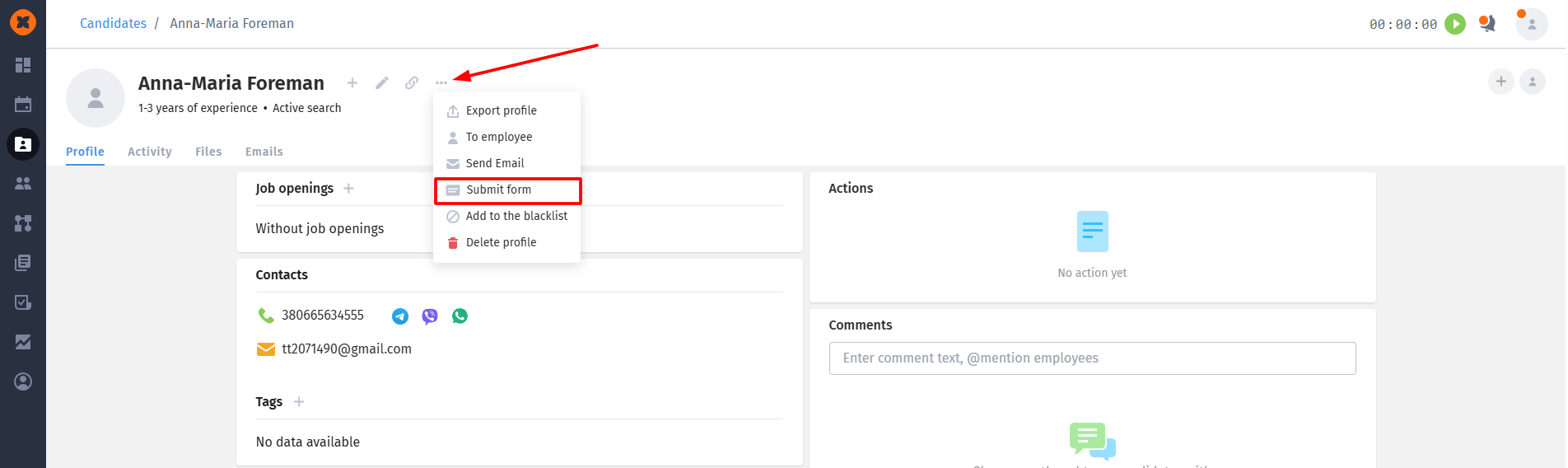
Go to the candidate’s profile, click on the three dots and select “Submit form”.
Select the template you need with the “Manual start” status.
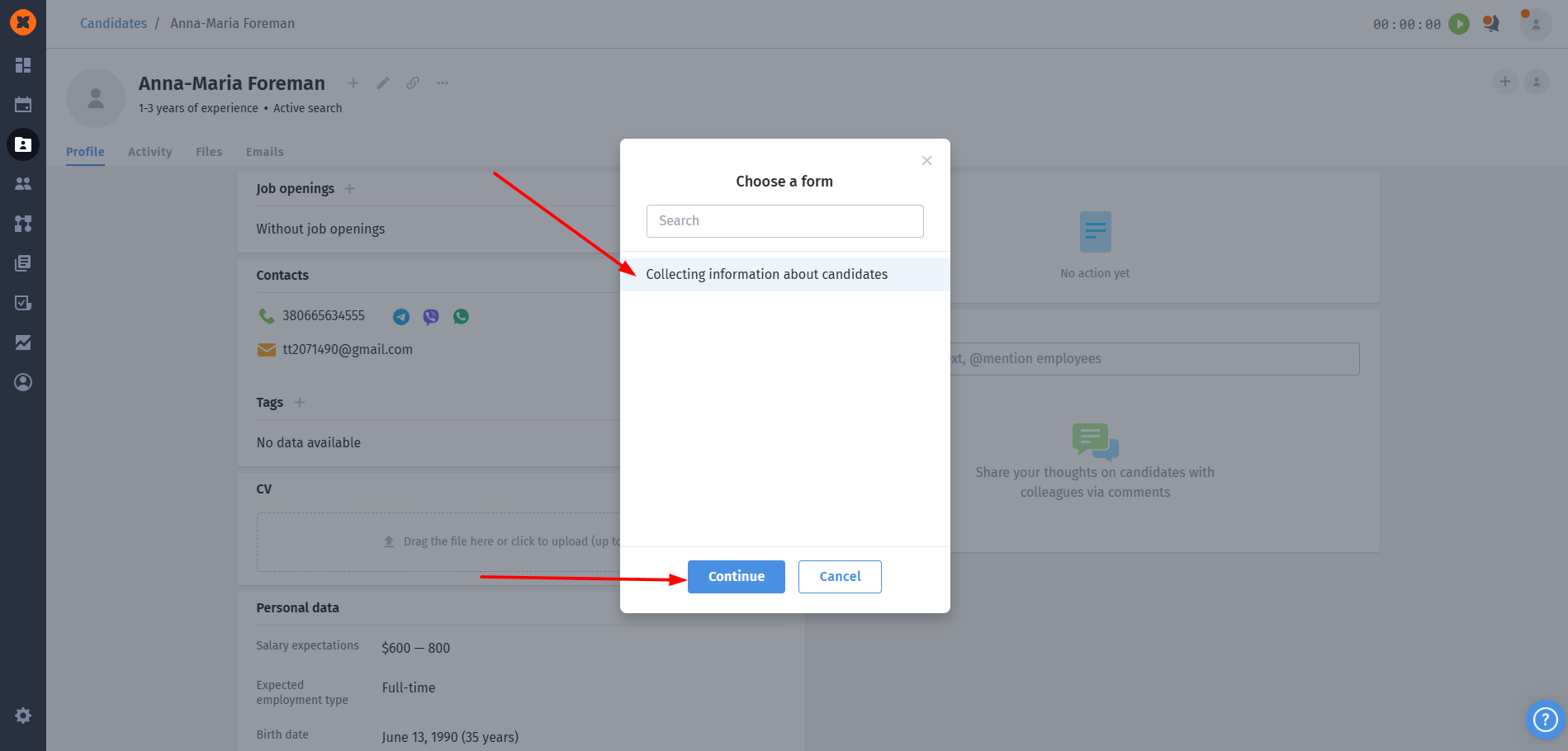
A preview window will open where you can check the content.
Select the email account, and if the candidate has several vacancies, choose the one for which the form is being sent.
Click “Send”.
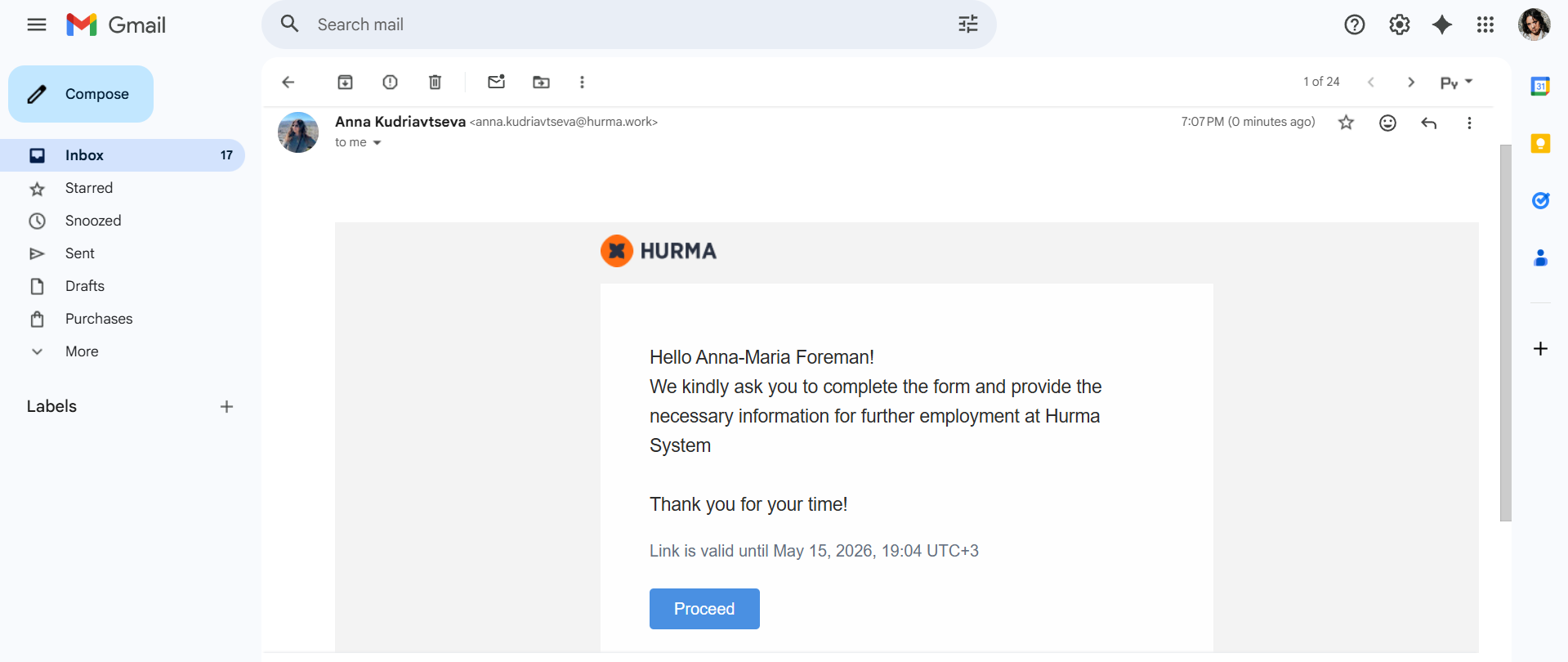
The candidate will receive an email with a link to the form.
If you’d like to additionally send the candidate a link to the form in a specific messenger, you can copy the link to the form in the “Automation” - “Forms” - “Activity” section and send it to the candidate.
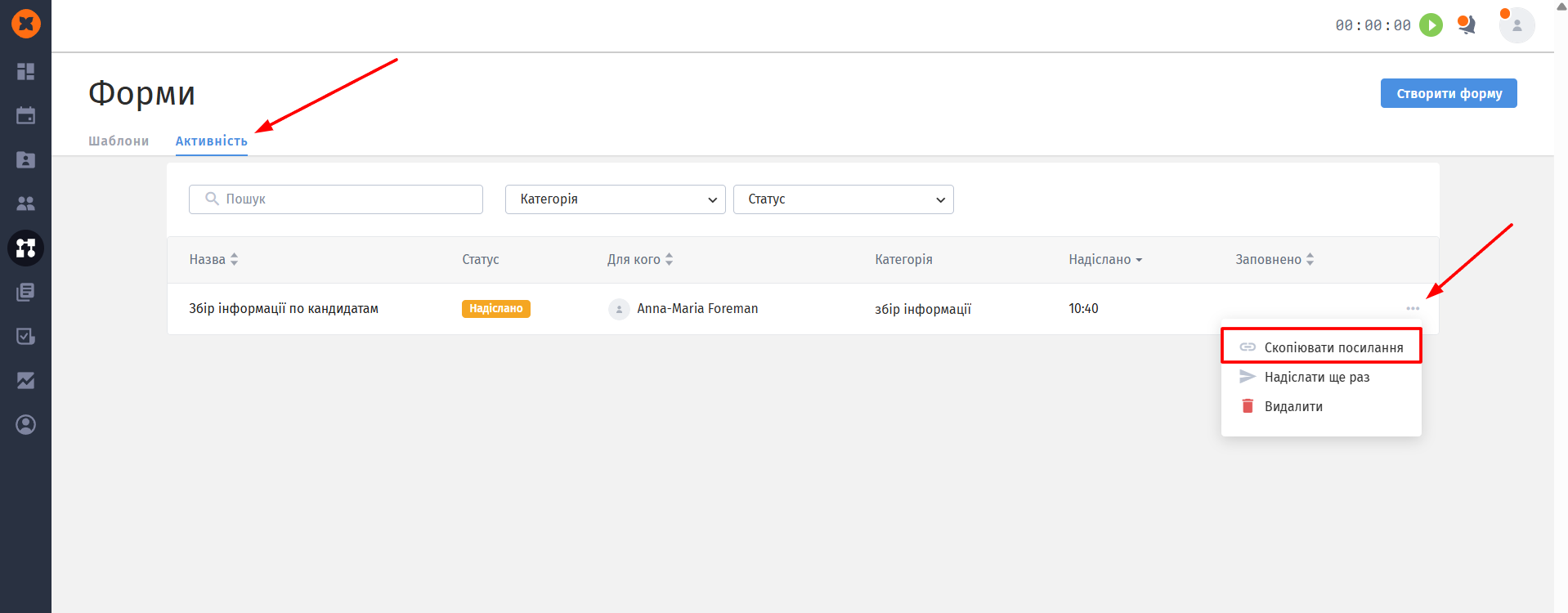
The link is valid for 5 days from the moment it’s sent. If the time runs out, when following the link an informational message will appear saying that the link has expired.
By following the link, the candidate step by step fills in the required fields, selects dates, uploads or downloads documents, and clicks “Submit”.
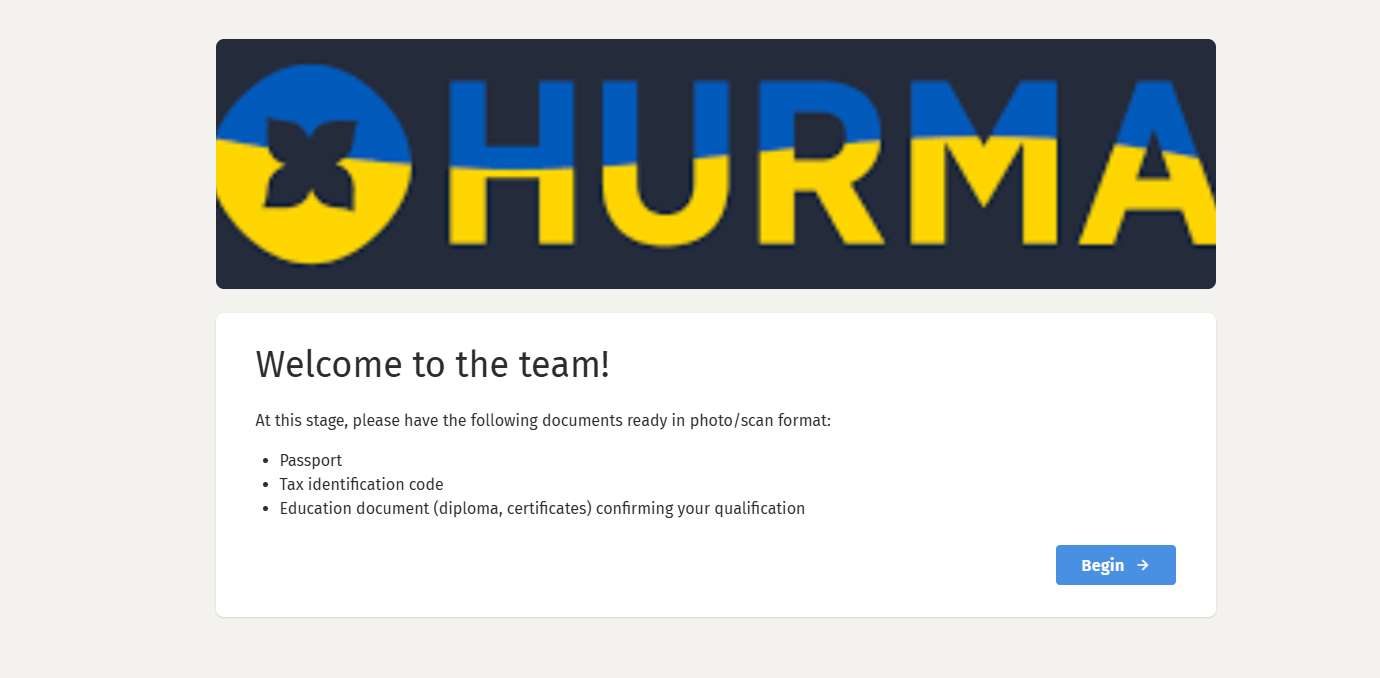
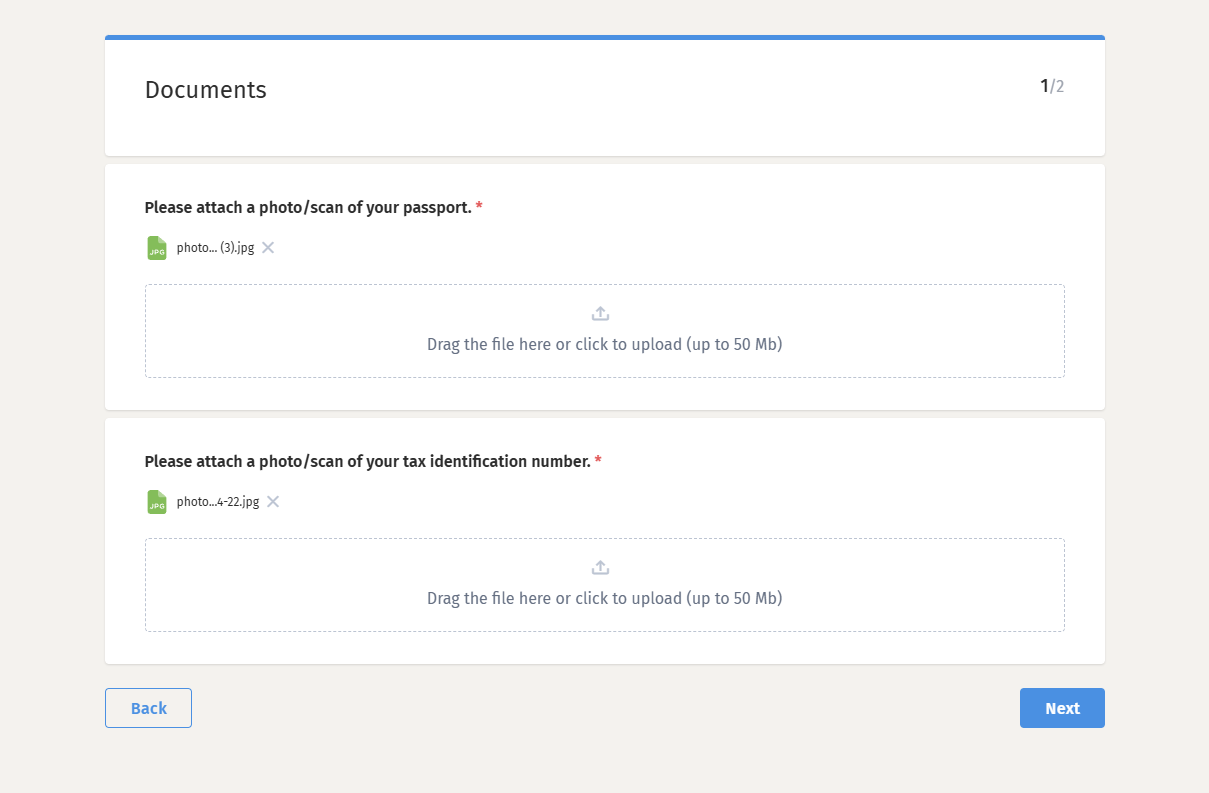
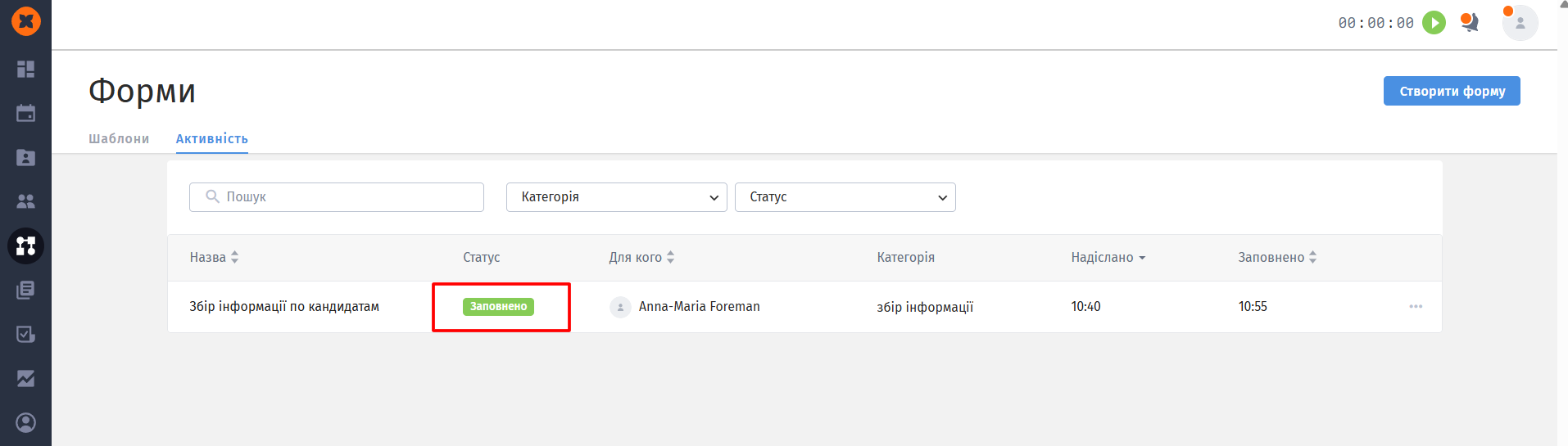
As soon as this happens, in the “Activity” tab the form status changes from “Sent” to “Filled in”.
All recruiters assigned to the candidate and the vacancy receive notifications in the system, by email, and in the bots.

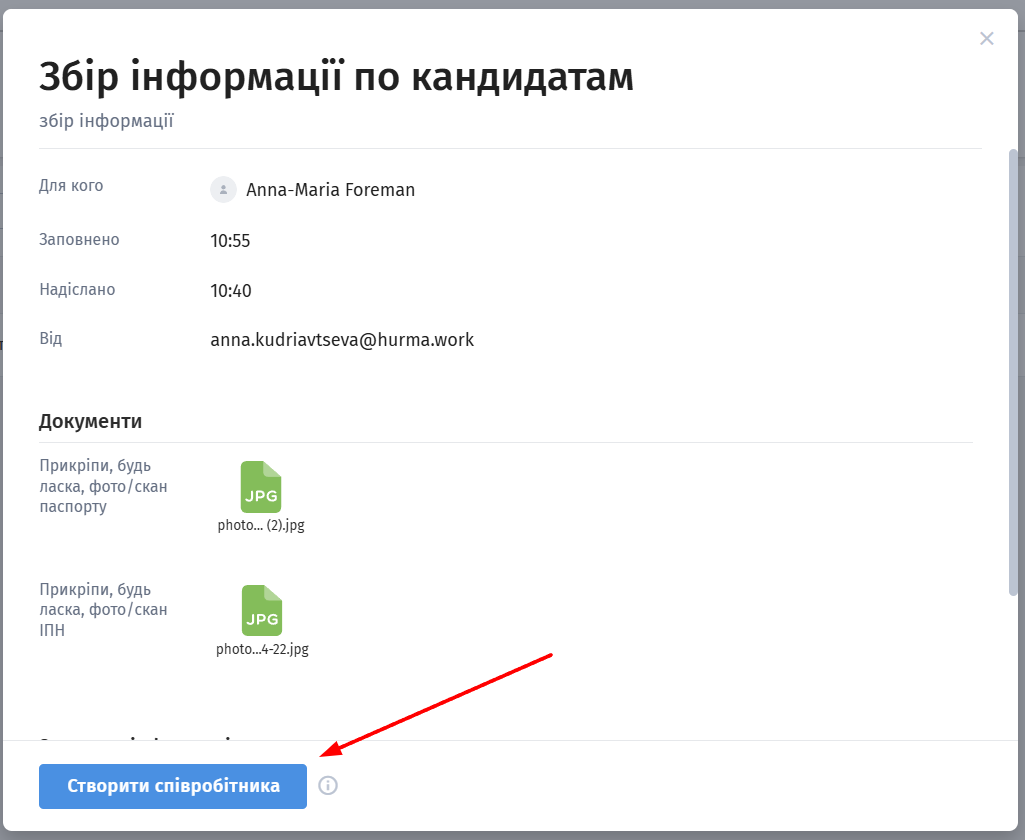
This is the most important step. After opening the completed form in the candidate’s profile (the entry becomes clickable), you’ll see all the information they entered. If the form contained employee fields, you can transfer this data into the system:
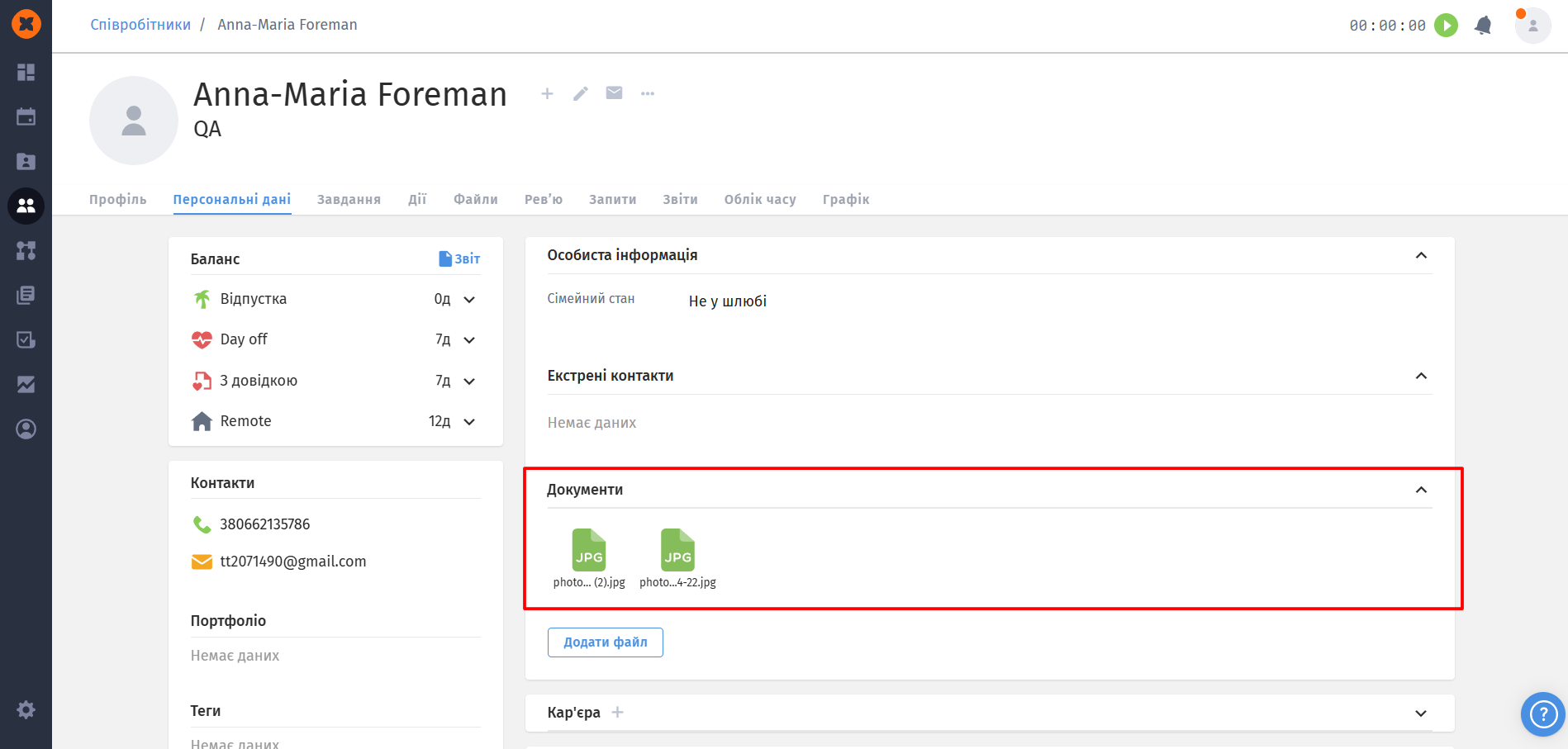
If the candidate doesn’t have an employee profile yet: a “Create employee” button will appear in the form. When you click it, you’ll be redirected to create a profile, and all data from the form will be automatically inserted into the corresponding fields.
If the employee profile already exists: the button will be called “Add to employee”. You’ll be redirected to the edit page.
If the form contained only files (scans of documents, etc.): the button will open a modal window “Add files to employee”, and the files will be uploaded to the documents tab without switching to edit mode. If there is still no profile, the system will first suggest creating one.
