In this section, you will find settings that allow you to manage automated system notifications. You can flexibly define which notifications you receive, through which channels they are delivered, and set the frequency of reminders for key company processes — from onboarding to regular 1:1 meetings and performance reviews. This helps ensure transparent communication and timely responses to important events within the team.
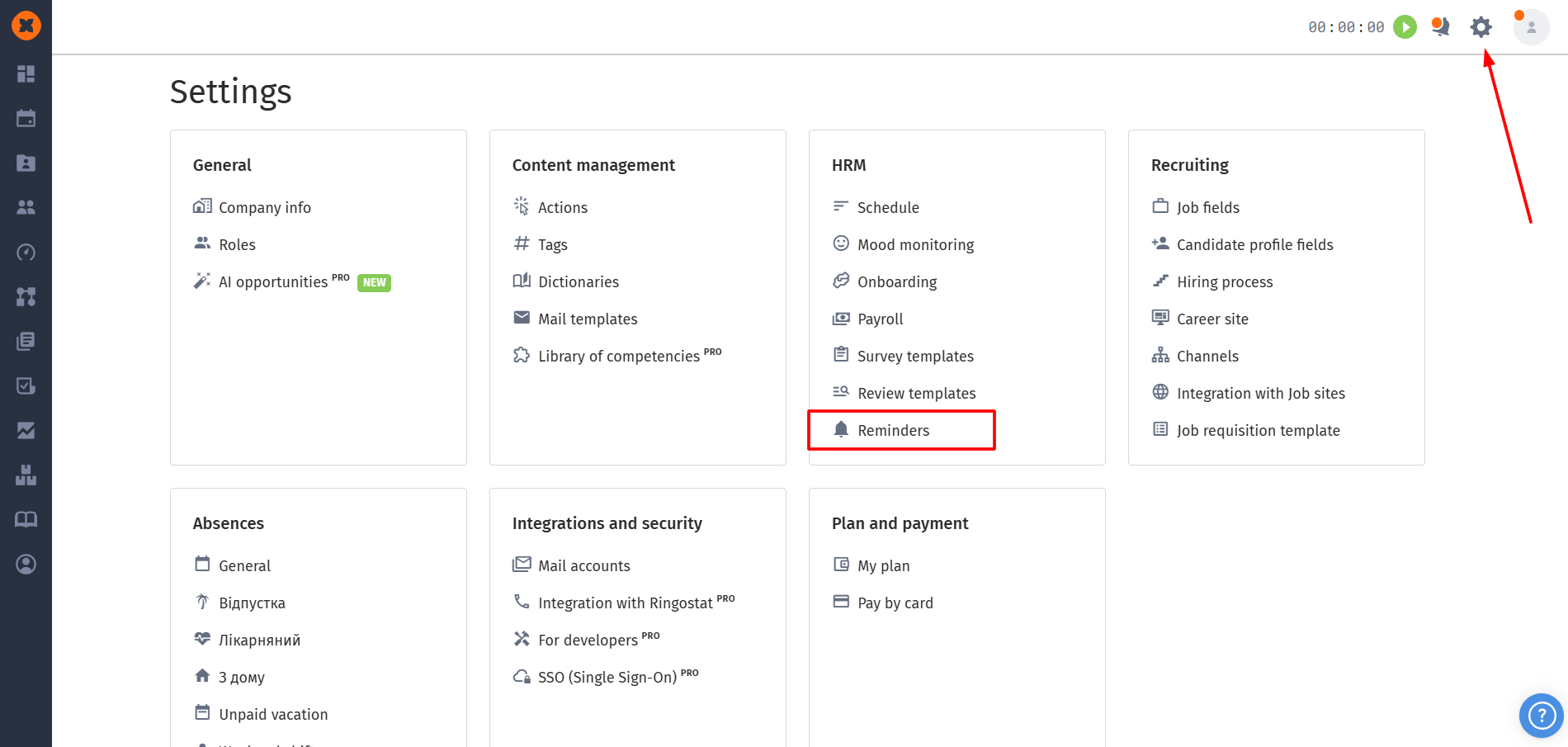
You can access this section by clicking “⚙” → “Reminders”.
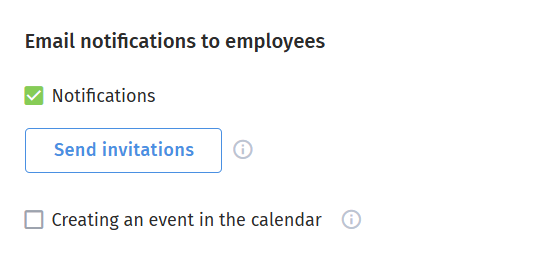
This option allows you to completely disable email notifications. It can be used, for example, to avoid sending unwanted emails during system implementation in the company.
In this block, you can also send system access invitations in bulk to all users by clicking the “Send invitations” button.

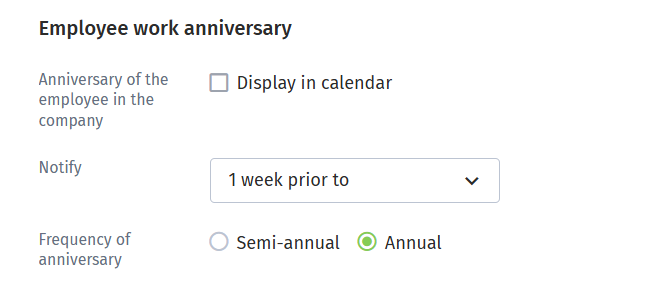
In this section, you can define how far in advance you want to receive notifications about employee anniversaries, set notification frequency, and decide whether anniversary information will be visible to colleagues in the “Calendar” section and on the dashboard in the “Celebrations” block.
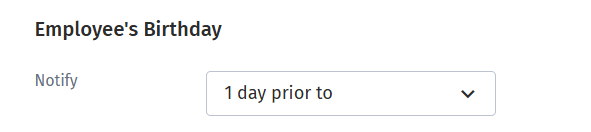
In this block, you can configure how early you would like to be notified about colleagues’ birthdays.
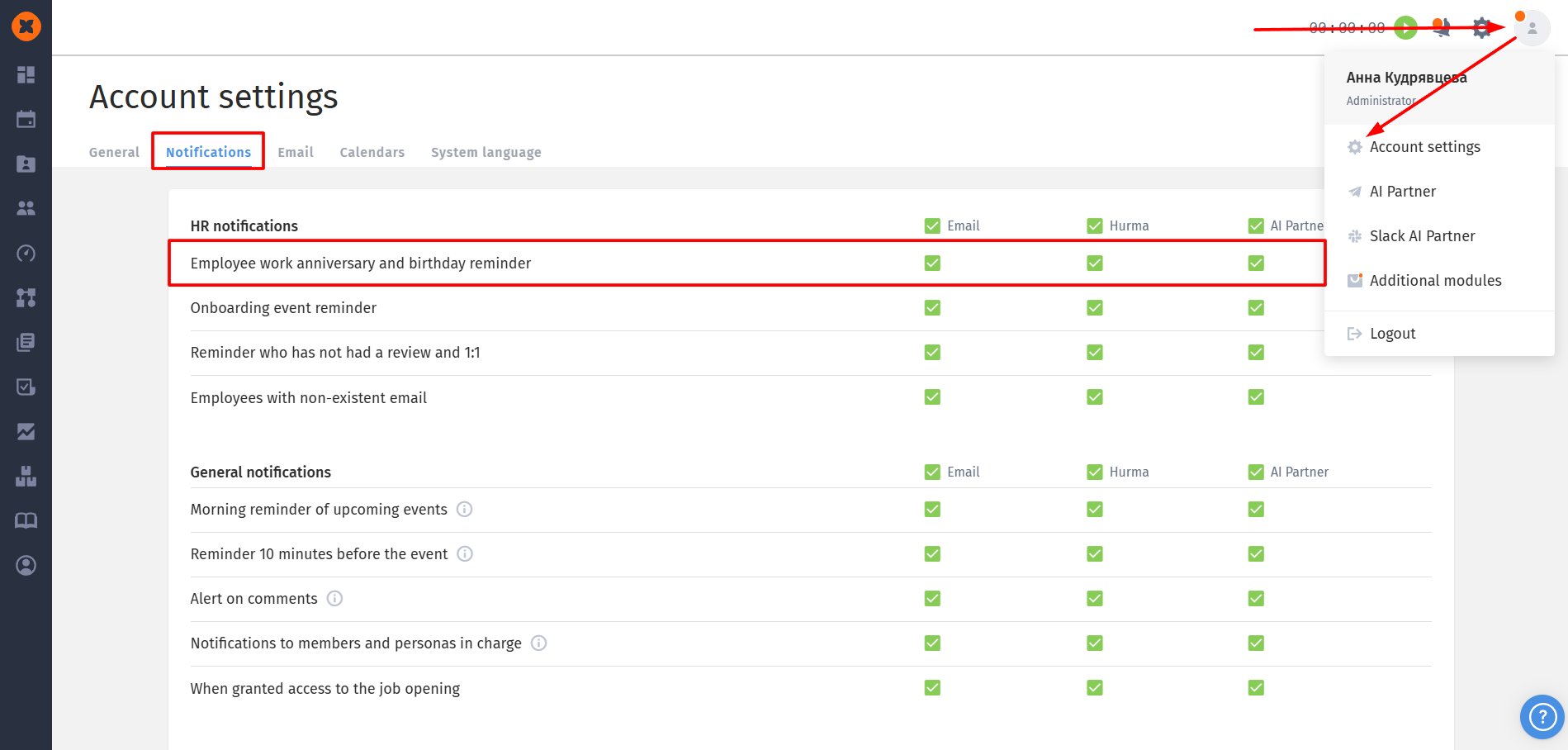
Notification channels for anniversaries and birthdays can be selected in your account settings.
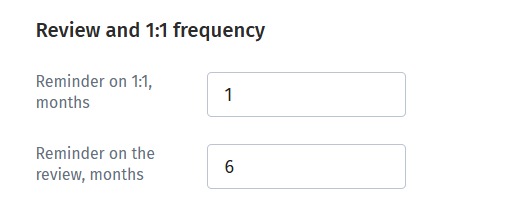
This feature allows you to configure the frequency of automatic reminders for 1:1 meetings and performance reviews. Users can set intervals in months for each meeting type, ensuring the system regularly creates reminders and supports a consistent feedback cycle within the team.
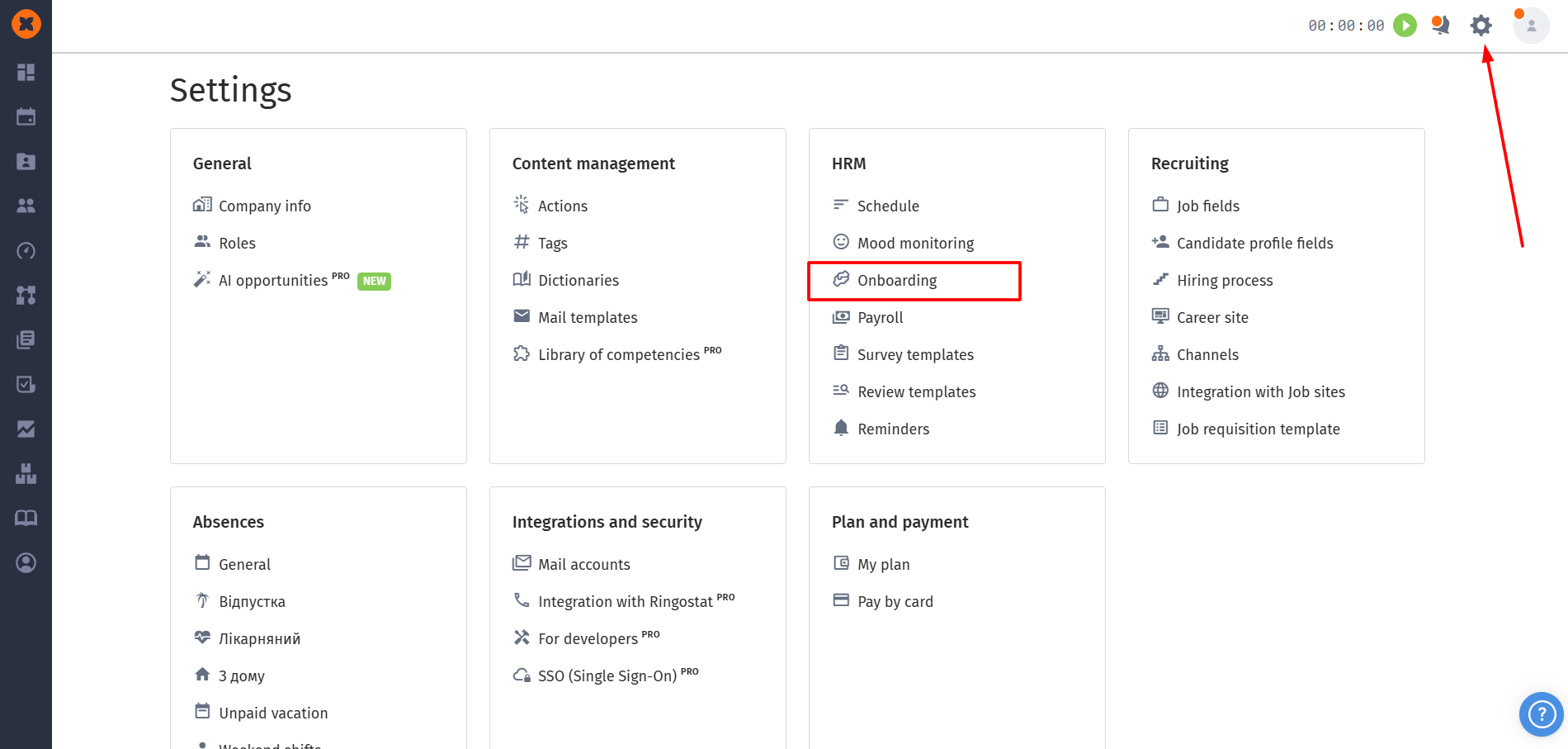
You can access these notification settings by clicking “⚙” → “Onboarding”.
The “Onboarding” section allows you to configure notifications for HR and Administrators regarding the start, middle, and end of an employee’s probation period.
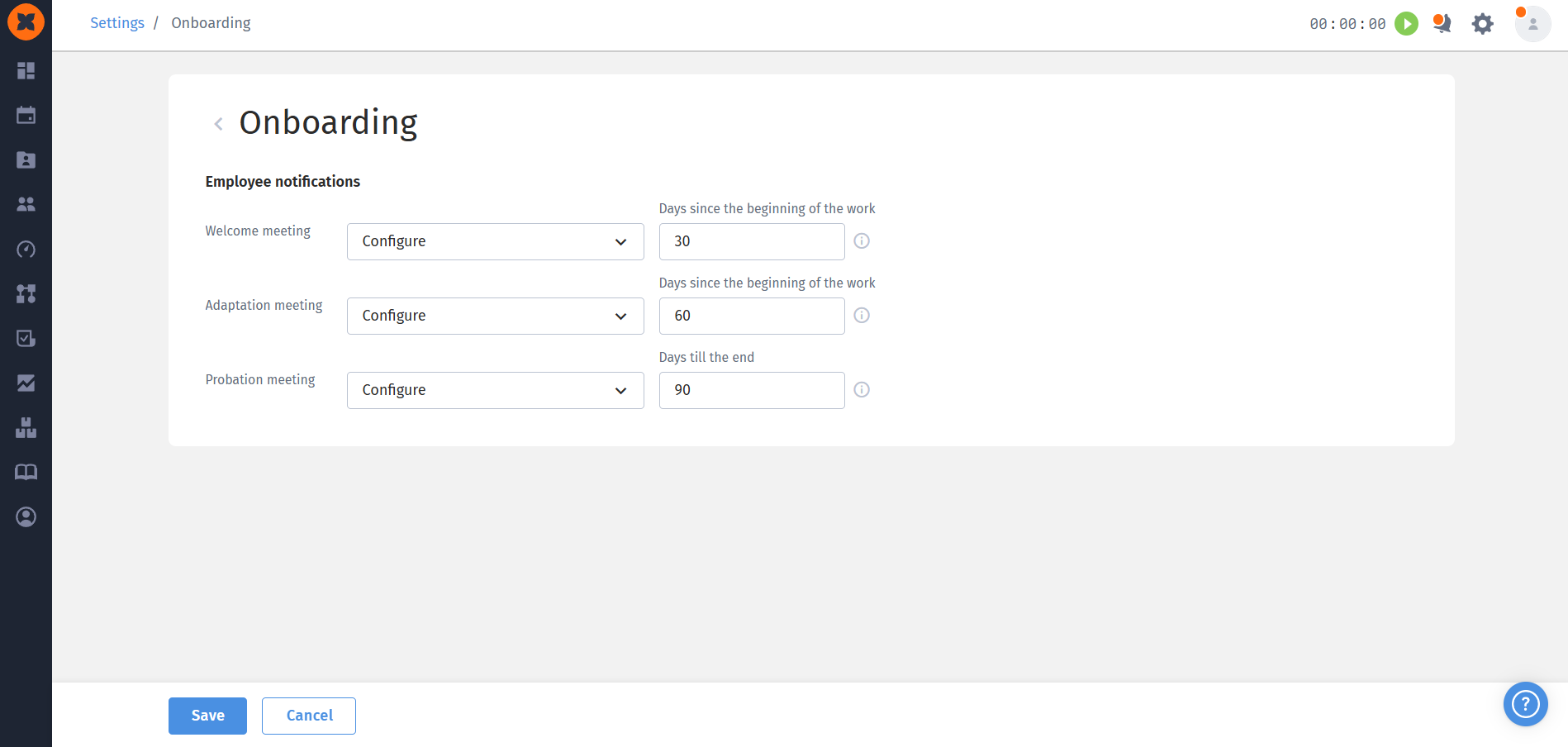
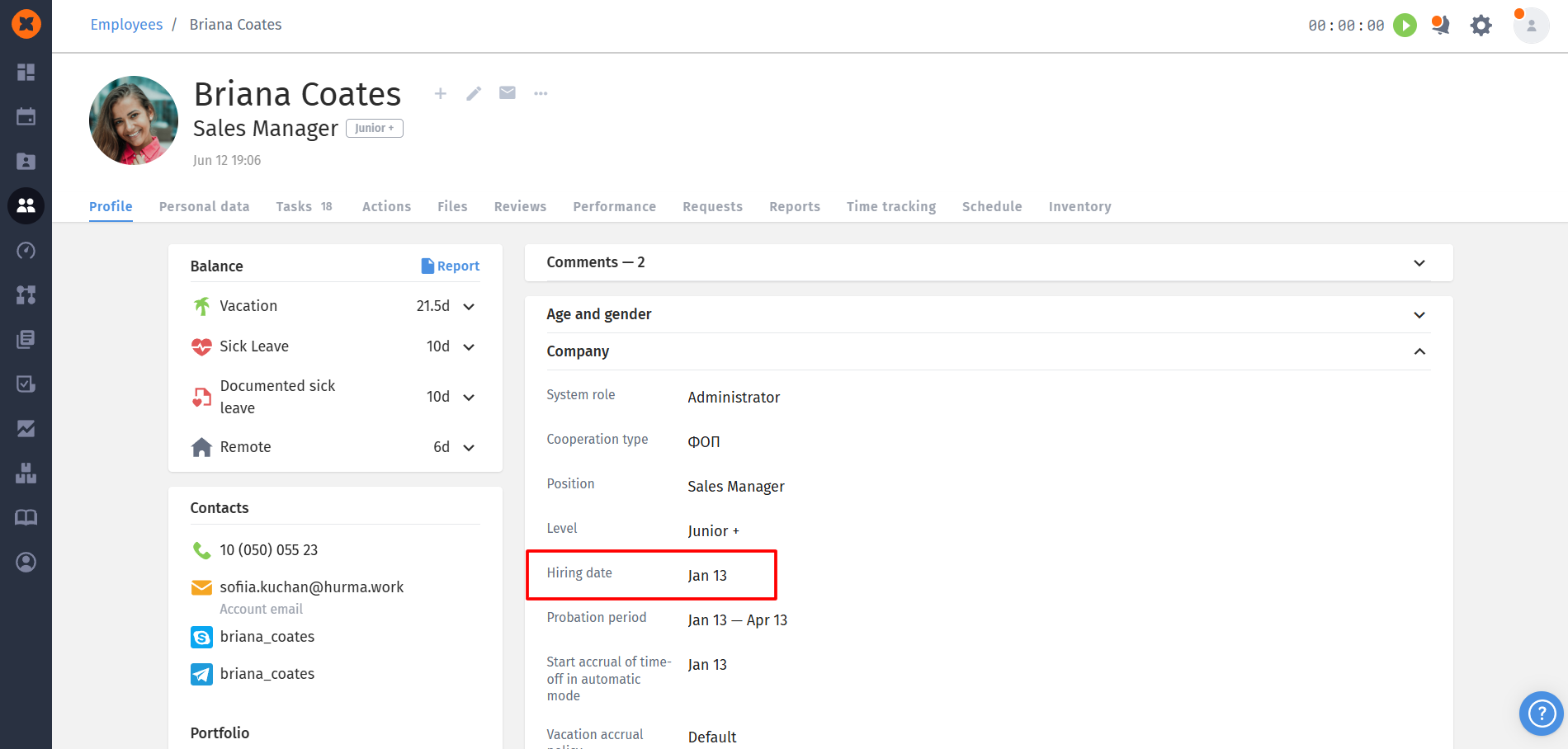
The timing of these automatic notifications is calculated based on the hiring date specified in the employee profile.
You can choose how to receive notifications:
By email
In the system
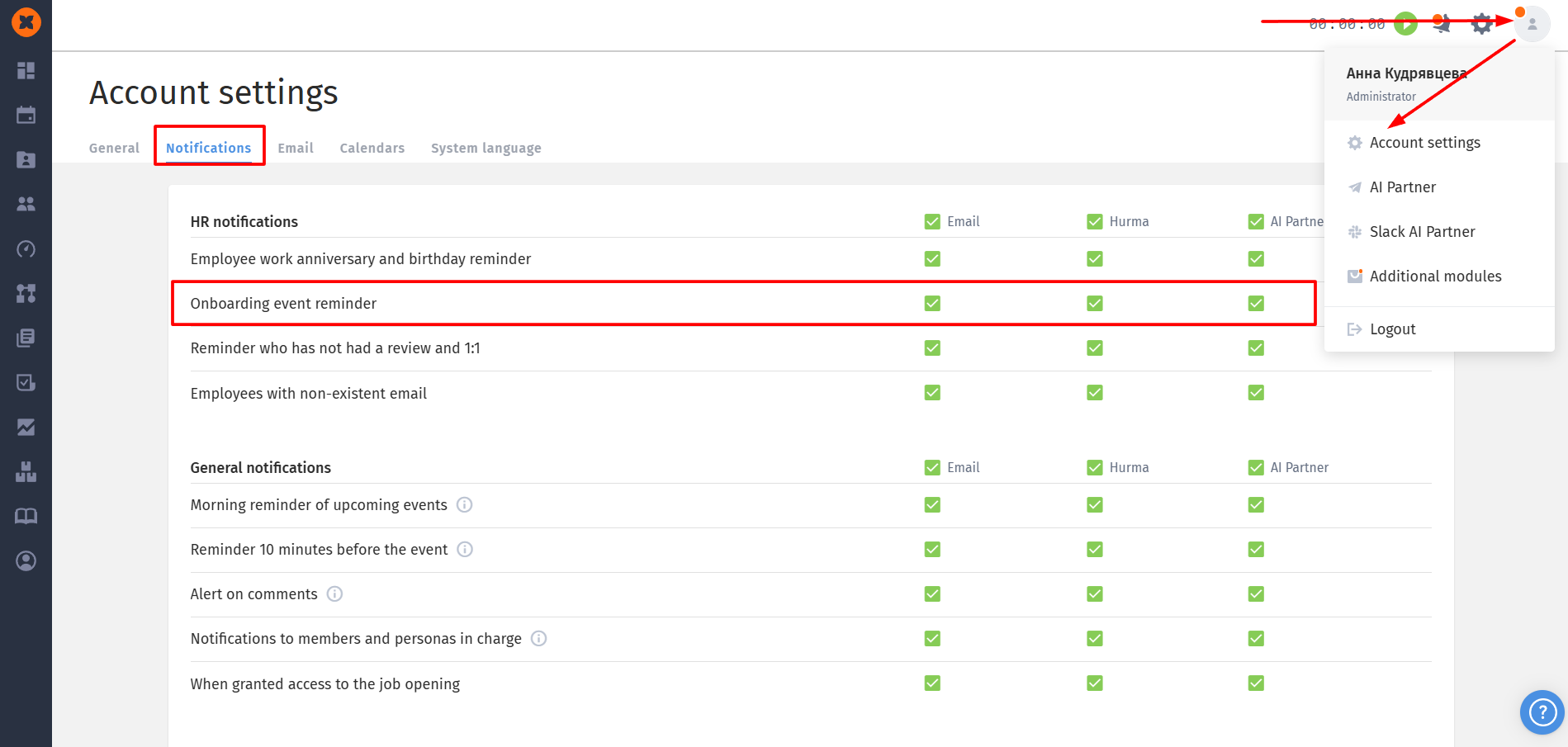
Via bots (if connected)

Onboarding event notifications are available within HR notifications.
These settings can be managed in “Account settings” → “Notifications”.
At the scheduled time, the system will send a notification that allows you to take action and organize the relevant meeting or task.
