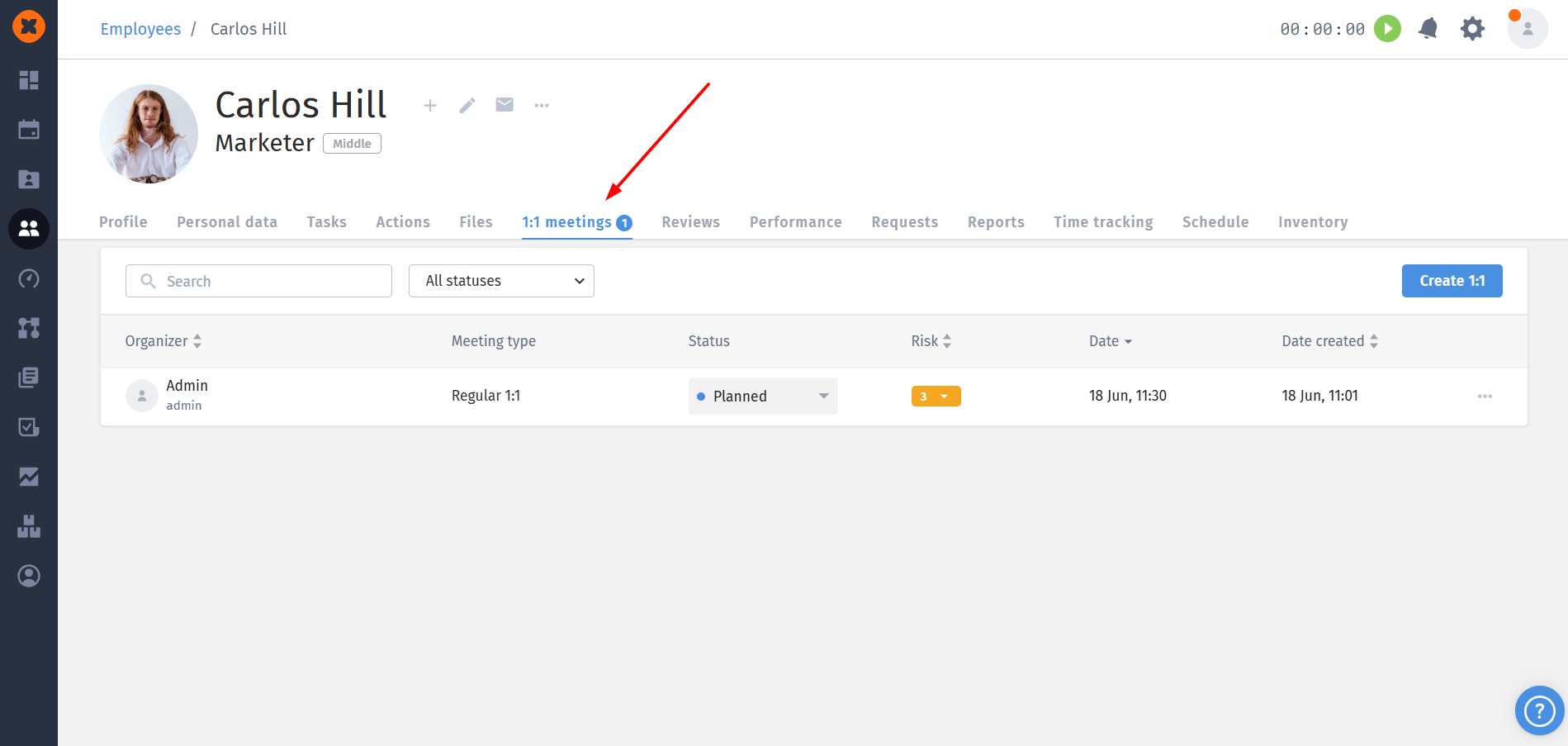
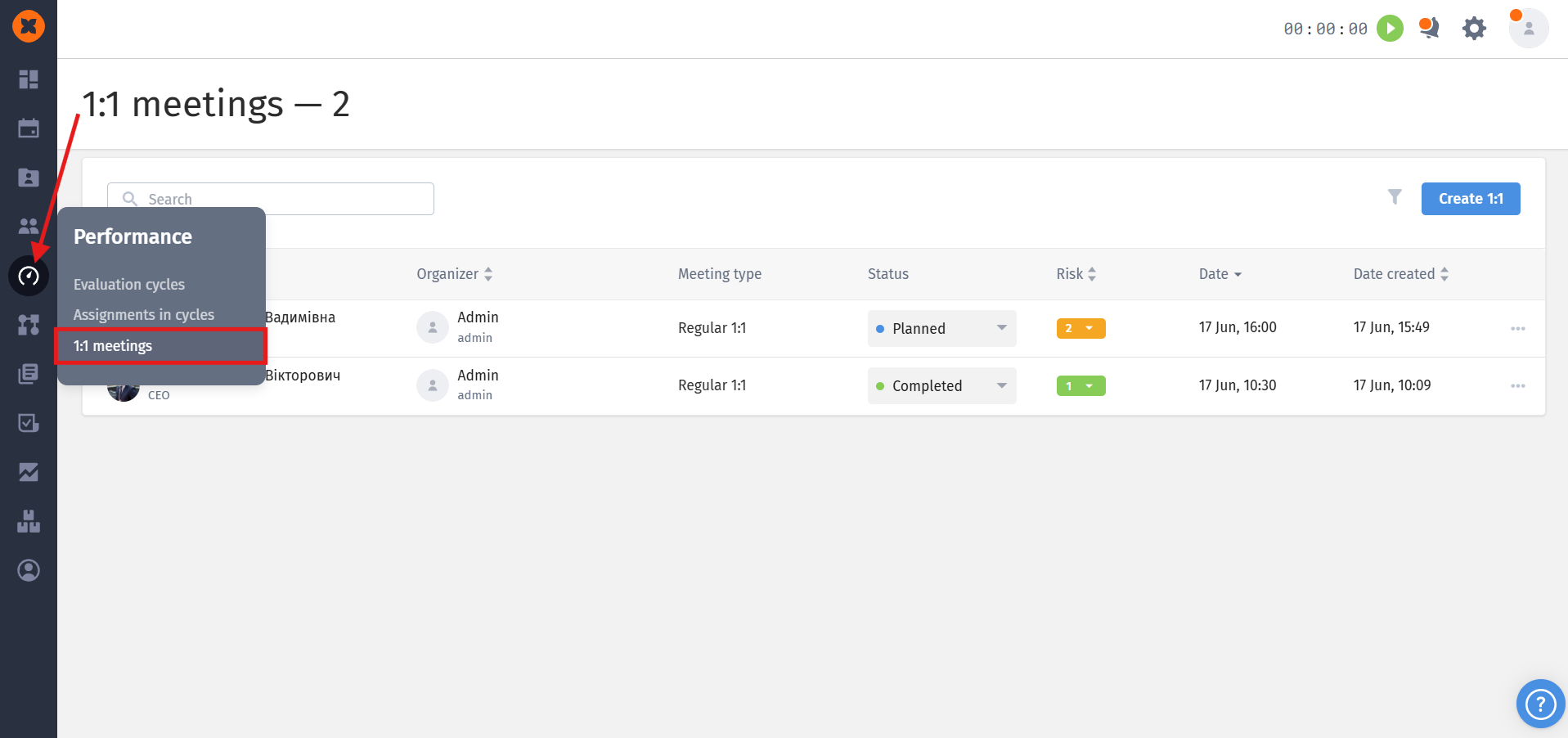
You can find the section under “Performance” - “1:1 Meetings” section.
The “1:1 Meetings” module is included in the standard HRM plan.

You can create a 1:1 meeting from the “Performance” - “1:1 meetings” section or directly from the employee’s profile.
Click “Create 1:1” to open the meeting creation form.
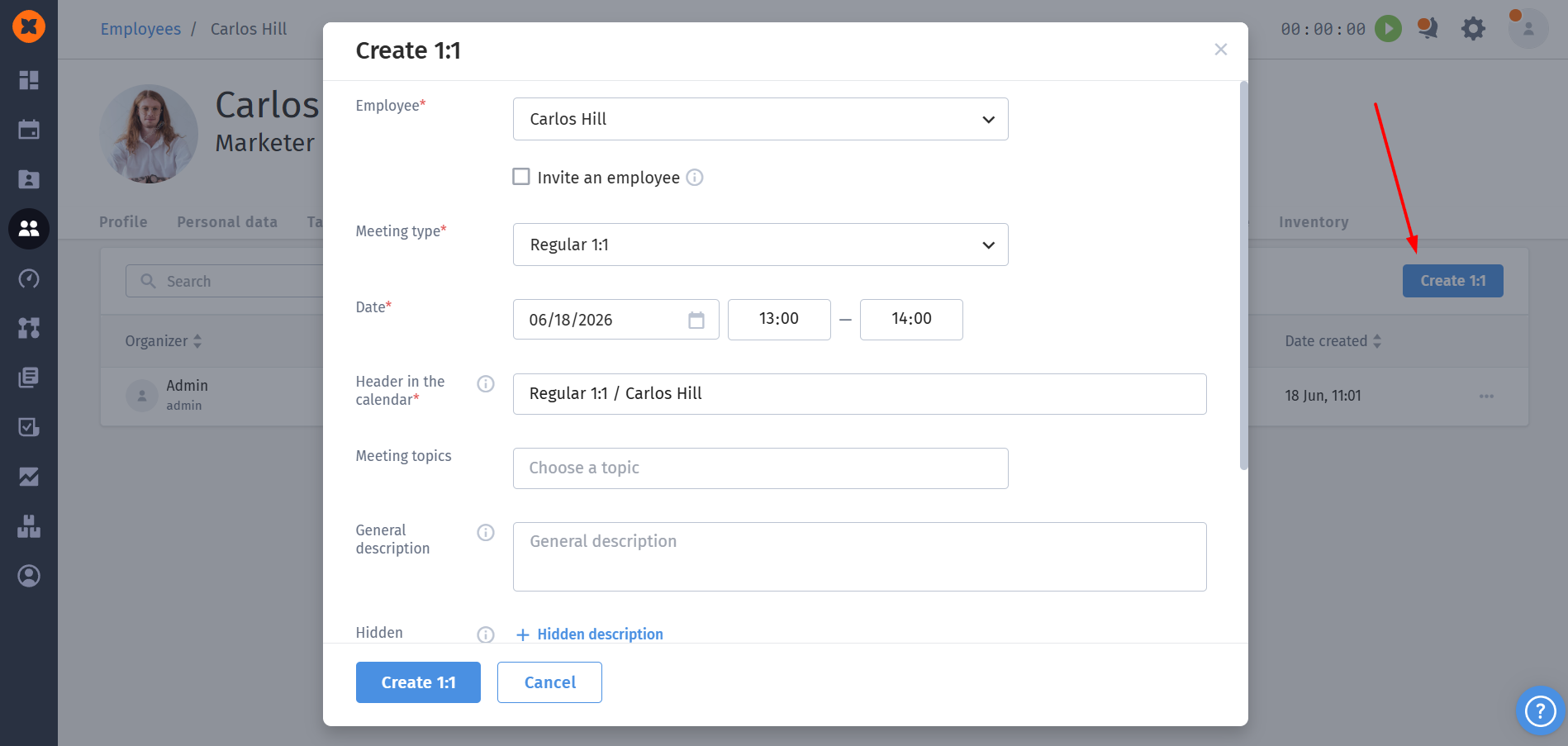
The following information can be configured:
Employee and the “Invite an employee” checkbox;
Meeting type (default: Regular 1:1; meeting types can be customized separately);
Date. If the end time is earlier than the start time, the system automatically treats it as the next day and displays a notification;
Header on the calendar (default format: [Meeting Type] / [Employee Name], e.g., Welcome Meeting / John Smith);
Video conference link (optional; added to the calendar event);
Meeting topics (multiple selection available; new topics can be created);
General description visible to all participants, including the employee;
Hidden description visible only to the organizer and participants (not the employee); this information is not transferred to the calendar;
Attachments (up to 20 files, maximum 50 MB each);
Organizer (defaults to the creator) and participants.
After saving, the meeting receives the “Scheduled” status, and an event is automatically created in connected Google or Outlook calendars for all participants.
These settings can be found in “Settings” - “1:1 Meetings” section.
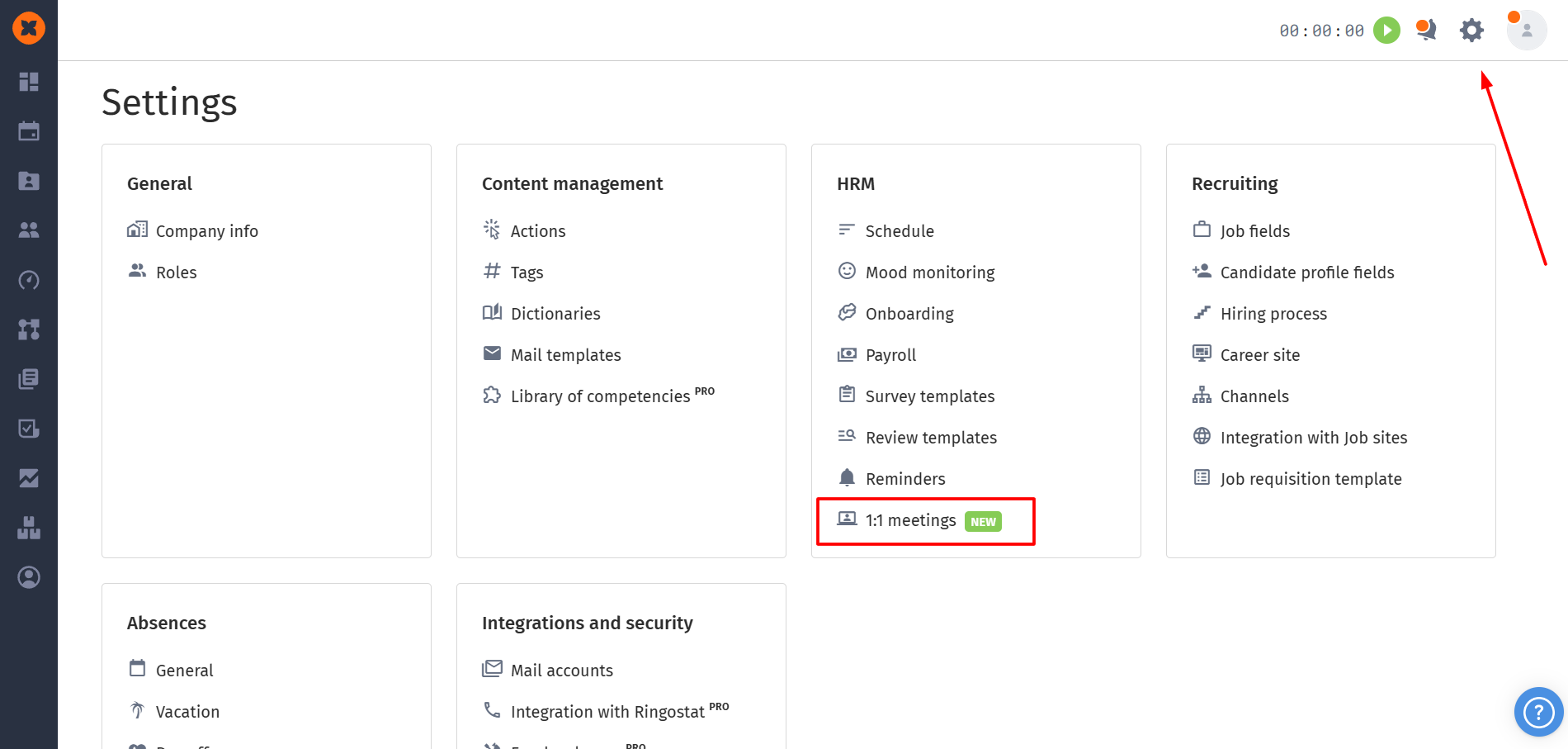
The following meeting types are available by default: Welcome meeting, Probation meeting, Performance review, Exit Interview, Adaptation meeting, Regular 1:1.
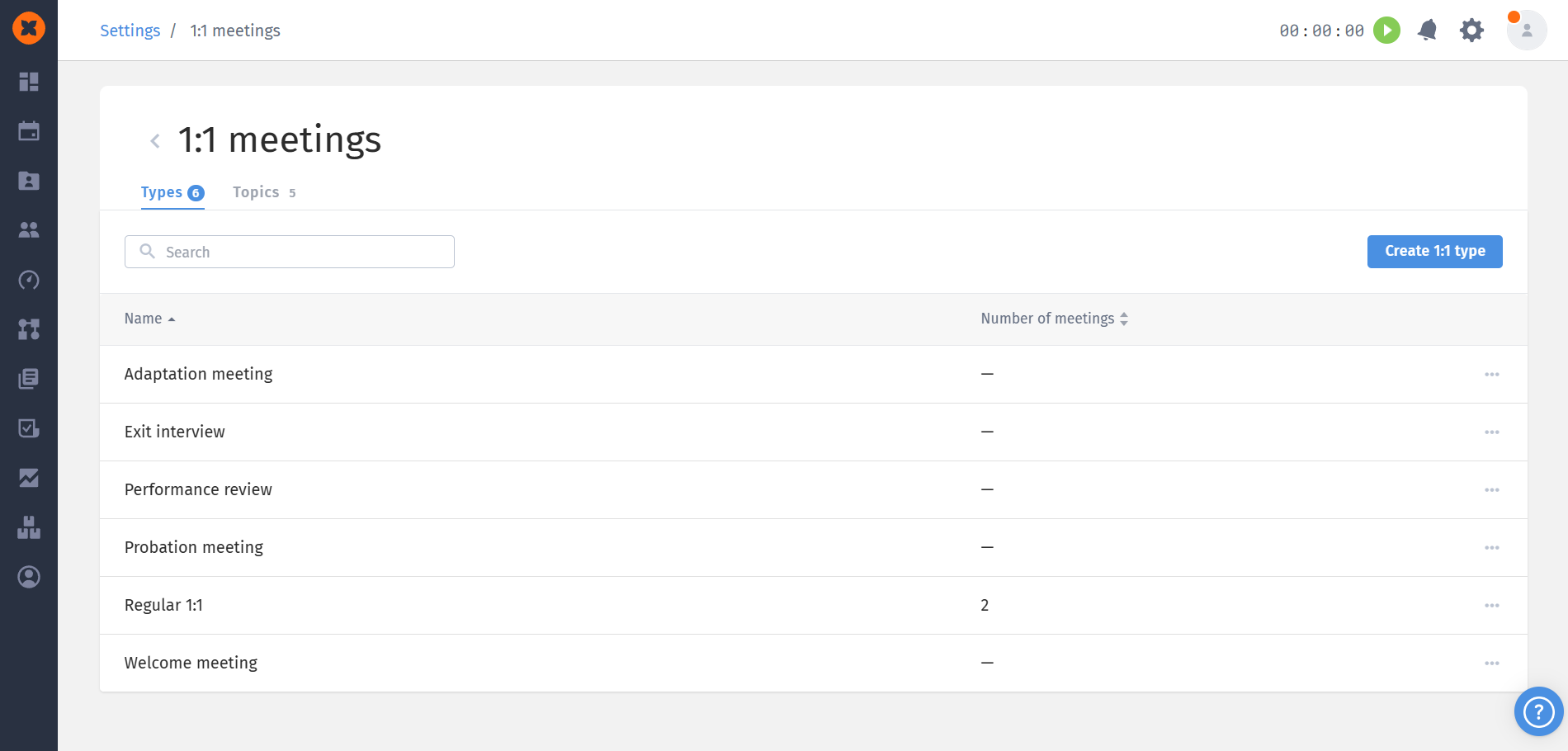
Each type includes a unique name (up to 255 characters) and a description (up to 10,000 characters).
Meeting types can be created, edited, and deleted.

The following topics are available by default: Tasks and processes, Development and career growth, Team and atmosphere, Employee well-being, Strategic changes.
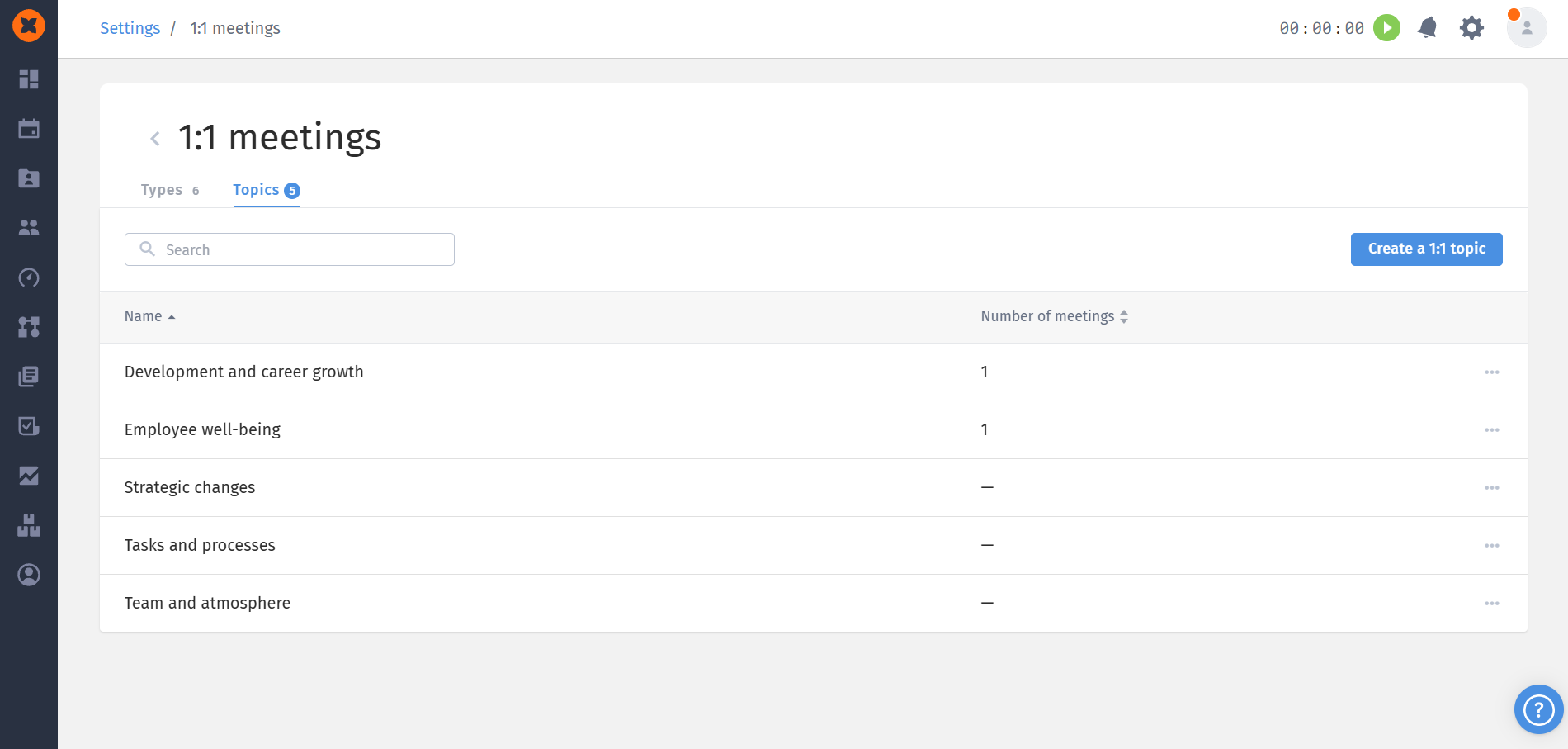
Topics can also be created and edited.
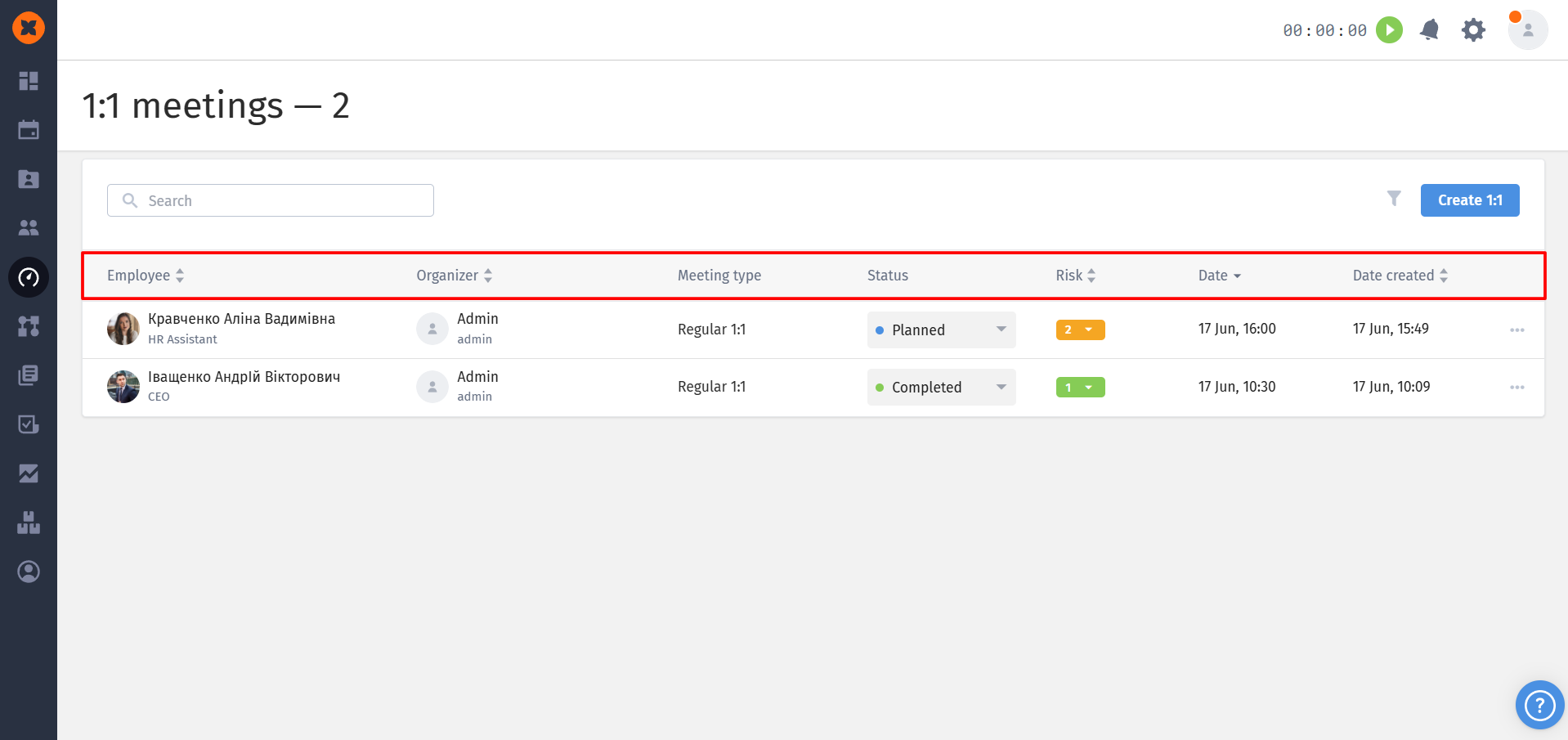
All meetings are displayed in a single list with the following columns: Employee, Organizer, Type, Status, Risk (color indicator and value), Date, Date created.
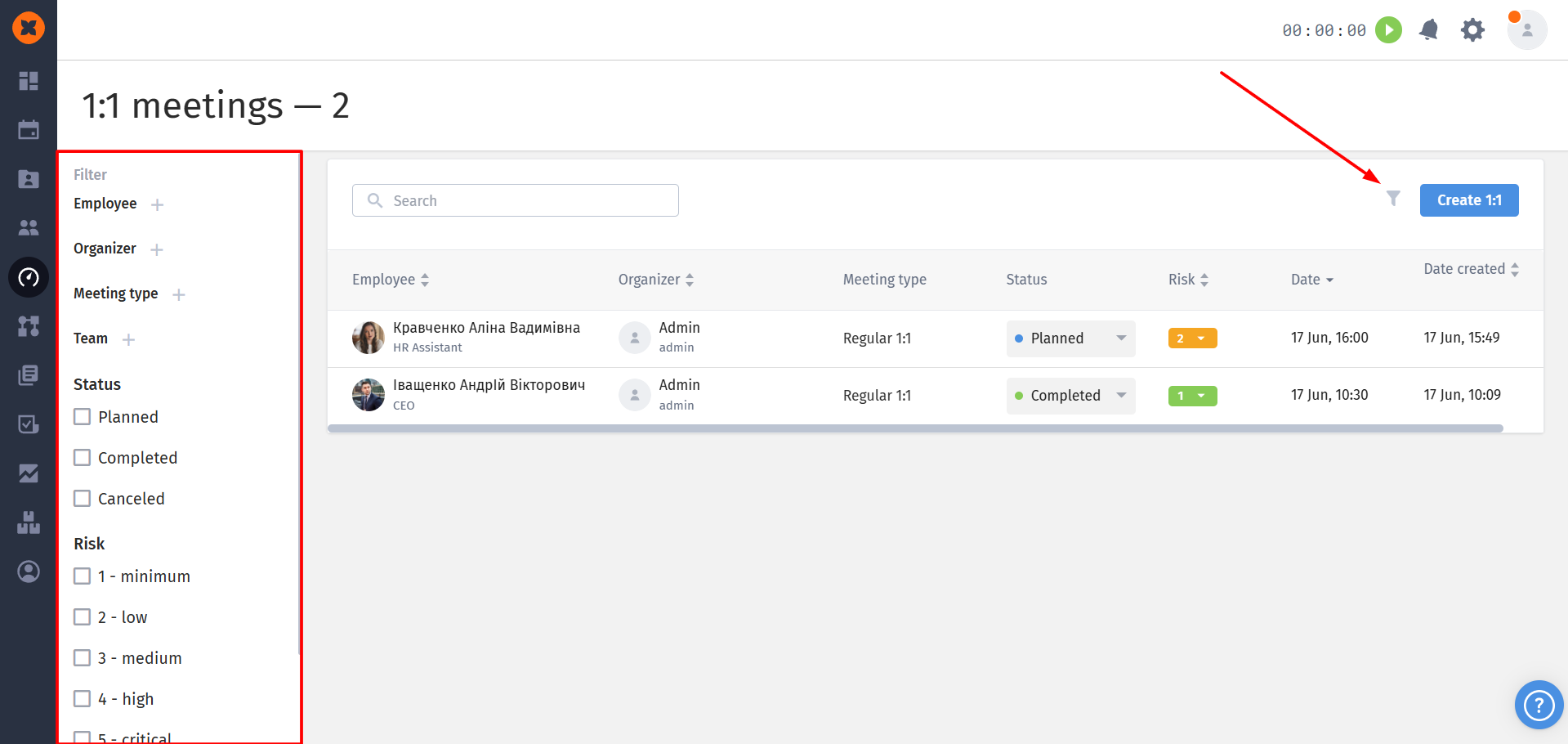
Available filters include:
Employee - used to search for all meetings held with a specific employee (where this person is the subject of the meeting);
Organizer - helps you find meetings initiated or organized by a specific user (for example, a particular HR manager or team lead);
Meeting type - ilters the list by a selected event category. It allows you to separate, for example, all Welcome meetings from Performance reviews or Regular 1:1s;
Team - displays meetings of employees who belong to a specific department or team. This is useful for analyzing 1:1 meetings within a particular team;
Status - helps you find meetings by their current state: “Scheduled”, “Completed”, or “Cancelled”;
Risk - allows you to filter meetings by the assigned color risk level (from 1 to 5). With this filter, you can quickly find and review all high or critical risk meetings that require immediate attention;
Date - allows you to filter meetings that are scheduled or have already taken place within a specific time period.
Each meeting can be edited, duplicated, deleted.
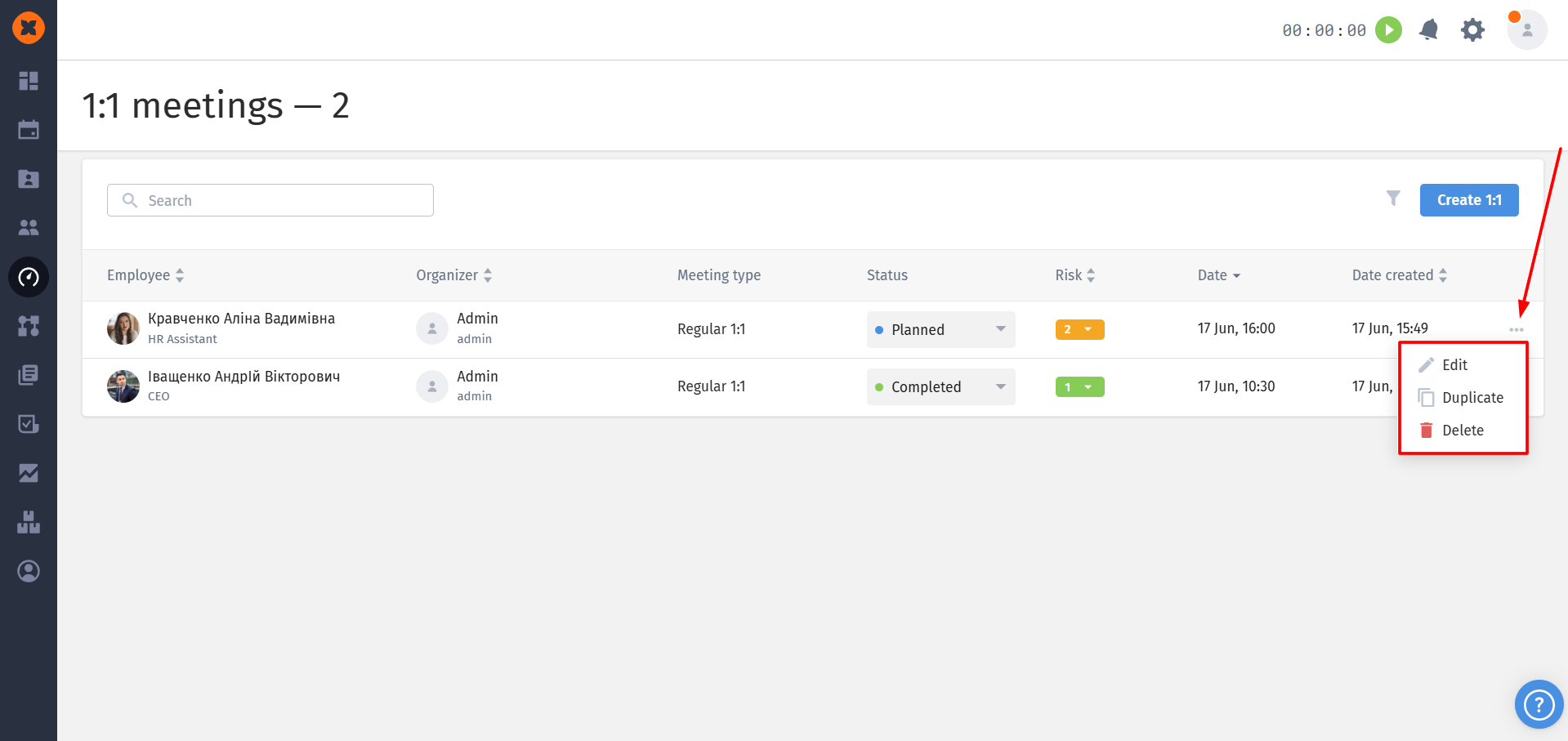
Within each meeting you can:
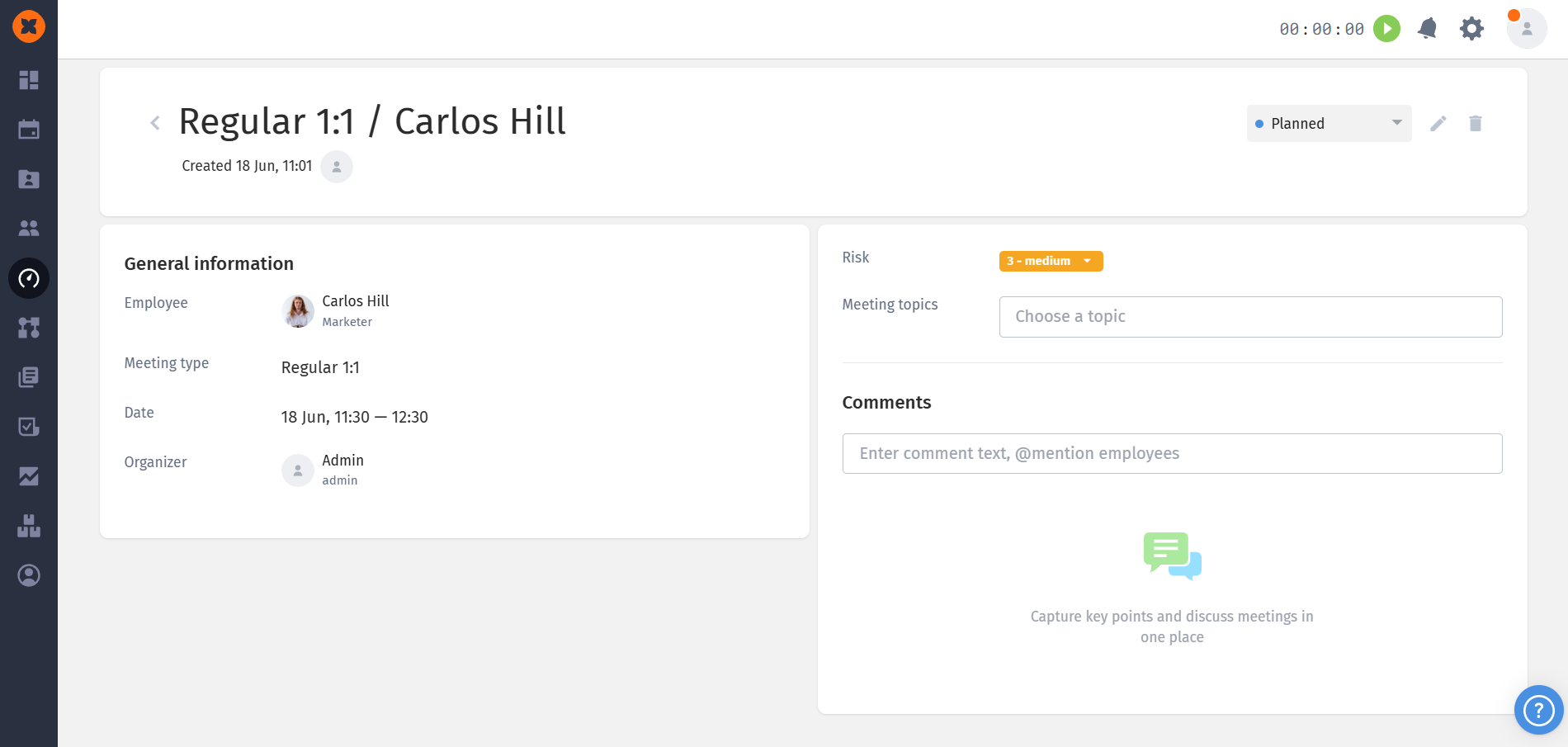
Change the status: Scheduled → Completed / Cancelled;
Assign a risk level using a scale from 1 to 5: 1 - Minimal, 2 - Low, 3 - Medium, 4 - High, 5 - Critical. This allows you to quickly identify which meetings went well and which require further attention or follow-up;
Add or update meeting topics;
Leave comments with flexible visibility settings. The visibility logic is the same as in the employee profile.
Each employee profile now contains a dedicated “1:1 Meetings” tab displaying all meetings related to that employee.
You can also create a new 1:1 meeting directly from this tab. The employee will be selected automatically, and the creator becomes the organizer. Only meetings where the employee is listed as the employee participant are displayed in this tab.