HURMA provides the ability to export various types of data for further analysis, processing, or storage. This allows you to obtain up-to-date information about recruitment, employees, absences, payroll, and other processes.
Within the ATS module, several export types are available that allow you to obtain data about candidates, vacancies, and the effectiveness of recruitment processes. Below is a detailed description of each available export type.
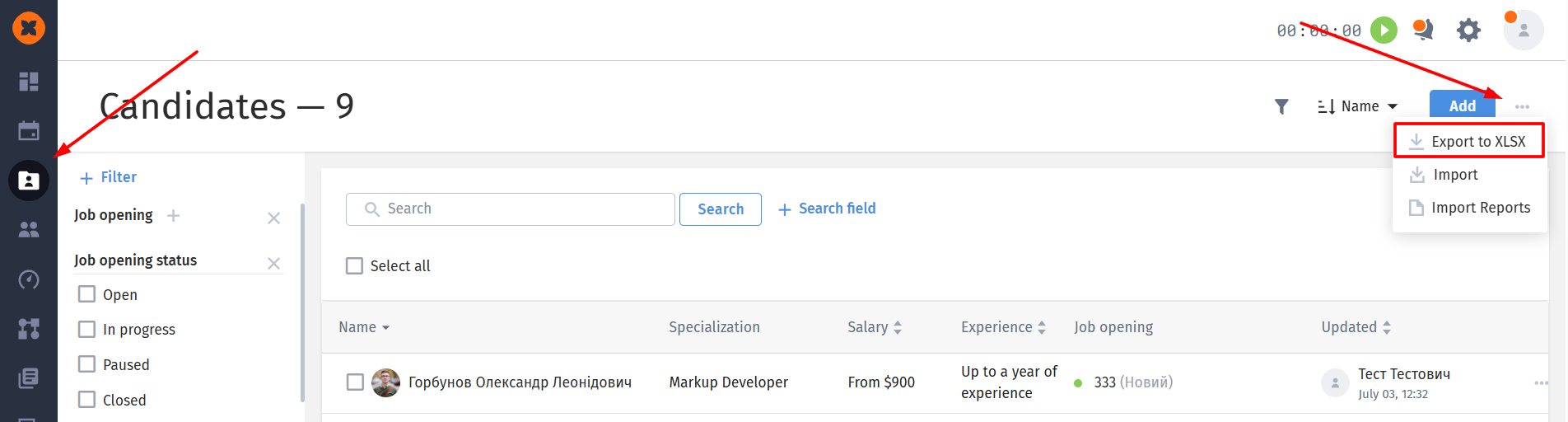
You can download the candidate database in the "Recruitment" - "Candidates" section.
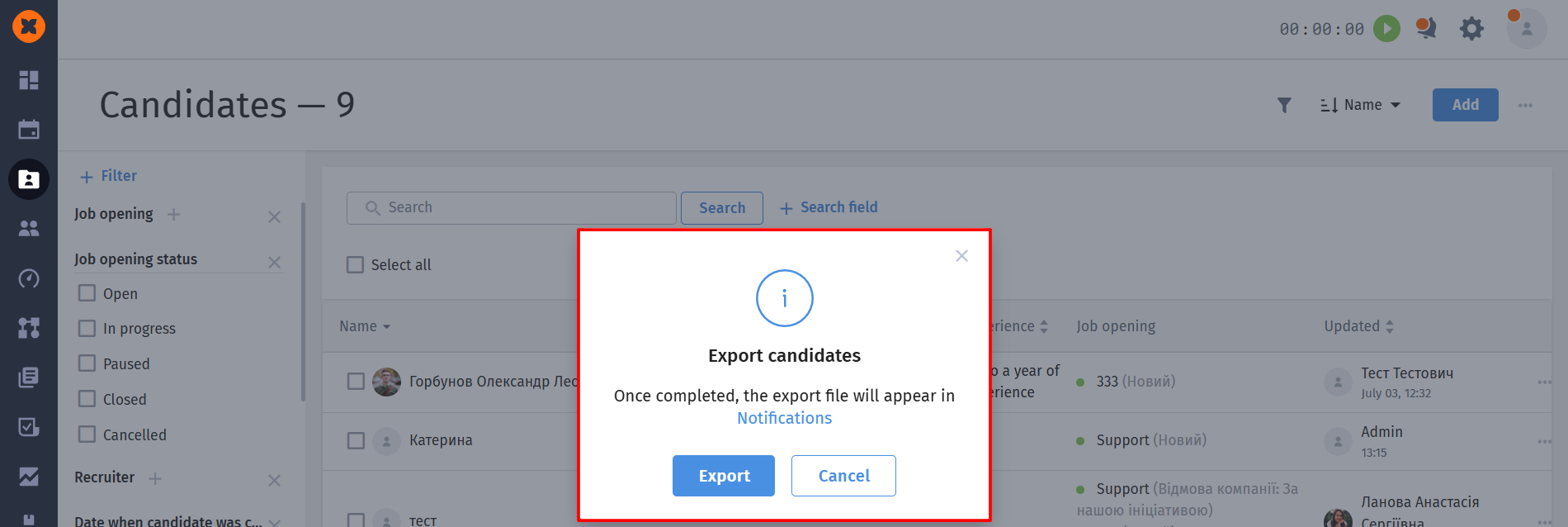
After the export is generated, you will be able to download the archive in the "Notifications" section.

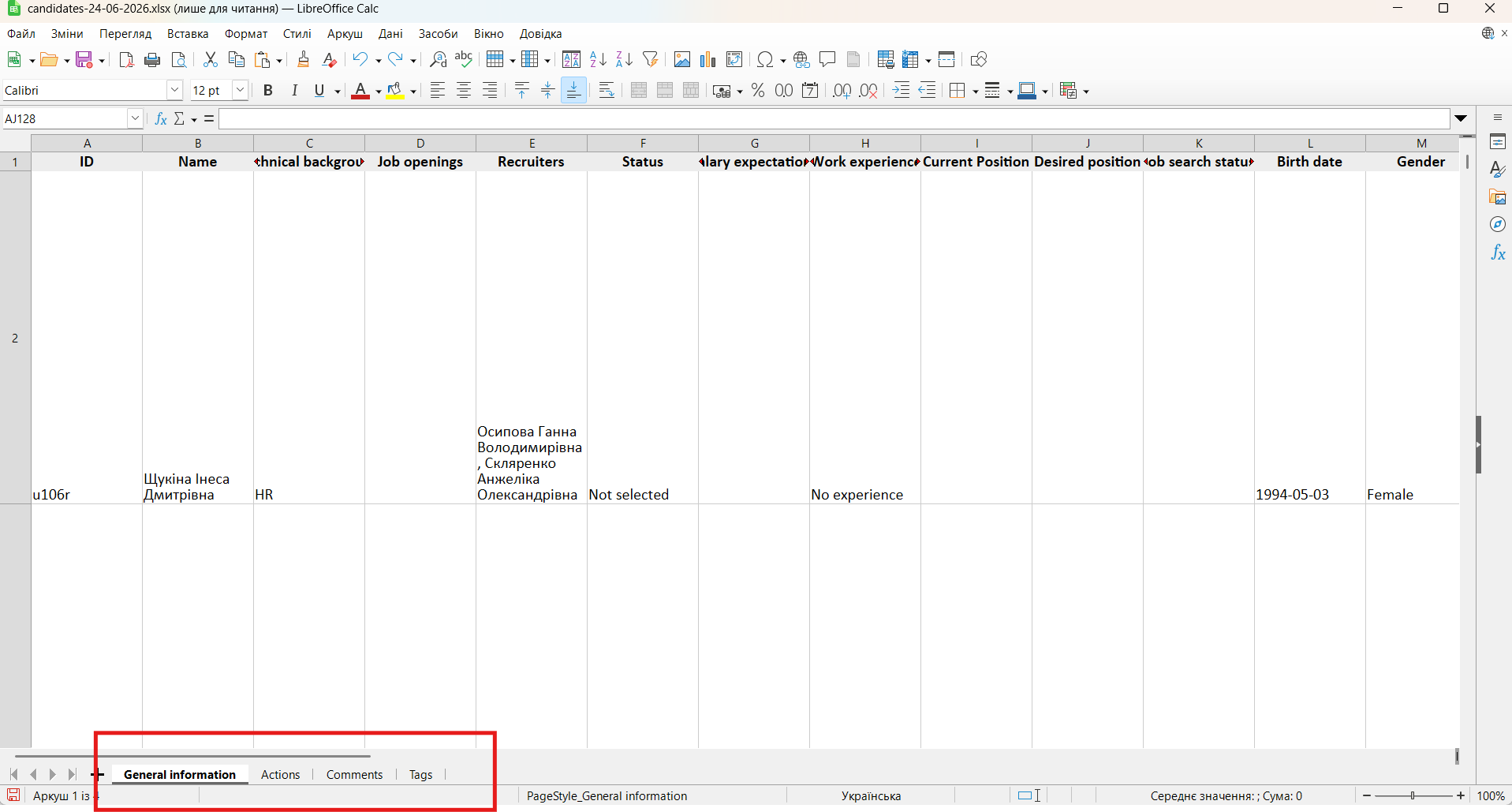
The spreadsheet will contain sheets with general information about candidates, comments, action history, and assigned tags.
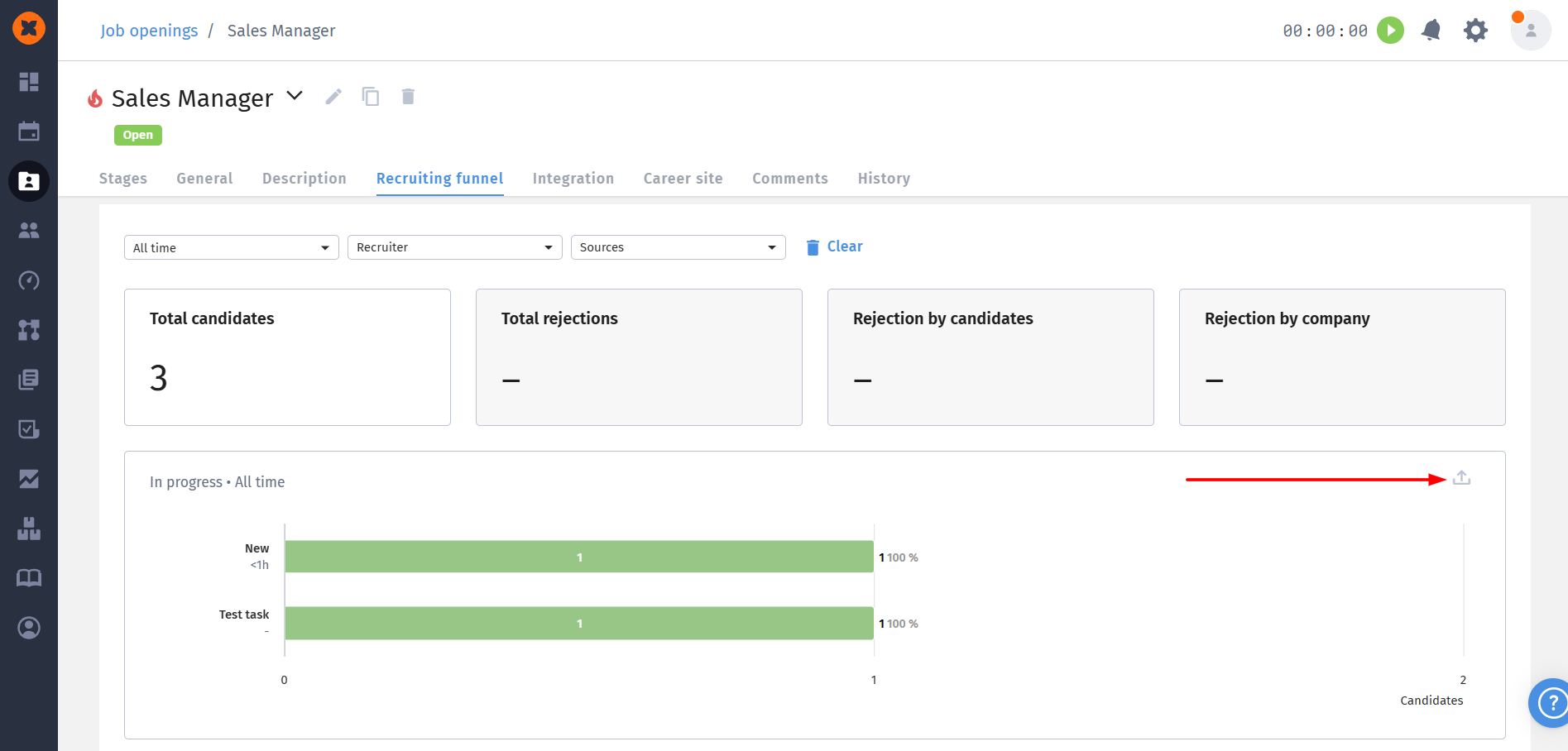
Recruitment funnels are exported separately for each vacancy. You can perform the export by going to the required vacancy - "Recruiting funnel".
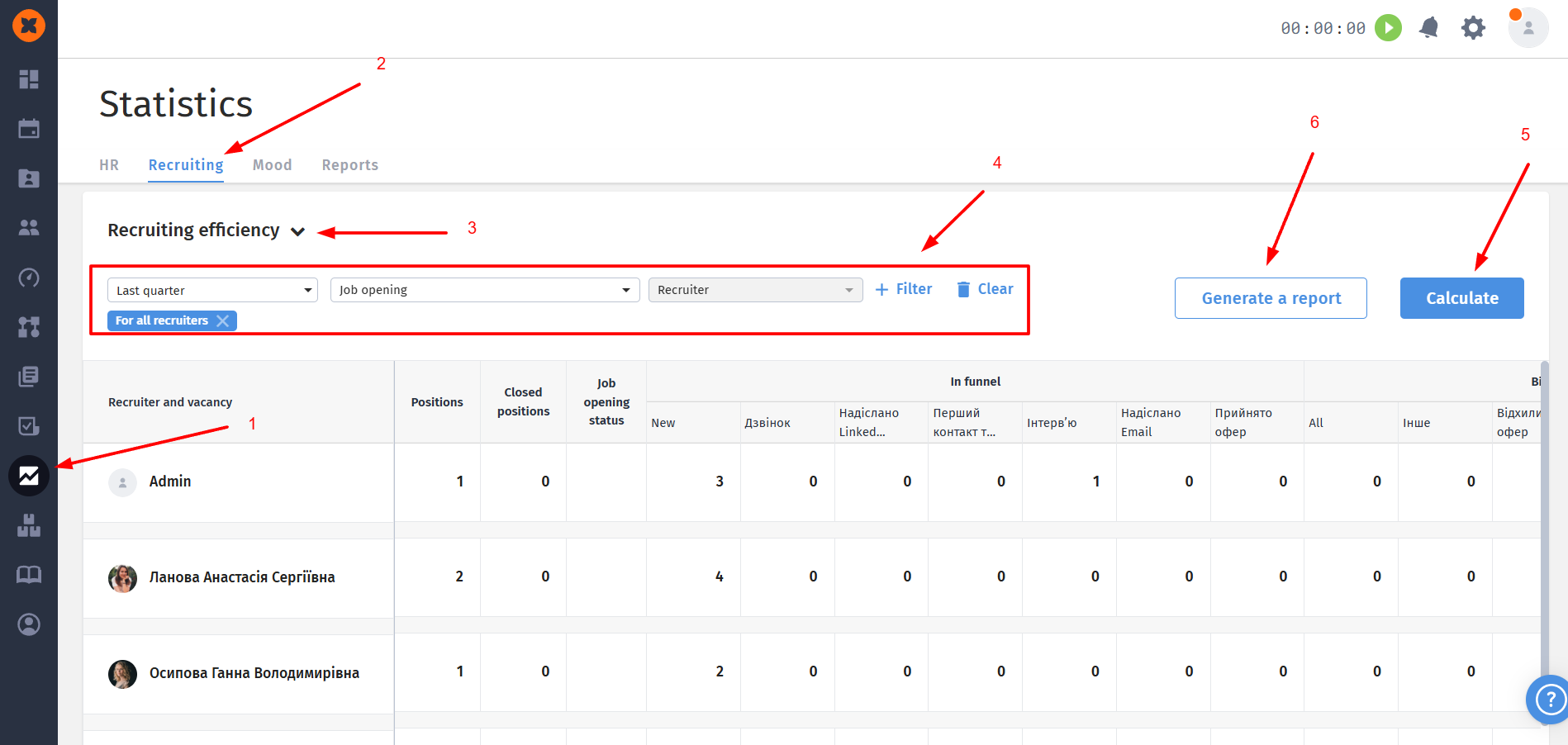
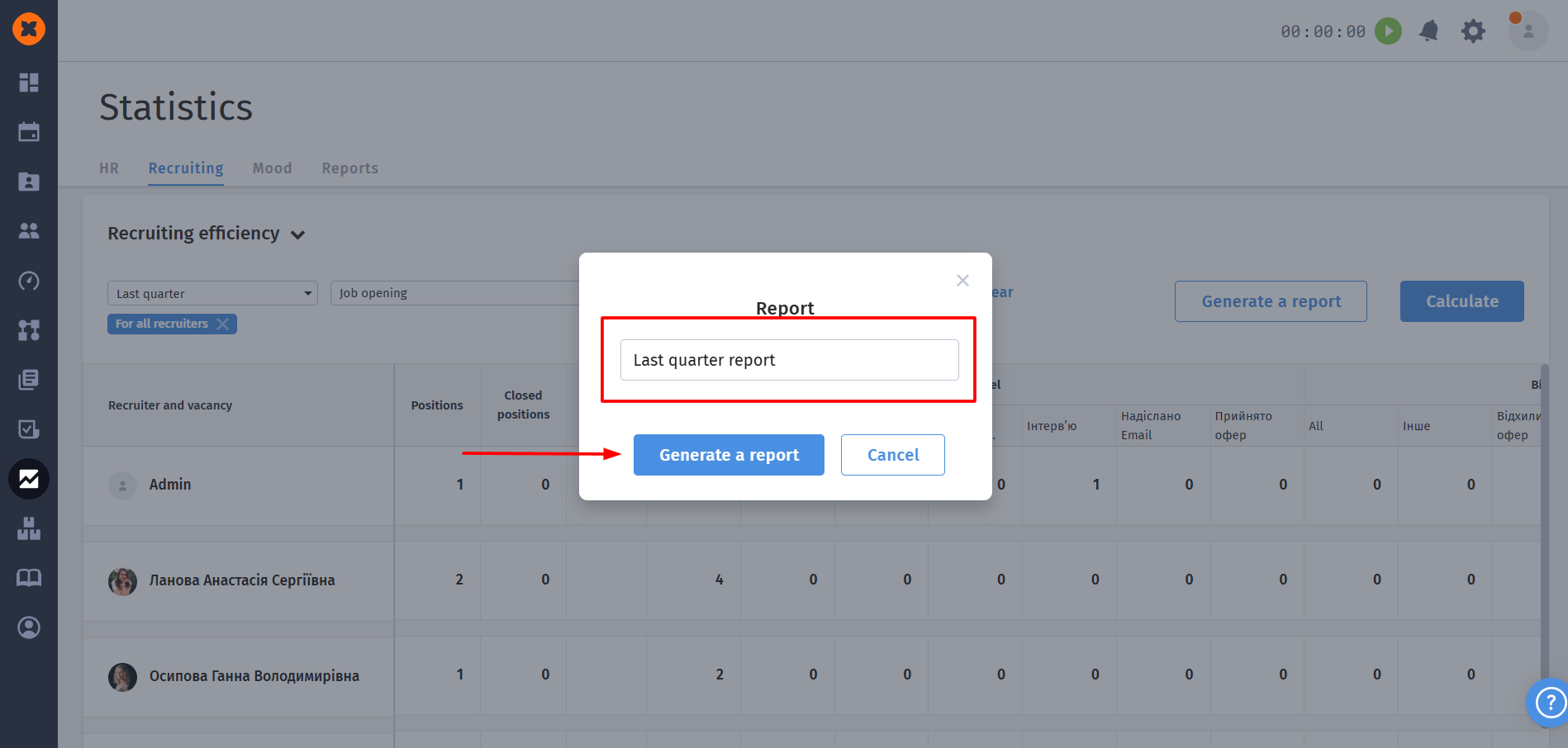
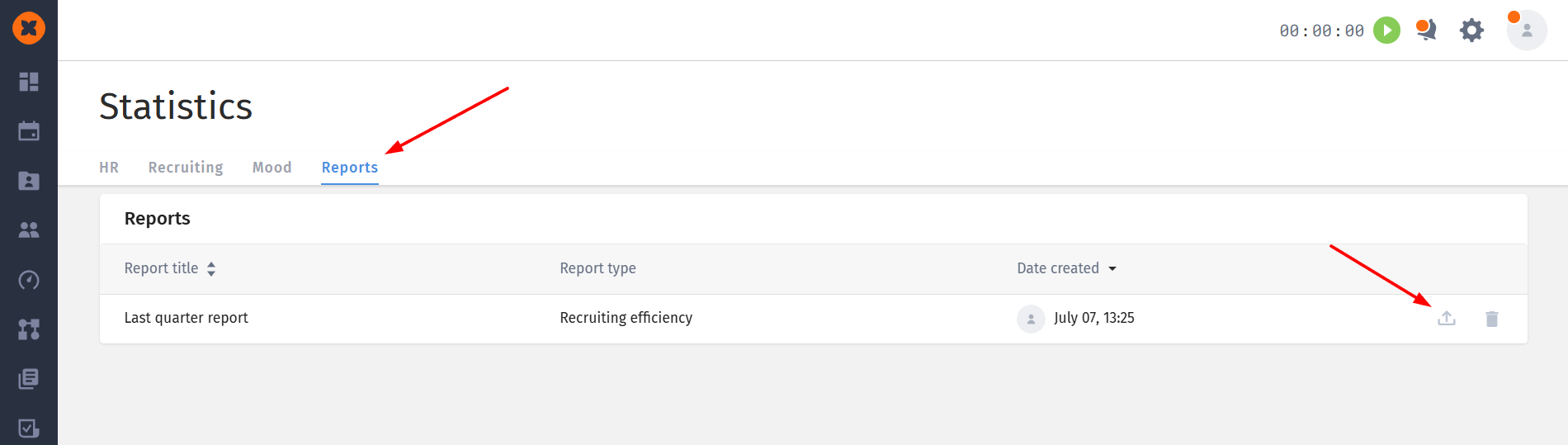
To generate a "Recruitment efficiency" report, go to the "Statistics" section - "Recruiting", select the required report, apply filters if necessary and click "Calculate". Then click "Generate a report", enter its name and click the "Generate report" button.
You can download the report itself by going to the "Reports" tab.
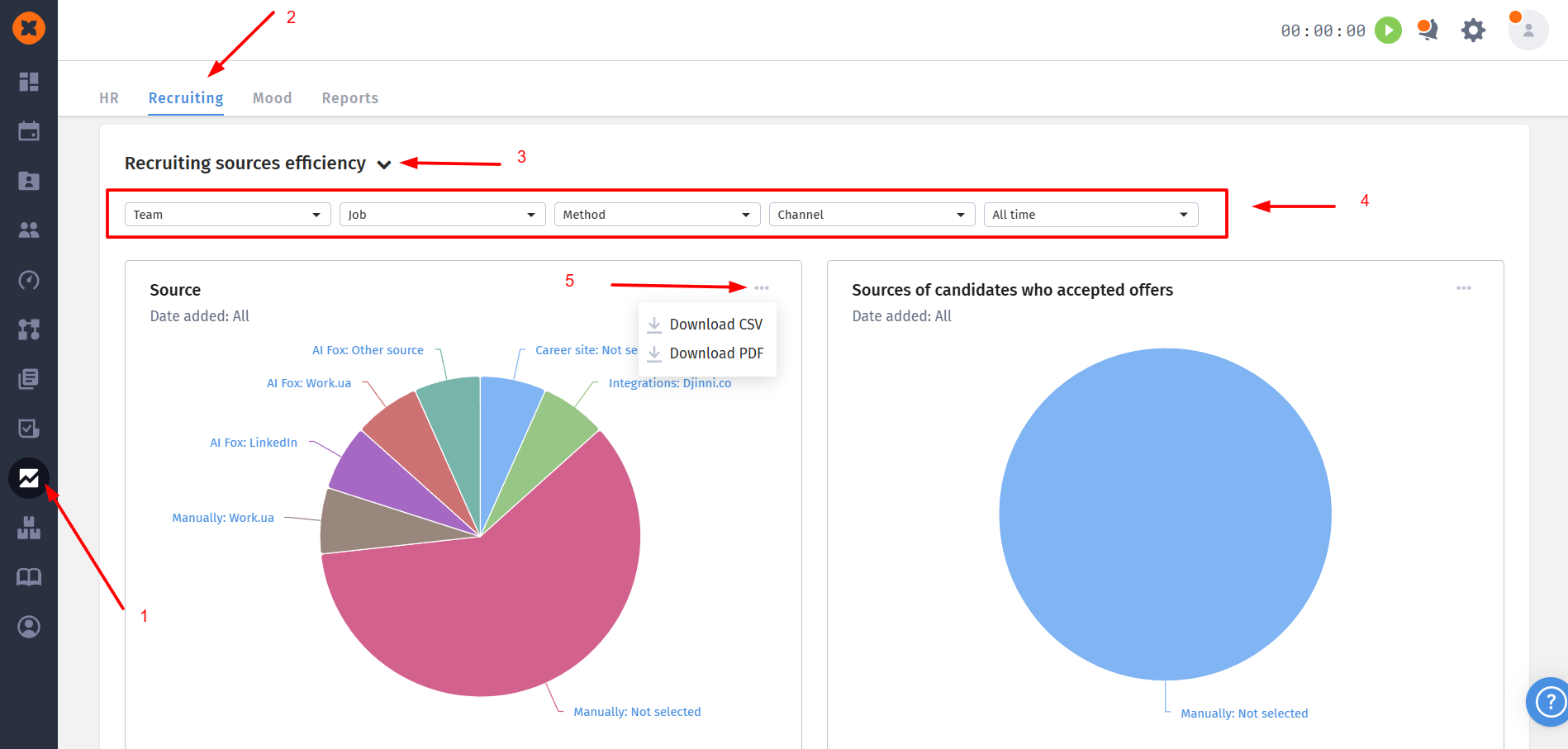
To export this report, you need to go to the "Statistics" - "Recruiting" section, select the "Recruiting source efficiency” report, apply the necessary filters if needed, and download the information in PDF or CSV format.
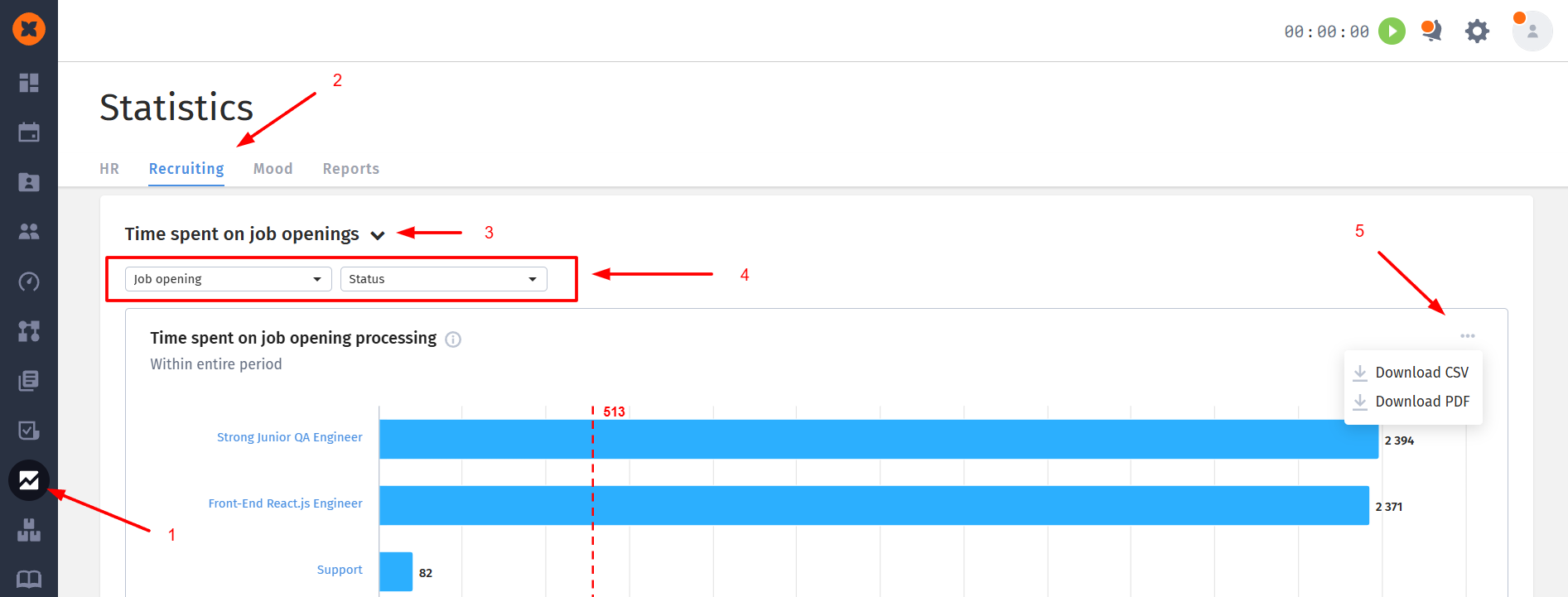
To export statistics “Time spent on job openings”, you need to go to the "Statistics" - "Recruiting" section, select the “Time spent on job openings” report, apply the necessary filters if needed, and download the information in PDF or CSV format.
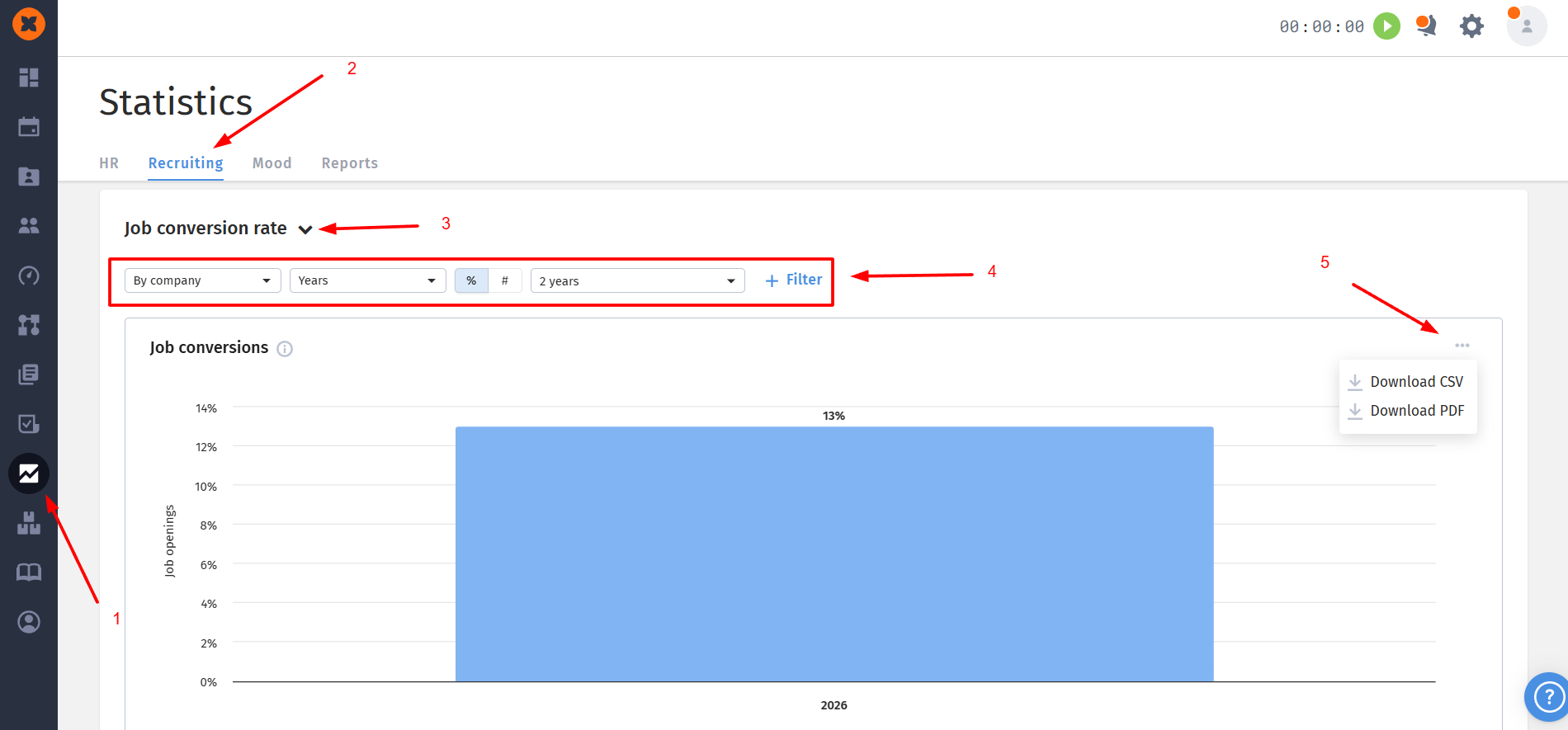
To generate the “Job conversion rate” report, go to the "Statistics" - "Recruiting" section, select the “Job conversion rate” report, apply the necessary filters if needed, and download the information in PDF or CSV format.
The HRM module in HURMA offers various data export options that cover employee information, absences, time tracking, and other HR data. Below we'll look at each export type in more detail.
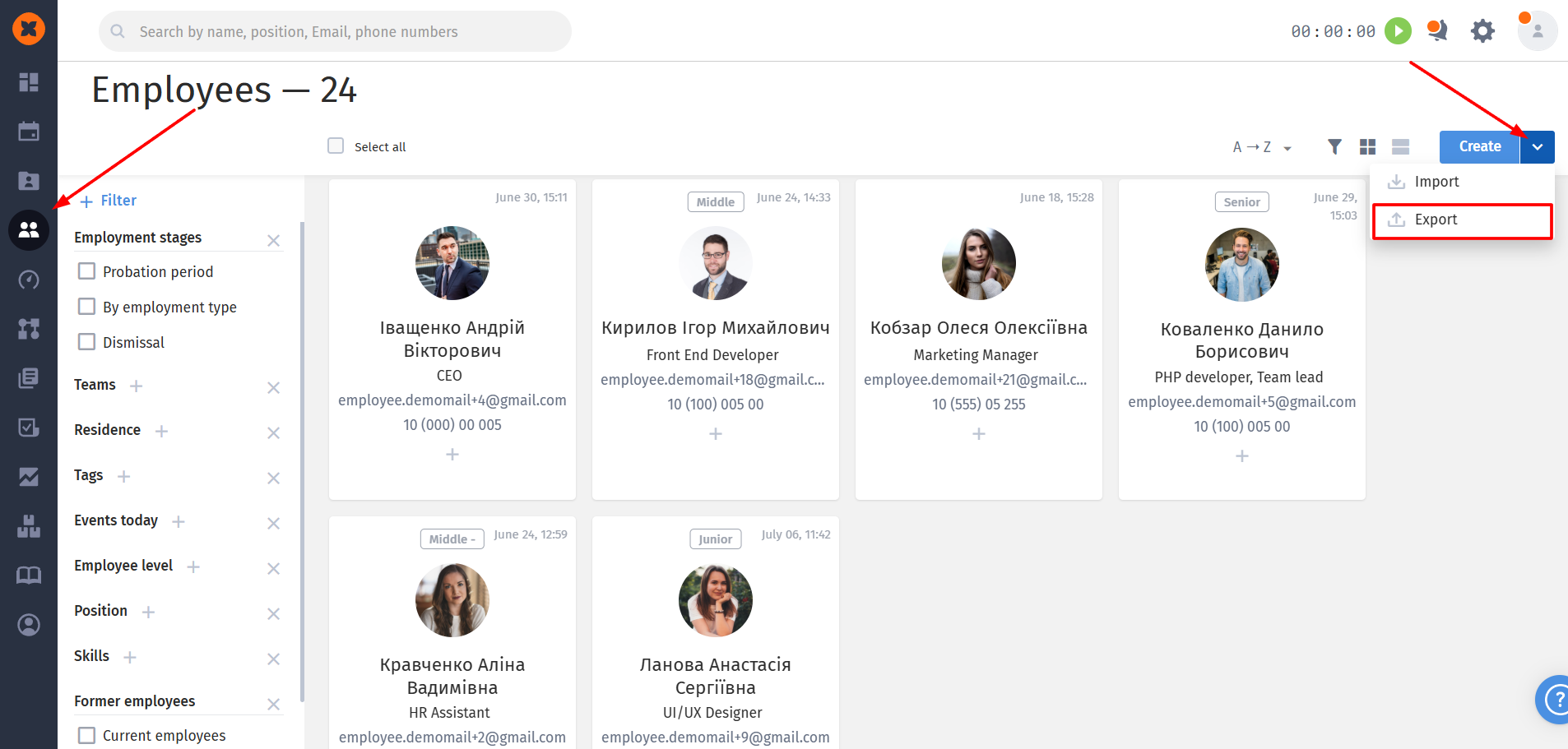
To export employees, you need to go to the "Company" - "Employees" section, click on the arrow icon next to the "Create" button and select "Export", after which a table with information will be downloaded.
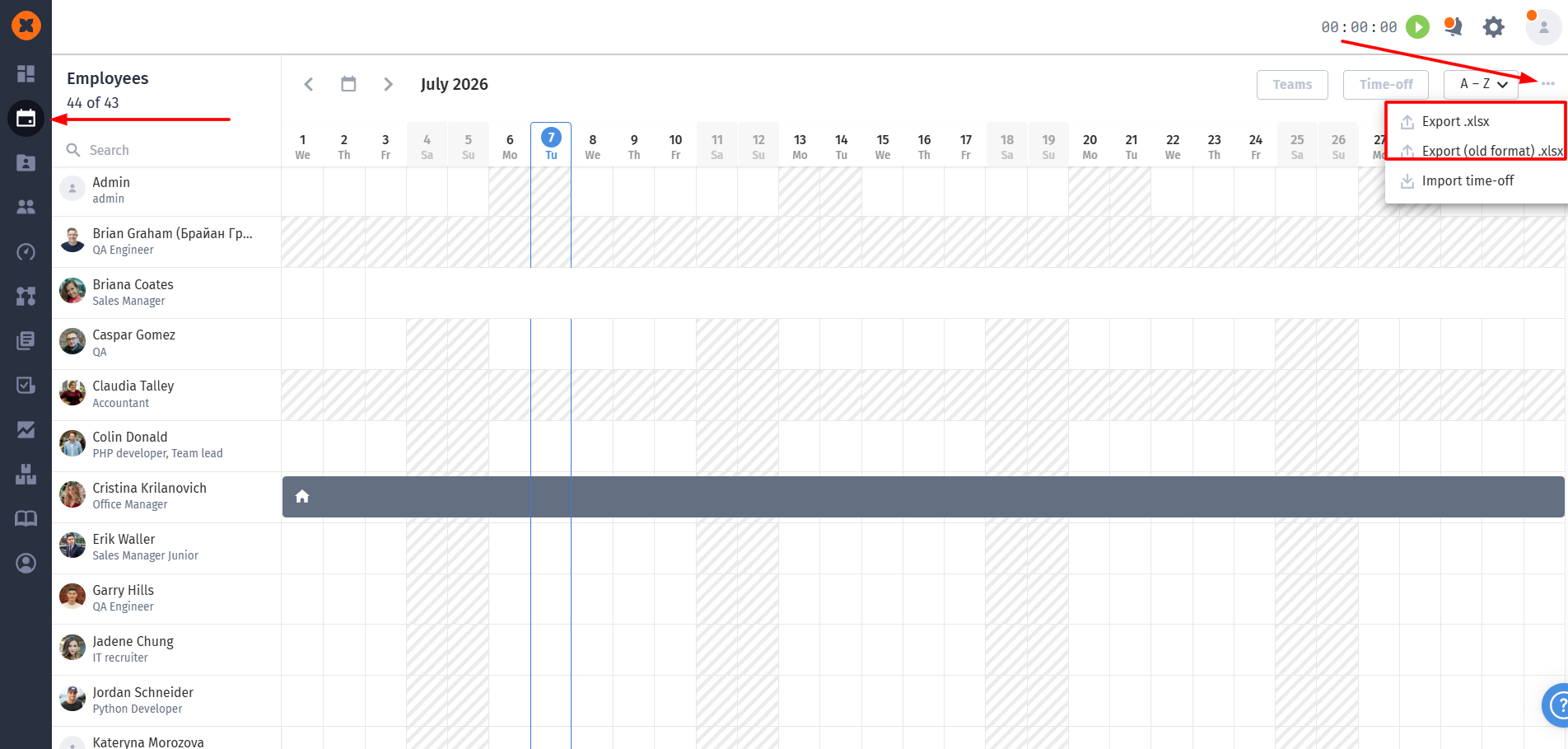
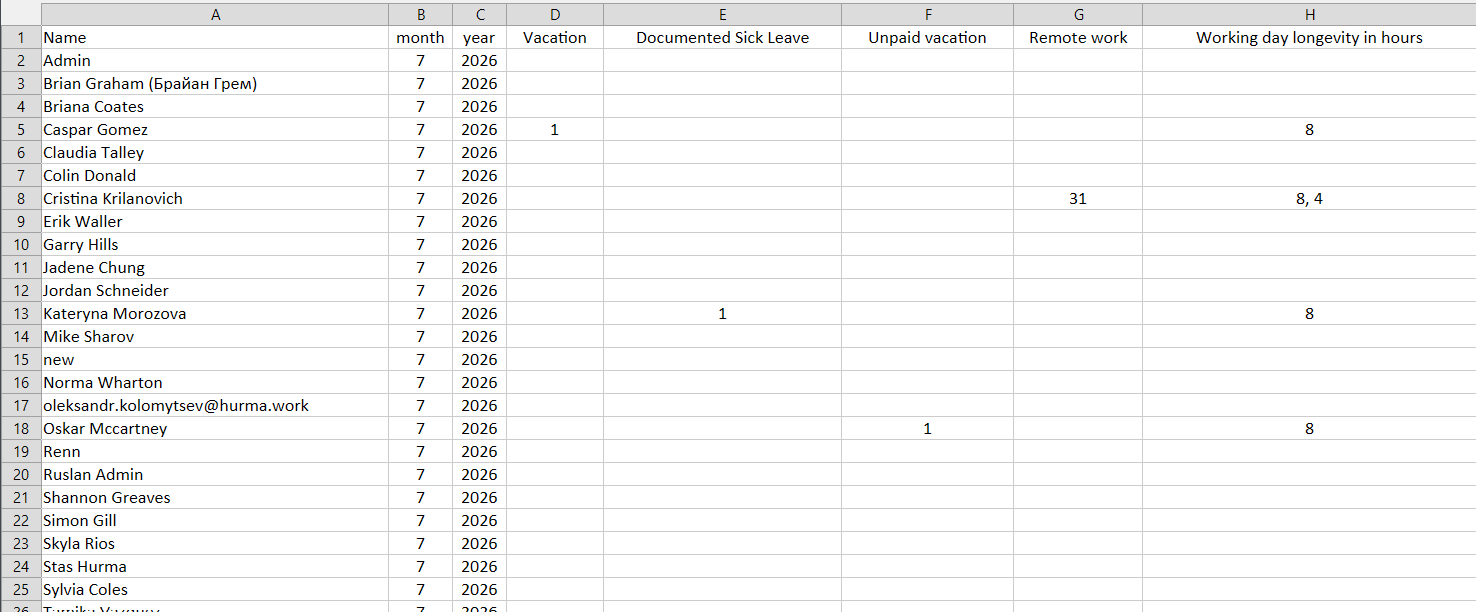
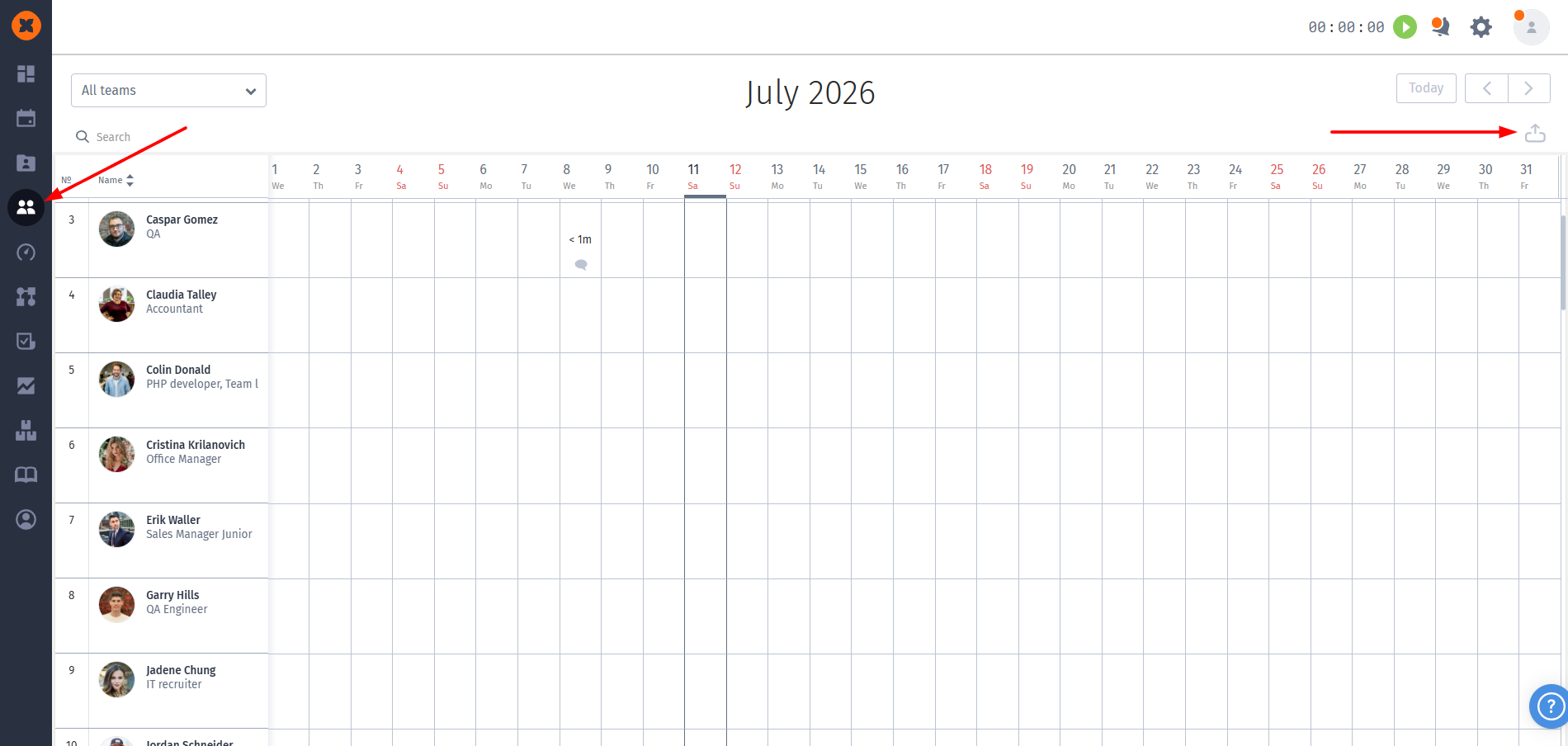
In the "Schedule" section, you can export two reports on absences for the selected month.
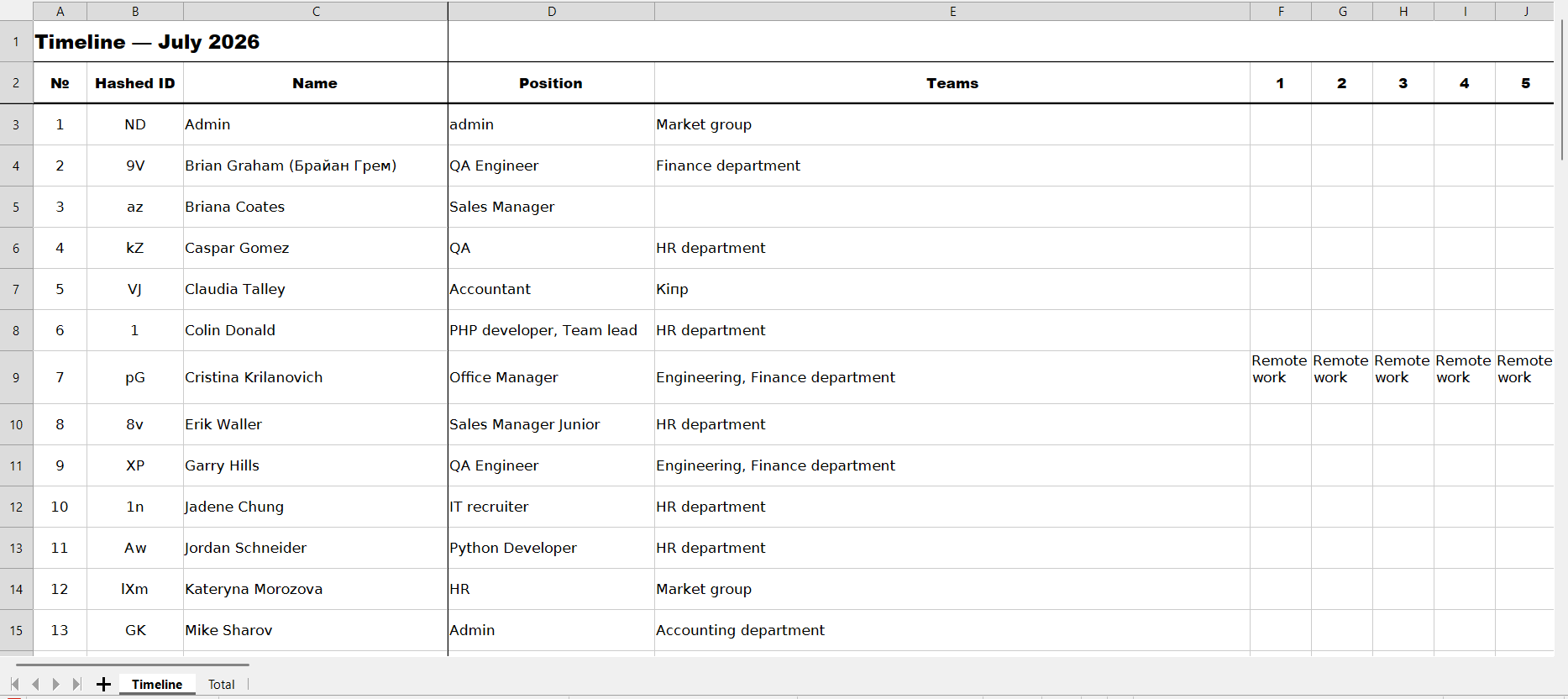
When exporting, a file will be downloaded in which you can see absences by day and the amount of time spent in minutes for the selected month.
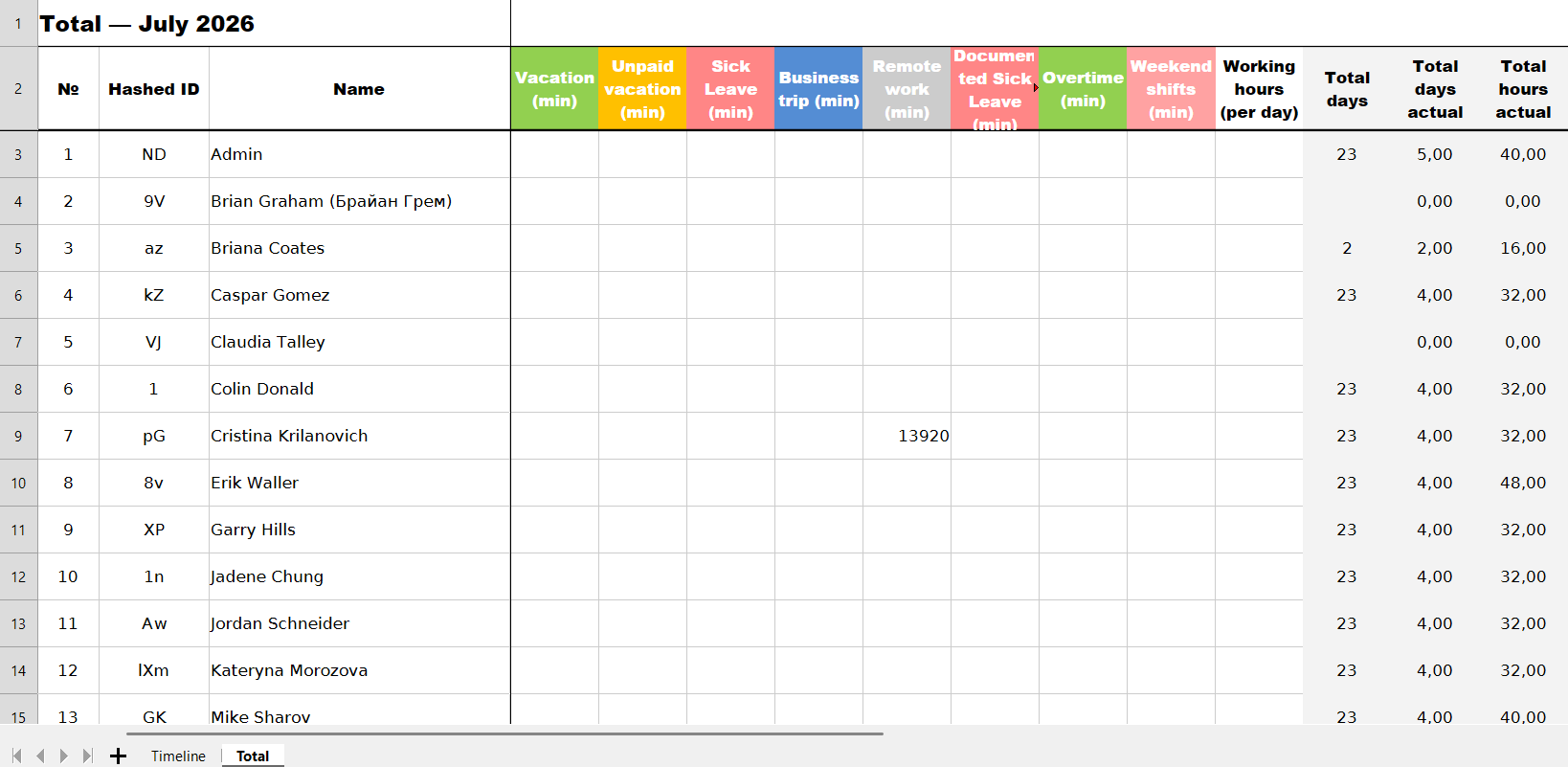
When performing export in the old format, you will be able to see the number of days of absences used by employees for the selected month.
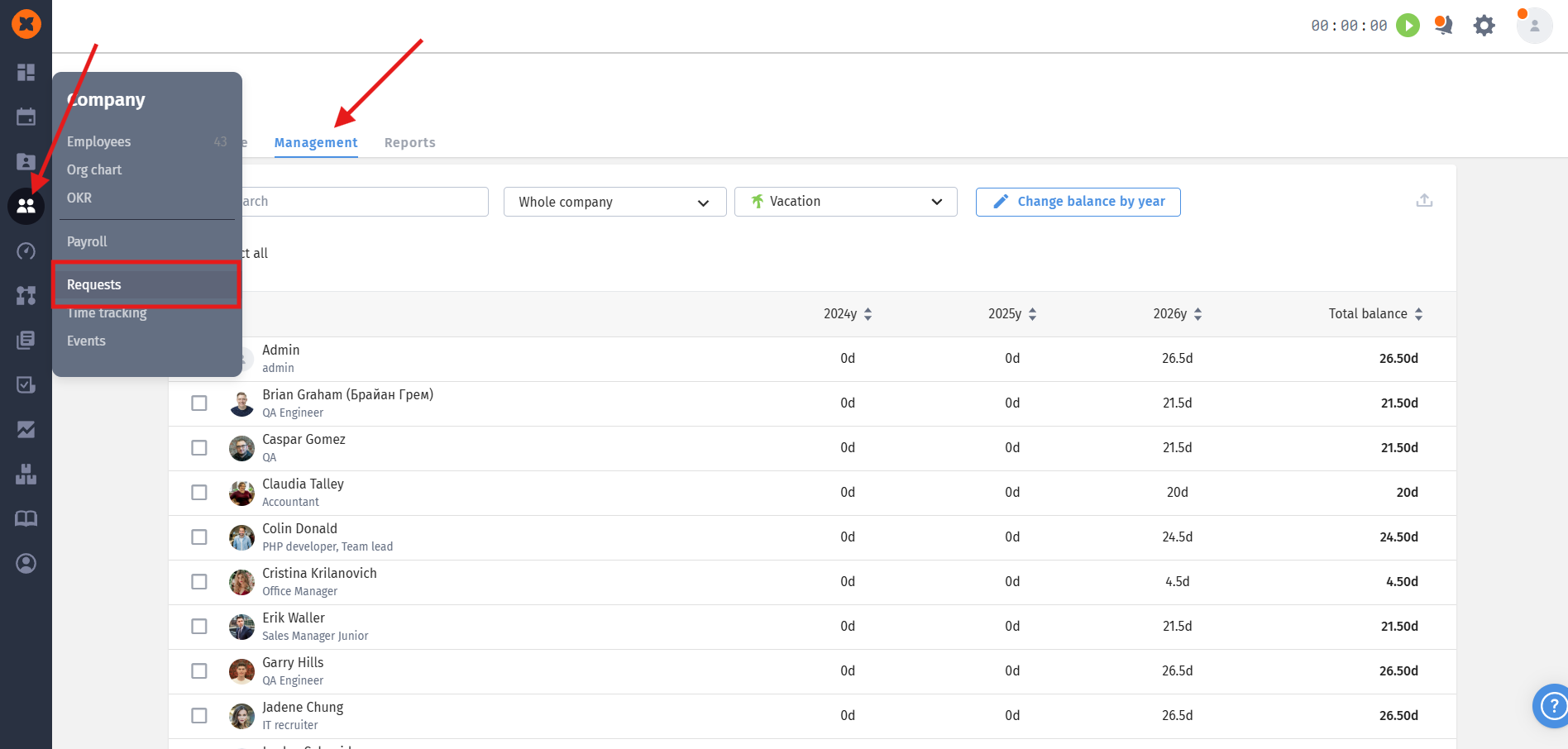
You can download this information in the "Company" section - "Requests" - "Management" tab.
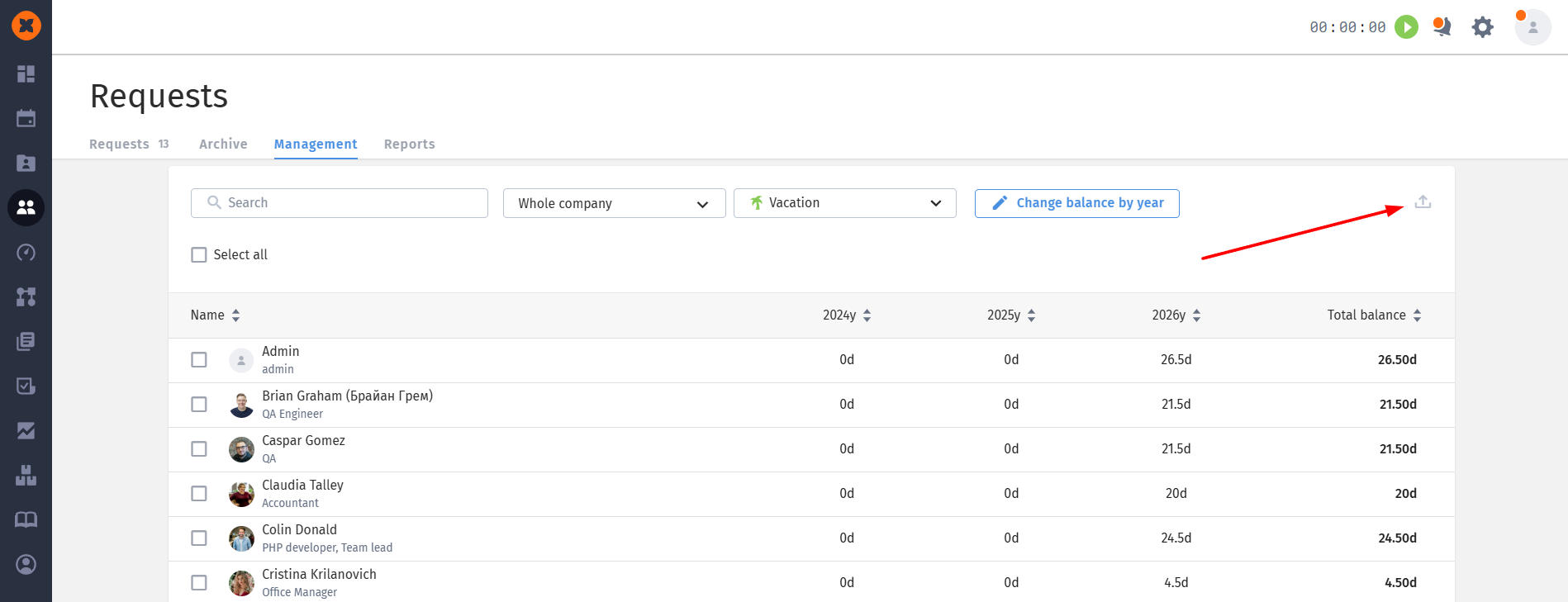
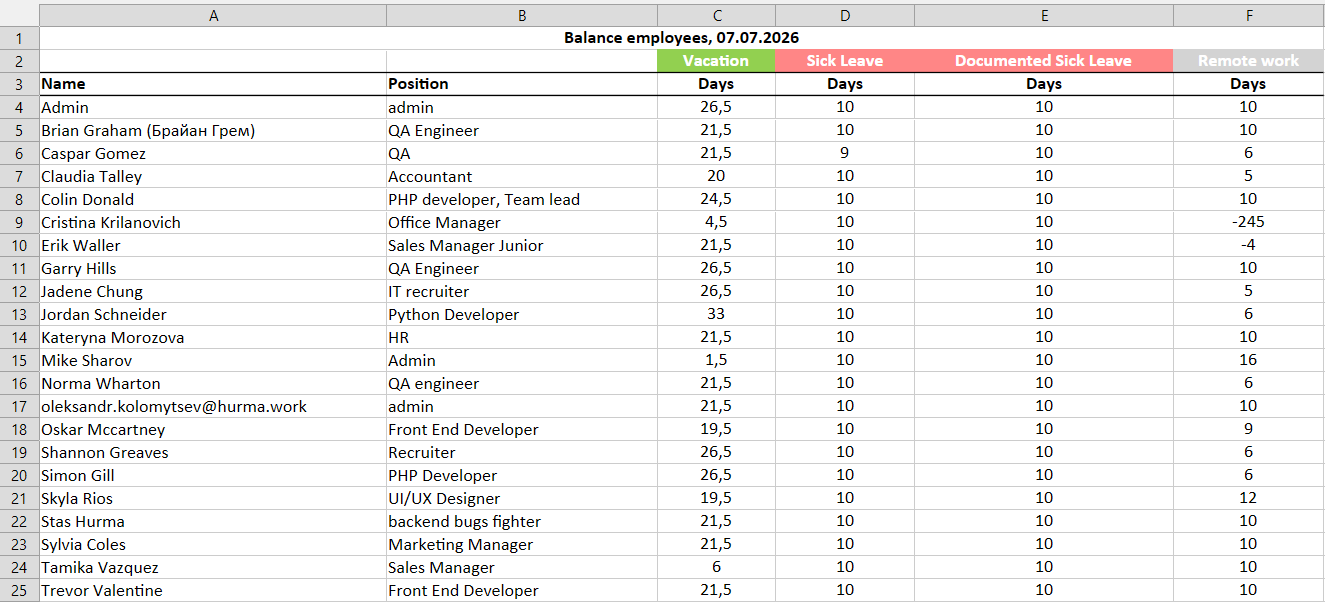
To export current balances, you need to click on the download icon.

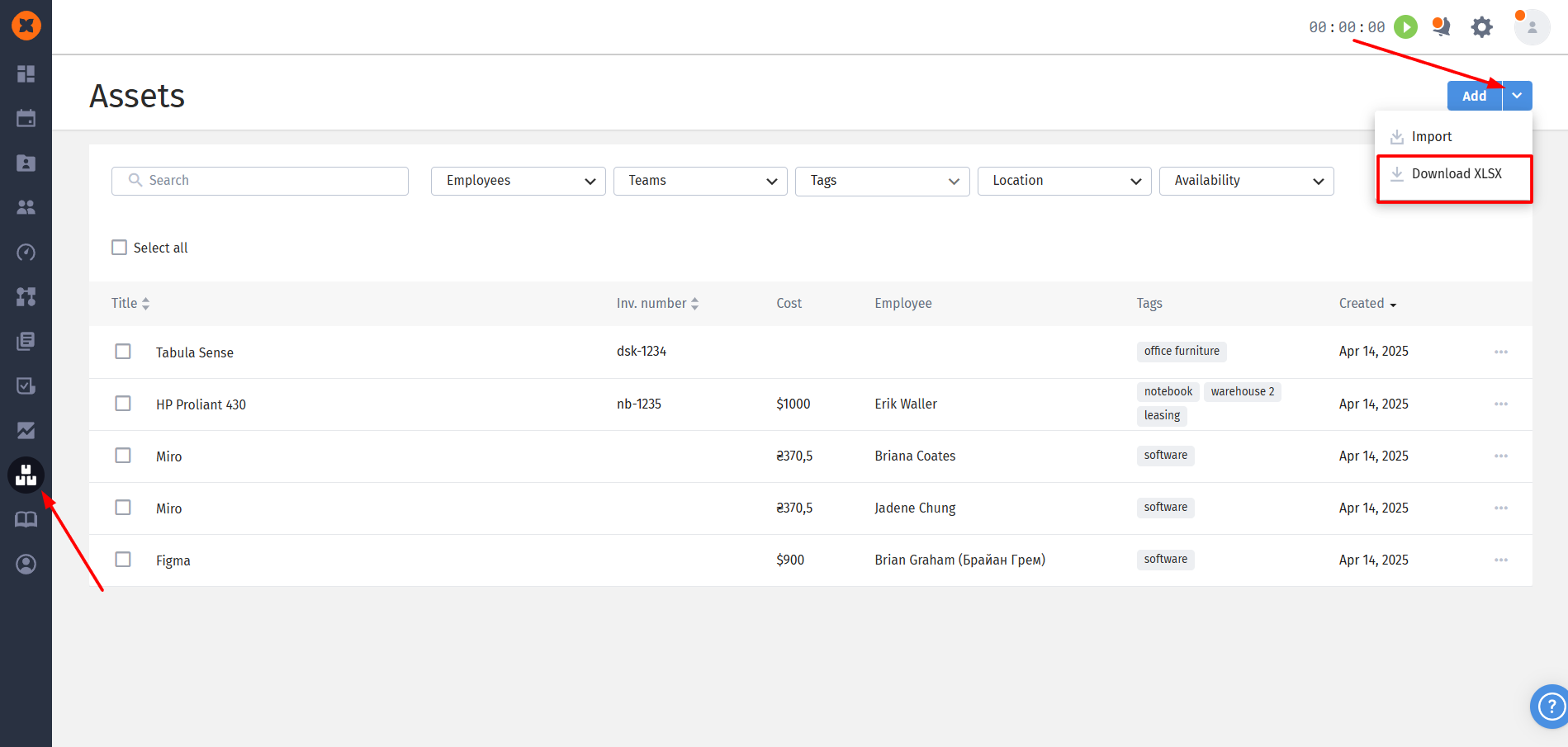
You can download information about the company's property entered in the "Assets" section. You need to click on the arrow icon next to the "Create" button and select "Download XLSX".
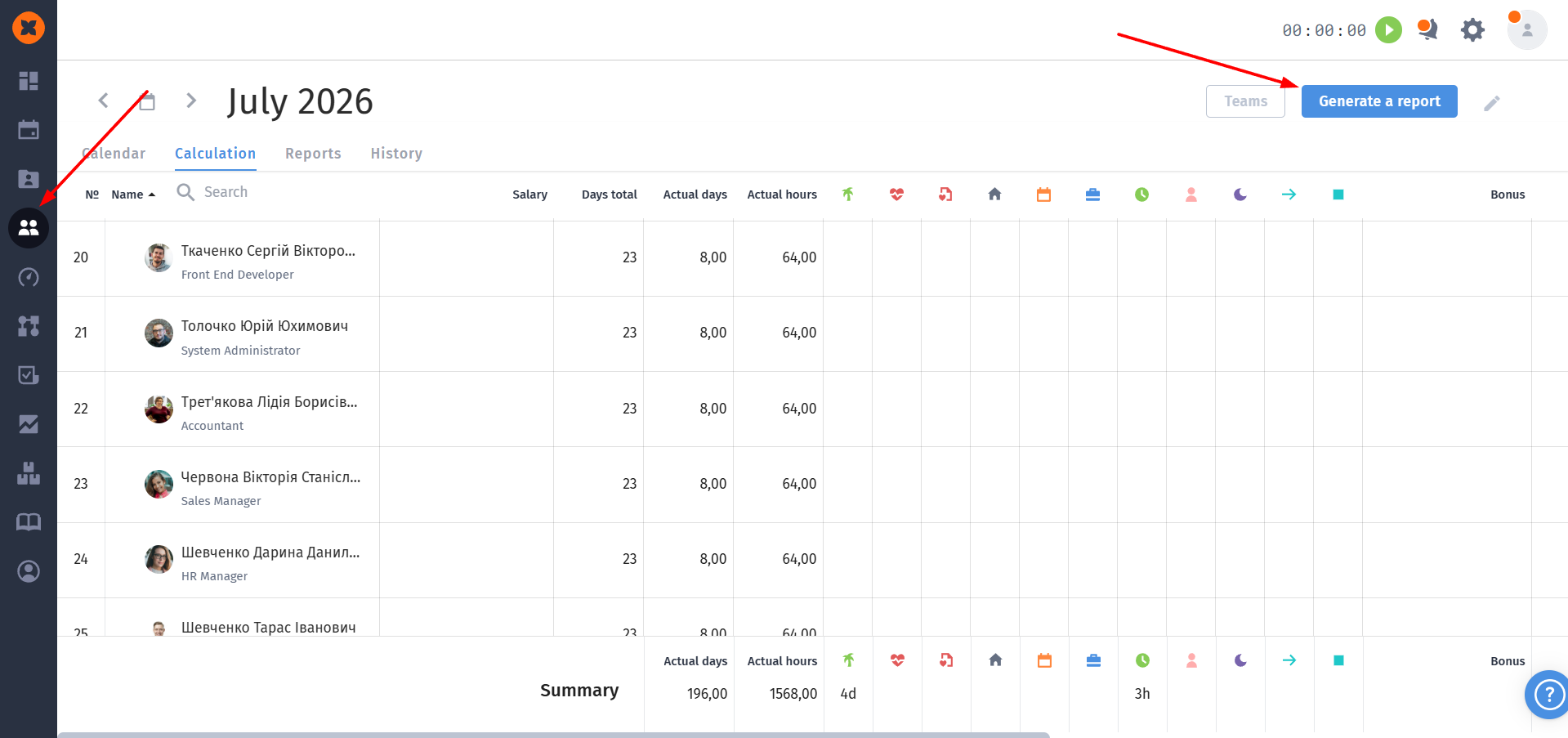
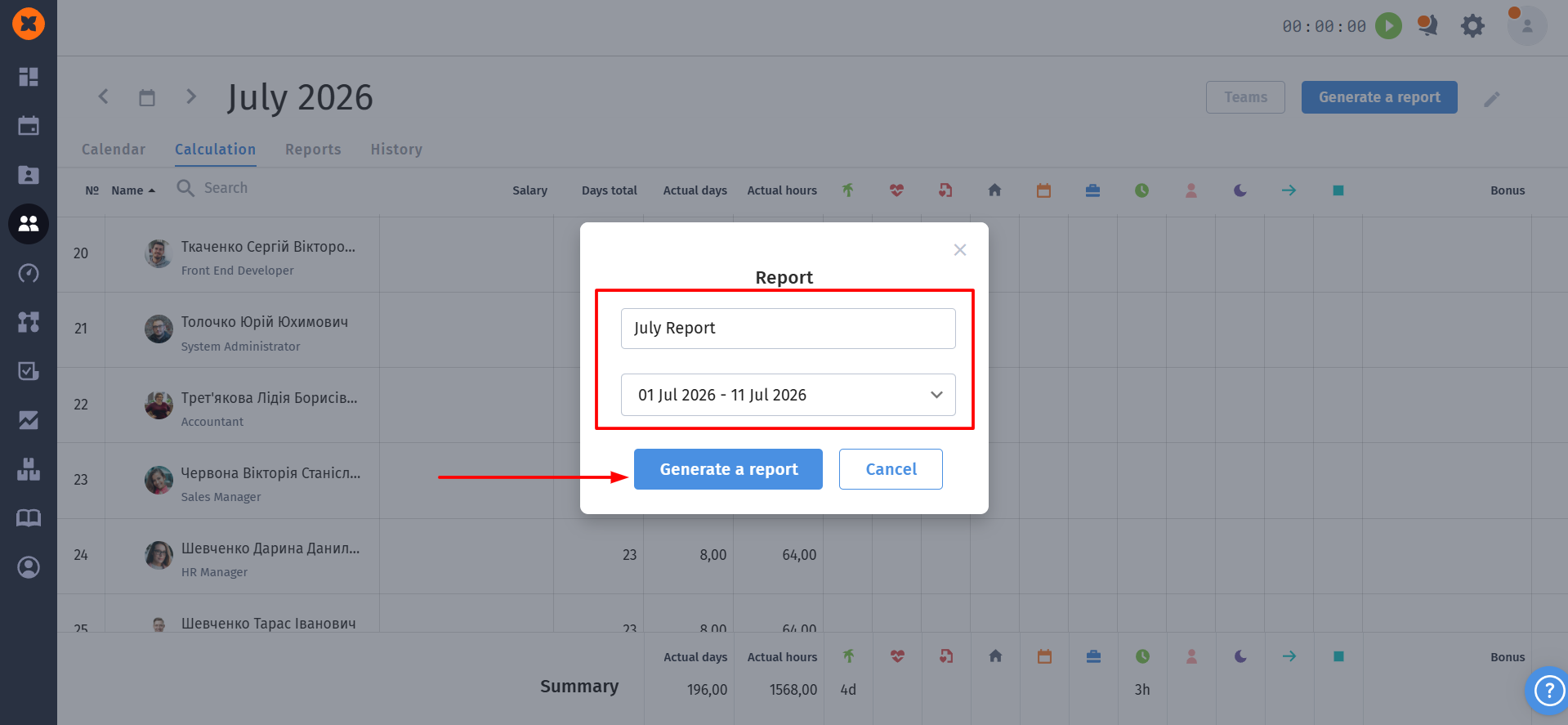
In the "Company" - "Payroll" section, you can export information for the necessary period regarding employee salaries, used absence days, and information from the columns you added. To export, click the "Generate report" button, specify the required period and report name.
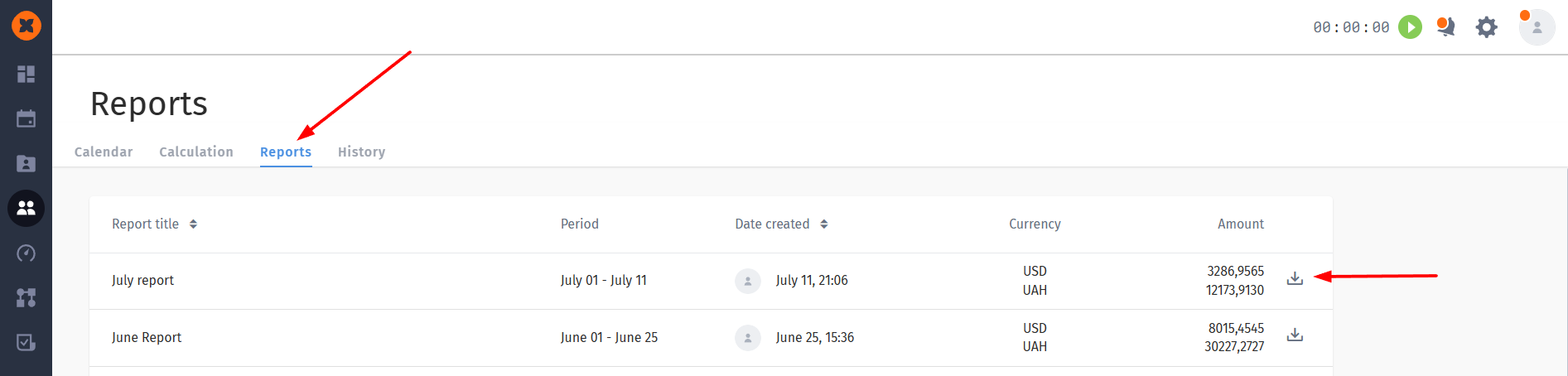
You can download the report itself by going to the "Reports" tab.
The export will contain 5 tabs in Excel (5 separate CSV files):
Calendar + Calculation - combined with the calendar;
Salaries - for logging salary changes for the selected date;
Accrual - all entries in the "Addition" columns;
Subtraction- all entries in the "Subtraction" columns;
Out of calculation - all entries in neutral columns.

Consolidated time tracking data is available in the "Company" - "Time tracking" section. On this page, you can download it in .xlsx format
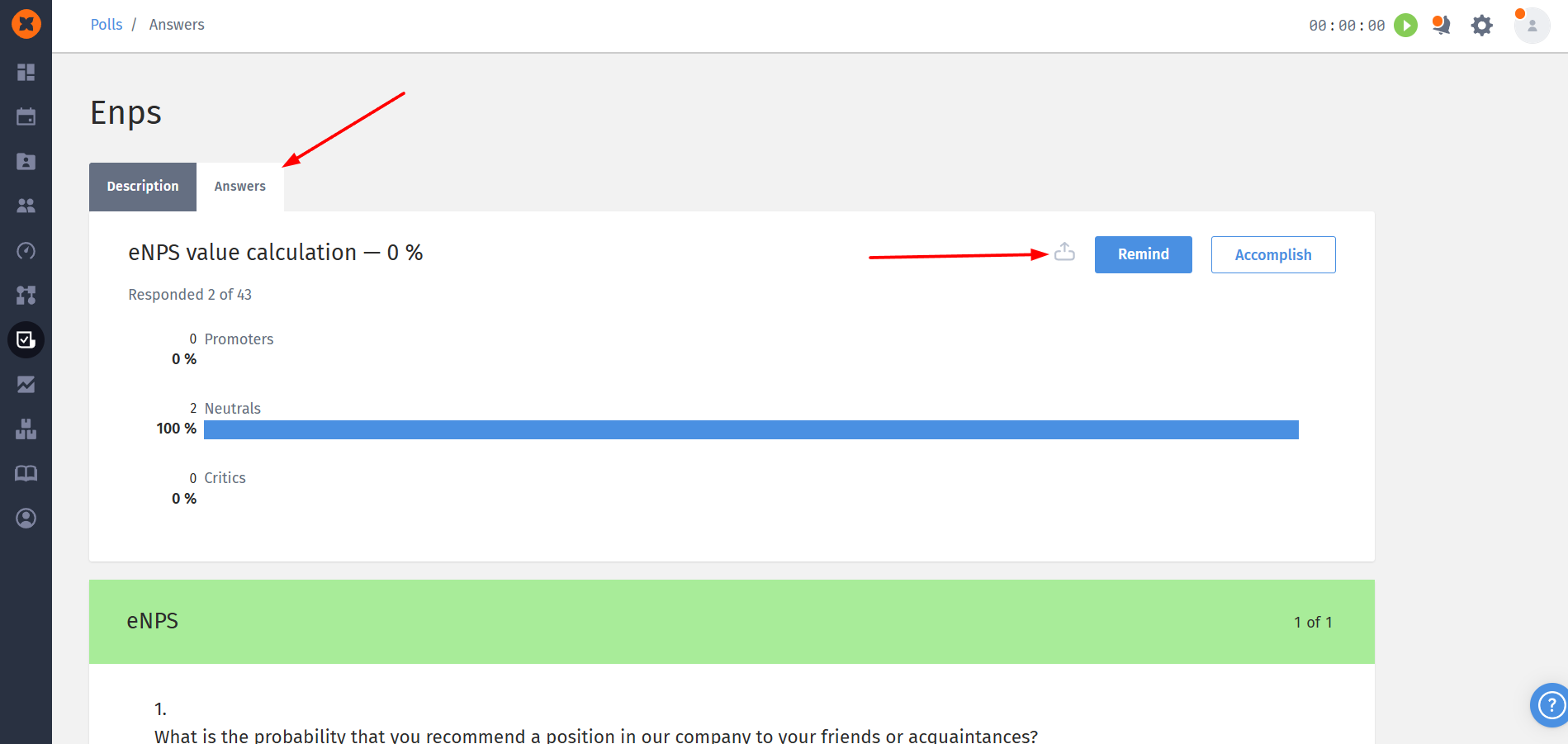
Each survey has the ability to export responses in .xlsx format at any stage of the survey (provided that the survey has responses).
In the export of an anonymous survey, responses will be downloaded without being linked to an employee.
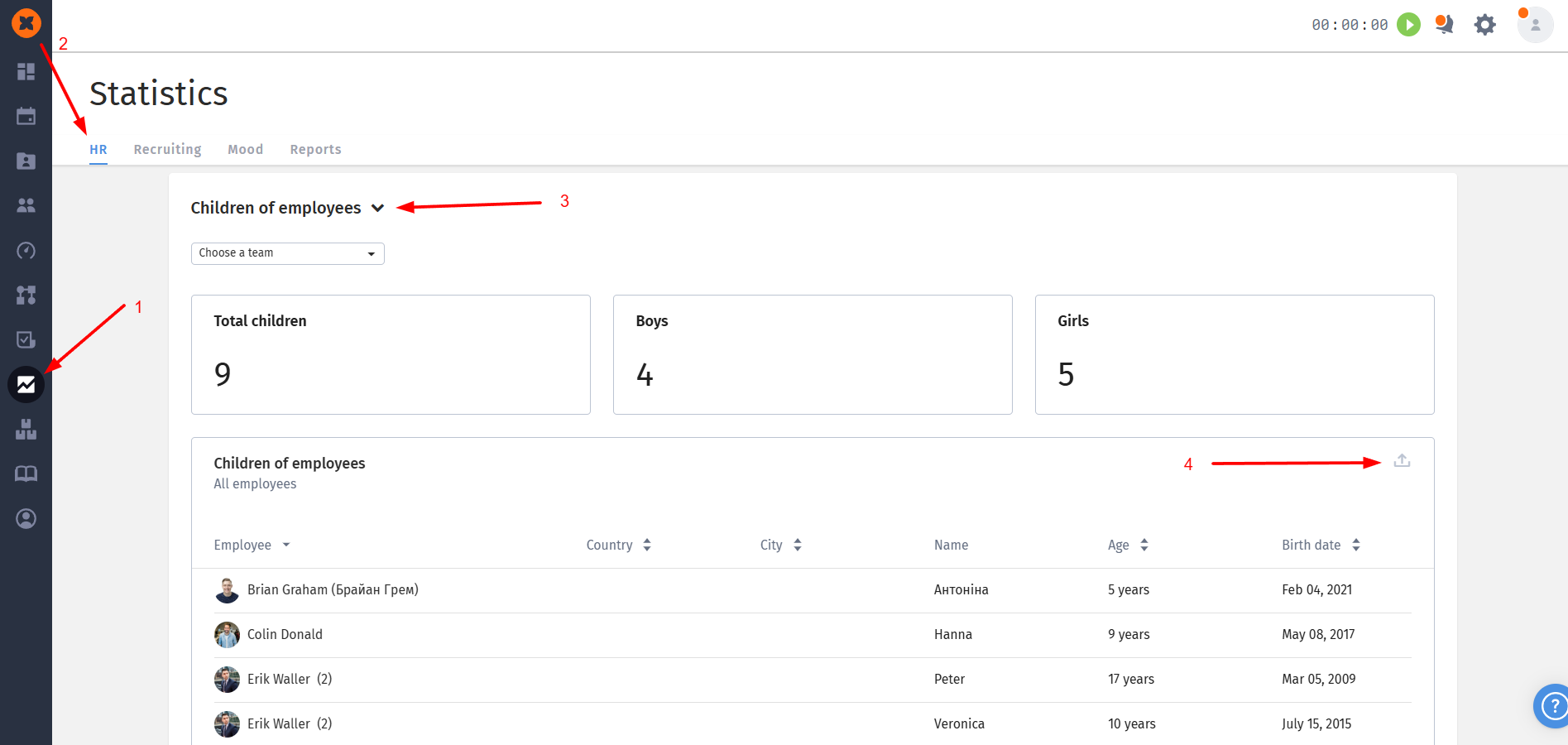
This export is available in the "Statistics" - "HR" section. To download, you need to select the "Children of employees" report from the list.
This statistics provides an overview of key characteristics of the company's personnel, including:
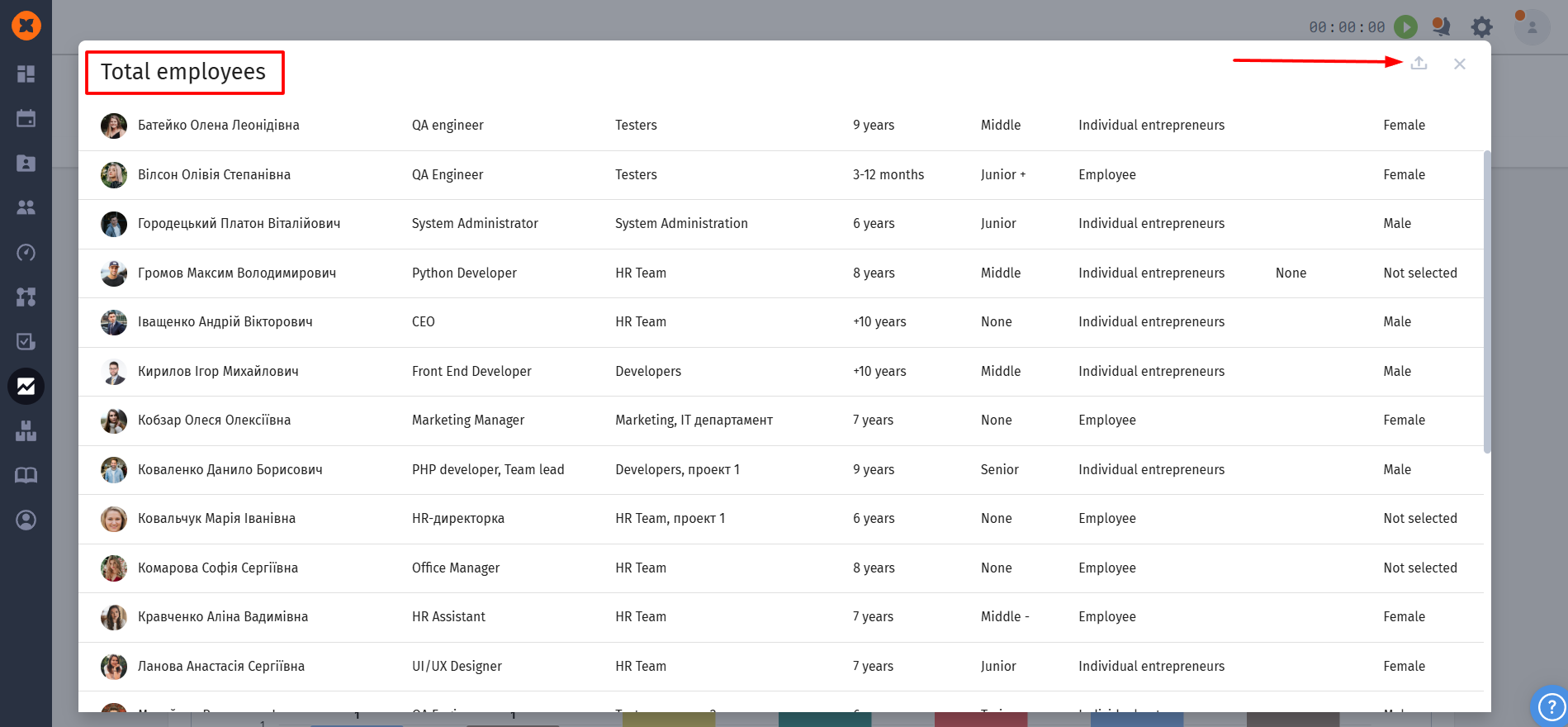
number of employees in the system;
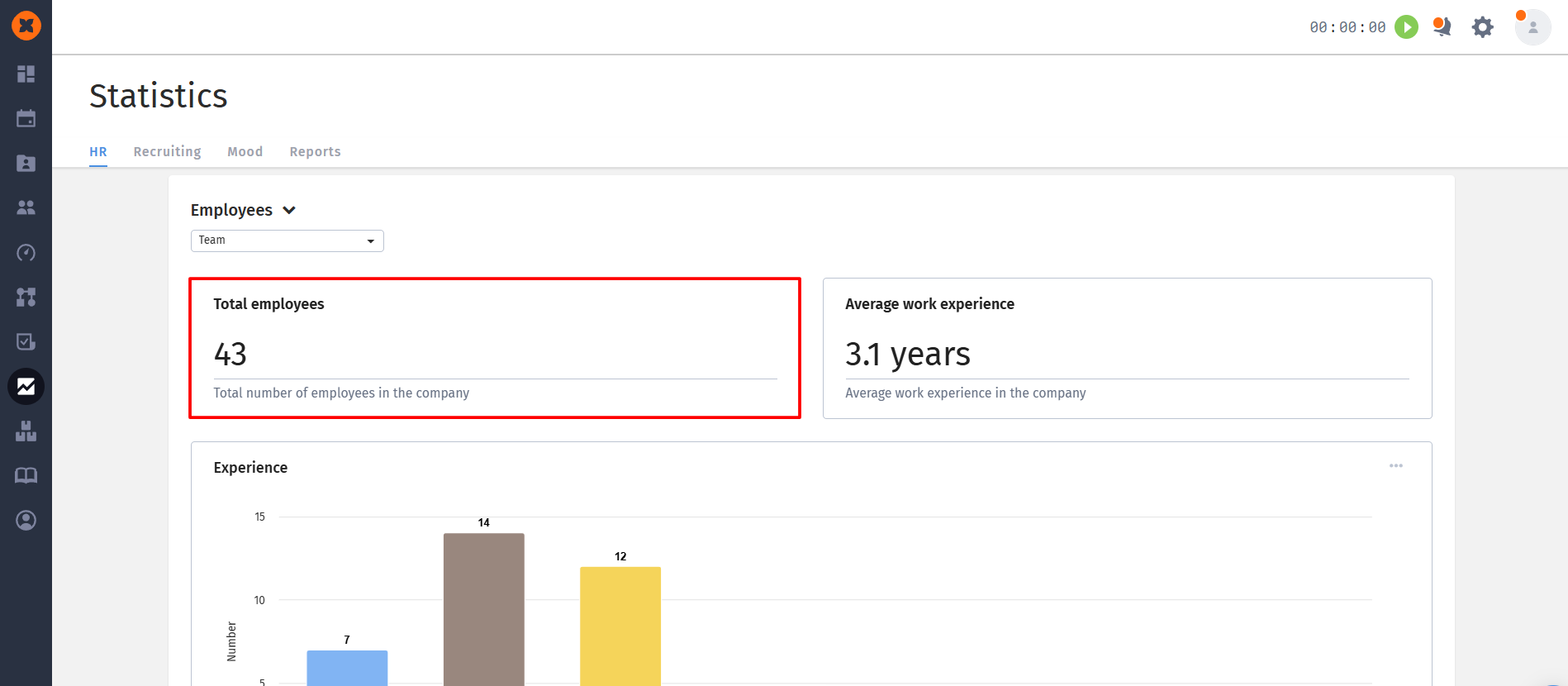
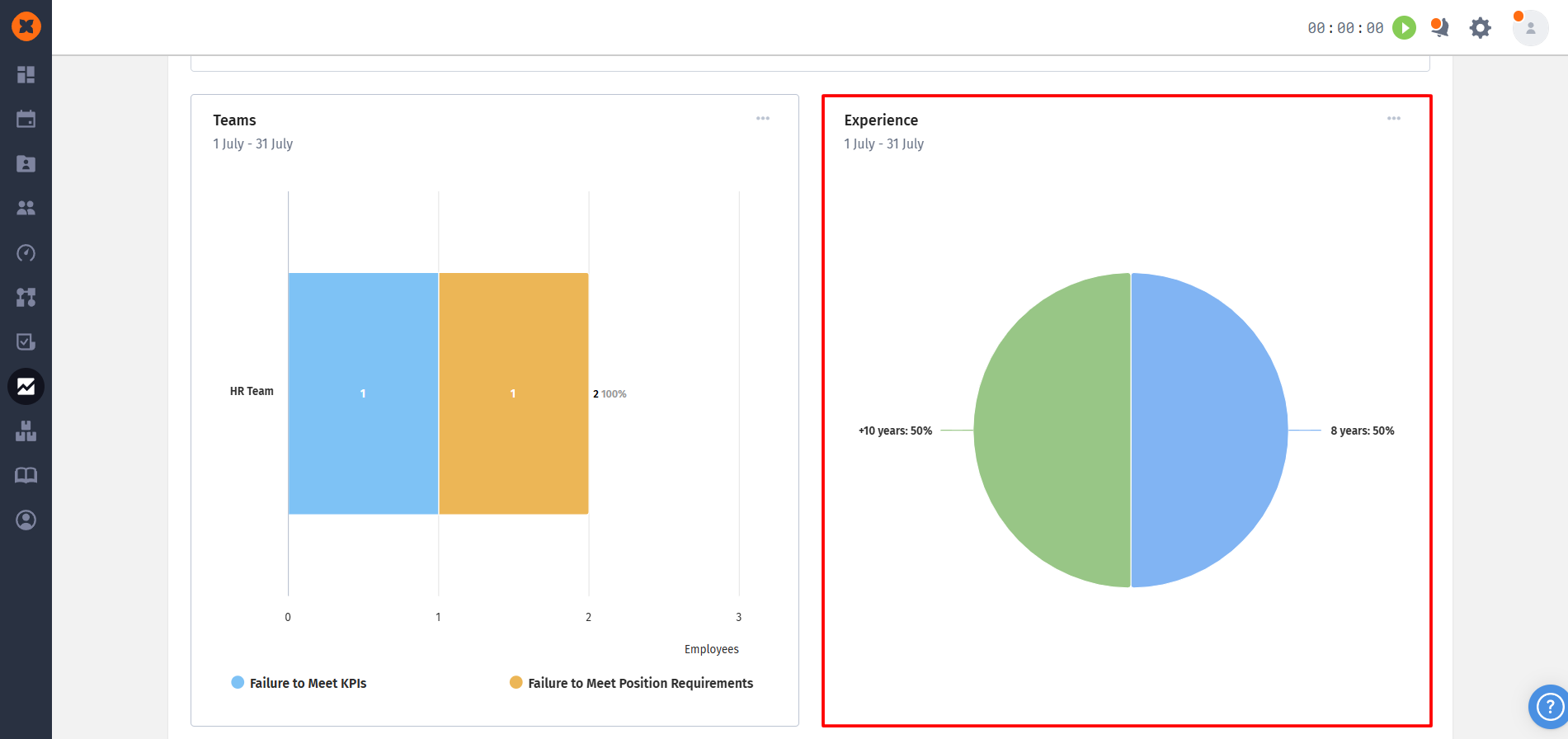
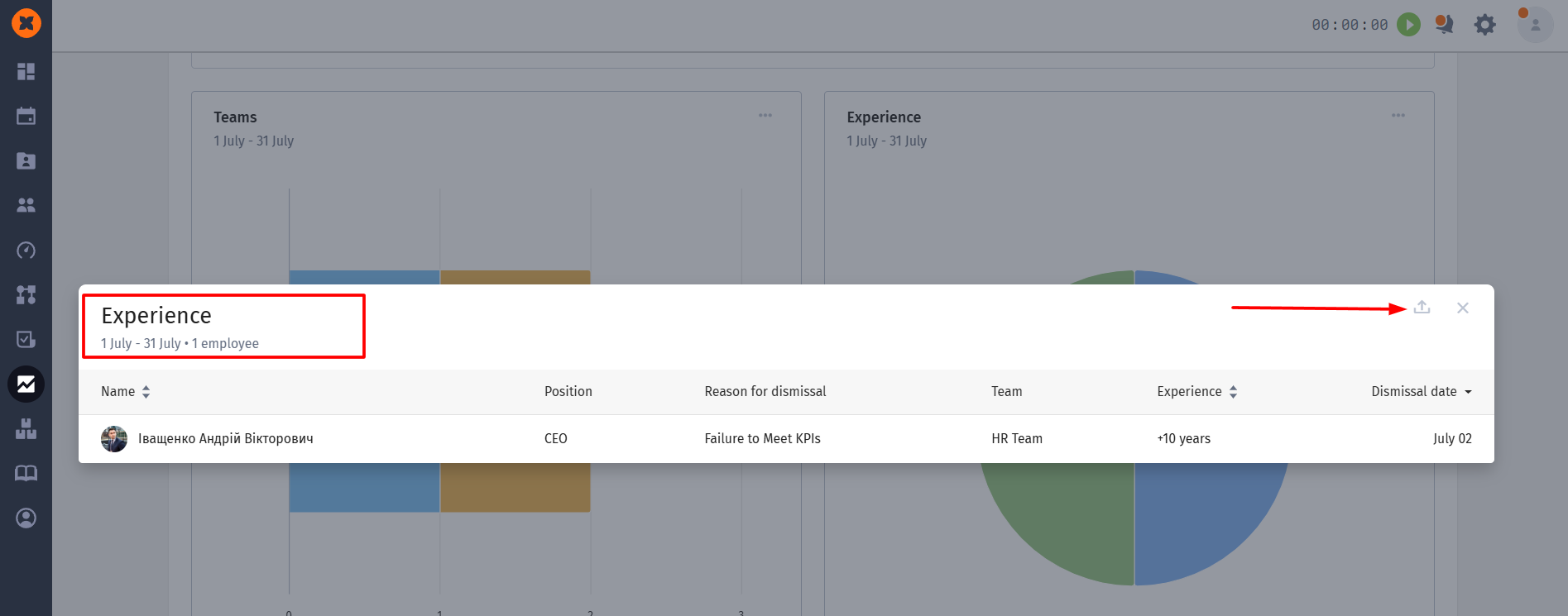
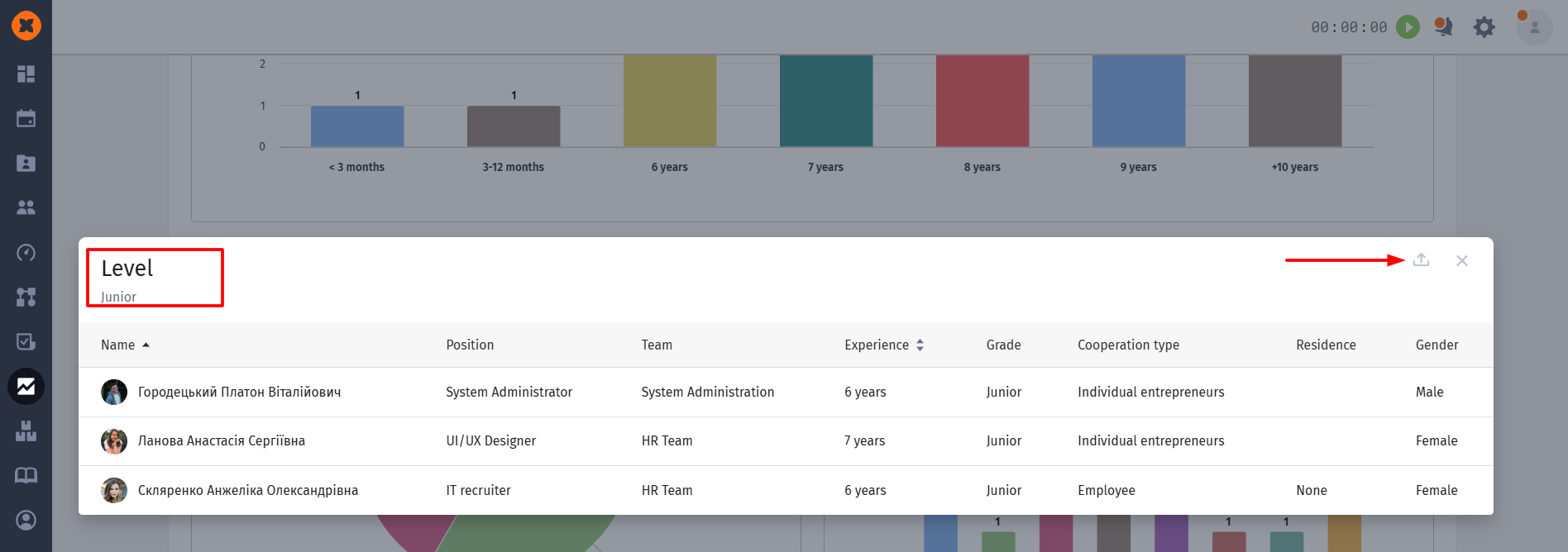
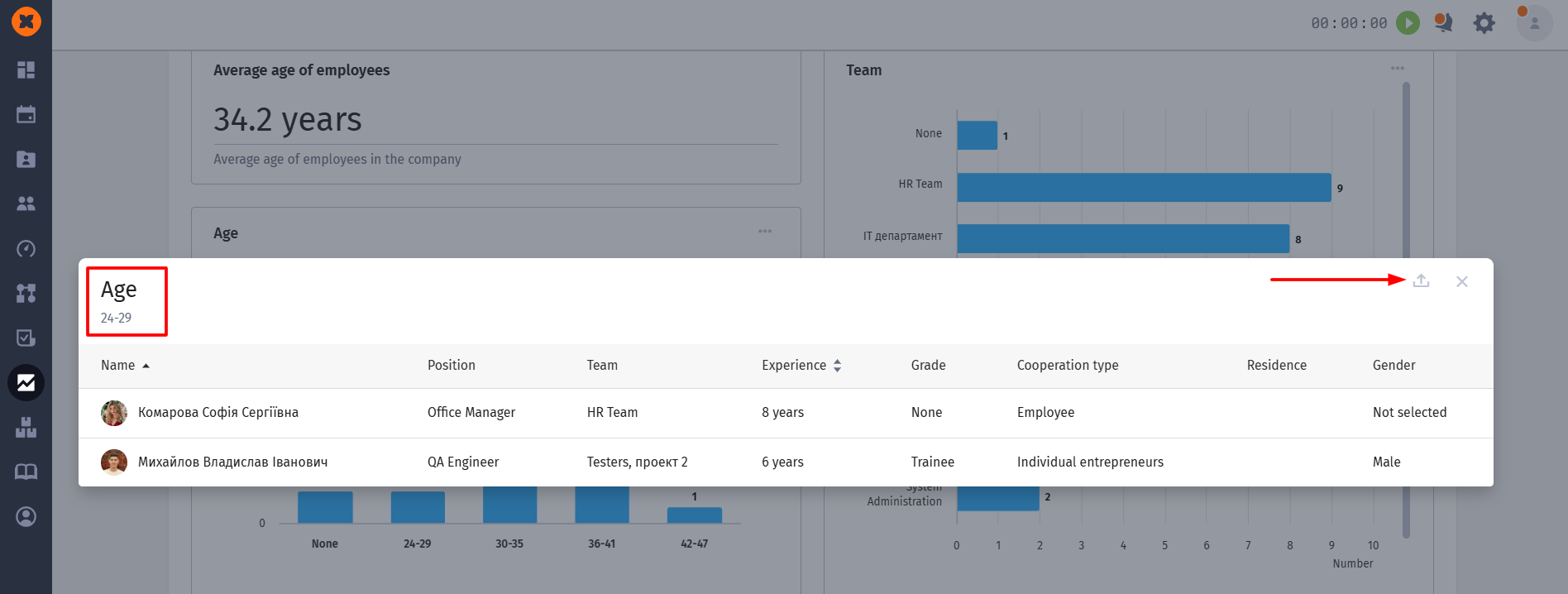
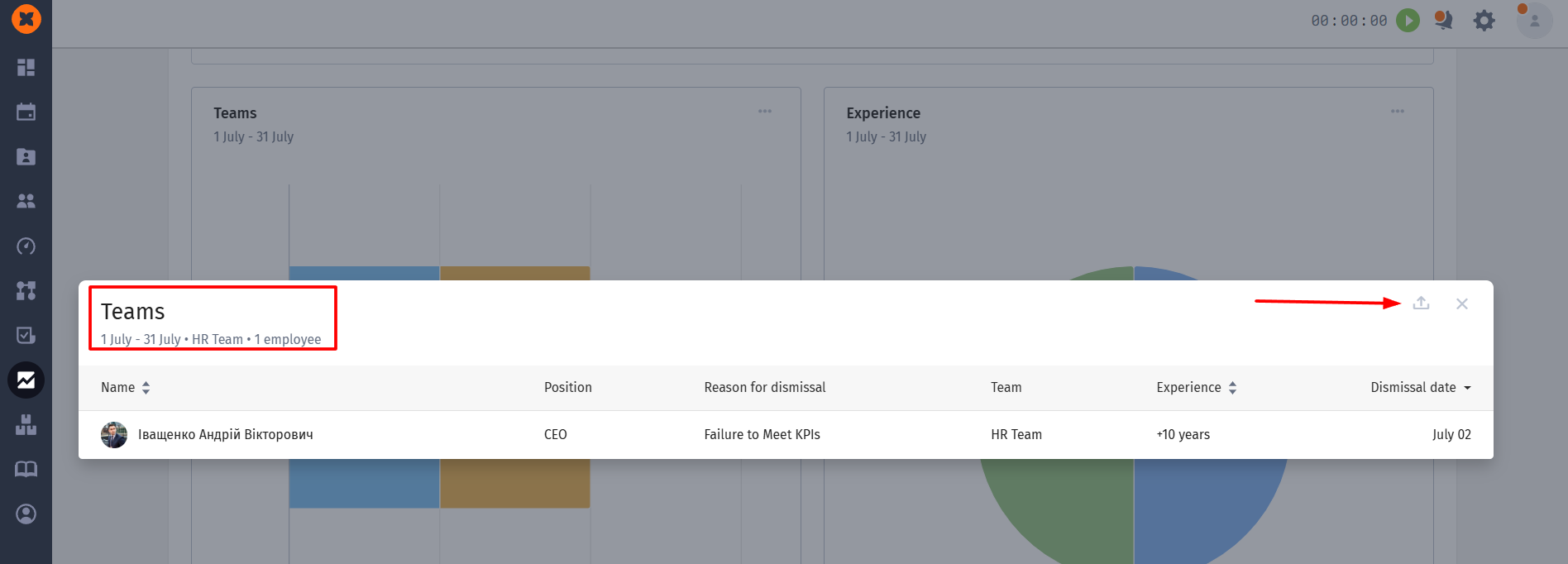
You also have the option to expand and download more detailed information about employees if needed.
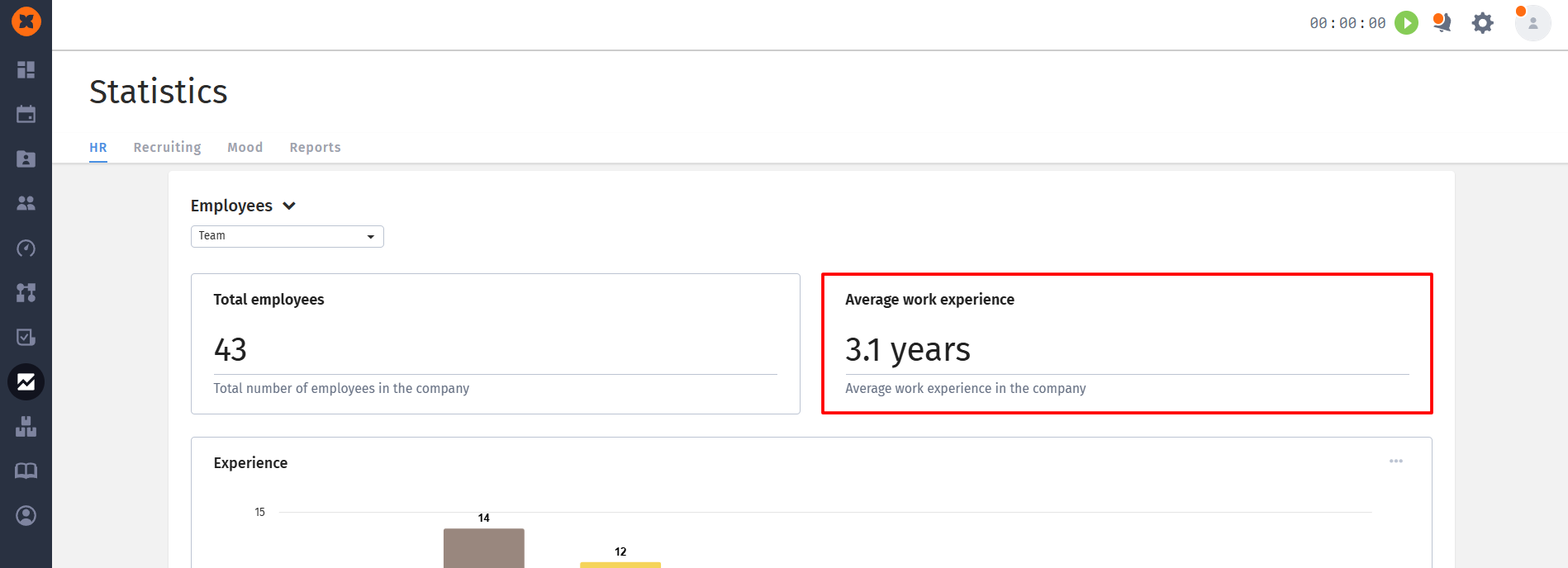
information about the average length of service of employees;
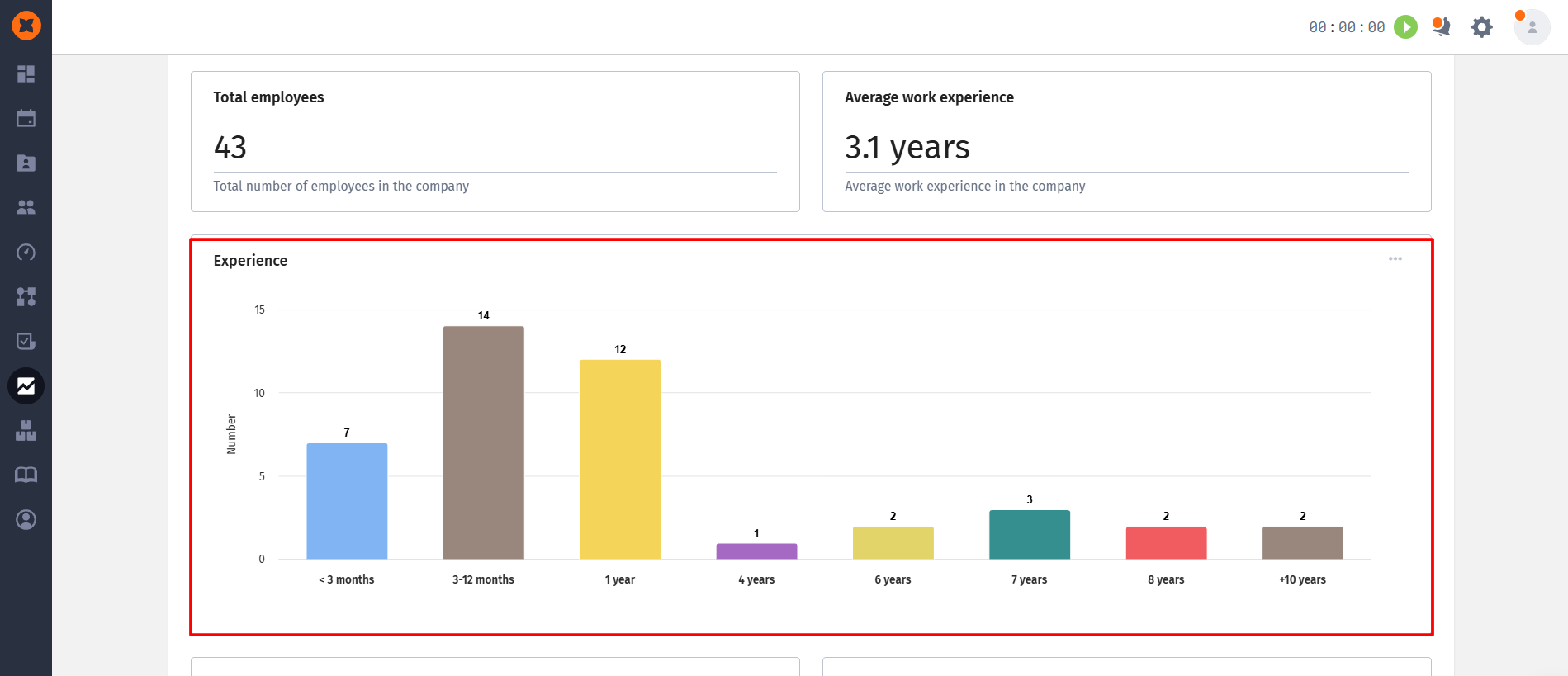
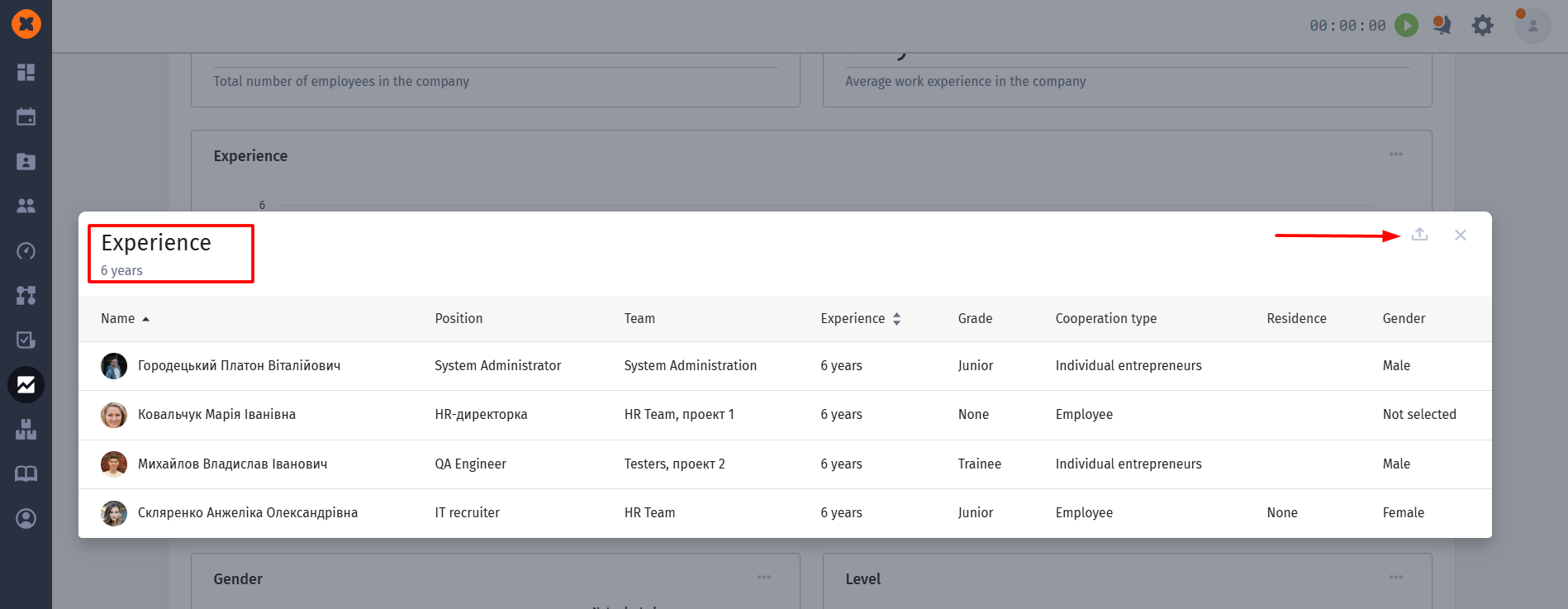
distribution by work experience;
gender statistics as of today;
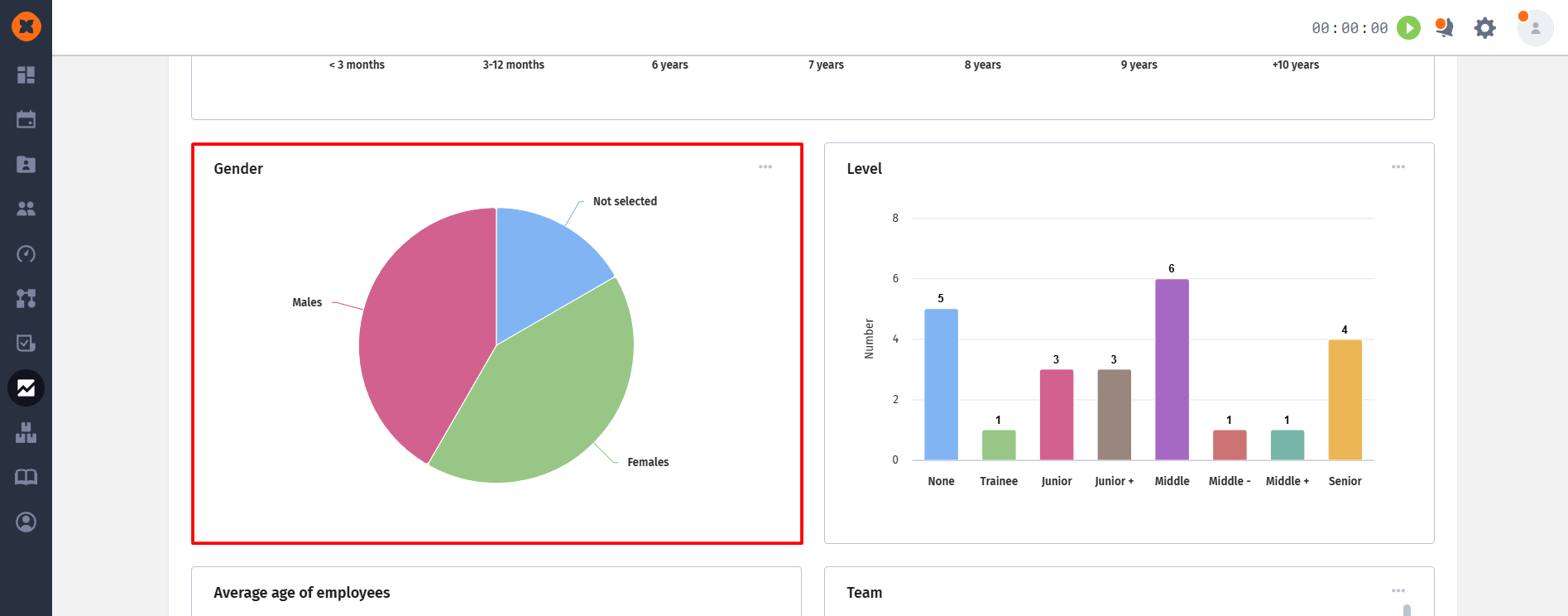
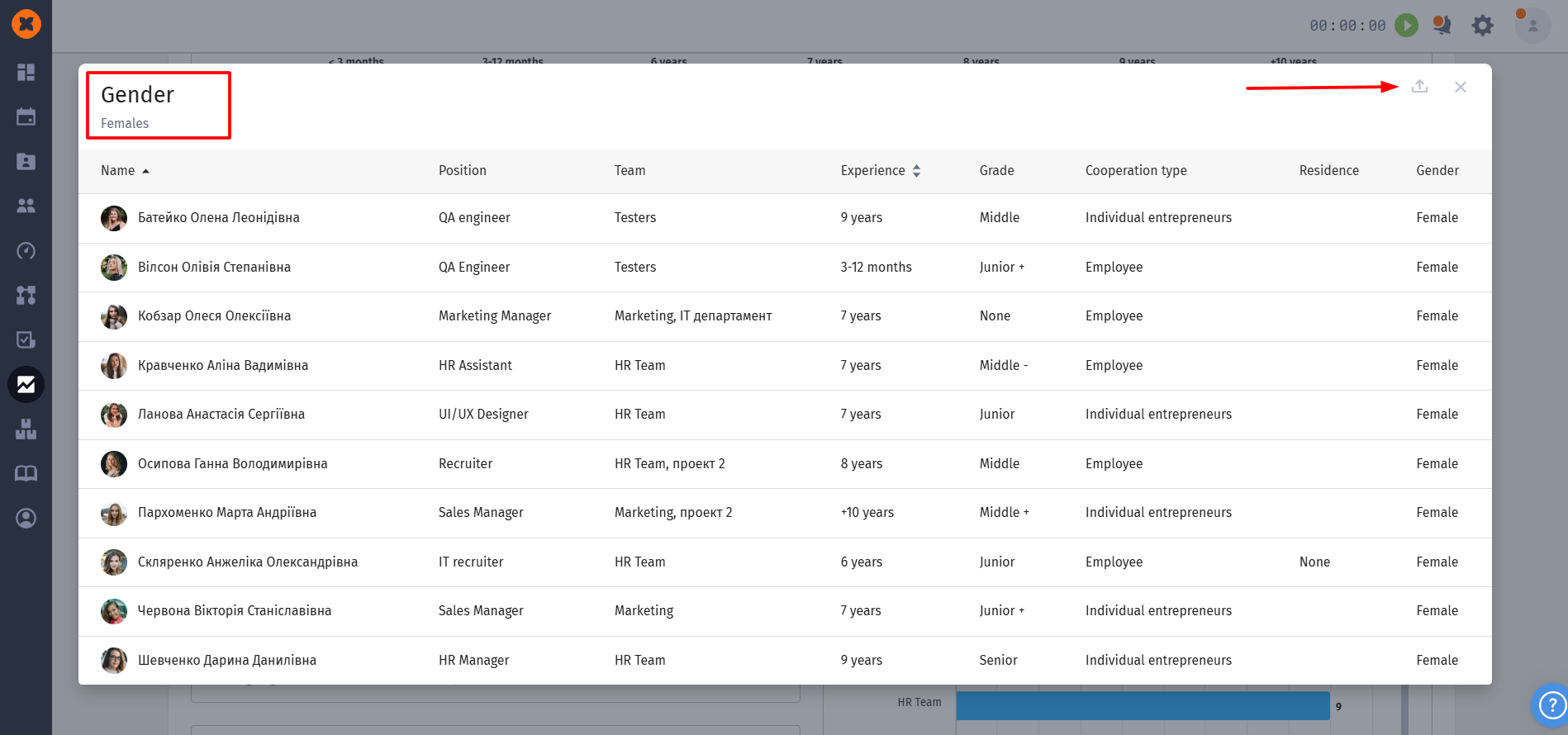
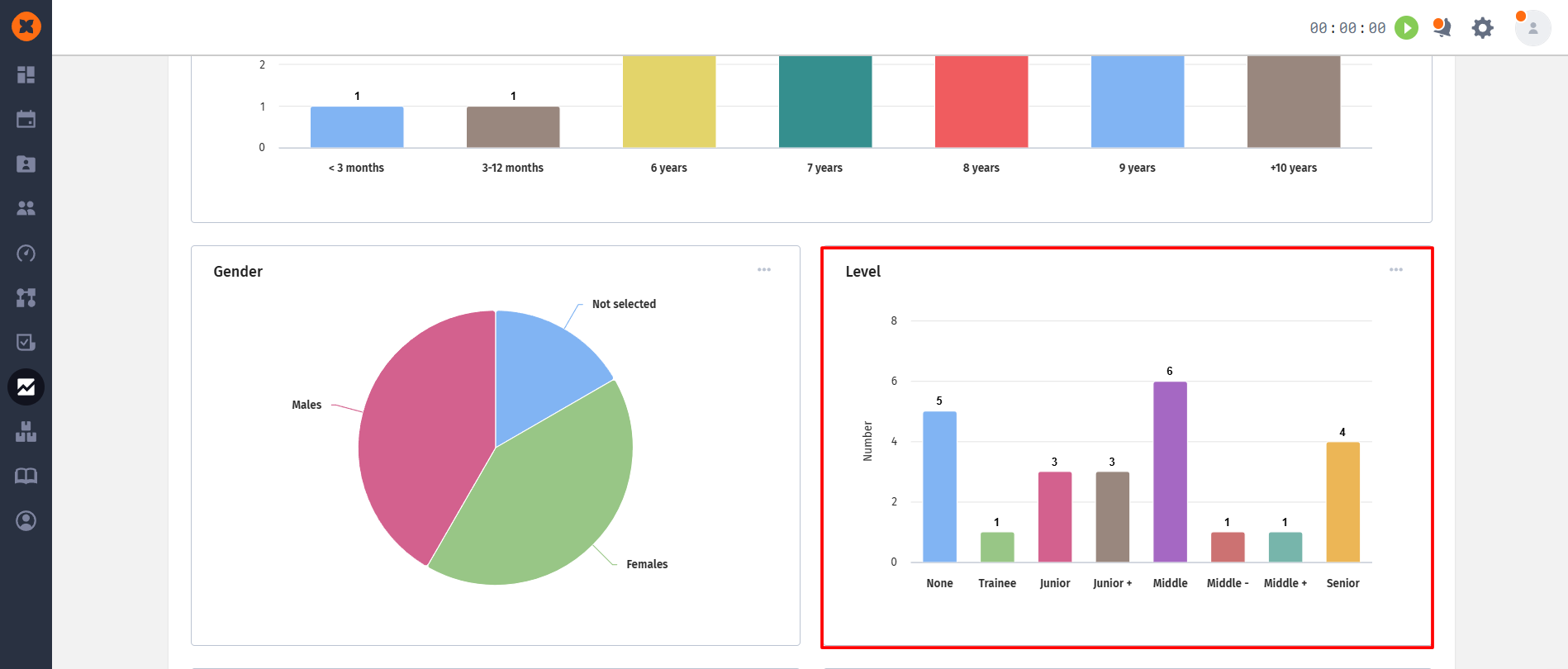
information on the level of employees;
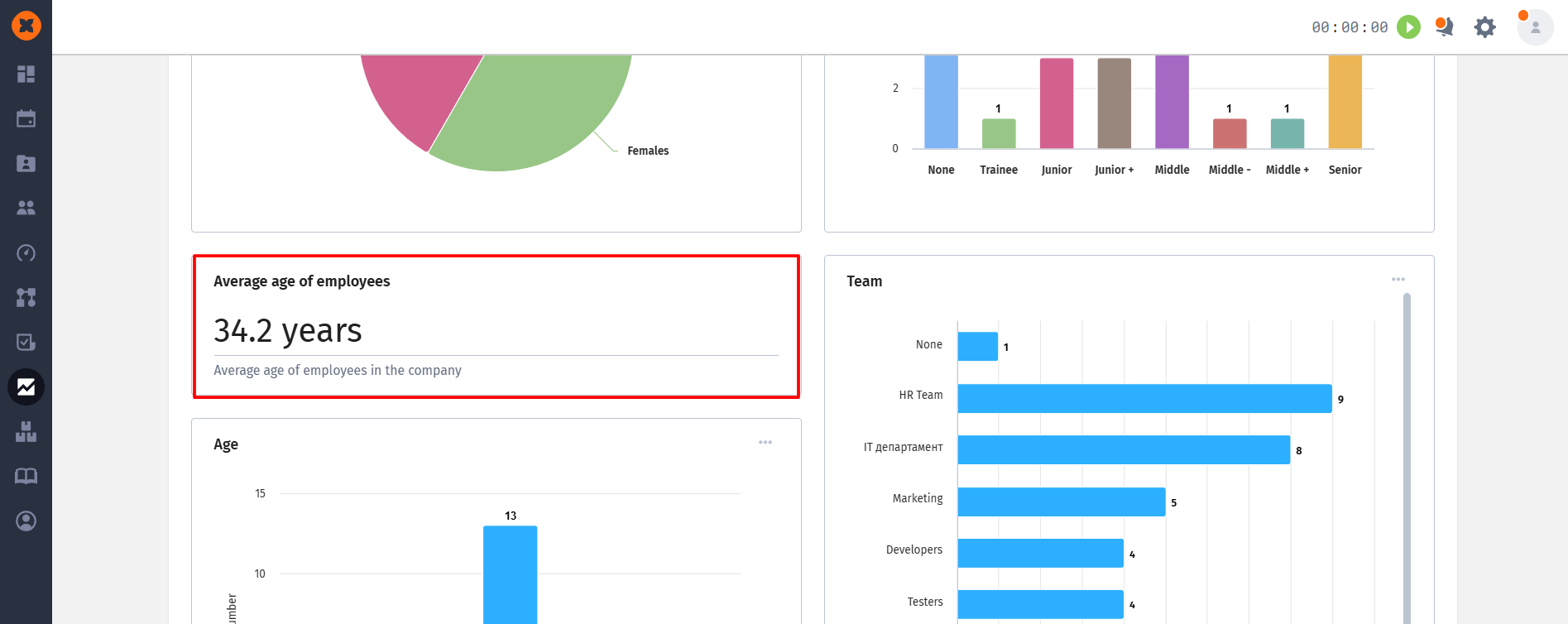
information on the average age of employees;
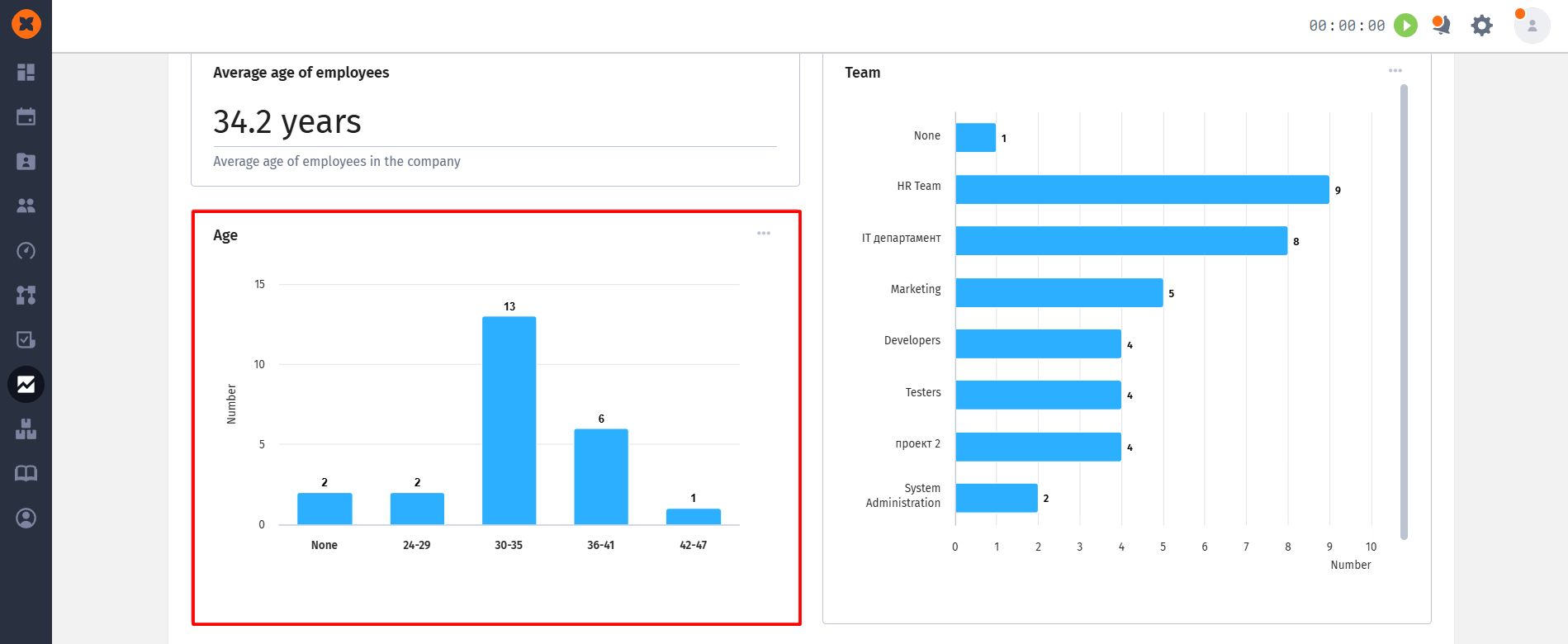
age of employees today;
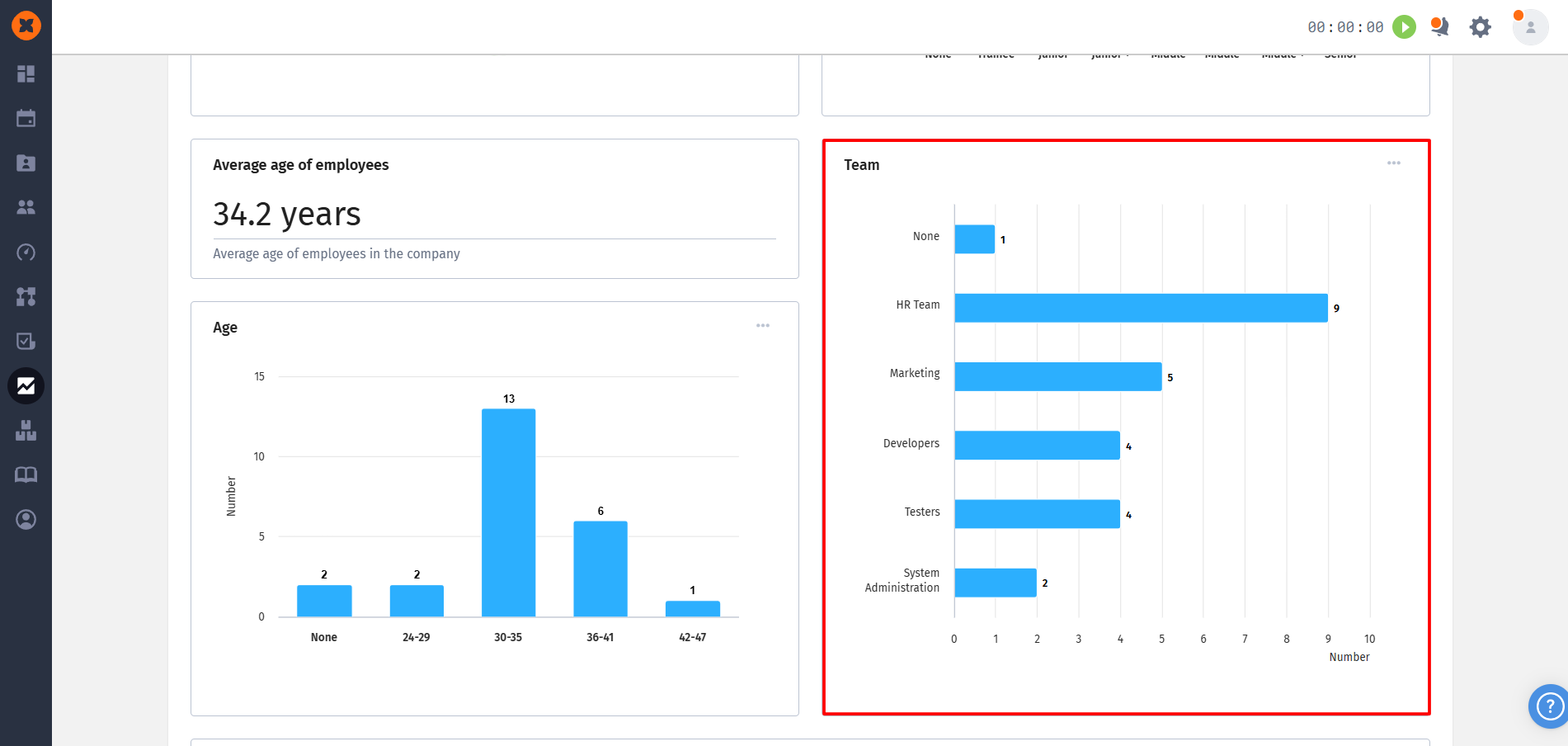
information on the number of employees in teams;
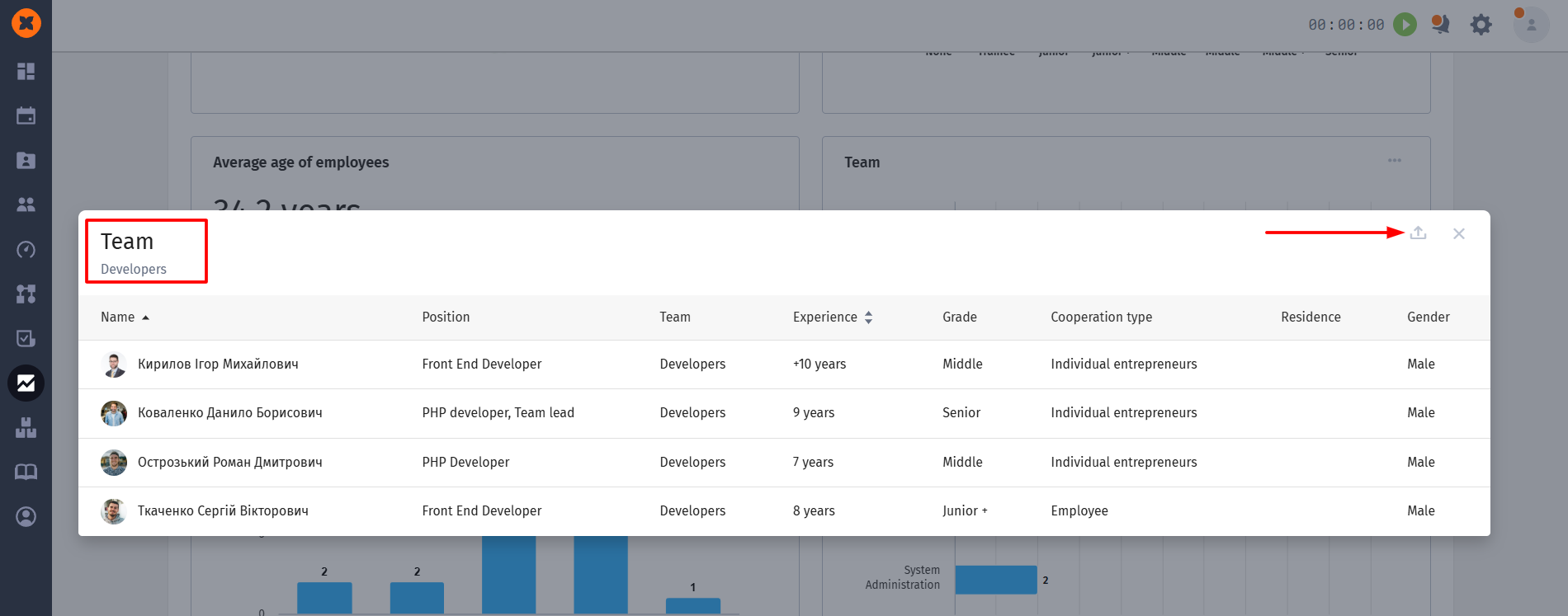
employees' language proficiency levels.
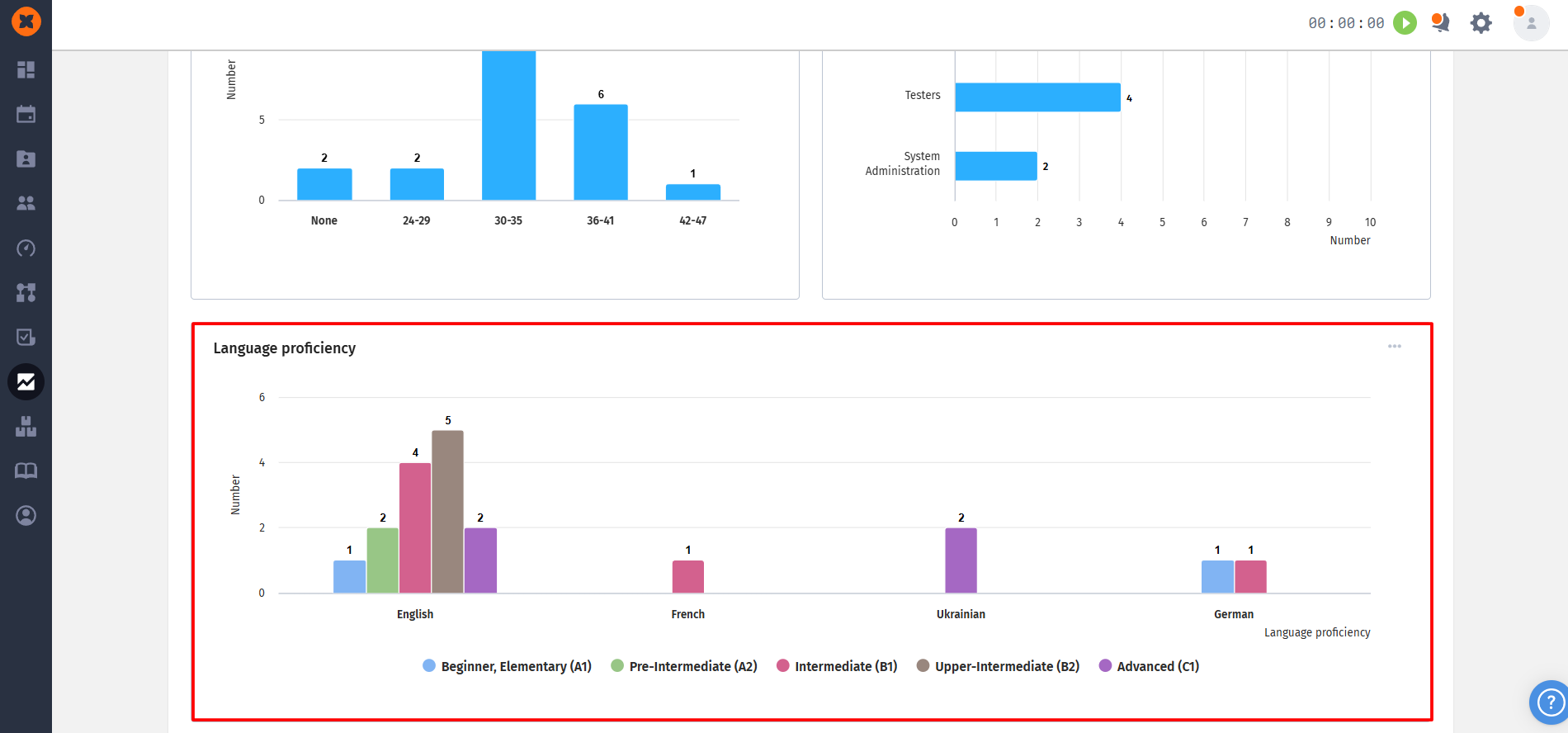
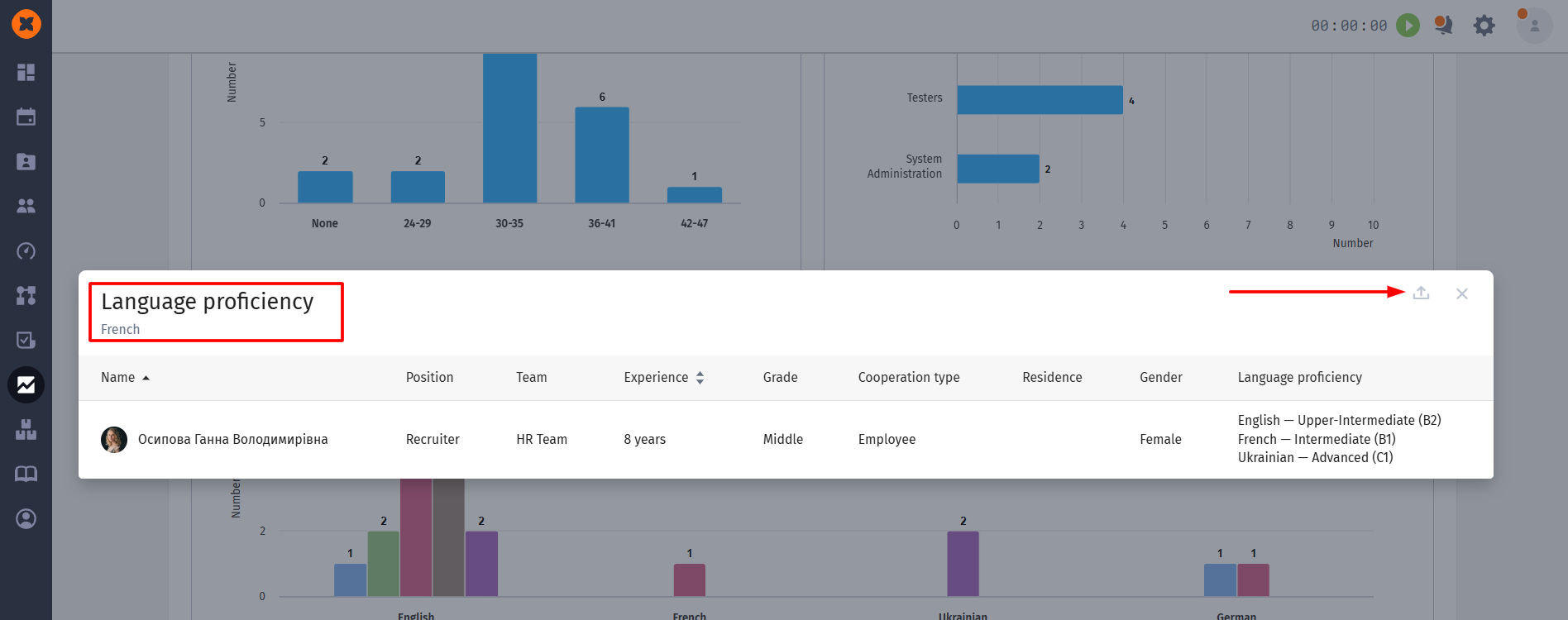
Information about employee turnover for a period is available both for the entire company and for each existing team separately and displays:
overall employee turnover (number of dismissed employees divided by average headcount, multiplied by 100%);
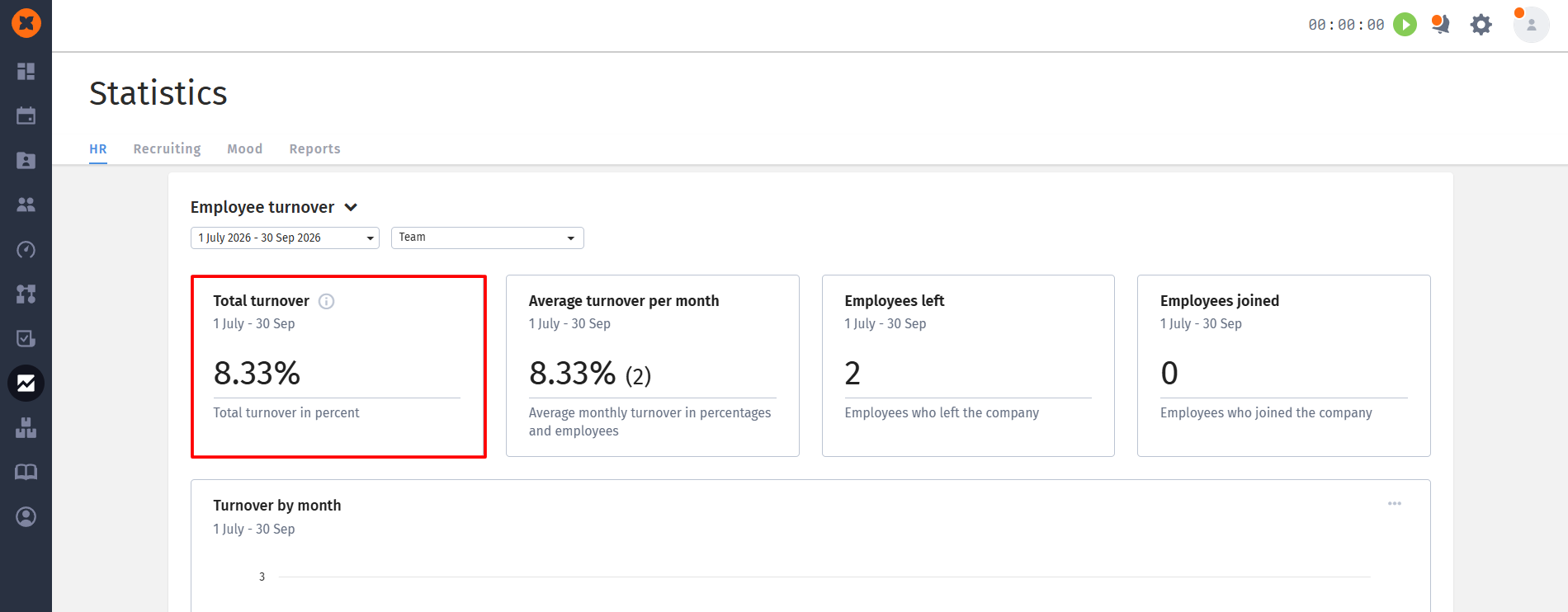
average turnover for the month;
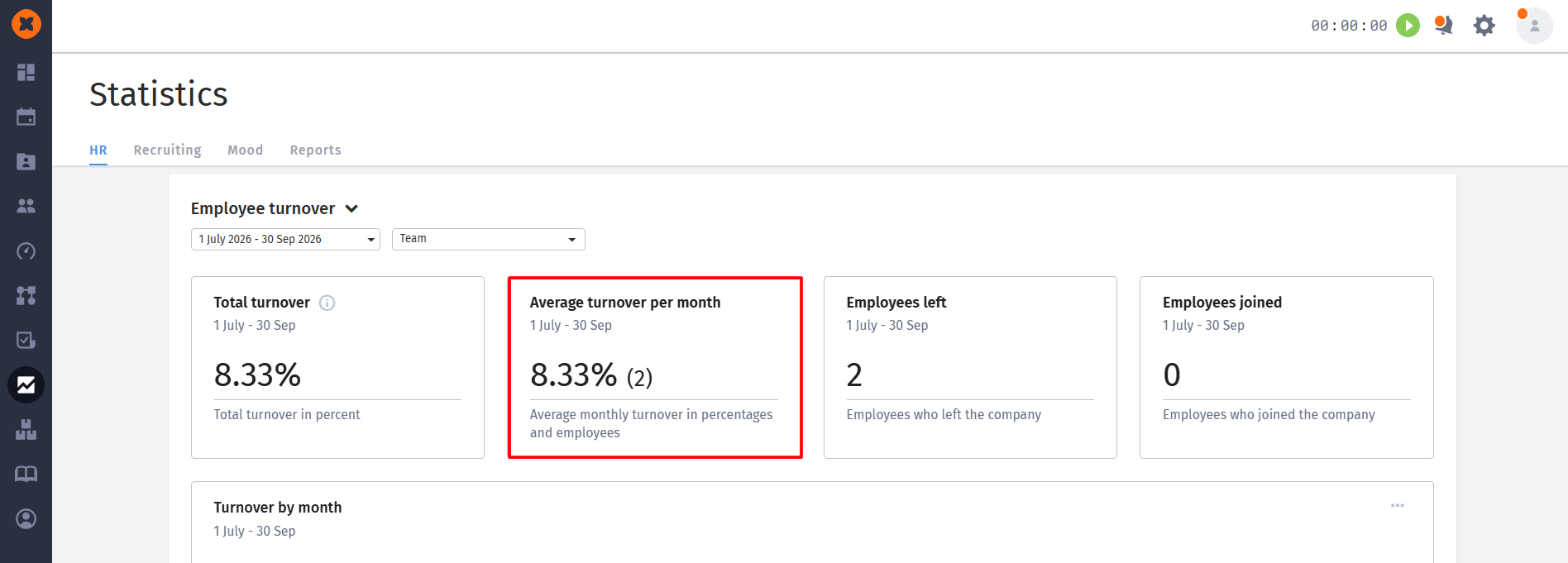
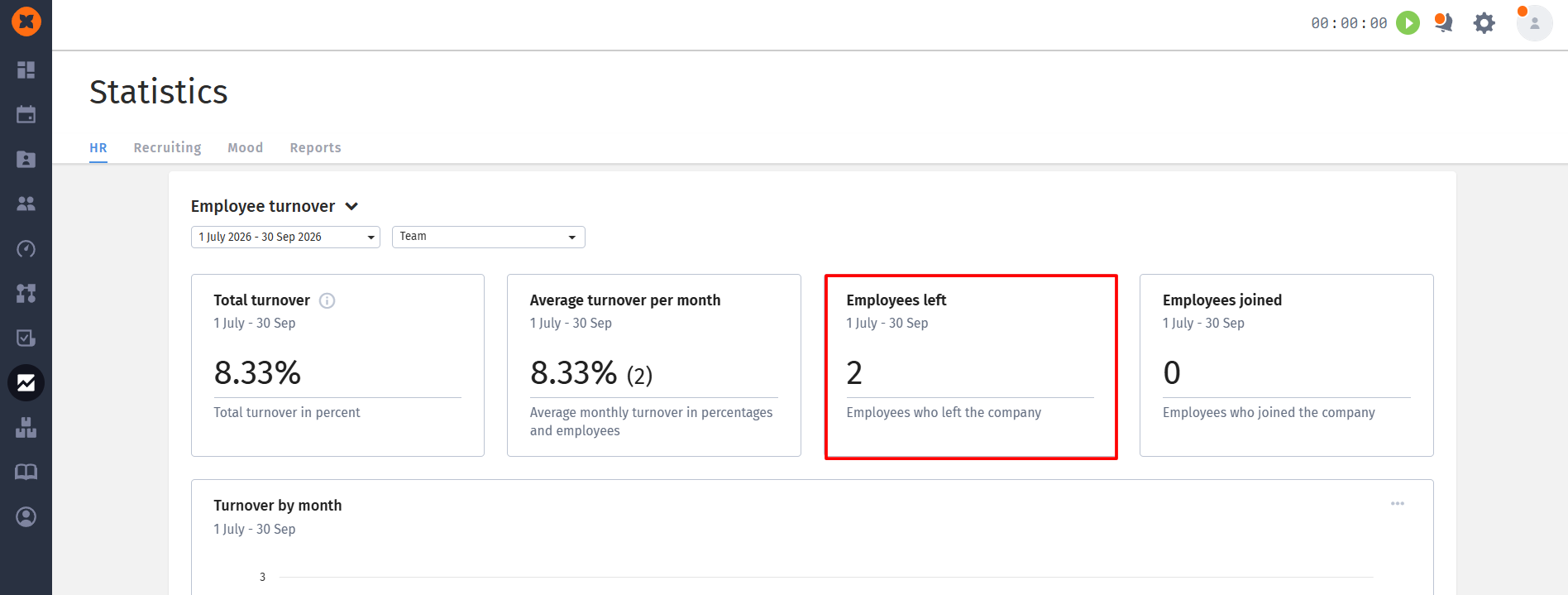
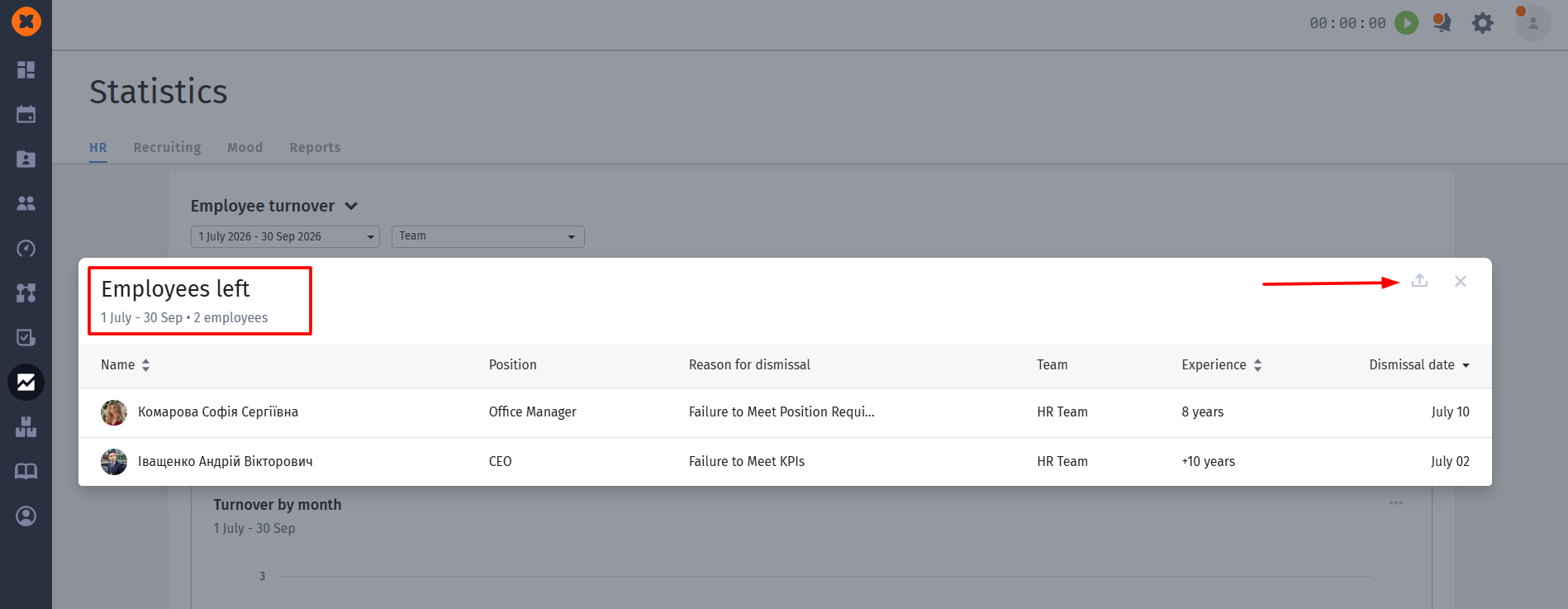
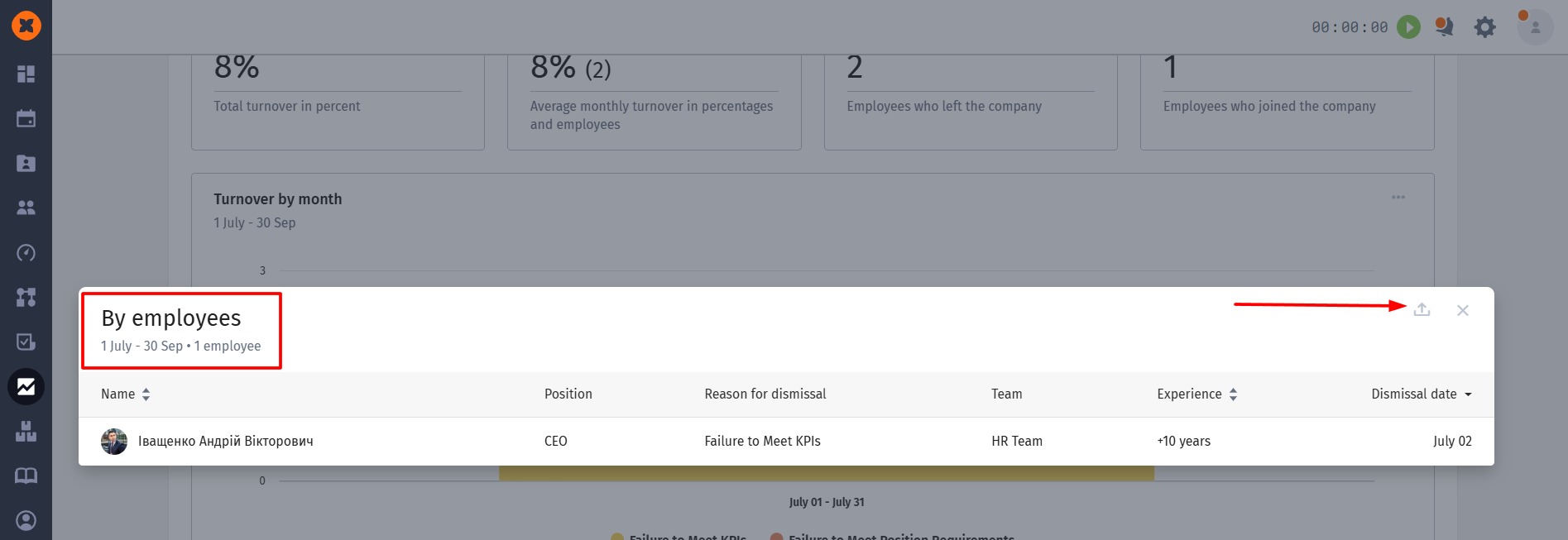
information about the number of employees who left the company;
You also have the option to expand and download more detailed information about employees if needed.
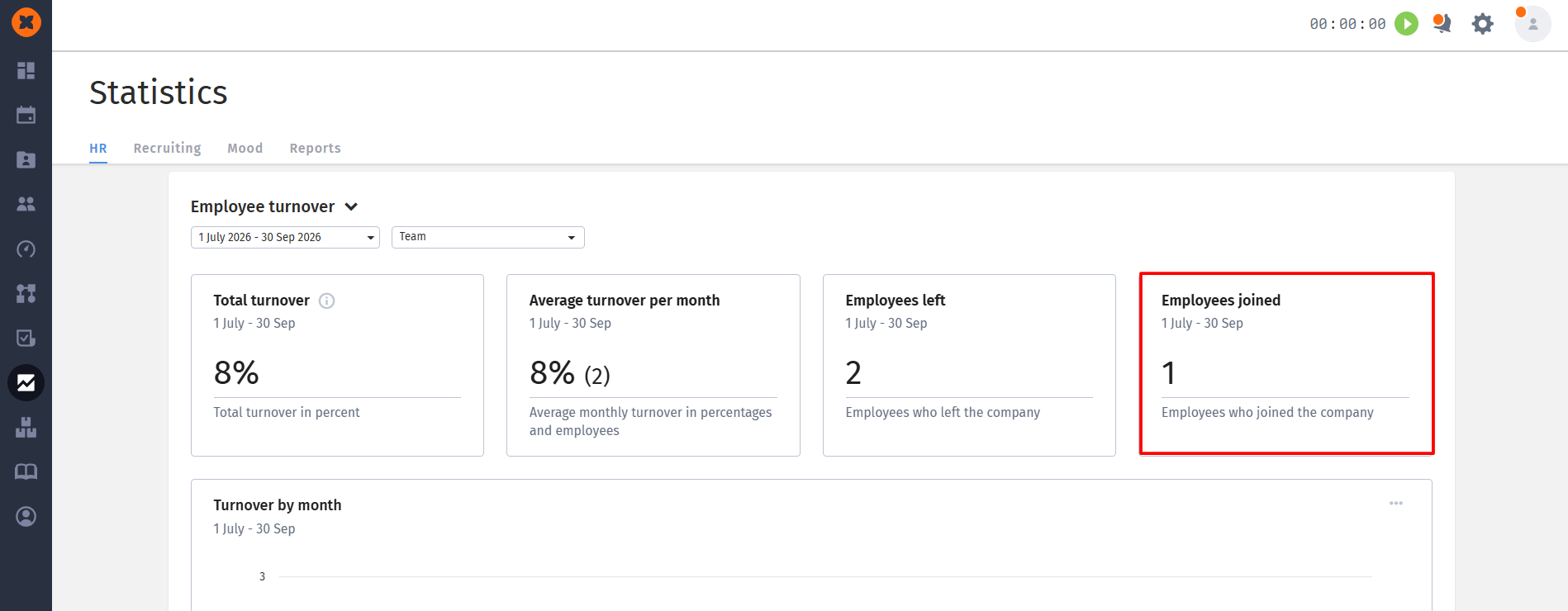
information about the number of employees who joined the company;
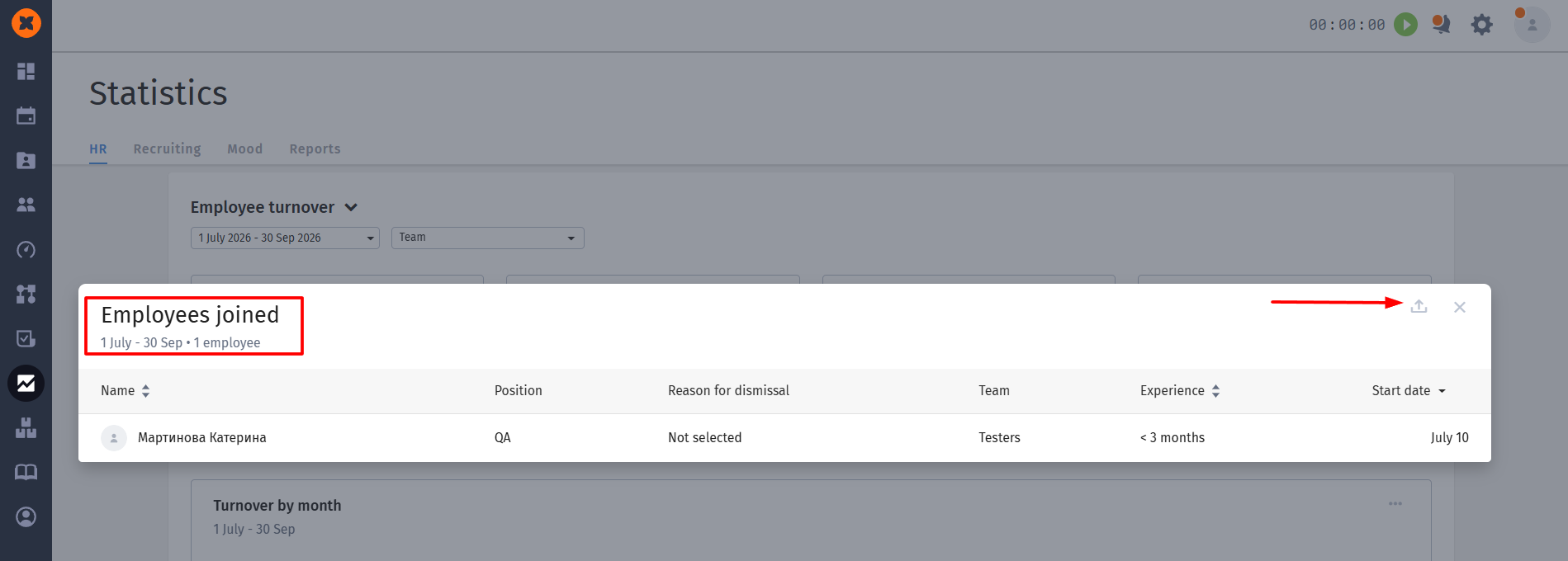
continuity by months;
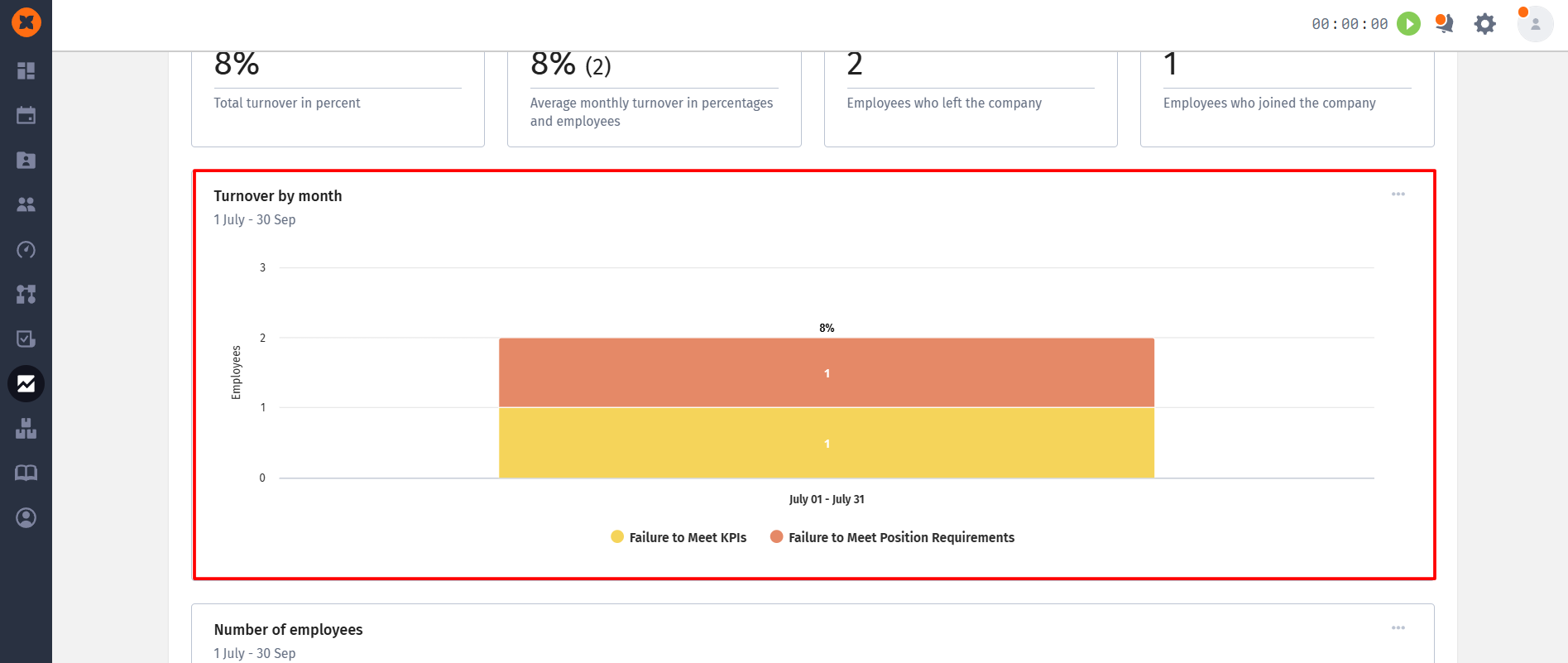
You also have the ability to view more detailed information for a specific month and download it if needed.
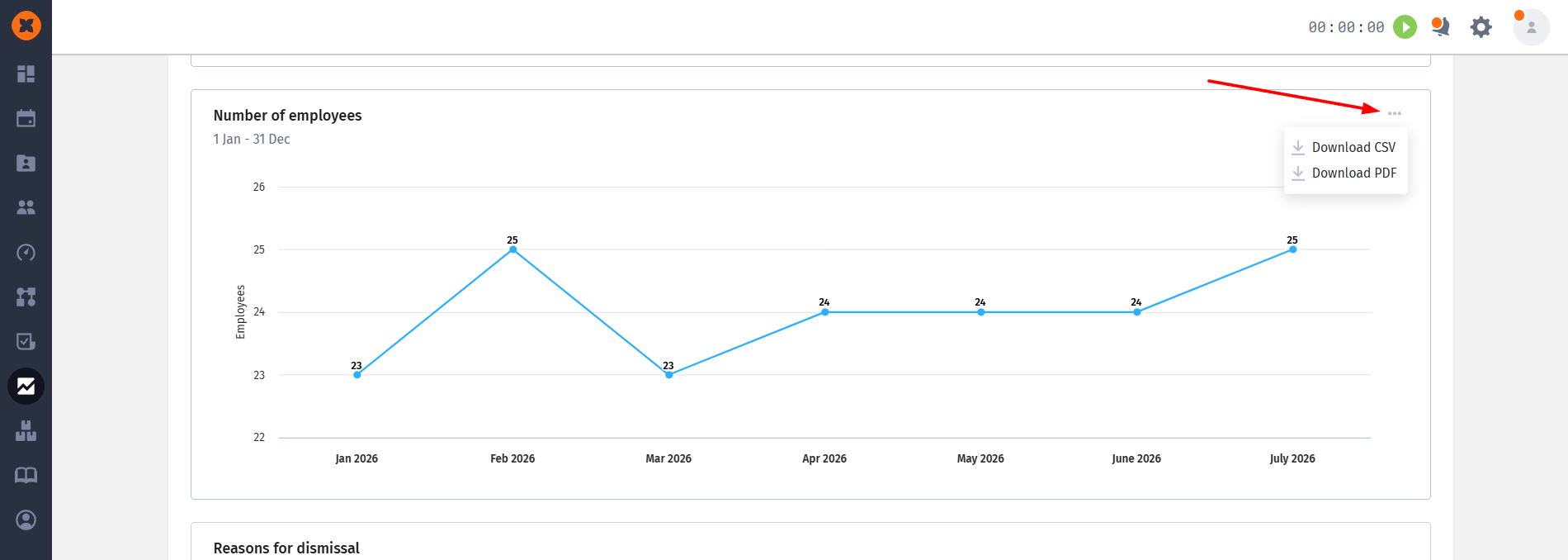
number of employees in the company by months in graphical display;
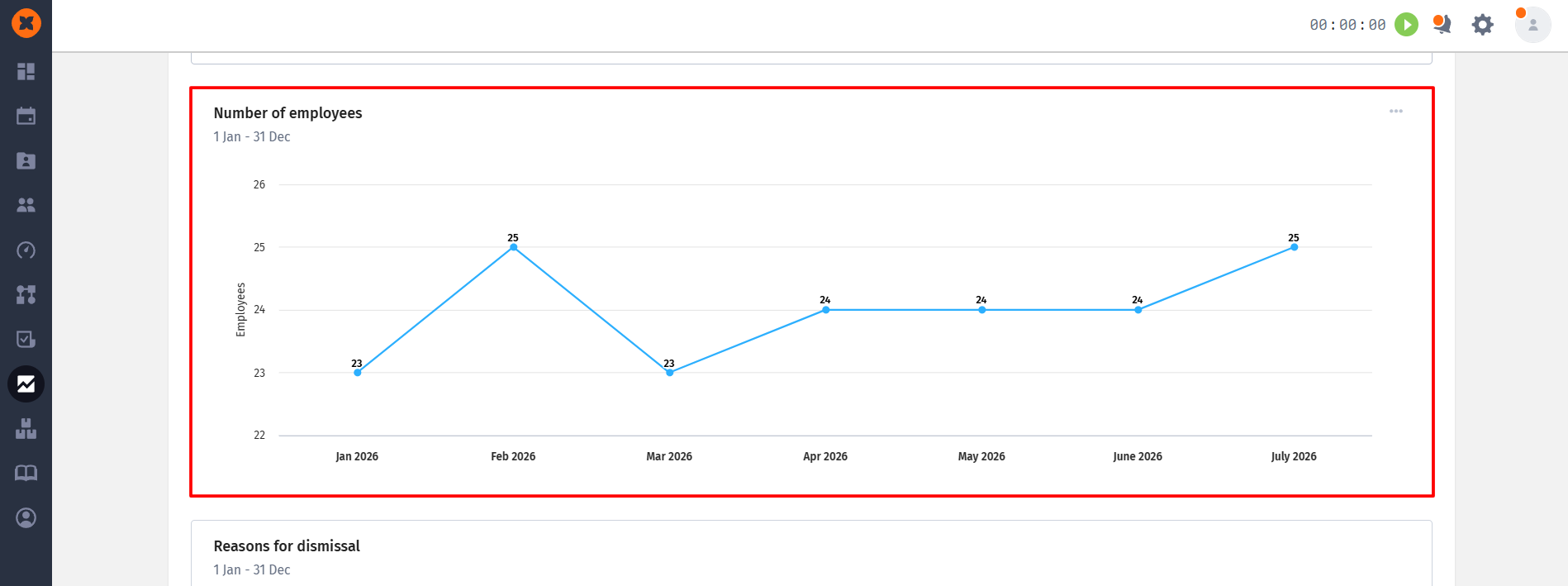
You can save this information in CSV or PDF format if needed.
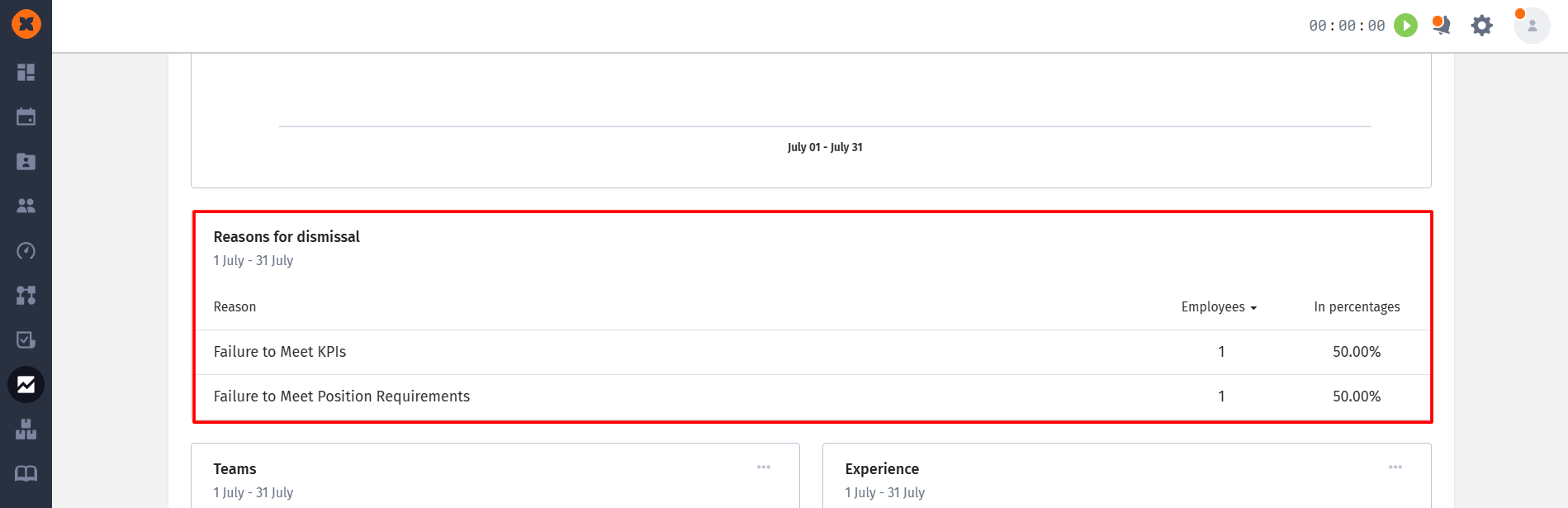
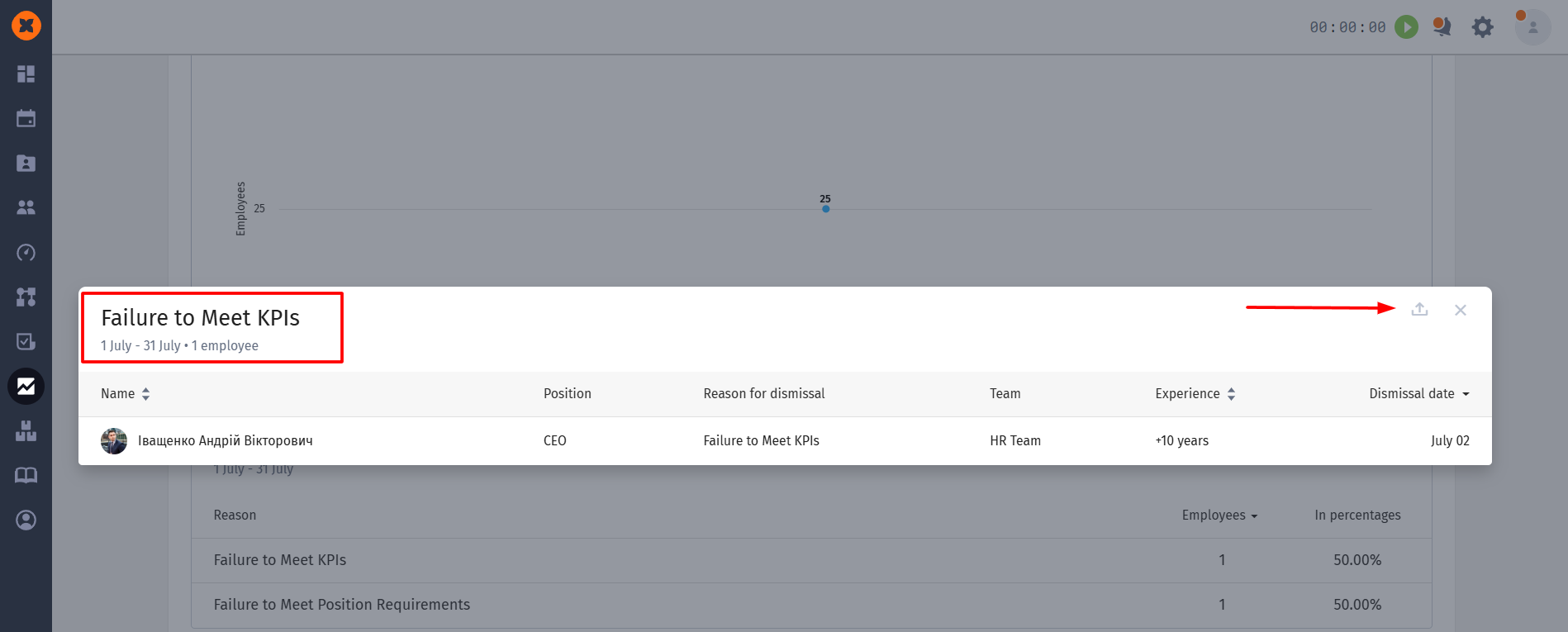
information about the reasons for employee termination;
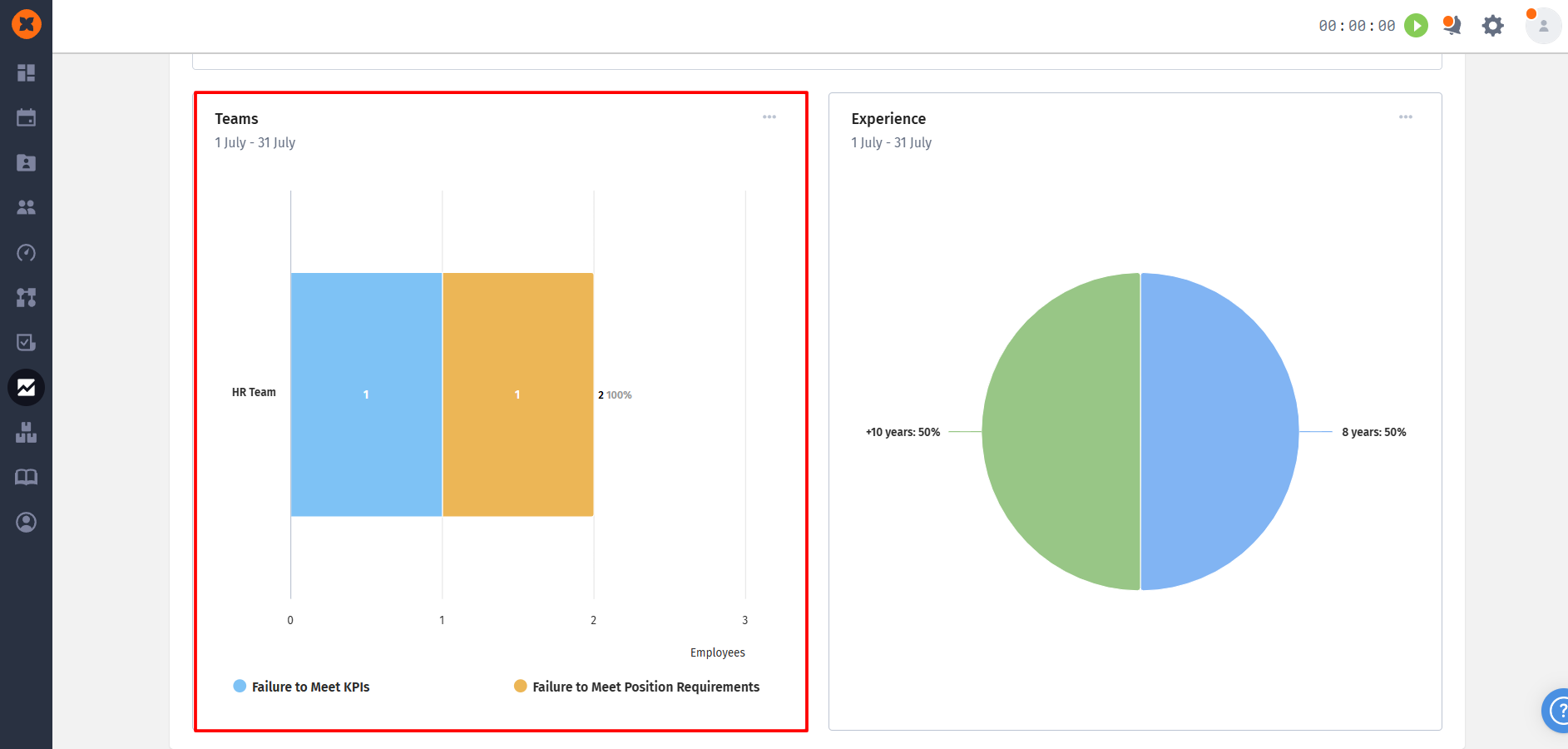
information about the teams where the dismissed employees were located;
information about the length of service of employees at the company at the time of dismissal;