HURMA has introduced a new convenient feature - “Talent pool”. This tool allows you to build and organize a database of candidates for future vacancies, easily filter them, assign relevant recruiters and teams, and quickly add promising specialists to a candidate pool directly while working with vacancies or candidate profiles.
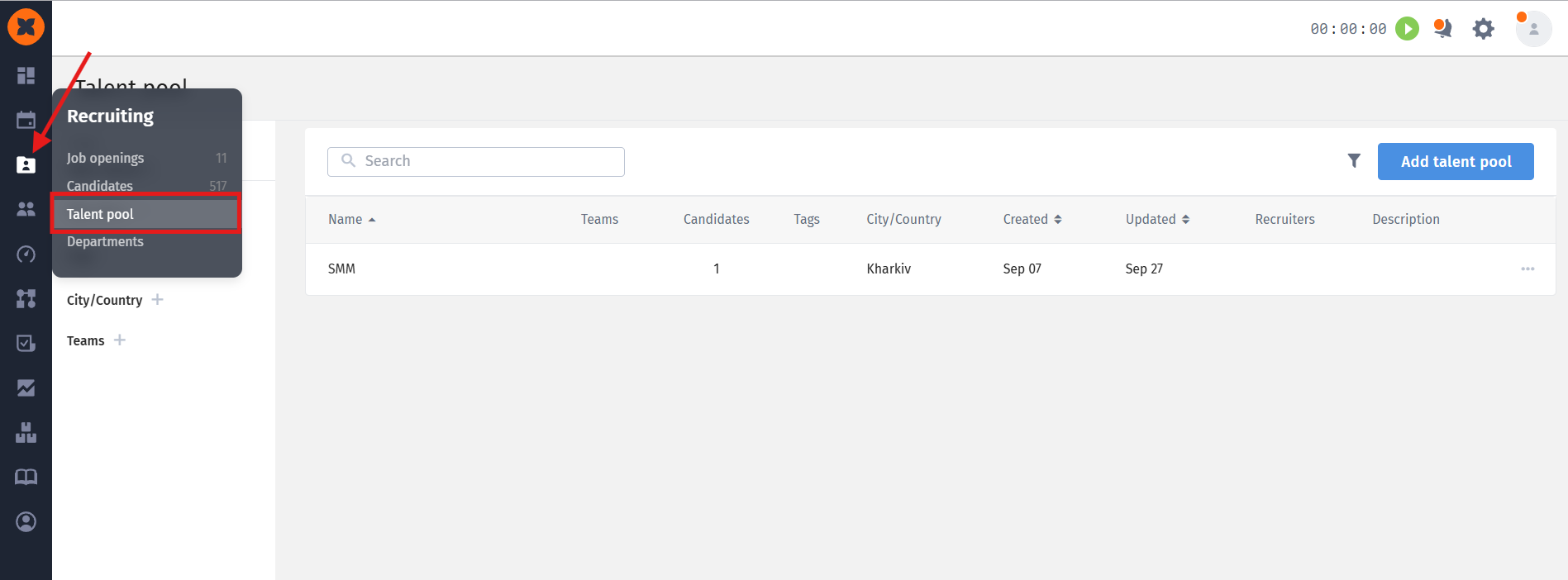
You can find this section by navigating to “Recruitig” - “Talent pool”.

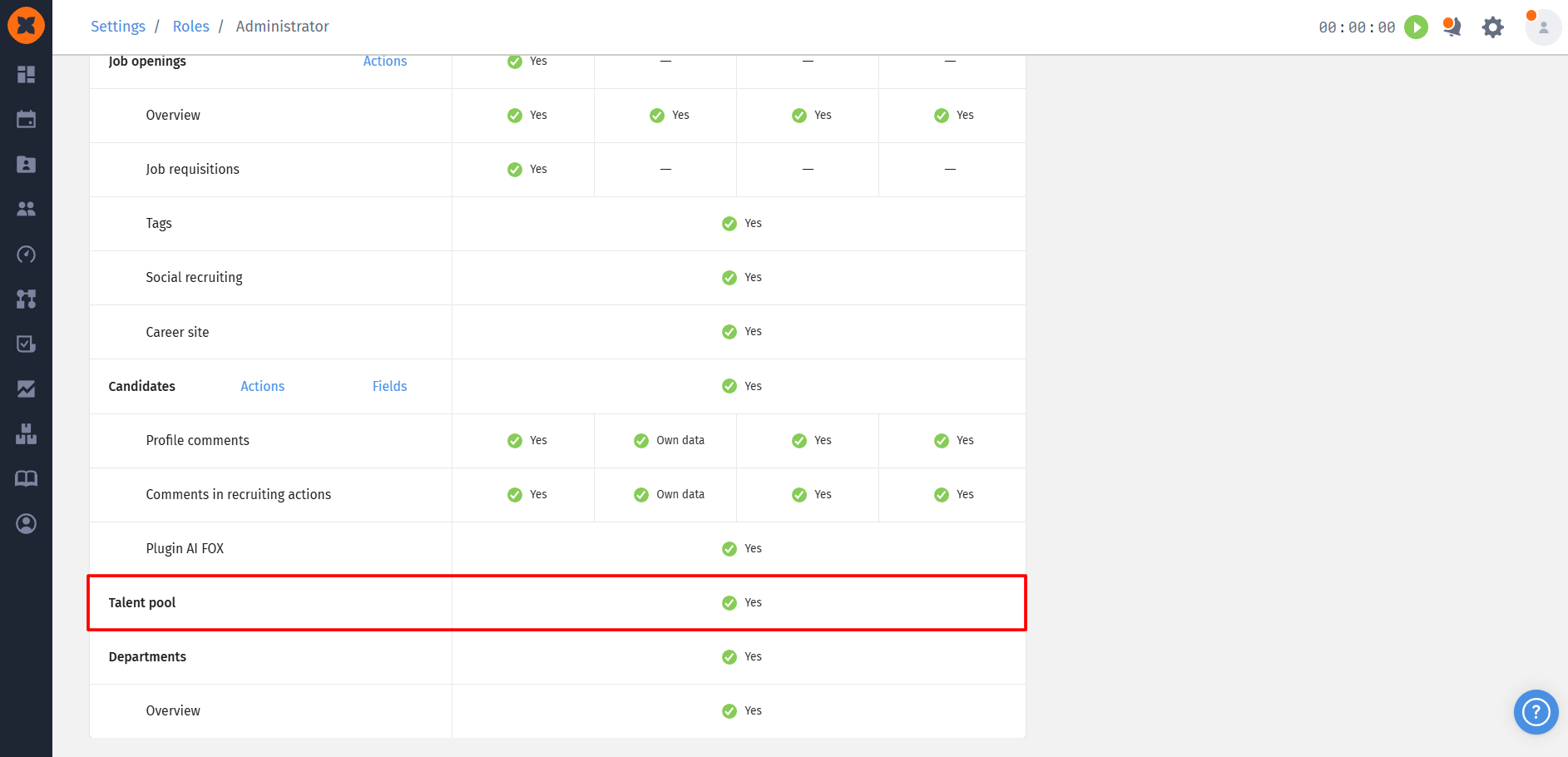
The visibility and access to talent pools are managed through a separate permission in the user role settings:
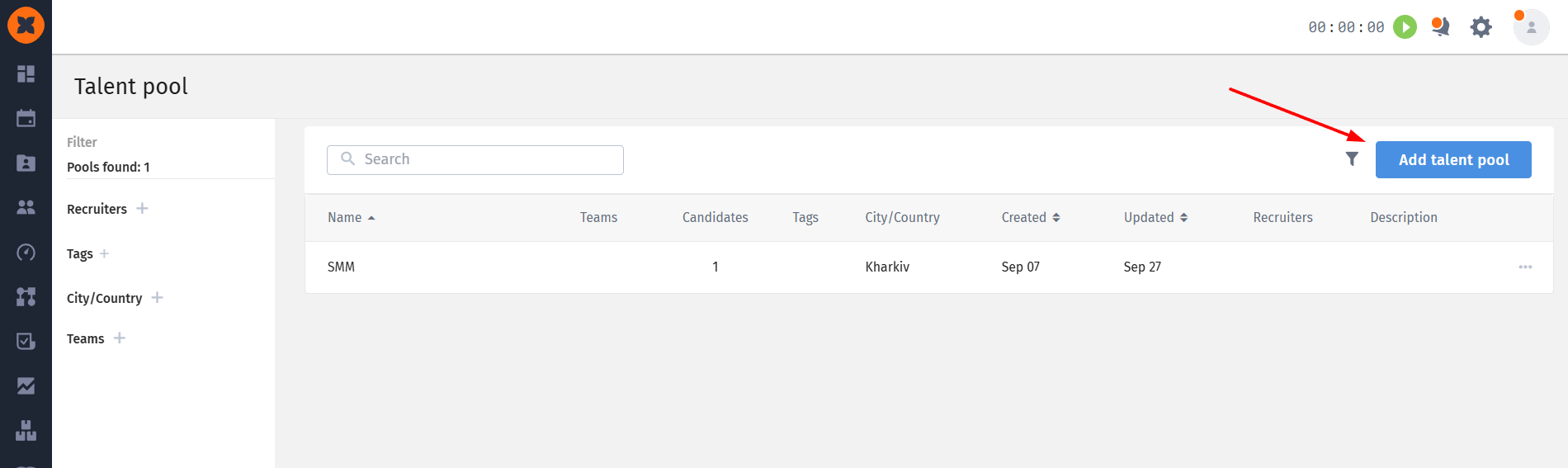
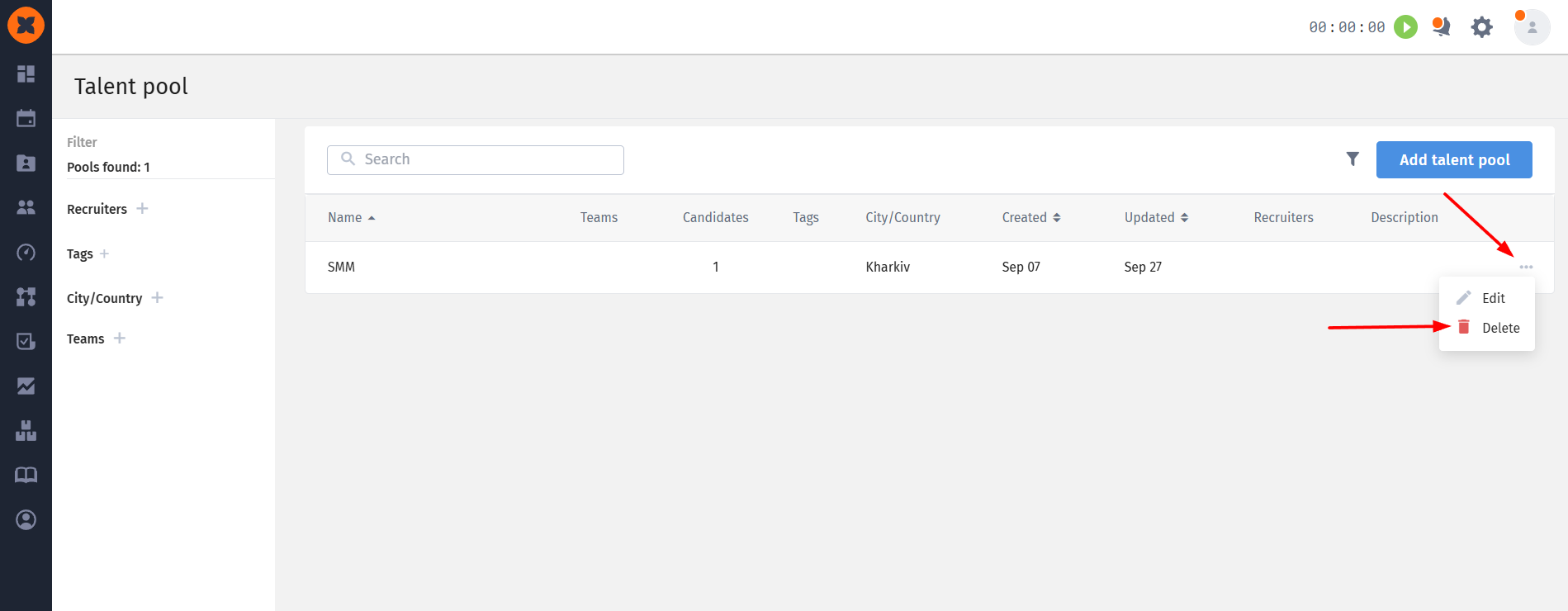
When you open the “Talent pool” section, a table with all candidate pools created in the system is displayed.
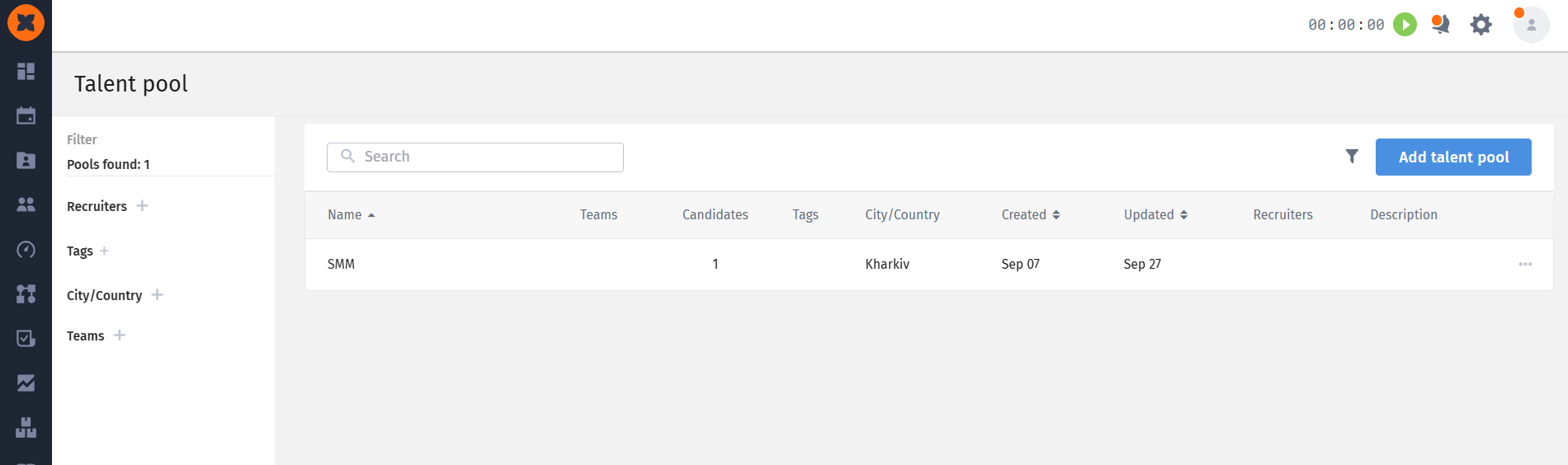
To quickly find the required pool, you can use filters, sorting, and the search bar:
Filtering: available by recruiters, tags, city/country, and teams;

Search: works by the pool name and description;
Sorting: available for the “Name,” “Created,” and “Updated” columns. By default, the table is sorted alphabetically by name.
To create a new talent pool, follow a few simple steps:
Click the “Add talent pool” button in the top-right corner of the page.
Fill in the candidate pool creation form:
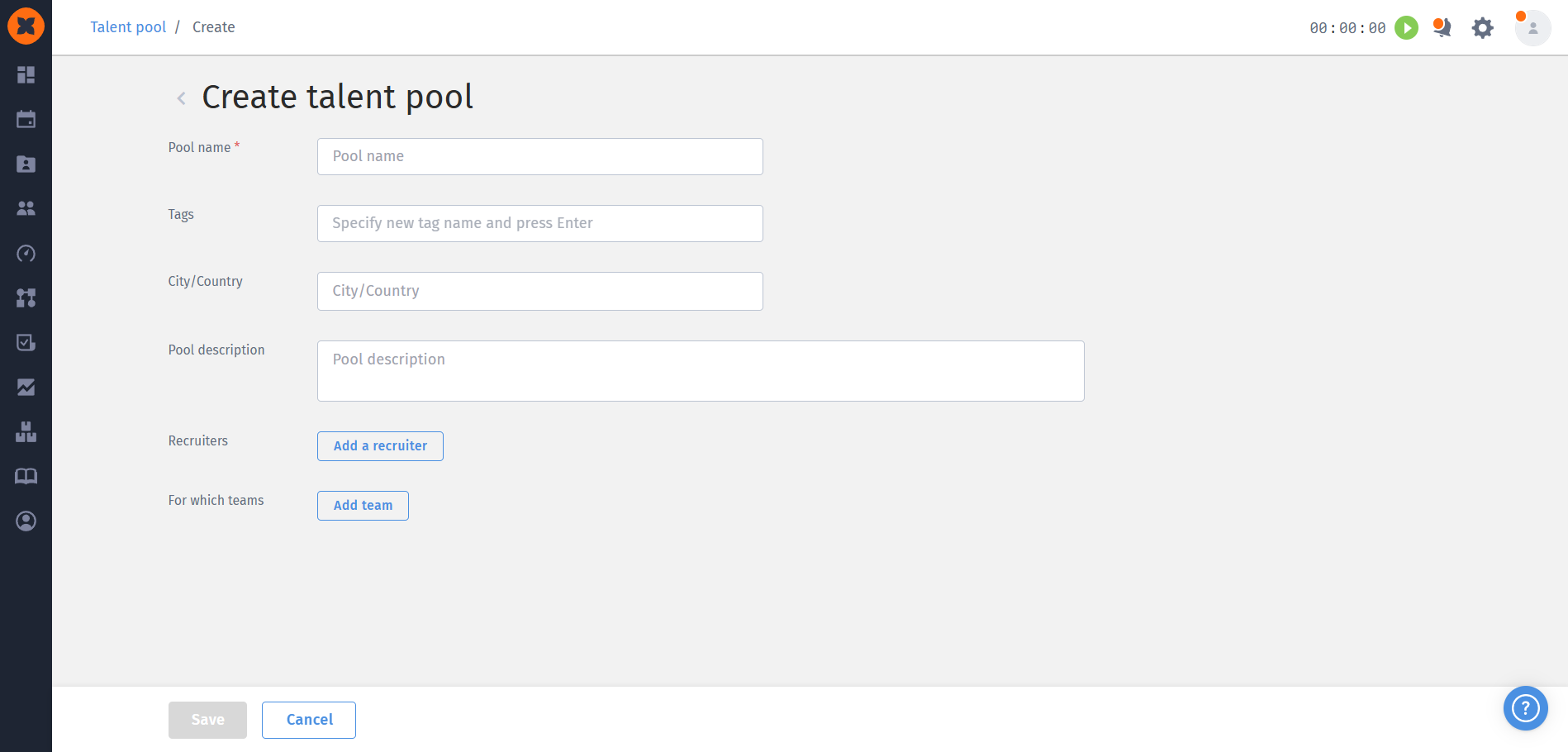
Pool name - a required field;
Tags - you can select existing tags in the system or enter and create a completely new tag value;
City/Country - allows you to choose from cities and countries already specified in the company’s vacancies. You can also enter a custom value, which will be saved in this field and available for future talent pool creation or editing;
Pool description - an optional field for additional information, comments, or notes;
Recruiters - allows you to assign recruiters to the talent pool;
For which teams - allows you to select the required teams from the list of teams available in the system and add them to the pool.
Click “Save”. The newly created talent pool page will then open, displaying all the information you have entered.
You can update information or delete a talent pool that is no longer needed at any time:
Editing: you can make changes - add or remove tags, change the city, or update the list of recruiters or teams - either from the general talent pool table or directly from the page of a specific pool.
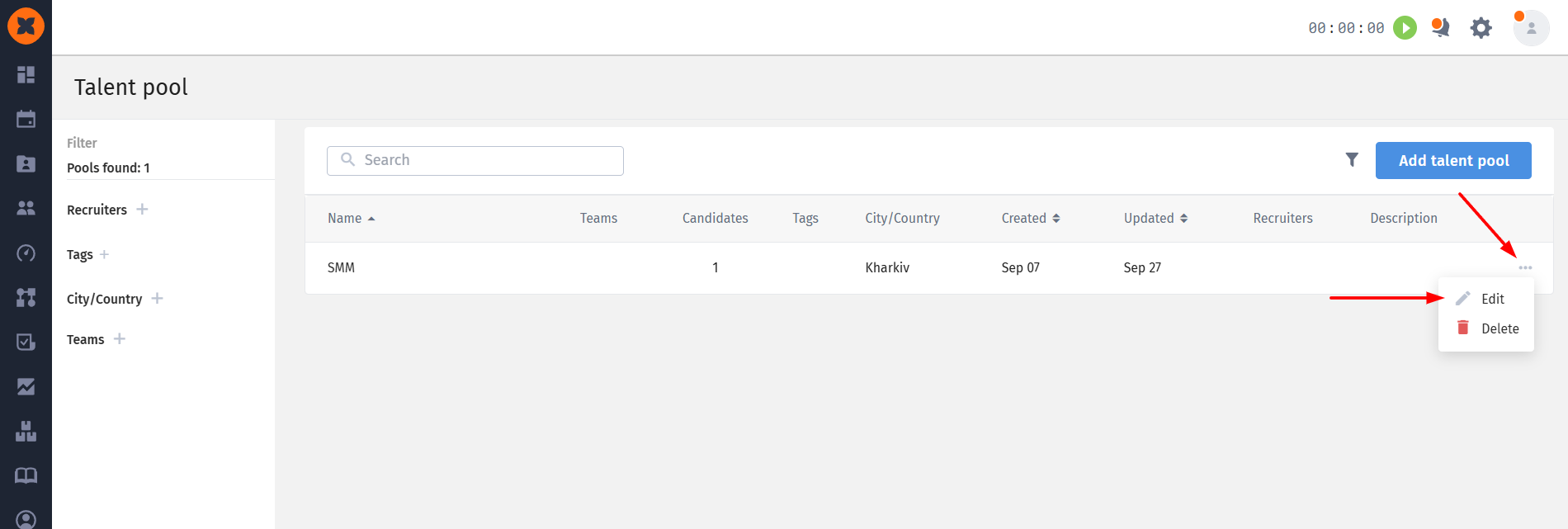
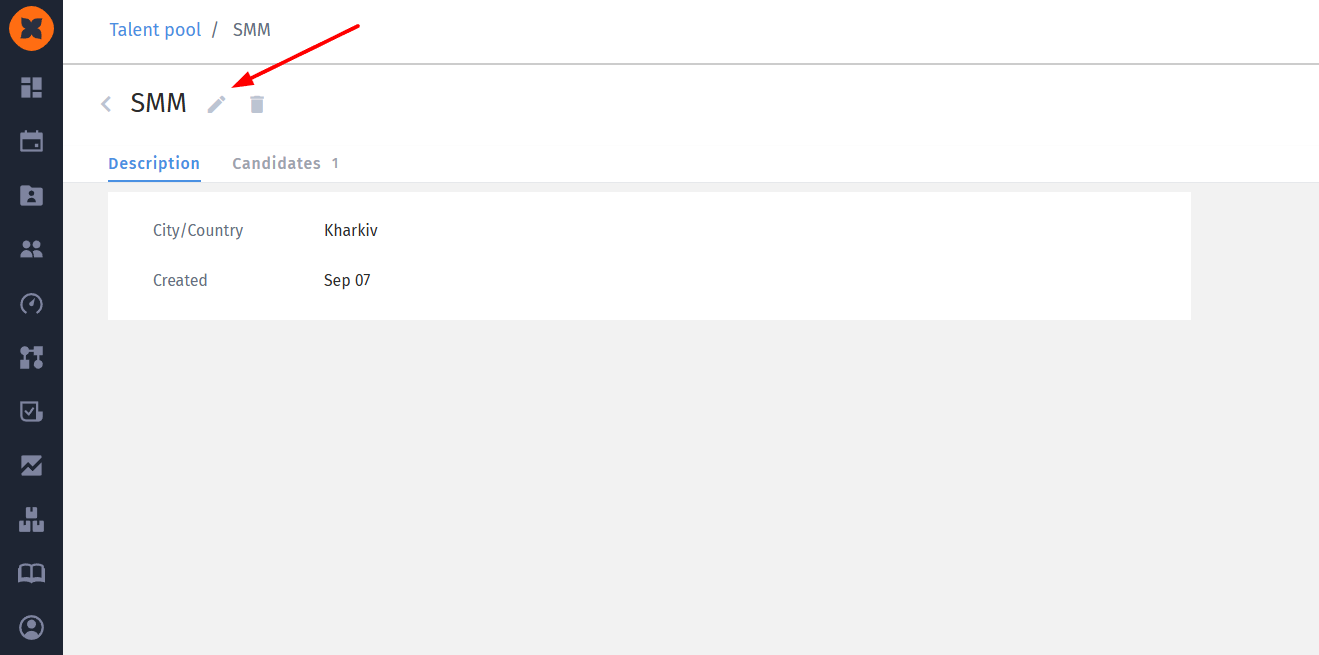
Deleting: you can also delete a candidate pool from either page - the general pool list or the pool details page. After confirming the deletion, the pool will be removed from the system table.
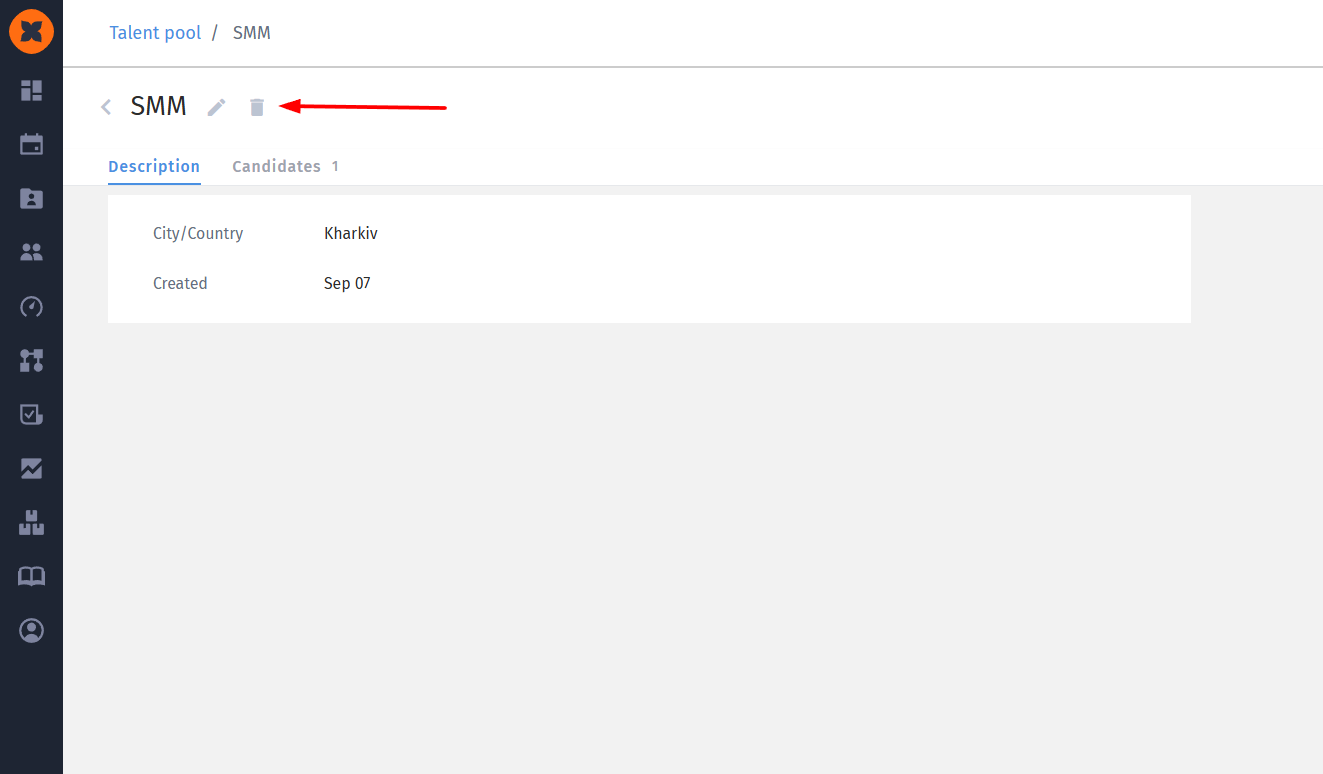
The “Candidates” tab is available on the page of each talentpool:
If candidates have already been added to the pool, the tab displays a counter showing the number of candidates;
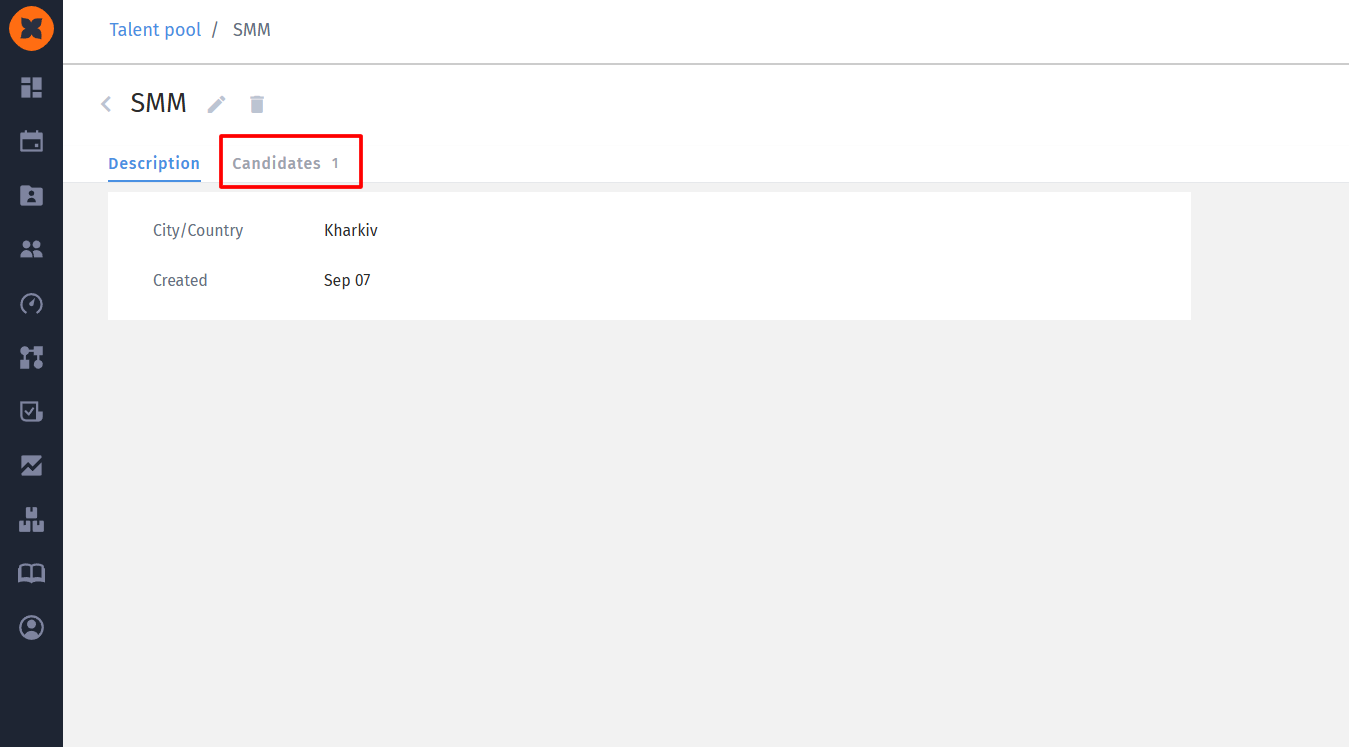
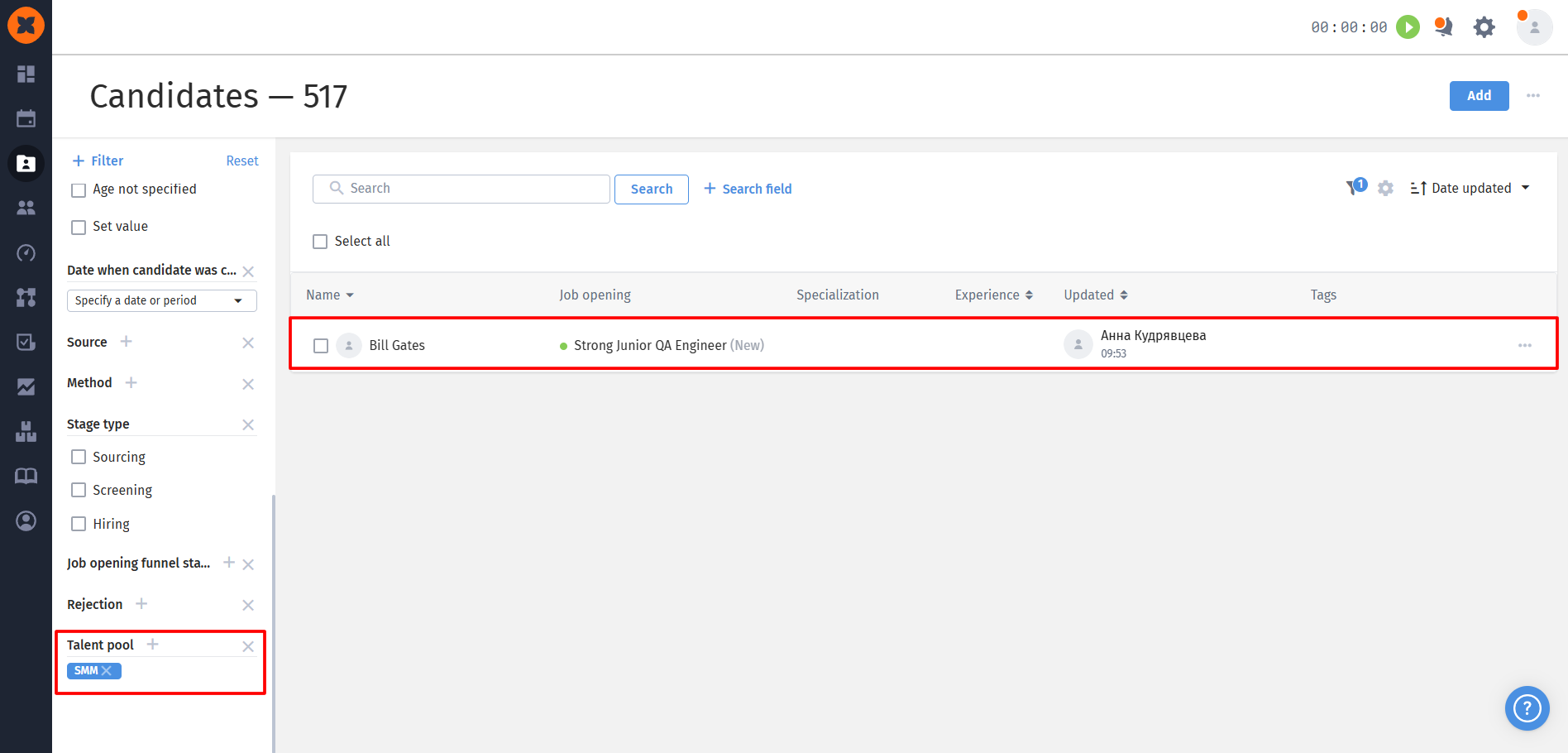
Clicking this tab automatically redirects you to the general candidates page with a filter applied for the selected talent pool;
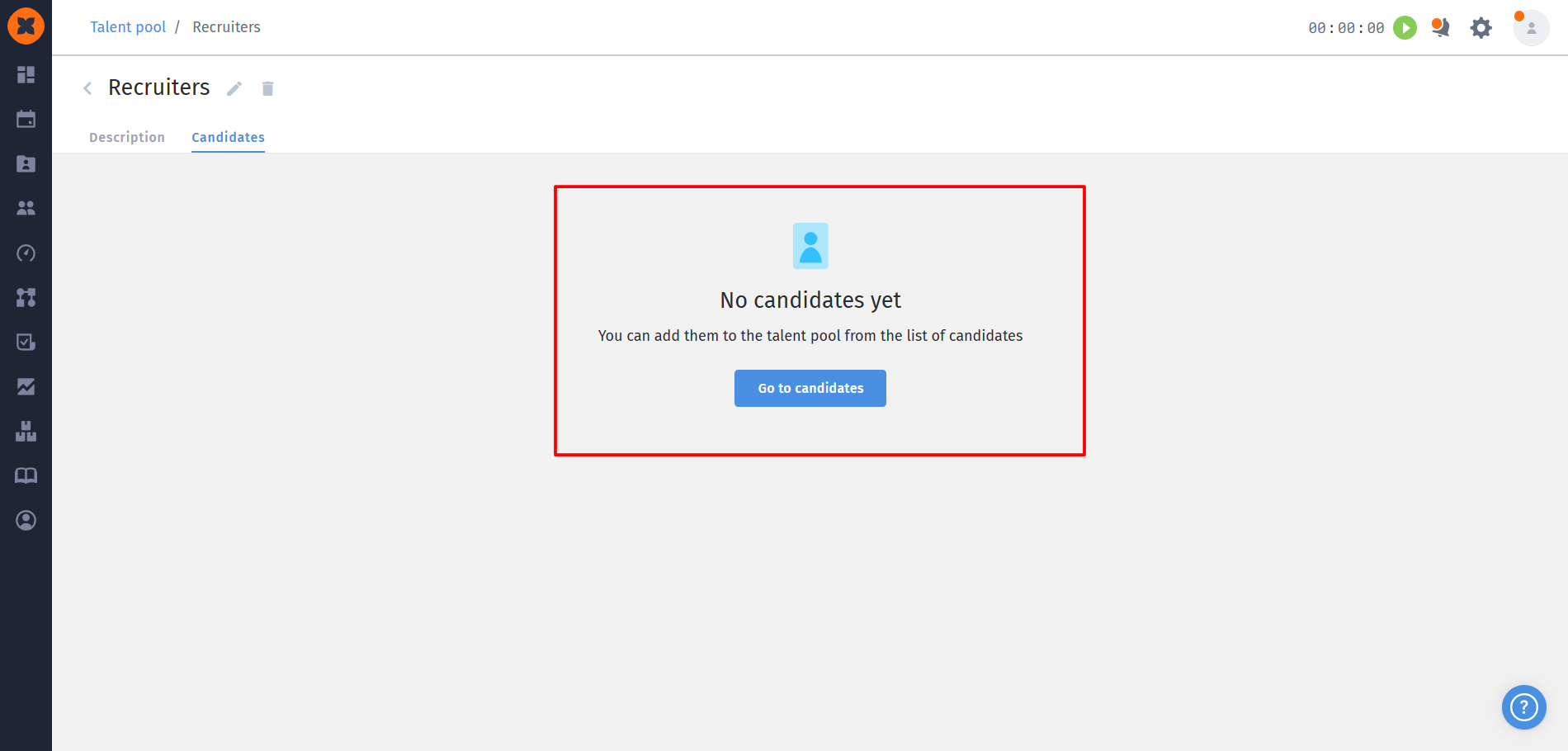
If there are no candidates in the pool yet, the tab displays the message “No candidates yet” along with the “Go to candidates” button for quick access to the general candidate list.
Candidates can be added to talent pools from different sections of HURMA:
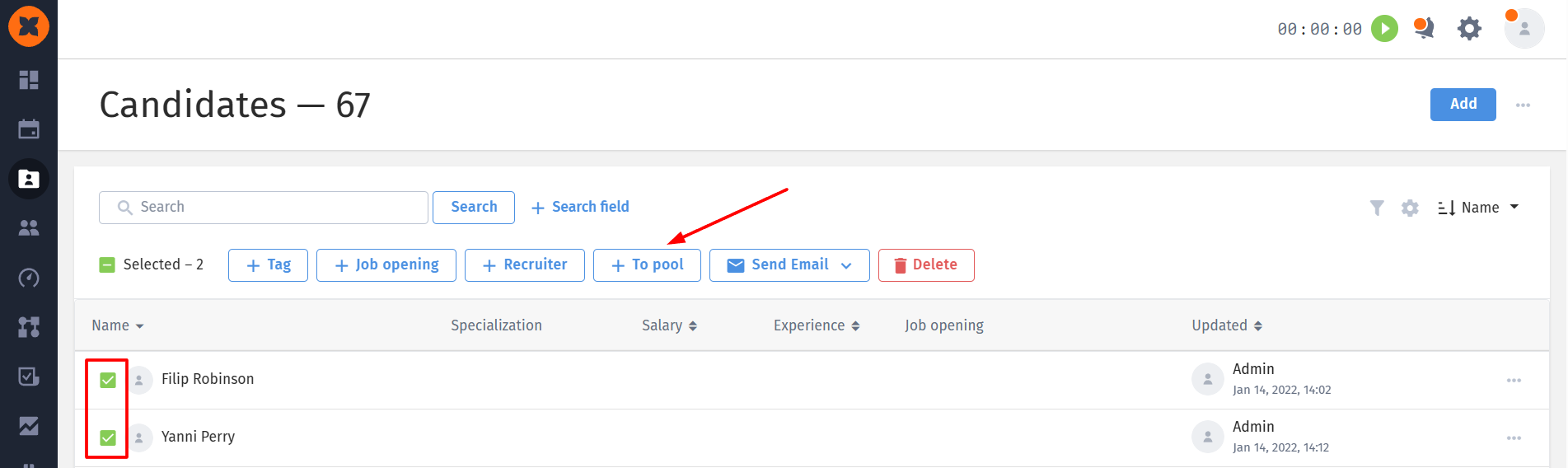
Bulk or individual selection: select one or more candidates using the checkboxes. The “To pool” button will then appear in the top action menu. Click it and select the required pools from the list of available options. The system will only suggest pools that the selected candidates have not yet been added to;
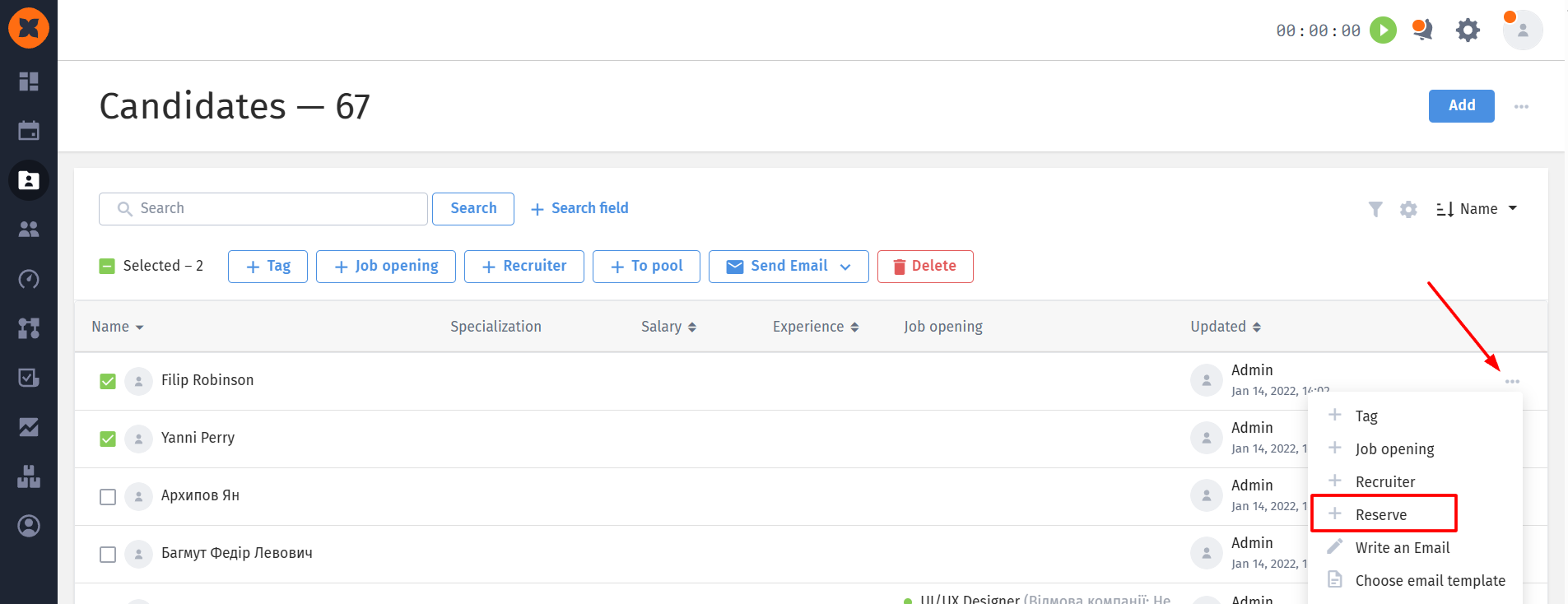
Through the (...) menu: click the three-dot menu next to the required candidate in the general list and select “+ Reserve”;
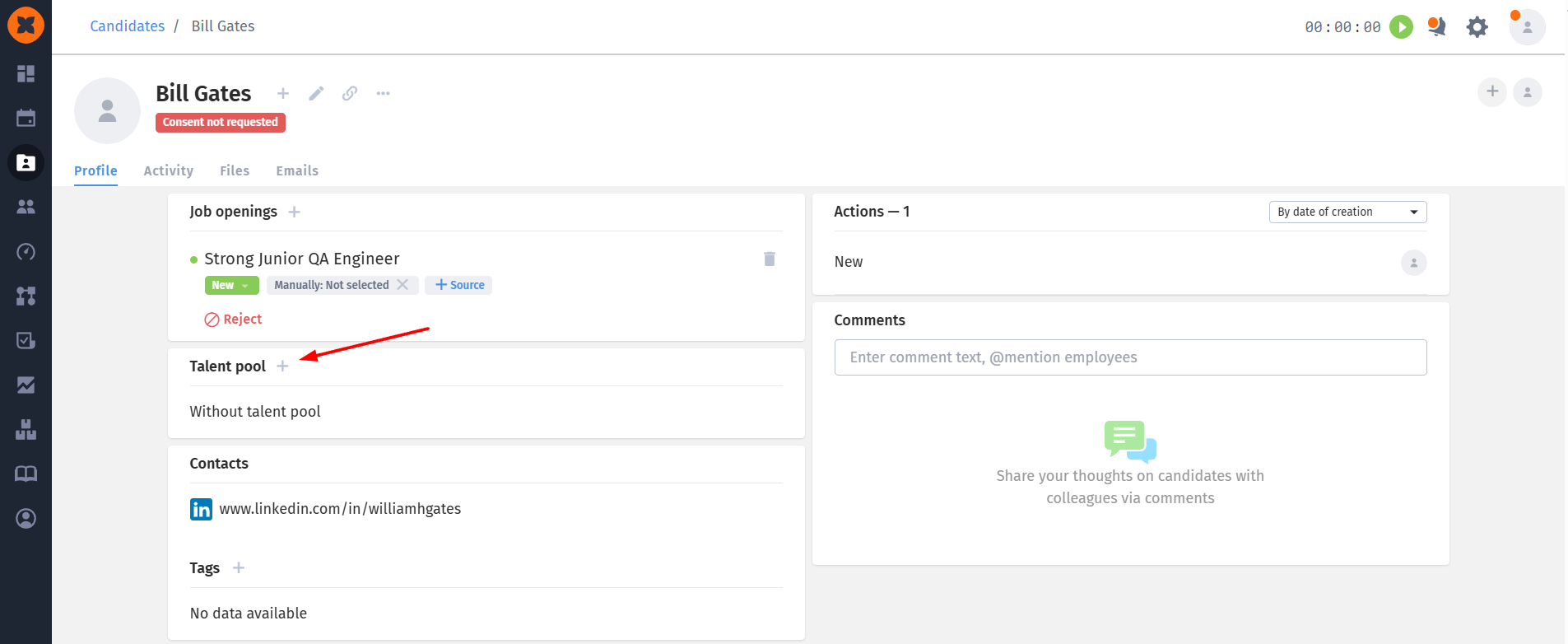
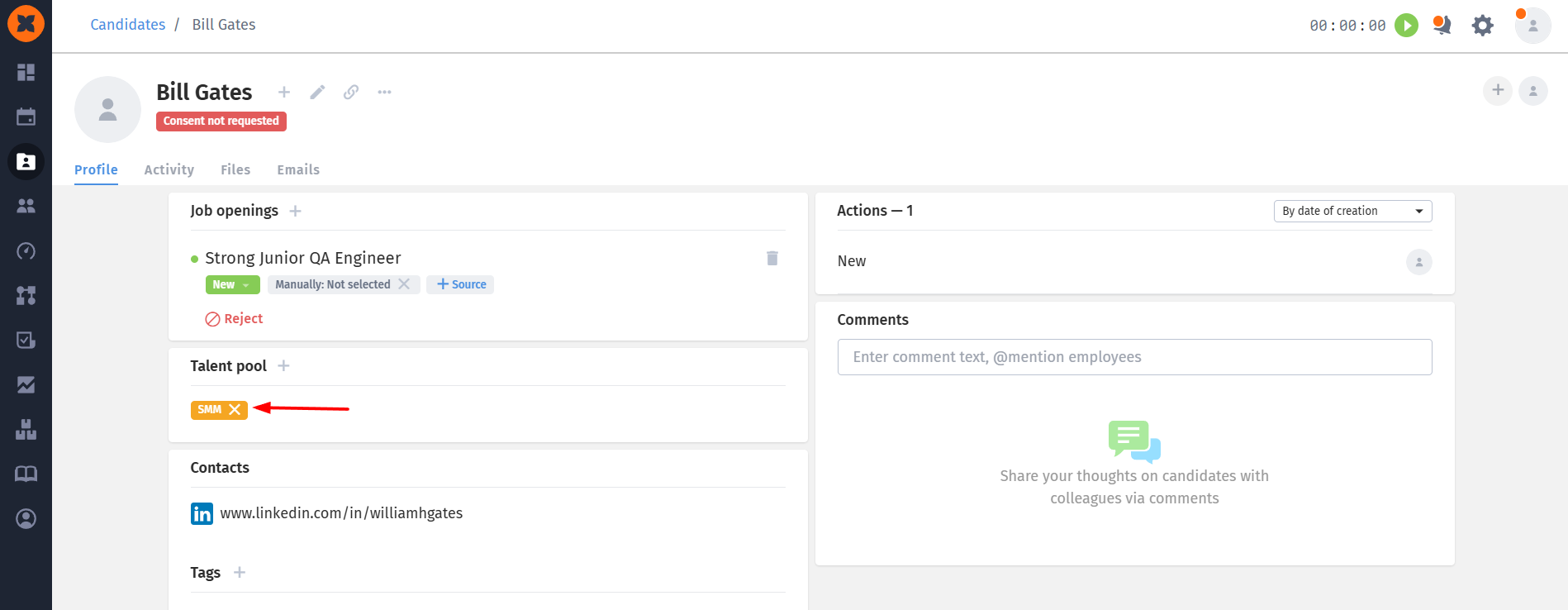
A new “Talent pool” block has been added to the candidate profile.
Click the “+” icon to open the list of talent pools and add the candidate to the selected pools.
Removing a candidate from a pool: you can quickly remove a candidate from a pool by clicking the cross icon next to the relevant pool in the candidate profile.
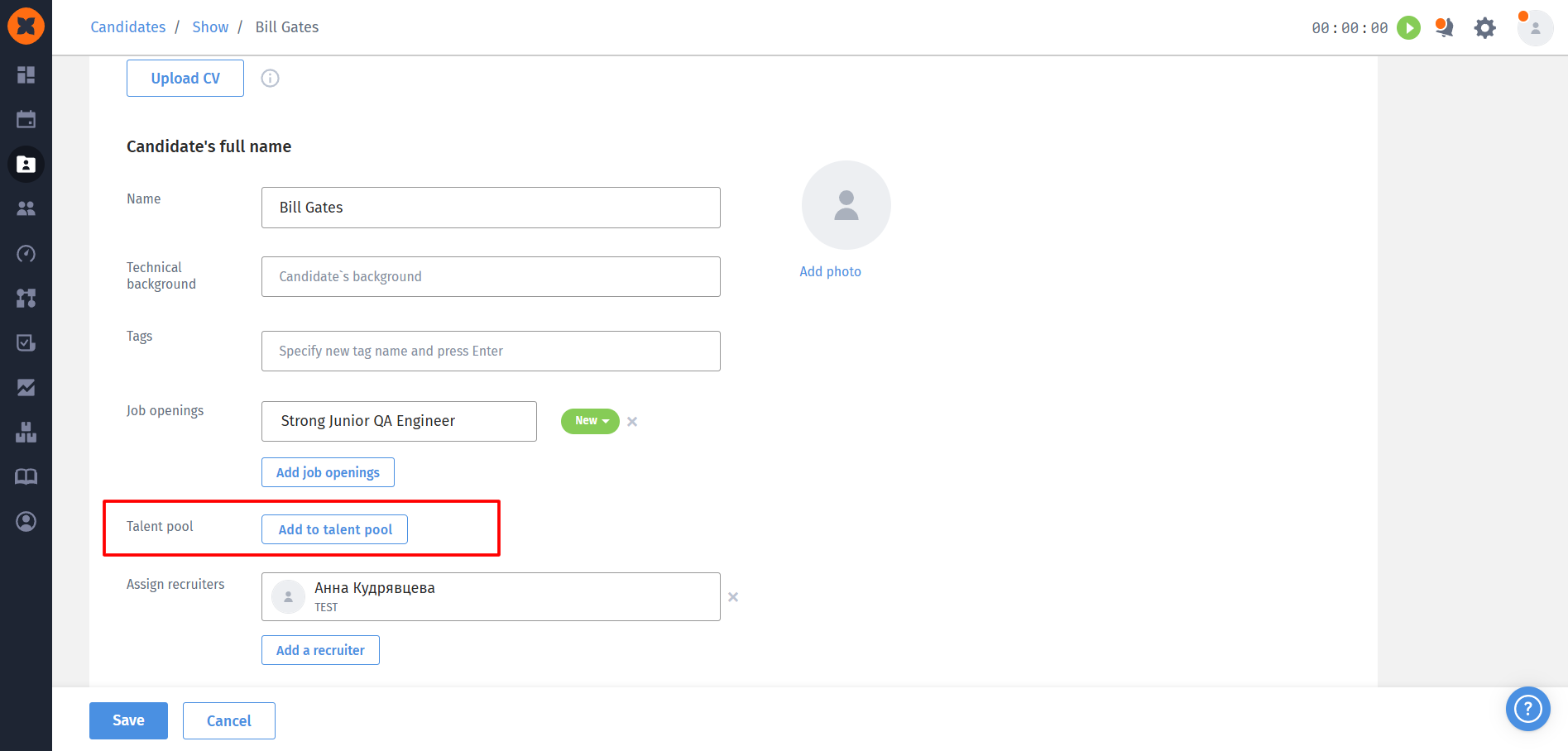
When creating a new candidate or editing an existing candidate profile, the “Add to pool” button is available. Click it to select one or more talent pools.
On the editing page, you can also remove the candidate from pools before saving the profile.
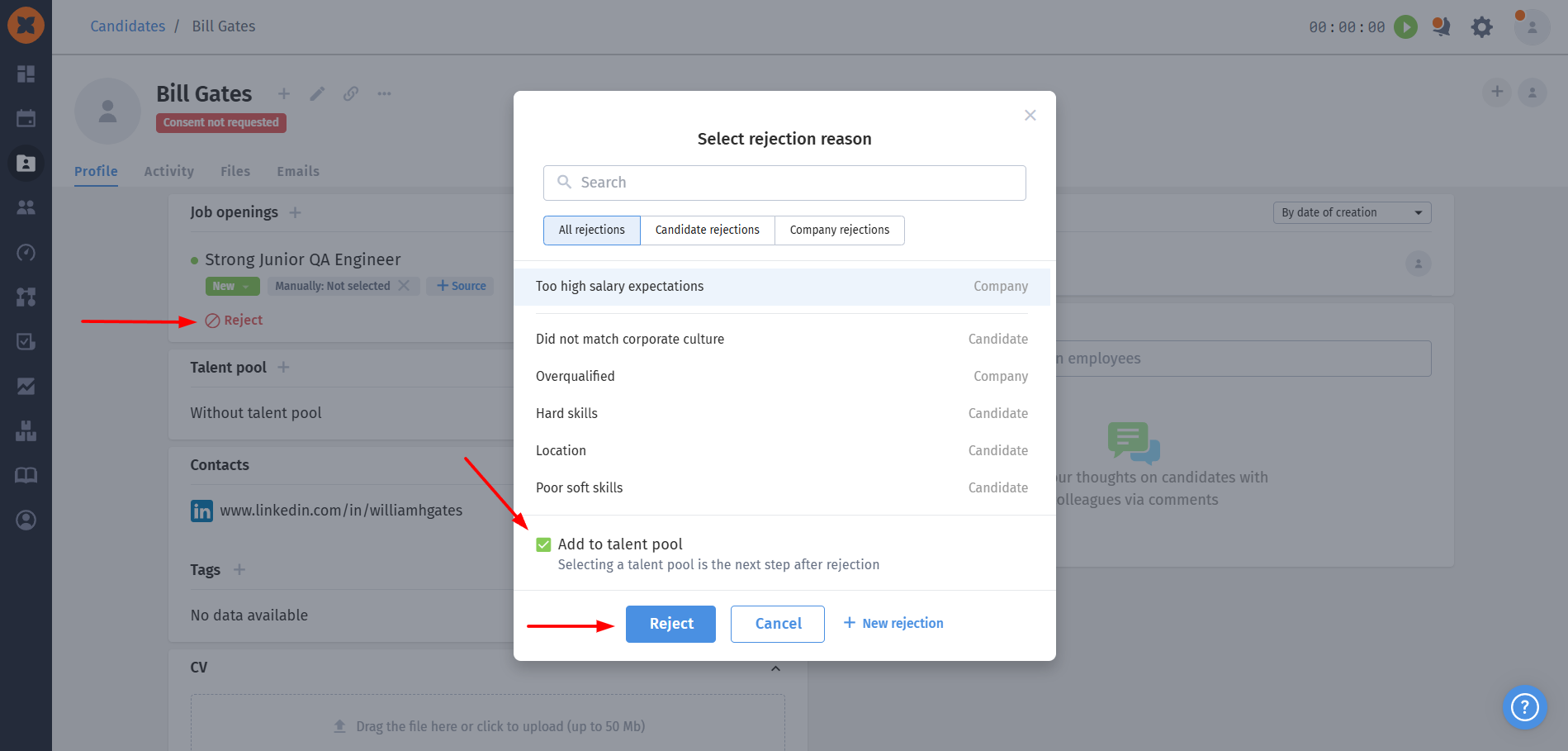
From the candidate profile: when you click the “Reject” button in the candidate card, an additional “Add to talent pool” checkbox appears. If enabled, a window for selecting the required talent pool will open after you confirm the rejection;
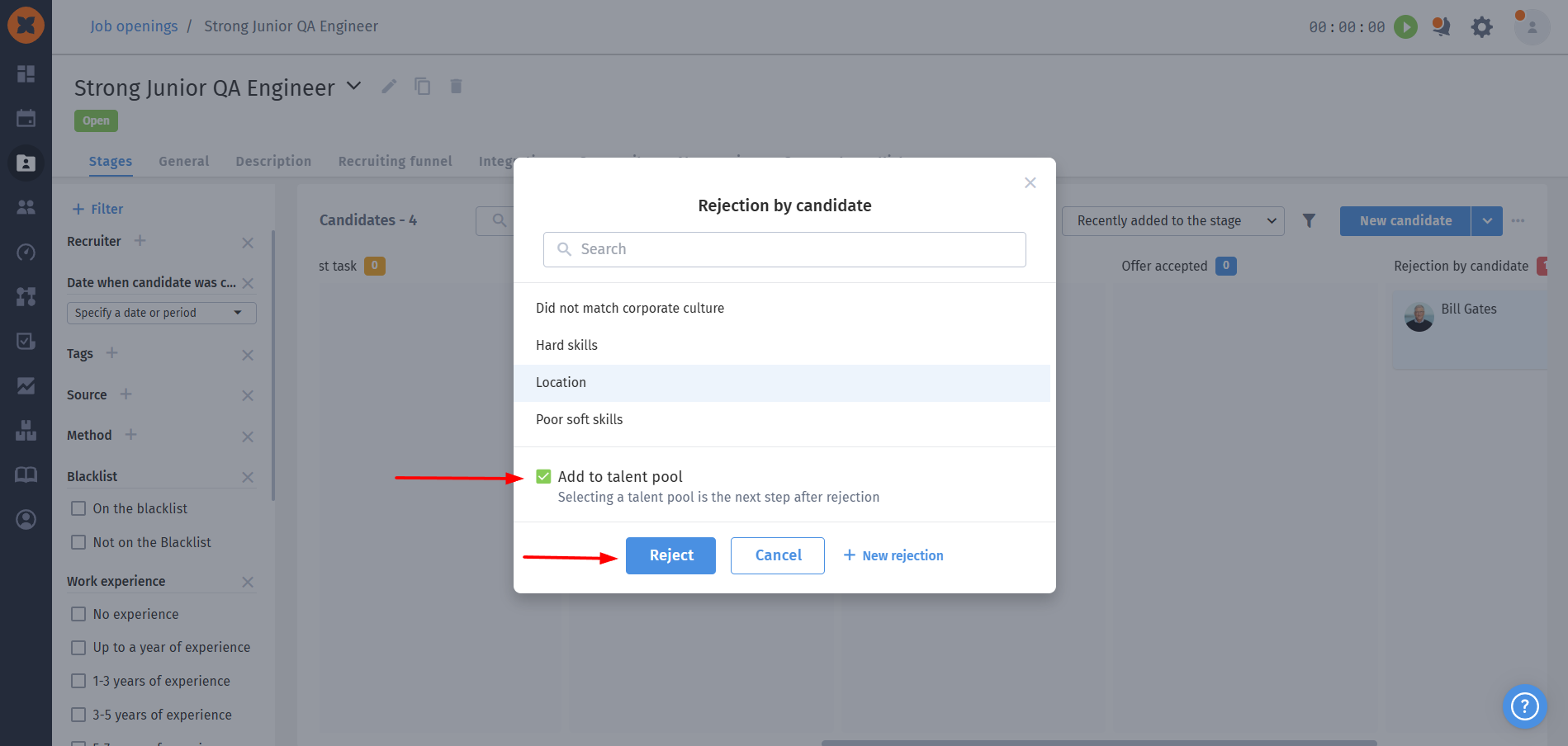
From the kanban board: when moving a candidate to the “Reject” stage on the kanban board, an additional “Add to pool” checkbox appears. If enabled, after clicking “Reject”, the system will prompt you to select a talent pool in a pop-up window.
If access to talent pools is disabled for an employee's role, the system adapts as follows:
The “Talent pool” subsection is completely hidden from the “Recruiting” section;
When rejecting a candidate - both from the kanban board and directly from the candidate card - the “Add to talent pool” checkbox is not displayed;
On the general candidates page, the “Add to pool” button is not available when selecting candidates in bulk or in the three-dot menu for an individual candidate;
The “Talent pool” block and any information about pools are completely hidden from the candidate profile;
The “Add to pool” button is hidden on candidate creation and editing pages;
In the “Activity” tab, the user can see information about a candidate being added to a pool, but cannot click the pool name to open the pool.
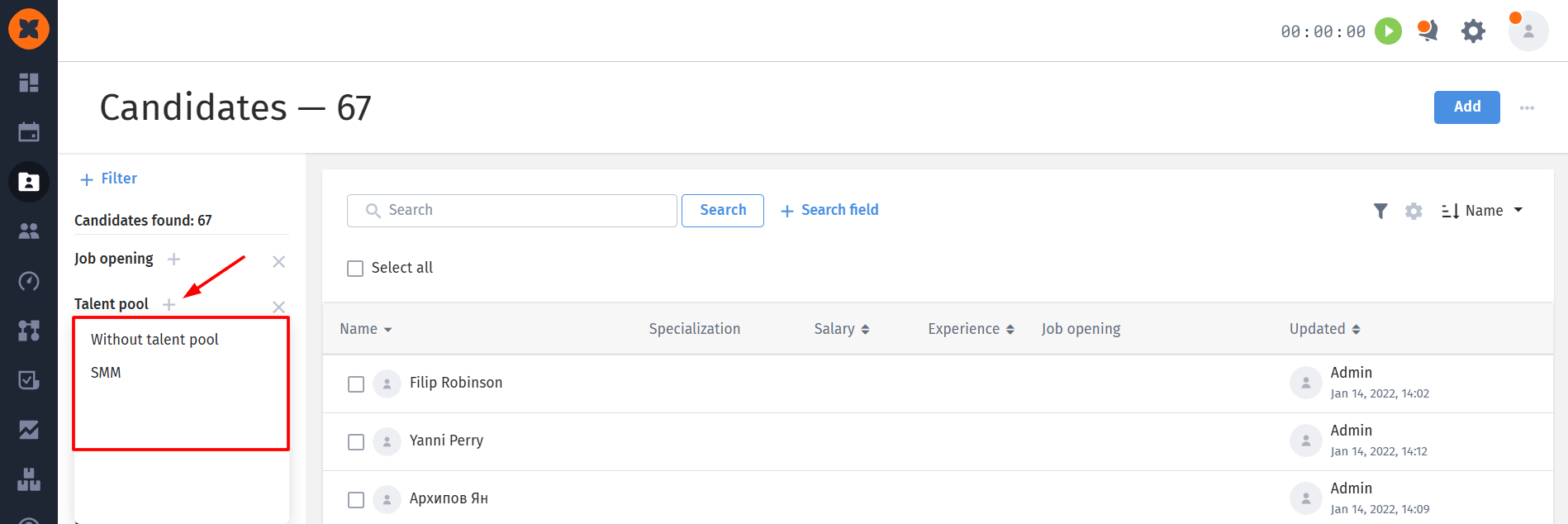
A new “Talent pool” filter is now available on the general candidates list page.
This filter displays only candidate pools that currently contain at least one candidate.
The standard “Without talent pool” option is always displayed first in the filter dropdown, allowing you to quickly filter candidates who are not currently assigned to any candidate pool.