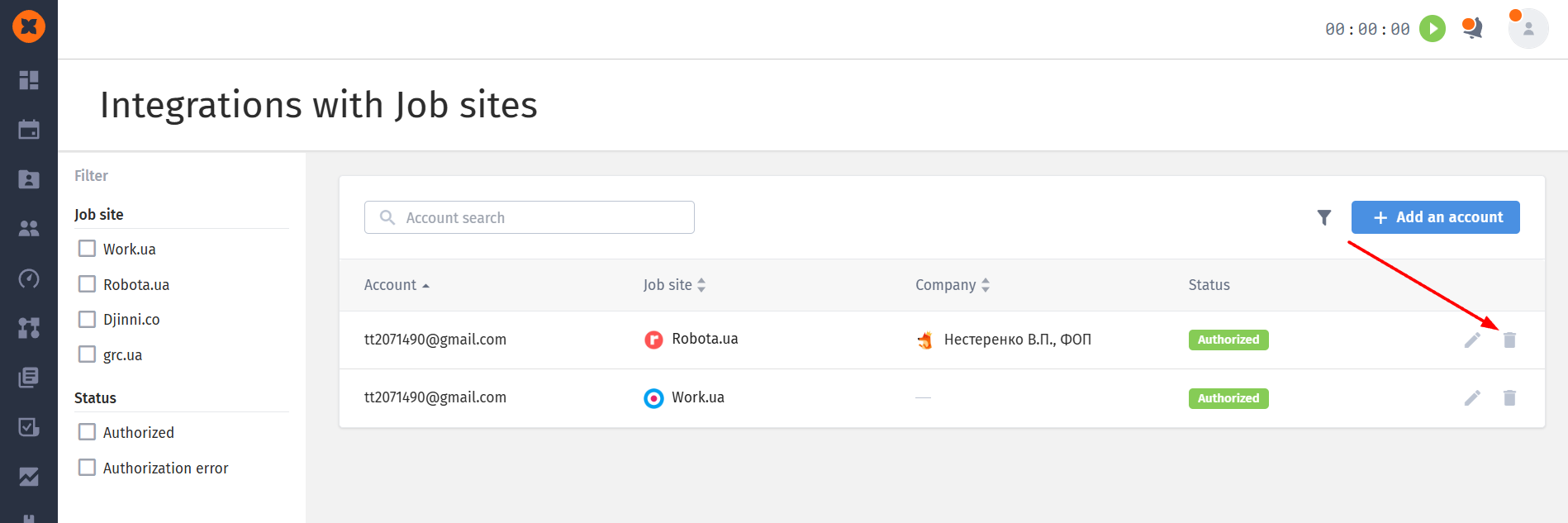
This section serves as the control center for managing your external recruitment resources. It allows you to connect accounts from leading job portals to the system for further integration with job openings, automation of postings, and collection of responses.
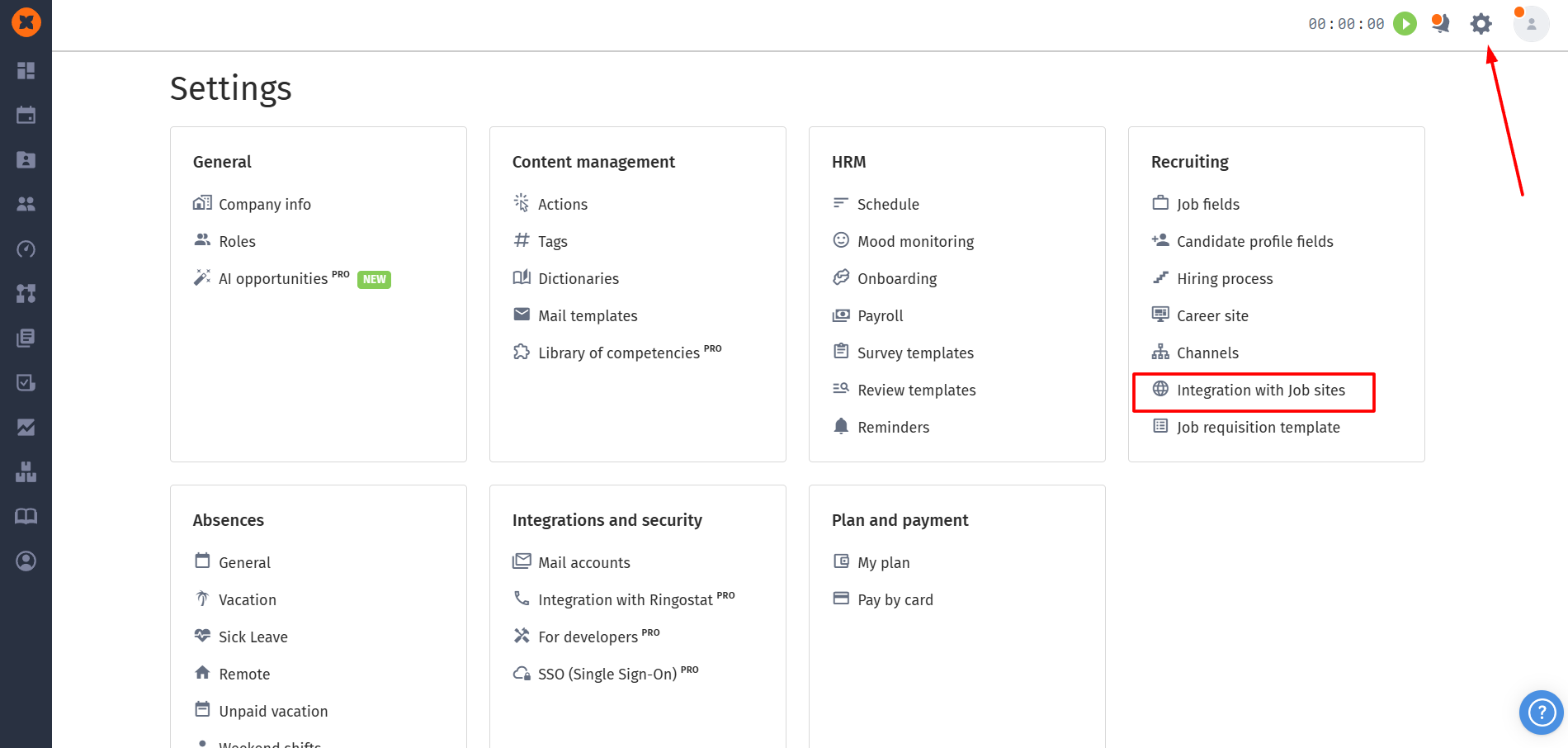
To access the settings, follow this path in the side menu: “⚙” → “Integration with Job sites”.
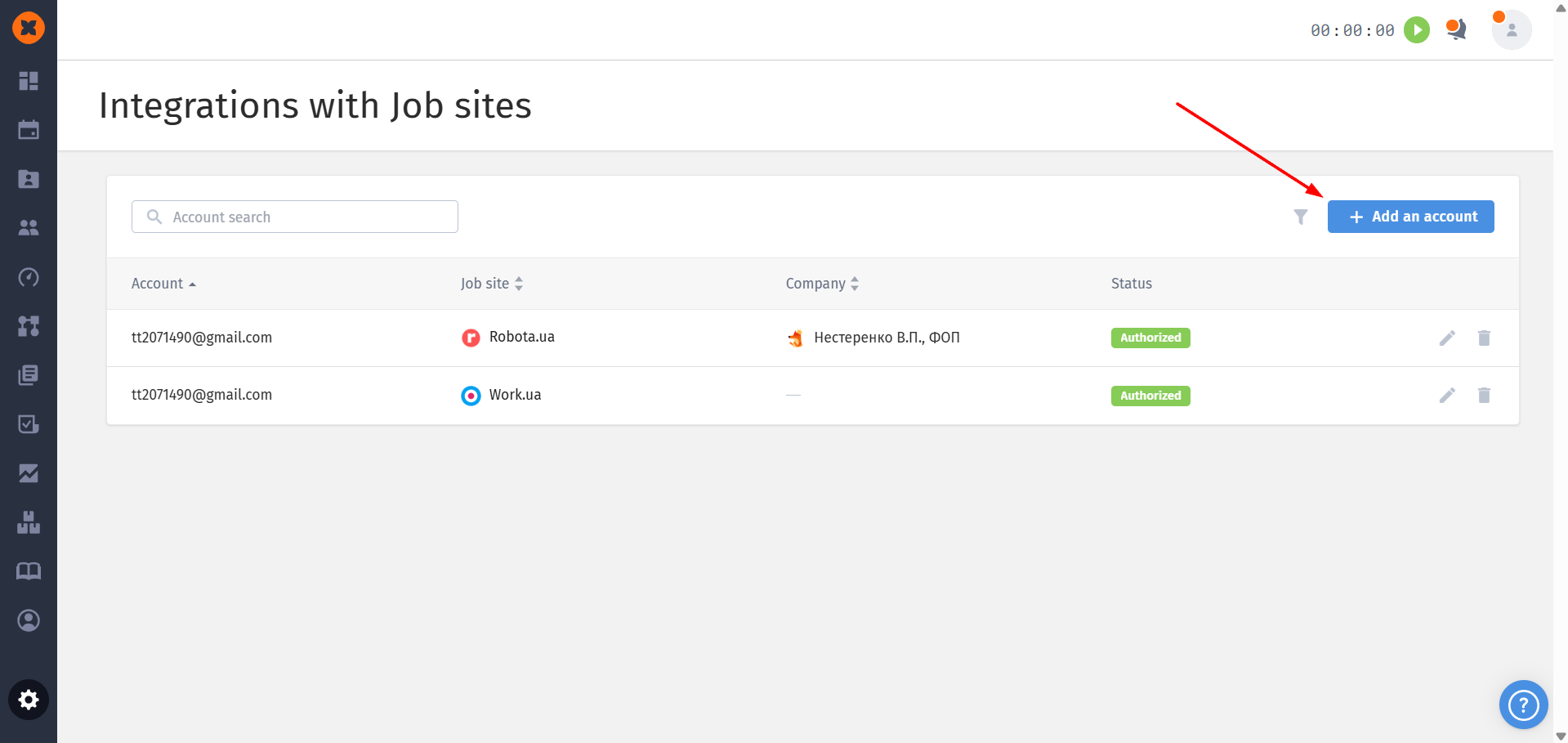
Click the “+ Add an account” button in the top right corner.
Select the desired job site.
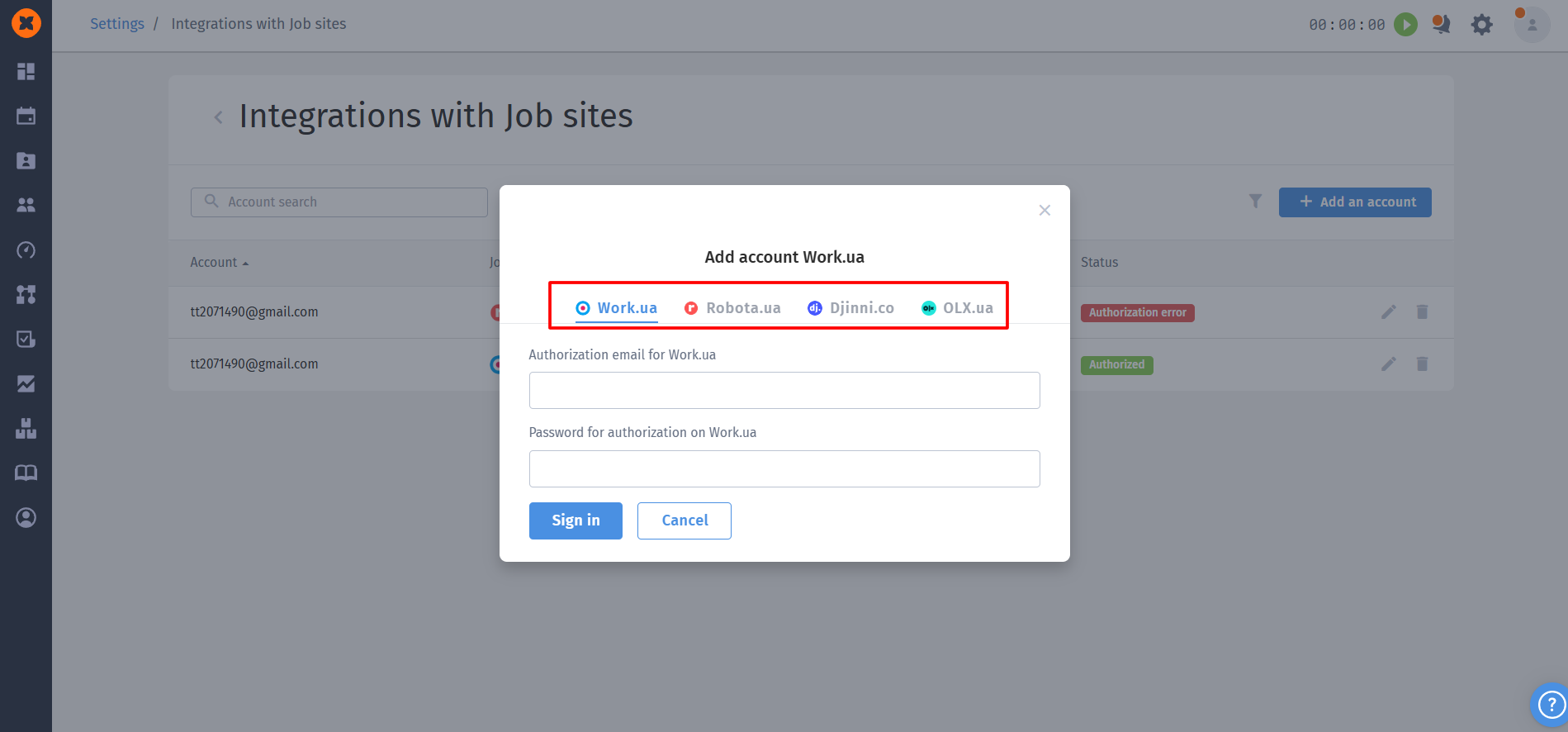
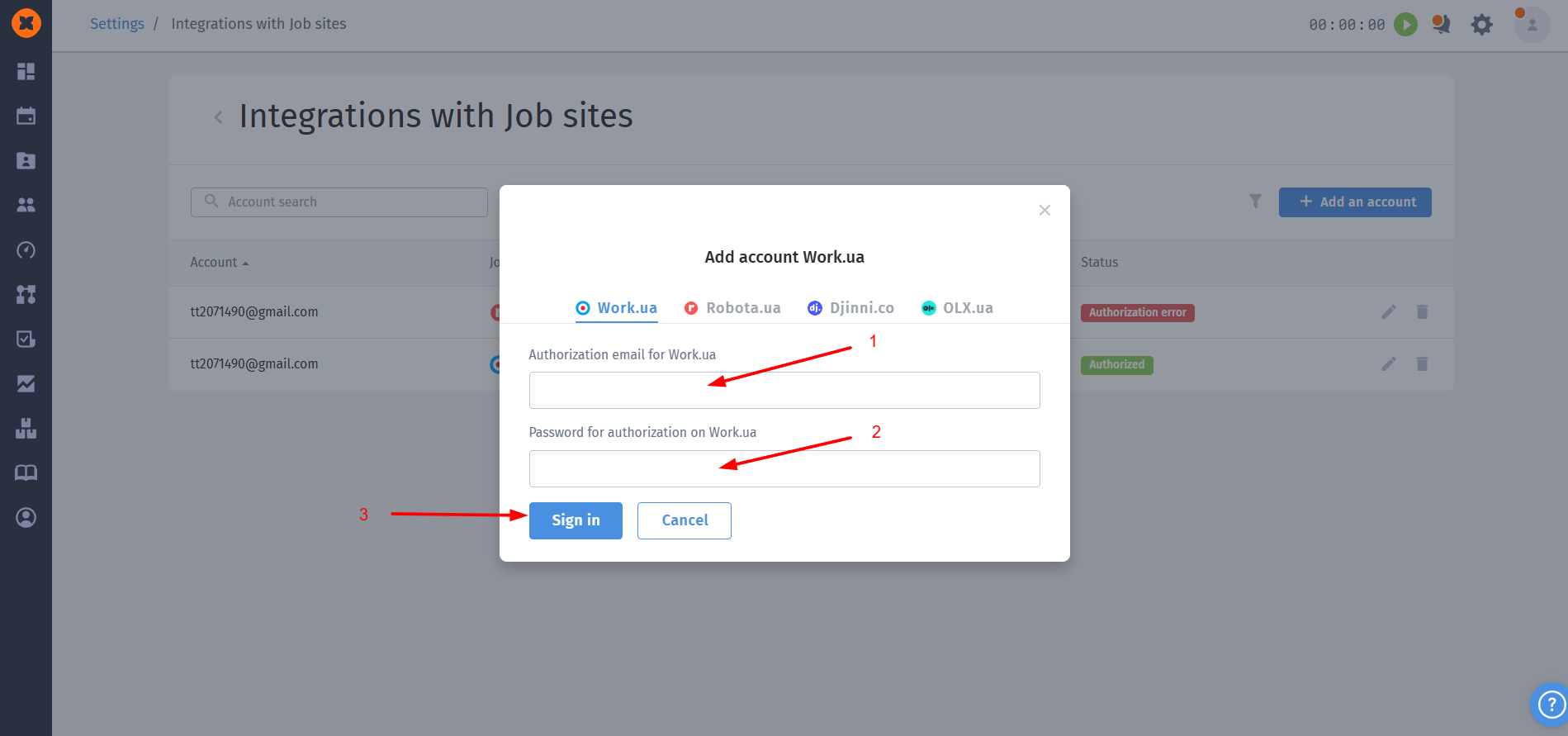
In the window tht appears, enter the login/password for your employer account on the selected platform and click “Sign In.”
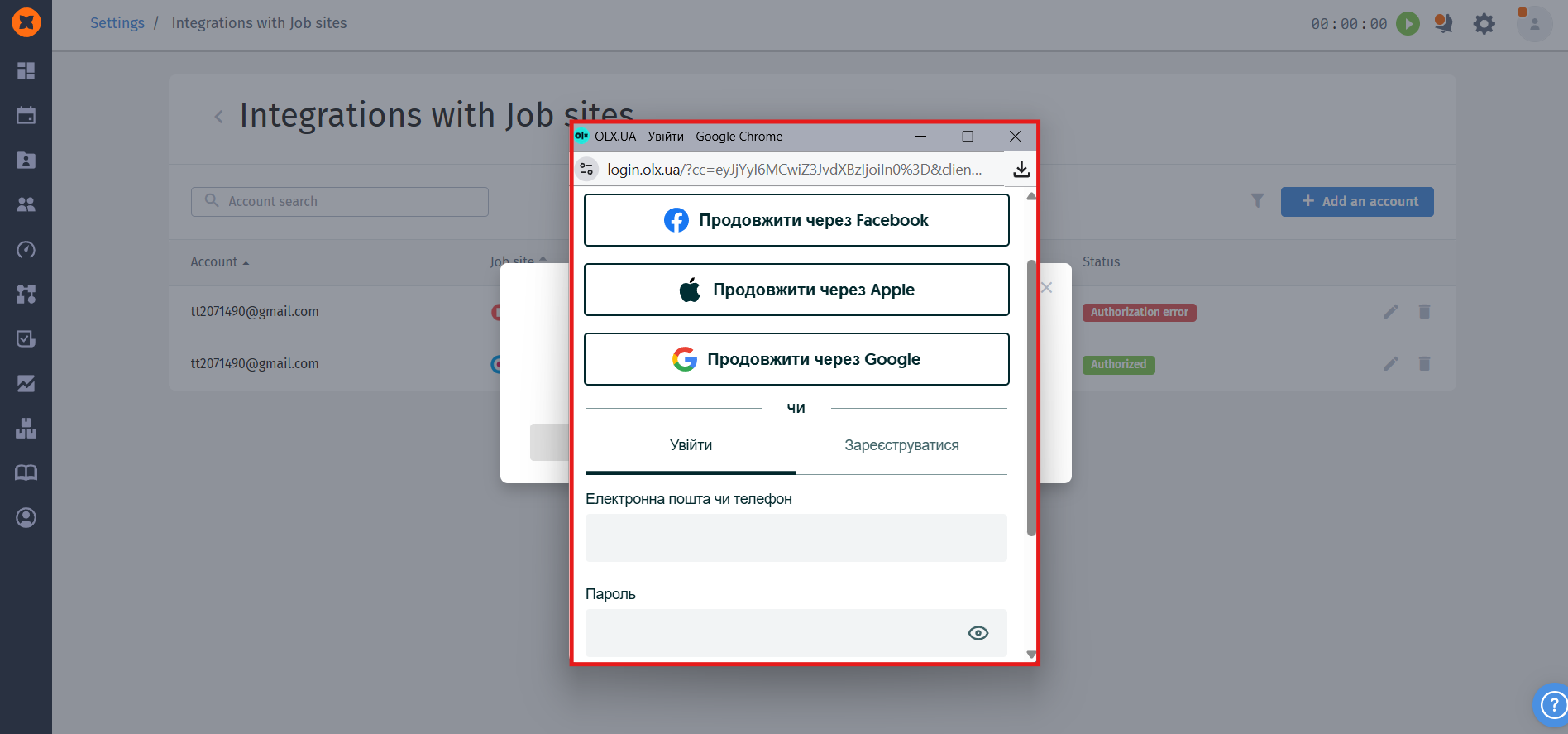
To connect OLX, authorization is performed through the OLX website. After clicking the "Sign in" button, a new browser tab will open with the OLX website, where you will need to enter your login credentials.

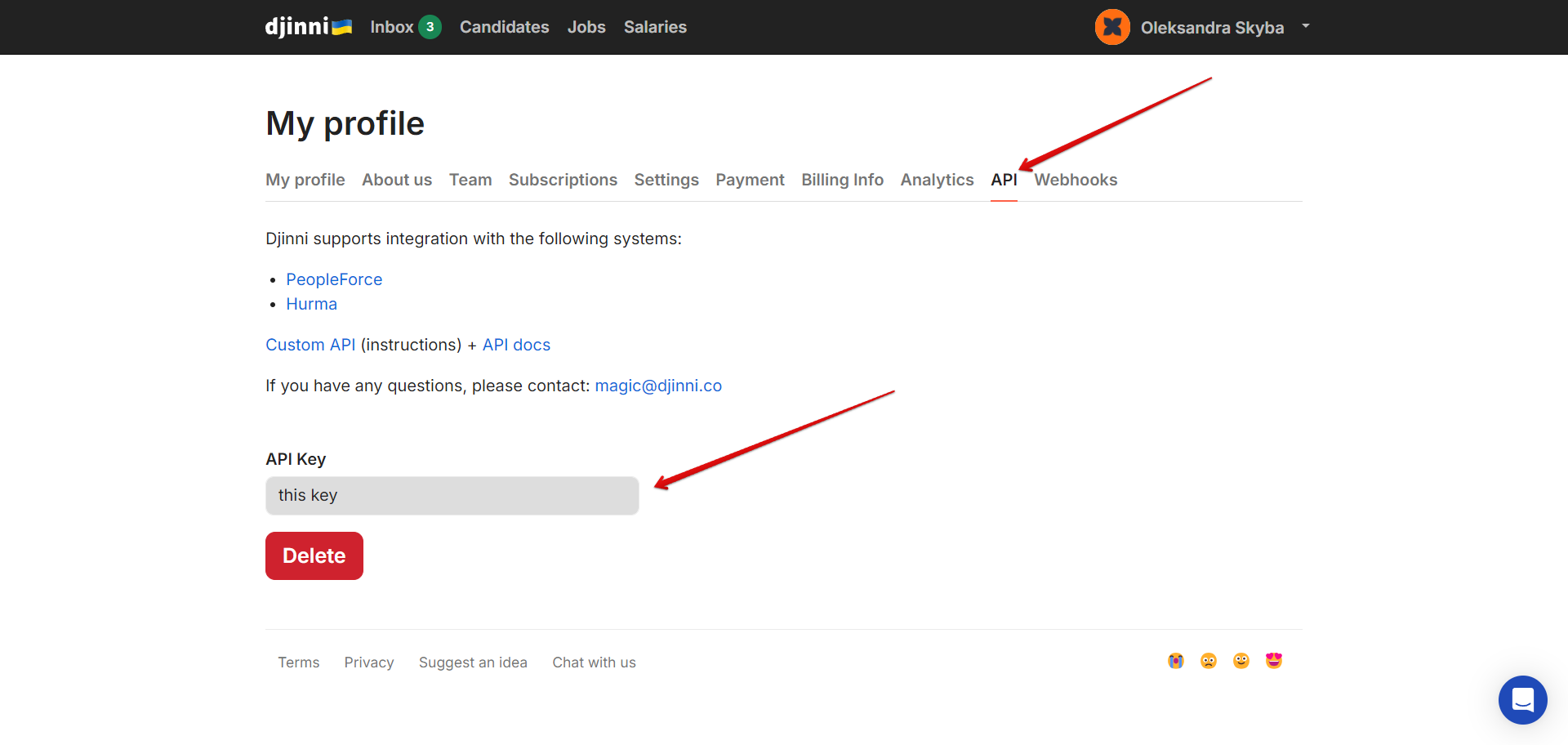
The account is connected via a key, which you need to obtain on the Djinni portal by going to account Settings → “API” tab.
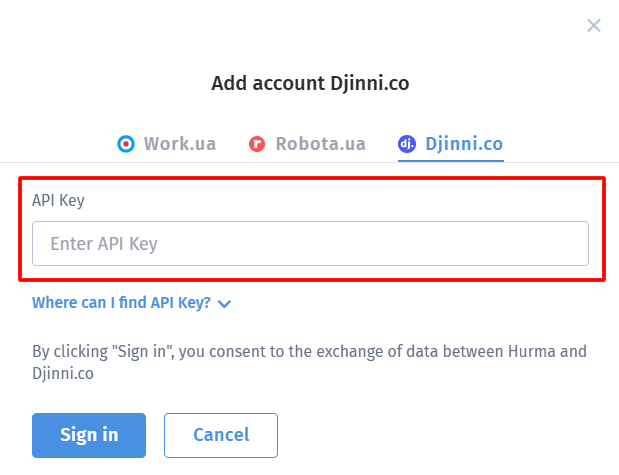
After that, you will be able to enter this key in HURMA and connect your account.
This page displays all accounts connected by the current user. The information is presented in a table with the following columns:
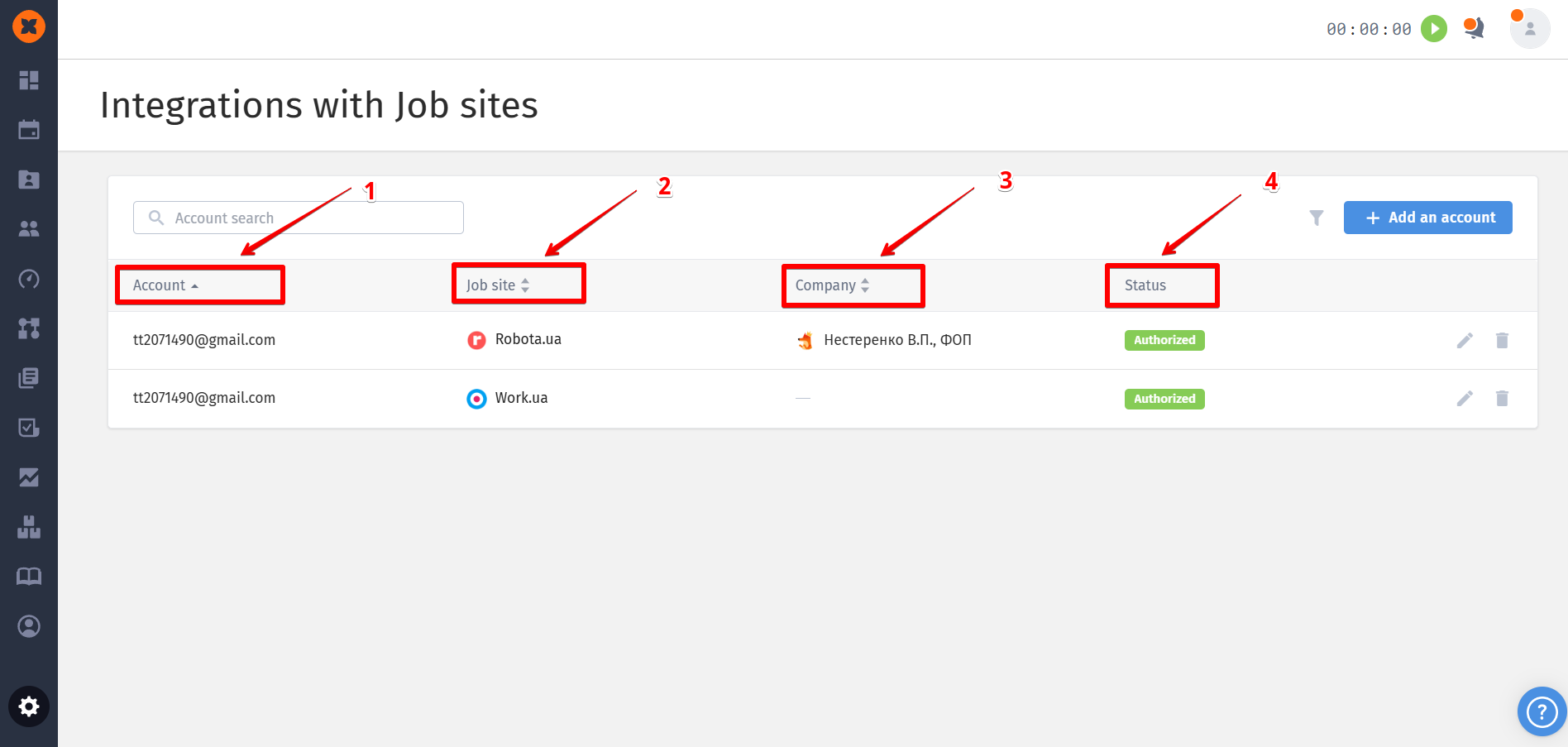
Account – the email address used to log in to the portal.
Job site – the name and logo of the platform (Work.ua, Robota.ua, etc.).
Company – the name of the company or legal entity to which the account is linked.
Status – the current connection state:
“Authorized”: the integration is active.
“Authorization Error”: may occur if the password on the portal has been changed.
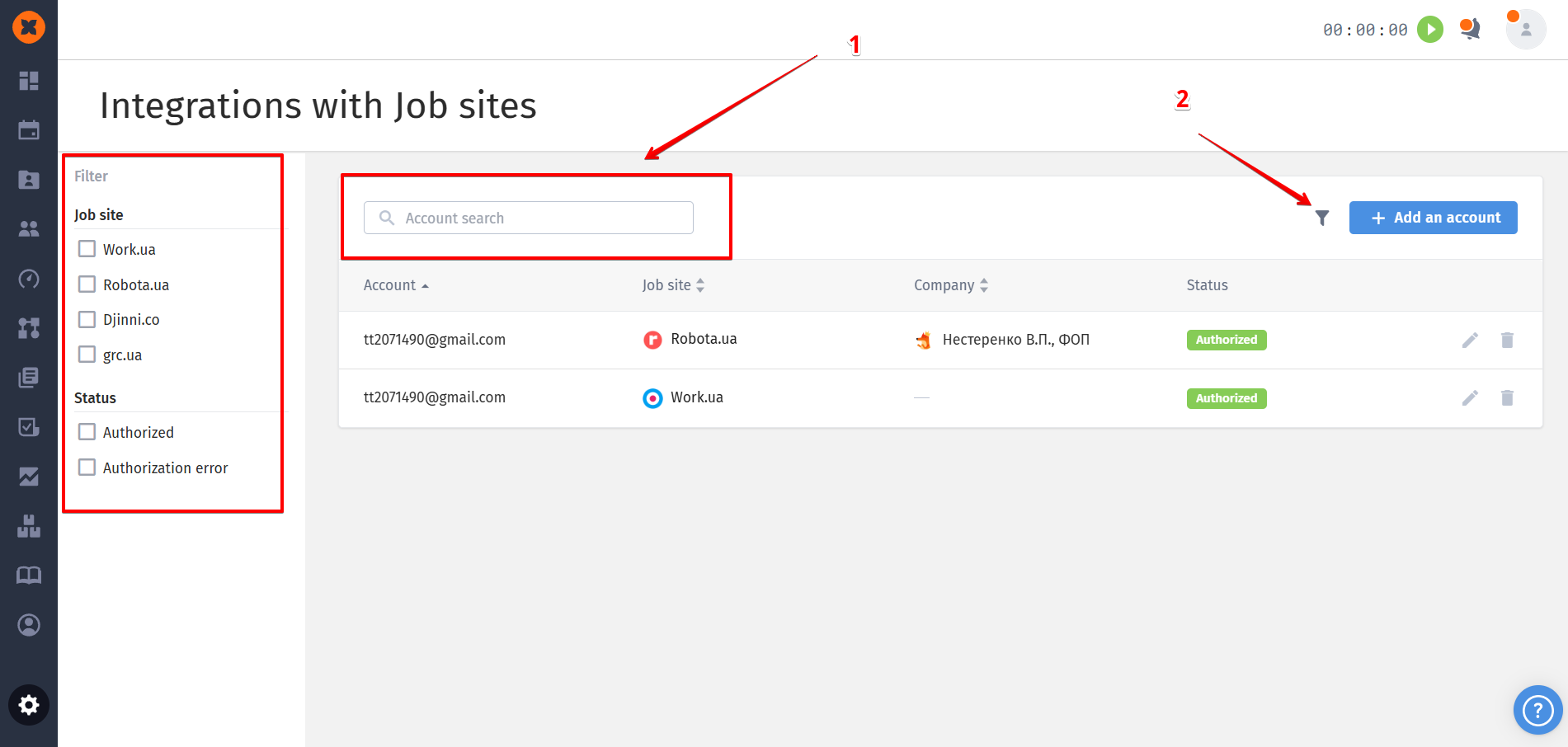
Search (1) and Filter (2): allows quick search by email or filtering by status and specific portals.
Editing: updating the account information.
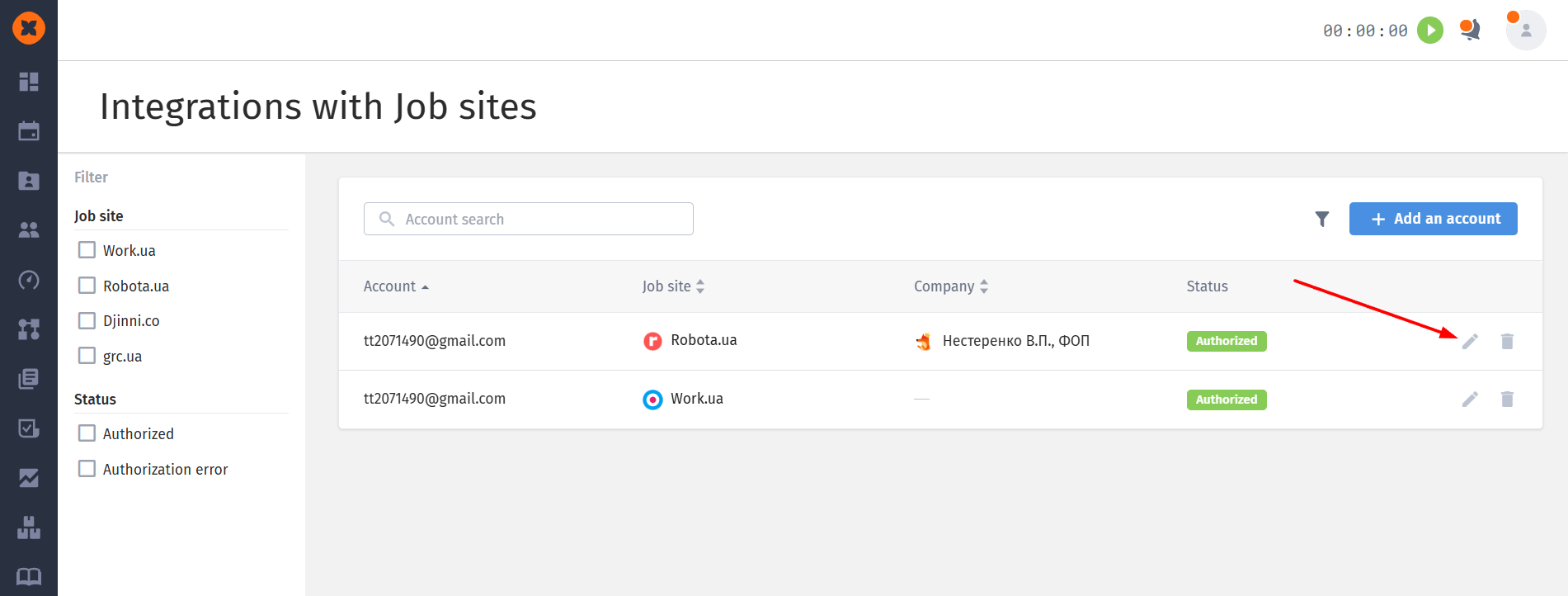
Deletion: disconnecting the account from the system.