company logo

Hurma | Help Center

Go to HURMA
Hurma Academy UkraineLinkedinFacebookYouTubeInstagram
All collectionsCandidatesWays to send emails to candidates

Ways to send emails to candidates

Candidates. Emails

In HURMA, you can flexibly configure communication with candidates using pre-created email templates, either manually or by fully automating the process as candidates move through the recruitment funnel.

Prerequisites and working with tags

warning icon
To send emails to candidates, you need to connect an email address in your account settings.

When creating and sending templates, you can use dynamic tags (for example, the candidate's name, the vacancy title, the recruiter's contact details, etc.).

  • All tags used are automatically populated with the corresponding data from the system;

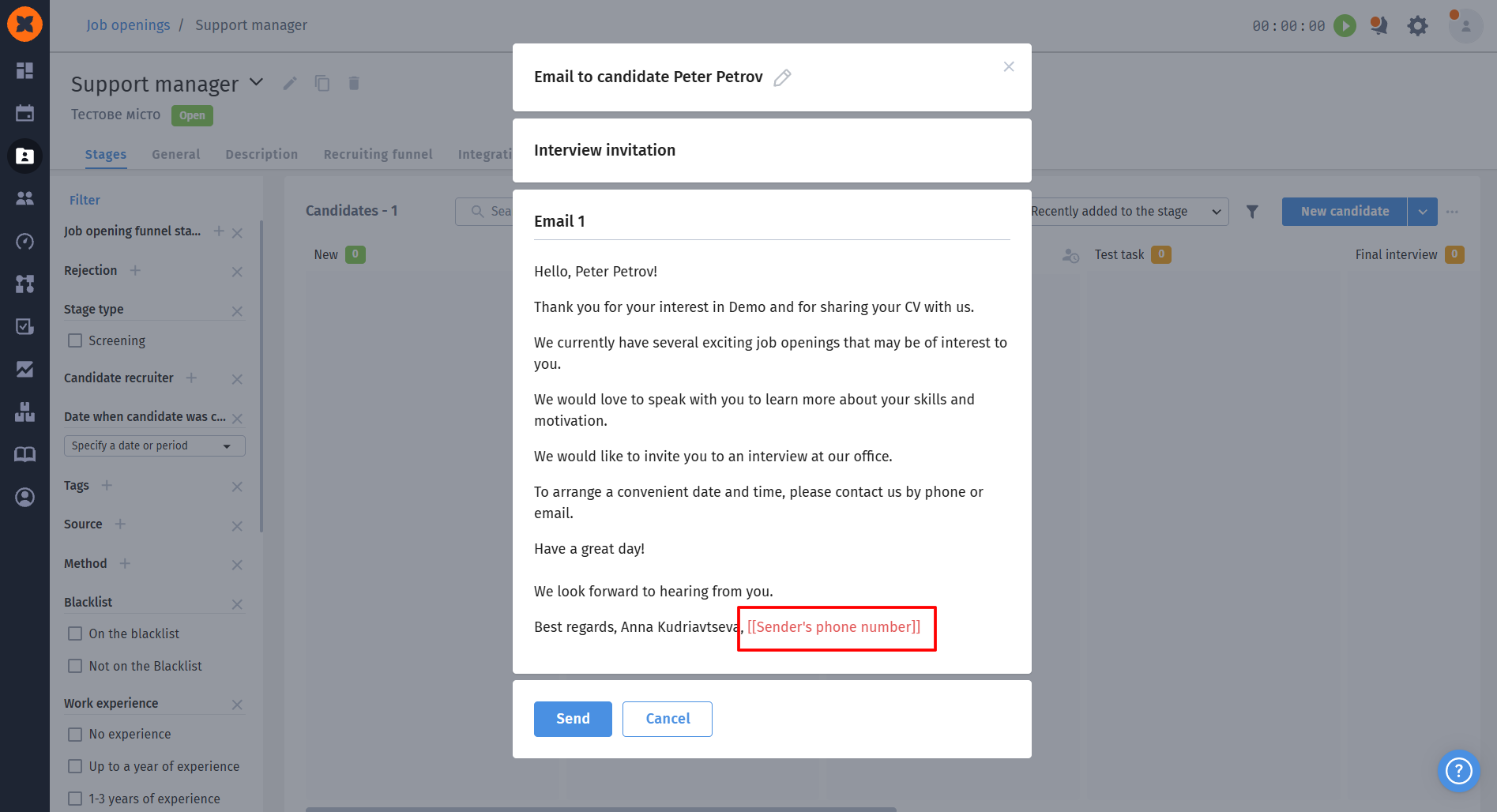
  • If the system does not have information for any of the tags used, that tag is highlighted in red. In this case, you will not be able to send the email until the information is filled in or the tag is removed.
Sending an email from the candidate profile

This method is suitable for targeted, personalized communication when the recruiter needs to review the message before sending it.

  • How it works: go to the profile or candidate card and select the required action (send an email or send an offer);
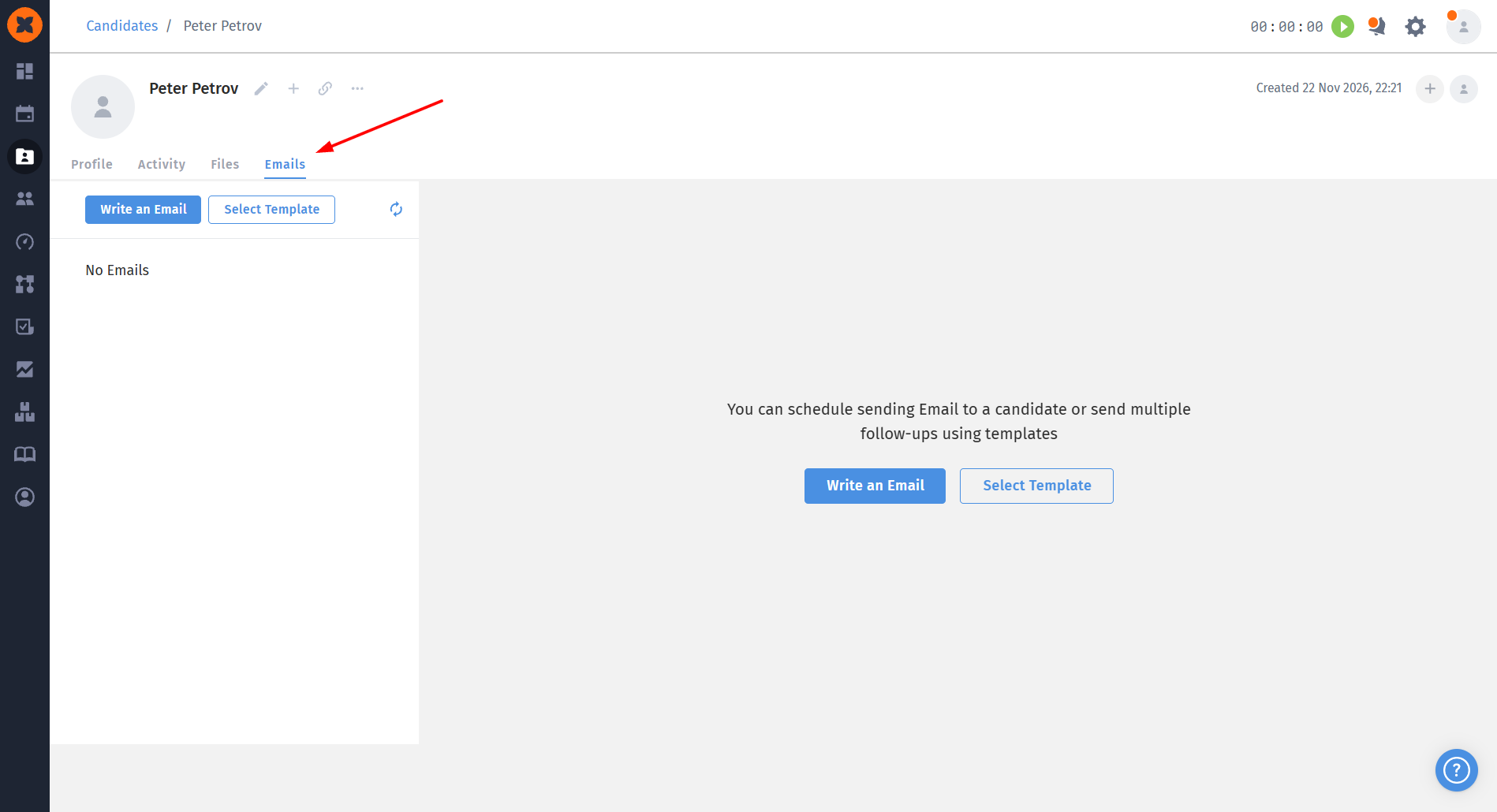
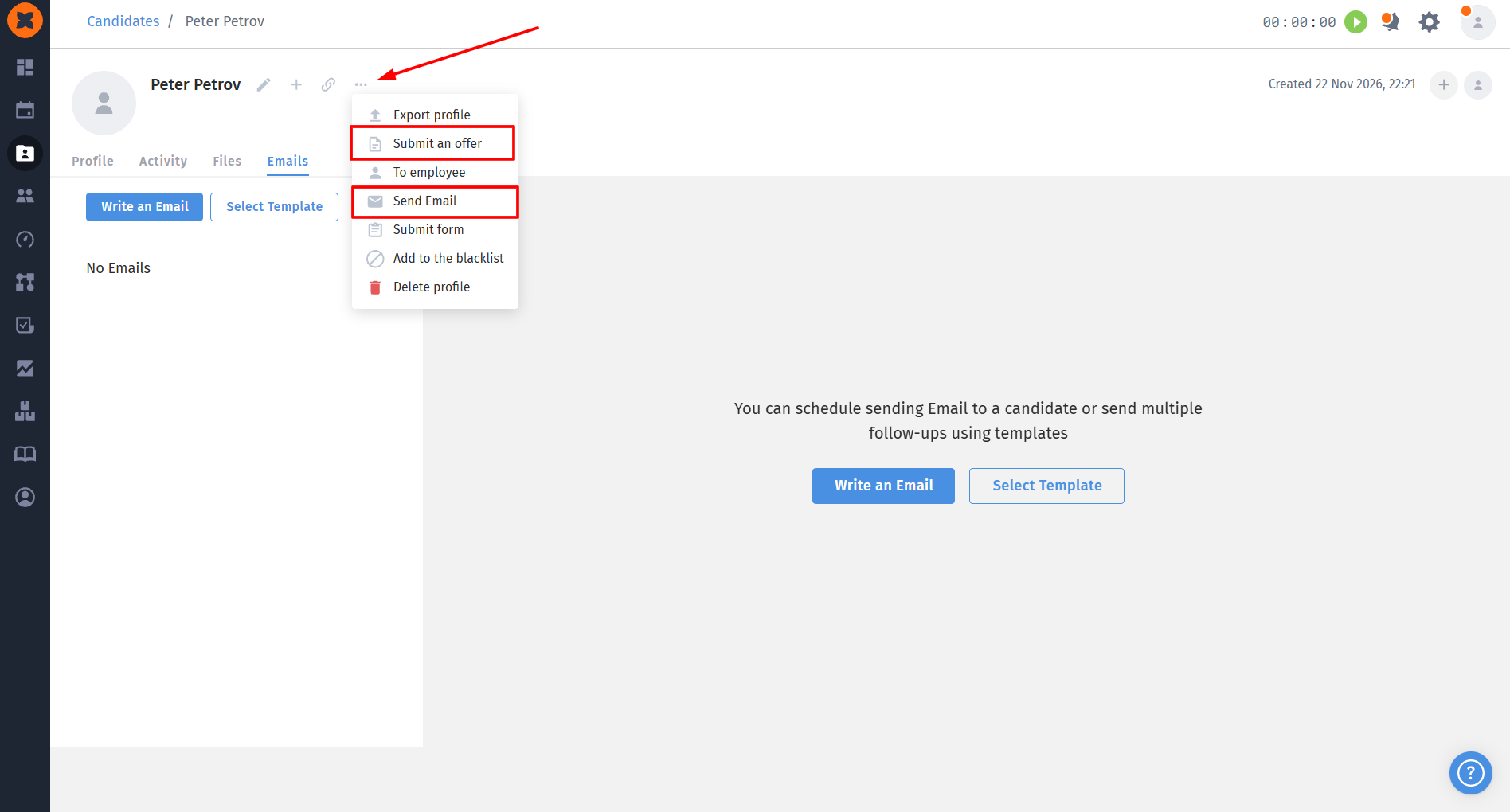
Peter Petrov’s candidate record is open on the Emails tab, which the red arrow points to; the page shows no emails and options to write an email or select a template. Visible: Candidates, Peter Petrov, Profile, Activity, Files, Emails.
Peter Petrov’s candidate profile is open on the Emails tab; an arrow points to the actions menu, where red boxes highlight “Submit an offer” and “Send Email.”. Visible: Candidates, Peter Petrov, Profile, Activity, Files, Emails.
  • Template selection: select the appropriate email or offer template linked to the candidate's vacancy, or write an email manually;

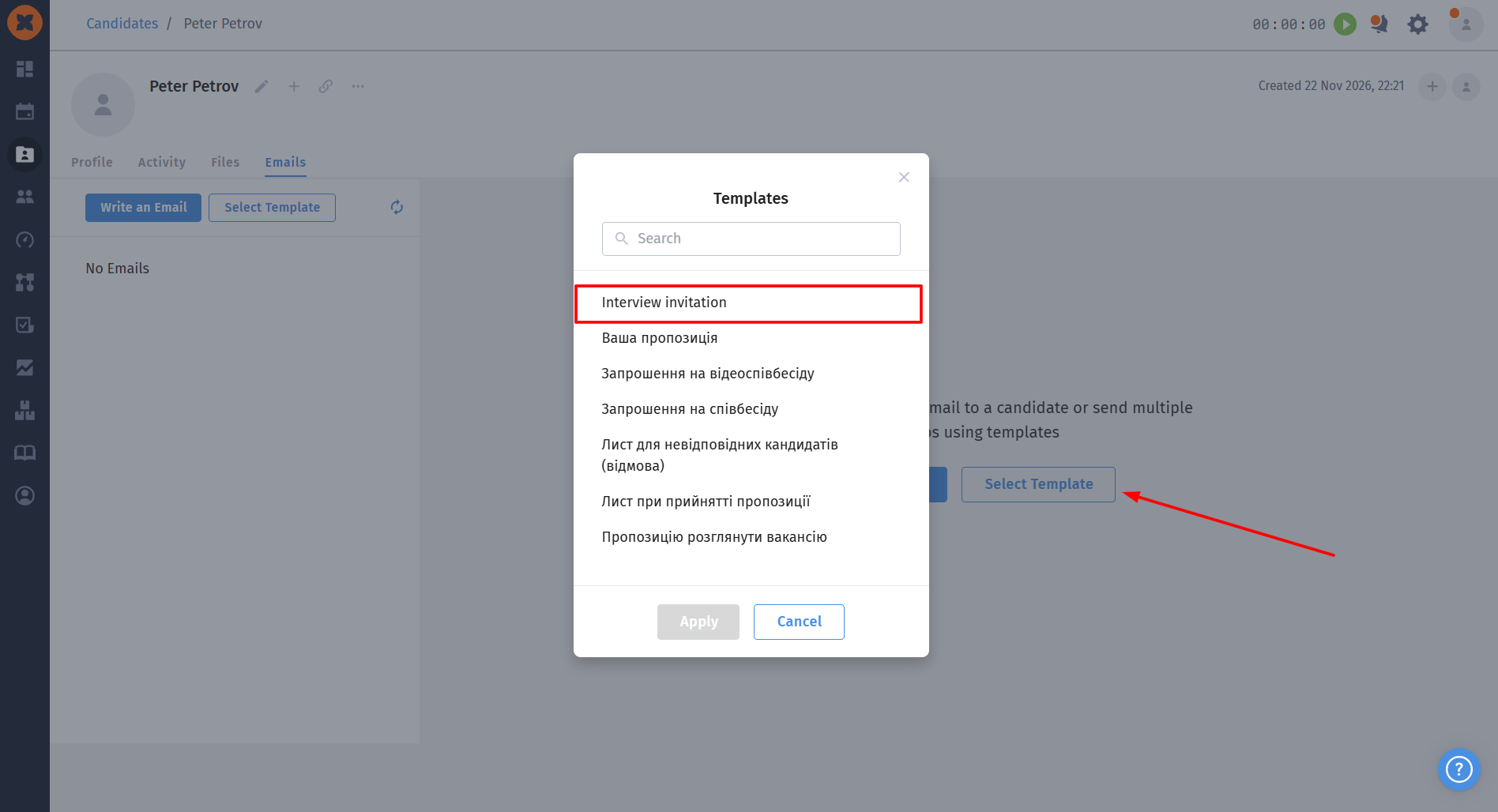
info icon
You can learn about the process of creating letter templates for candidates in the article “Email templates for candidates”.
  • Editing before sending: the system will automatically fill in the tags, but you can edit the text and add attachments or files directly in the form before sending;
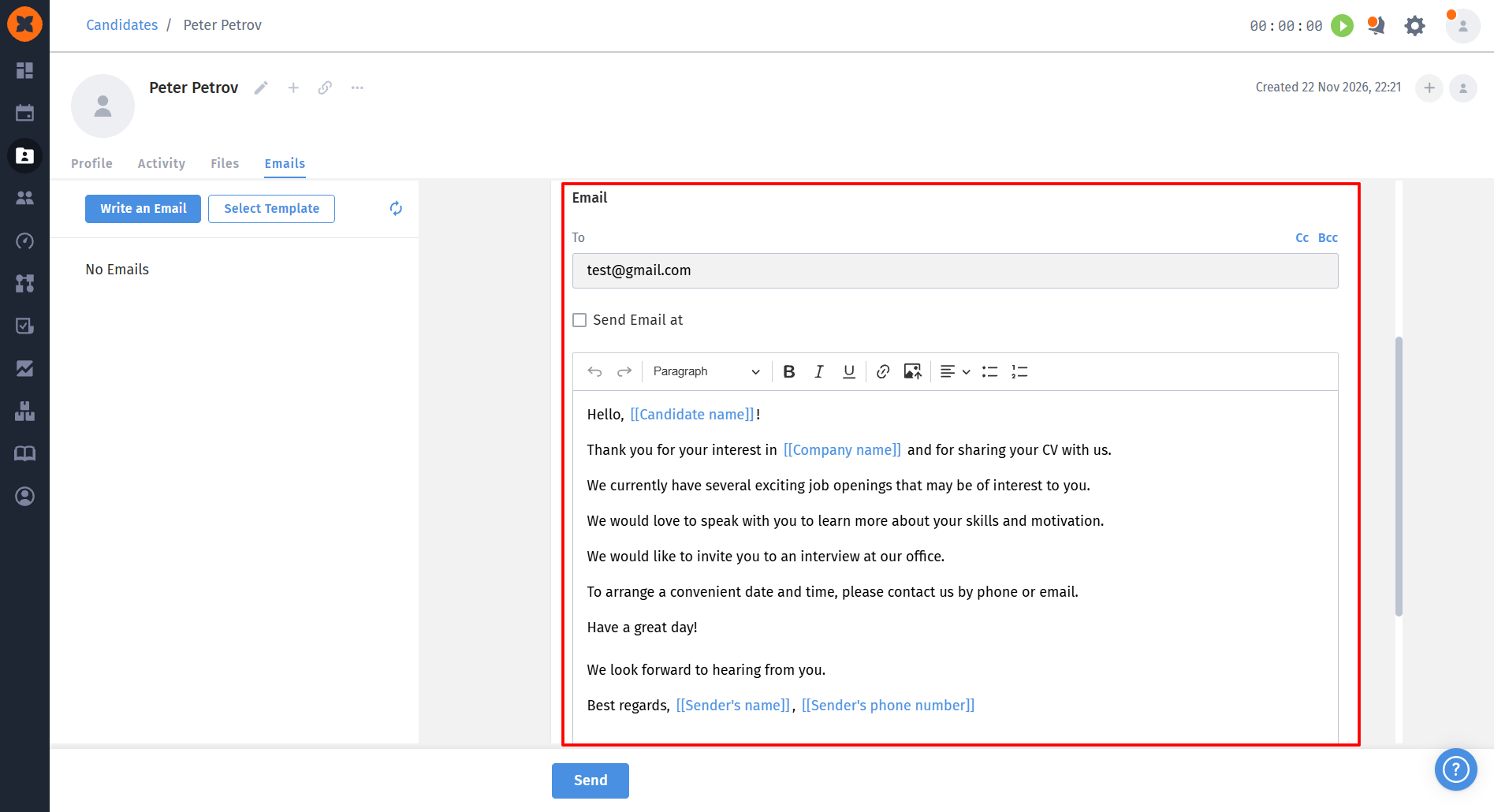
  • Control: after clicking the “Send” button, the email is sent from your connected email address.

Bulk email sending

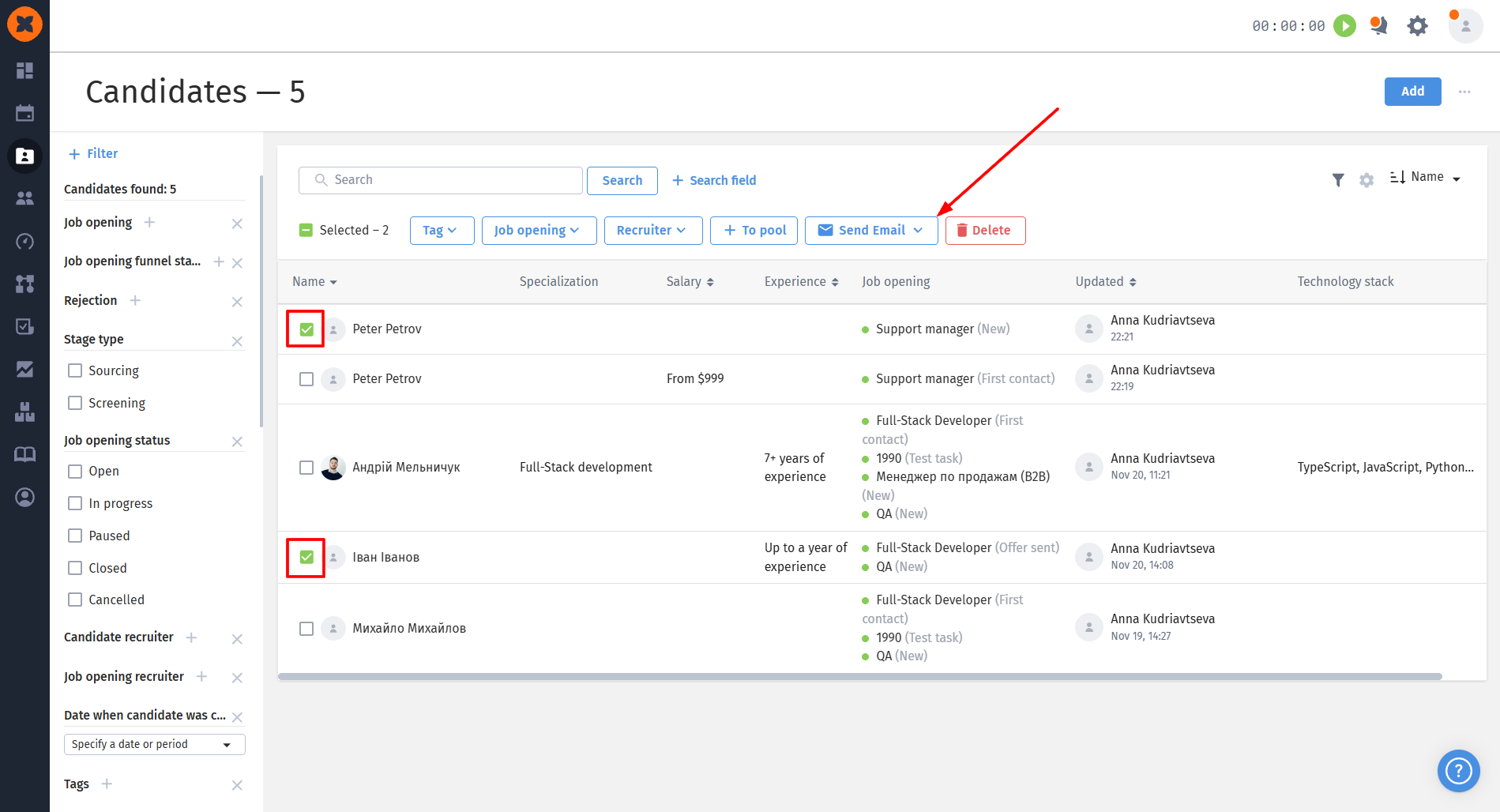
Bulk sending allows you to quickly communicate with a group of candidates at the same time.

You can select several candidates in the list and apply the bulk email sending action to them.
warning icon
Emails are sent only to candidates in the list who have a valid email address.

Manual sending when moving to a vacancy stage

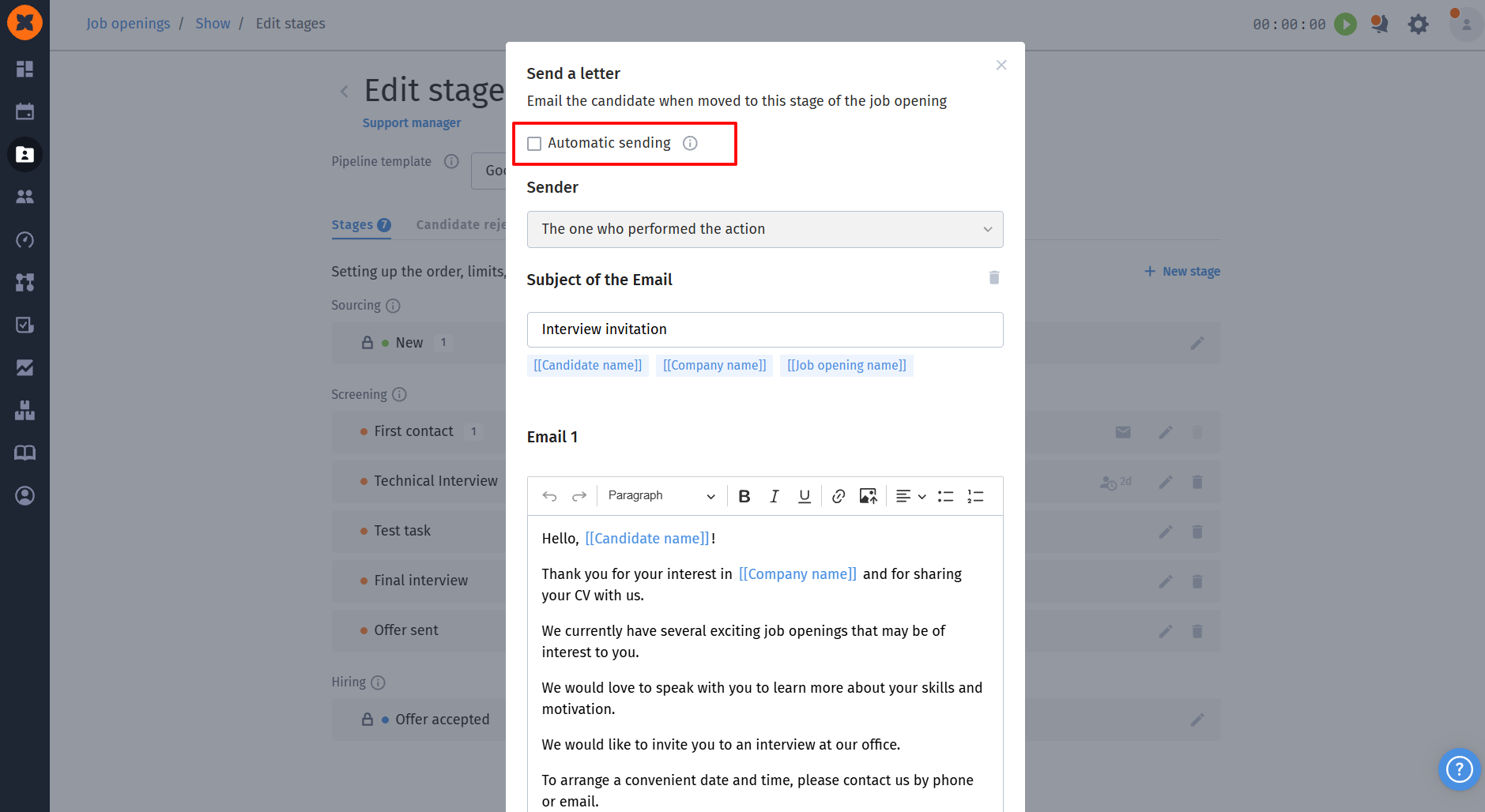
If an email template is attached to a funnel stage, but the “Automatic sending” checkbox remains unchecked, the email is sent according to the standard manual workflow:
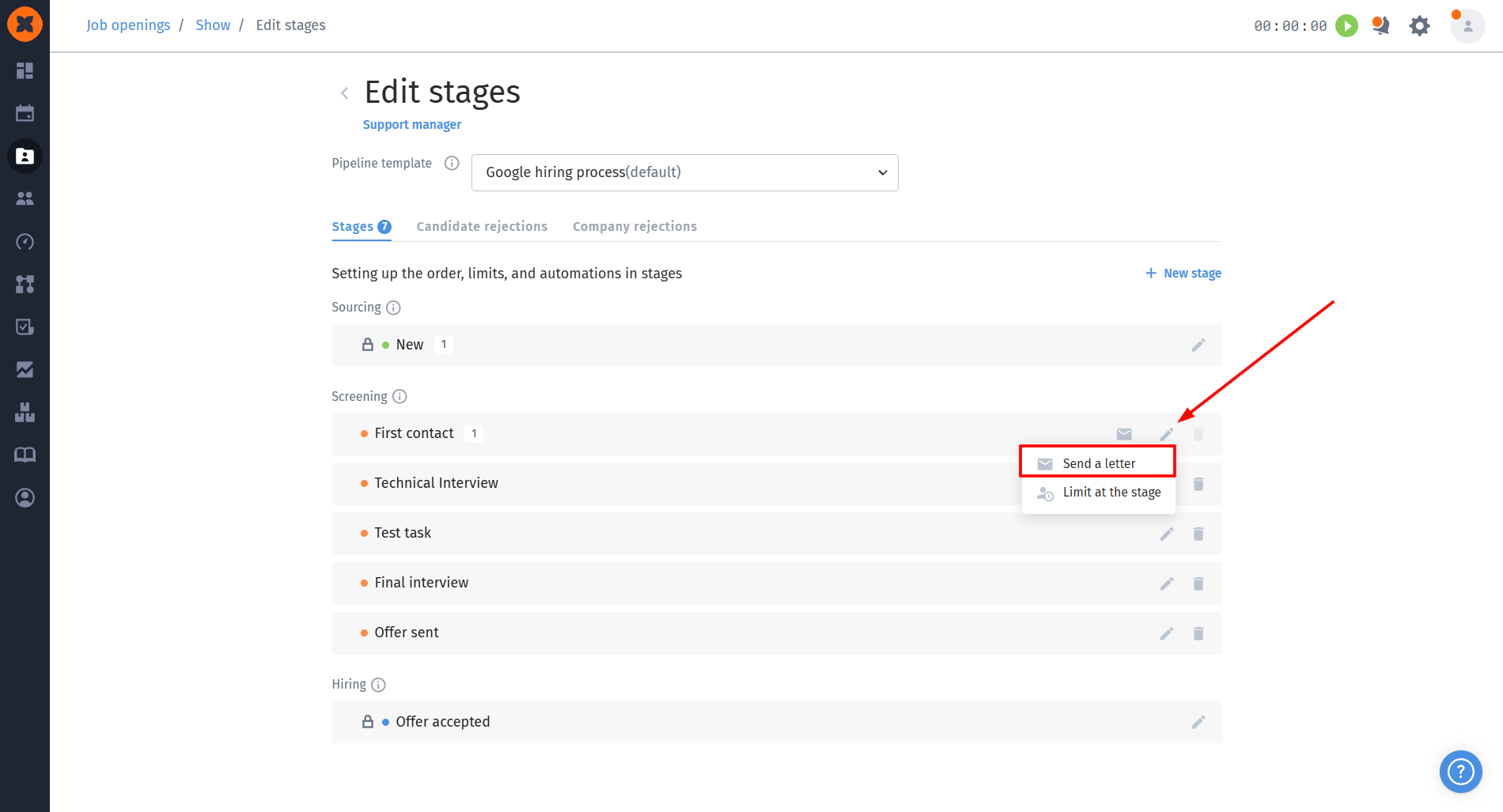
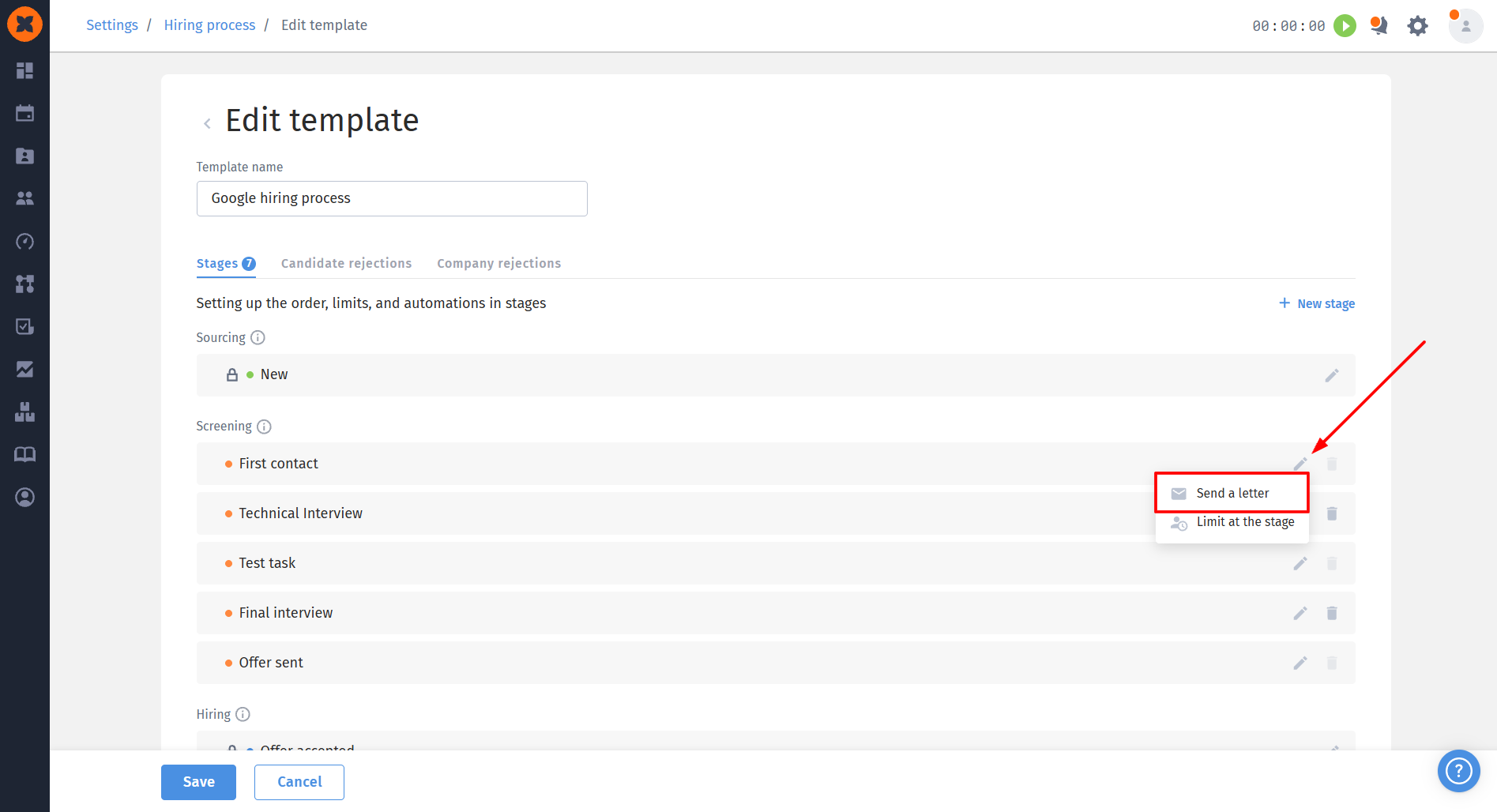
The Edit stages screen for a Support manager shows the Google hiring process pipeline, with a red arrow pointing to the First contact stage’s action menu, where “Send a letter” is highlighted. Visible: Job openings, Show, Edit stages, Support manager, Pipeline template, Google hiring process (defaul
The Edit stage screen has a Send a letter dialog for configuring an email; a red outline highlights the unchecked Automatic sending option. Visible: Job openings, Show, Edit stages, Edit stage, Support manager, Send a letter.
  • Recruiter control: when dragging a candidate card to this stage on the kanban board or changing the stage in the card, an email preparation dialog opens;

  • Data review: the recruiter can review the tags automatically inserted by the system, edit the subject or body of the email, add personalized comments, or attach additional files;
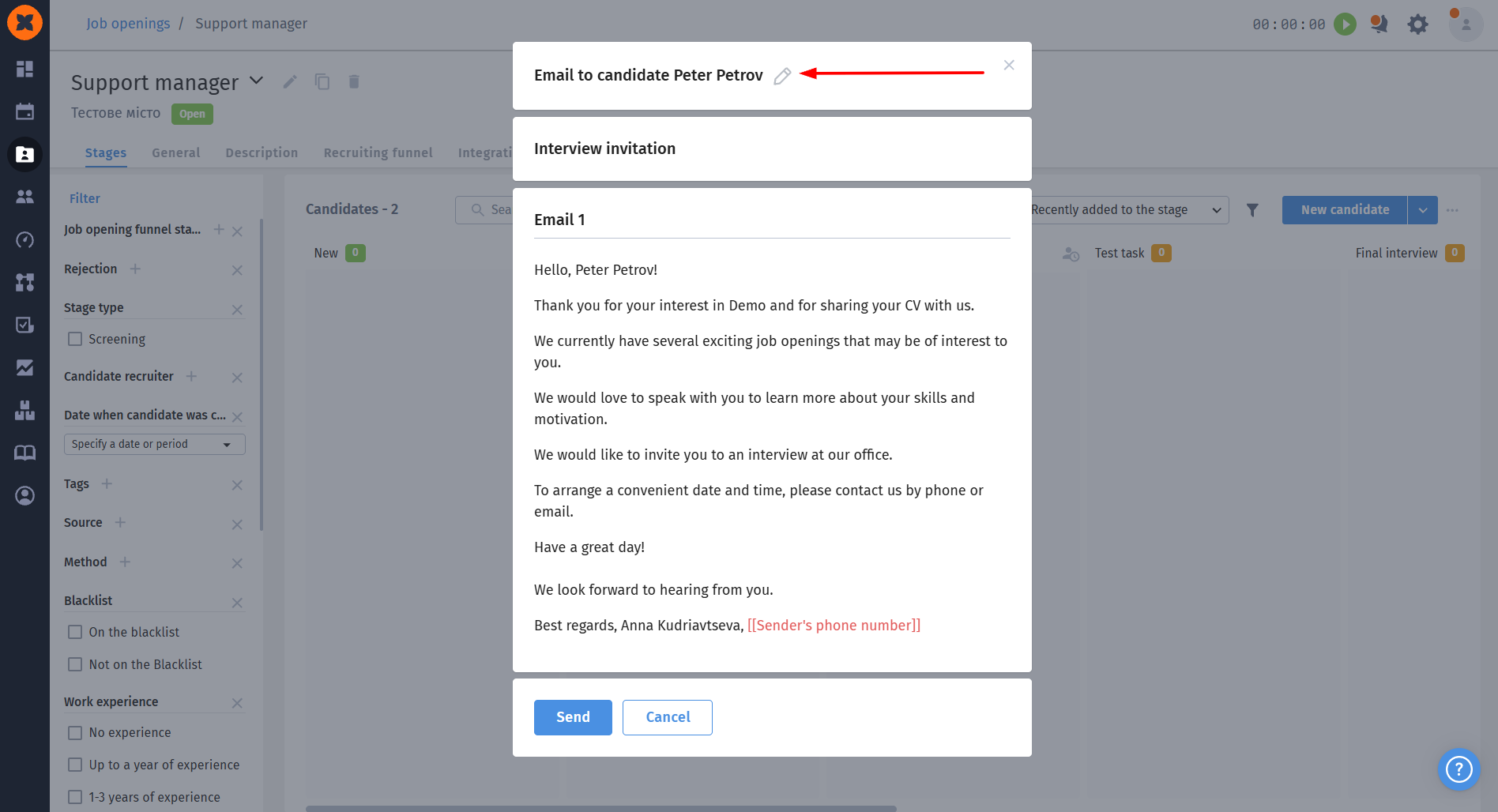
An email preview modal for candidate Peter Petrov is open over the Support manager job-opening stages screen, with a red arrow pointing to the subject edit pencil. Visible: Job openings, Support manager, Stages, Email to candidate Peter Petrov, Interview invitation, Email 1.
  • Confirmation: the email is sent to the candidate only after the recruiter manually clicks the “Send” button in the open window. If the email contains unfilled tags (displayed in red), the system will not allow the message to be sent until the data is filled in.
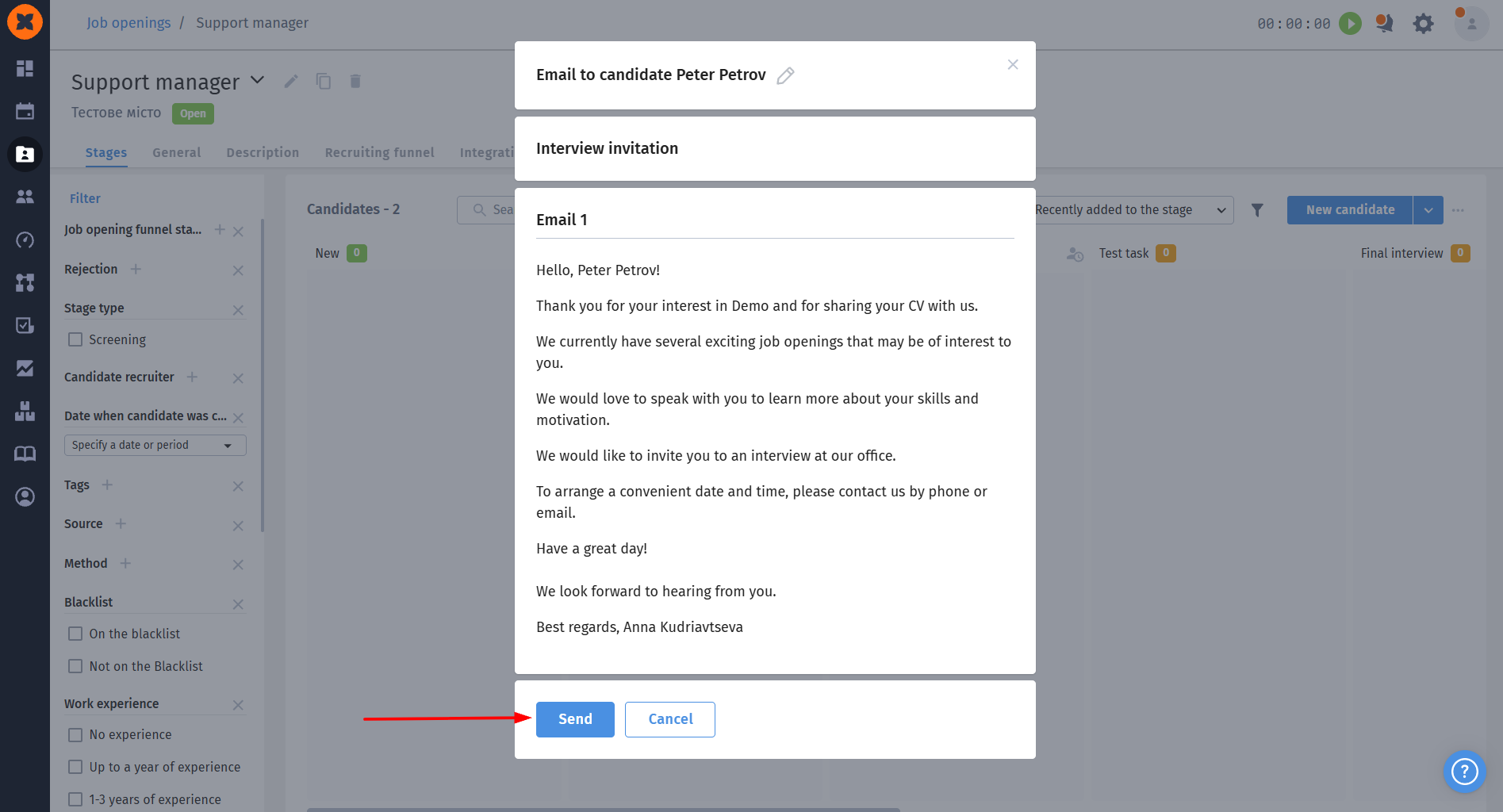
An email preview modal for candidate Peter Petrov appears over the Support manager job-opening Stages screen, with a red arrow pointing to Send. Visible: Job openings, Support manager, Stages, Open, Email to candidate Peter Petrov, Interview invitation.

Automatic sending when the vacancy stage changes

This method allows you to fully automate communication: emails or entire message sequences are created and sent by the system in the background when a candidate reaches a stage.

How to enable automatic sending

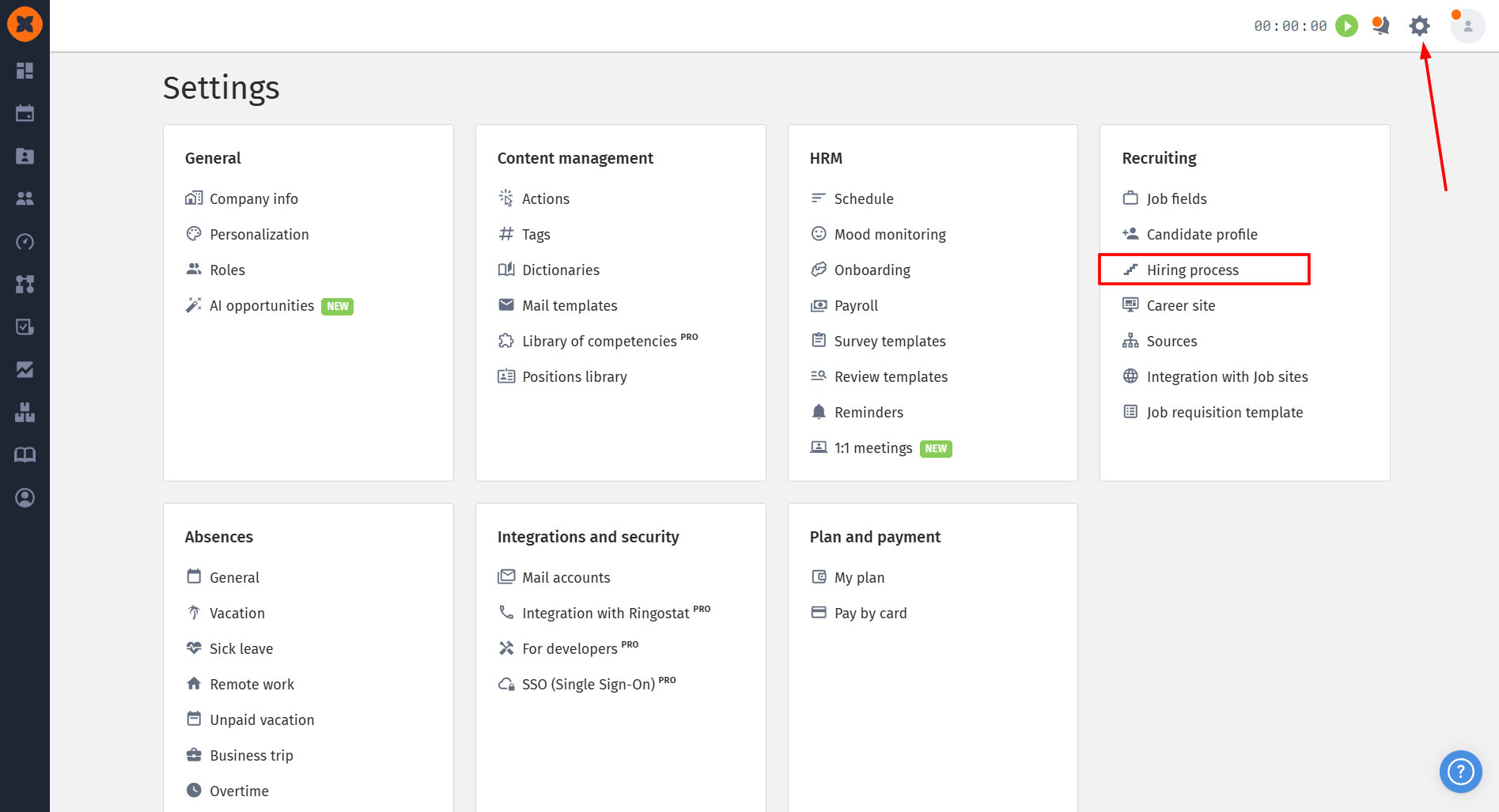
  1. Go to edit the stages of a specific vacancy or switch to edit mode for the recruitment funnel template;
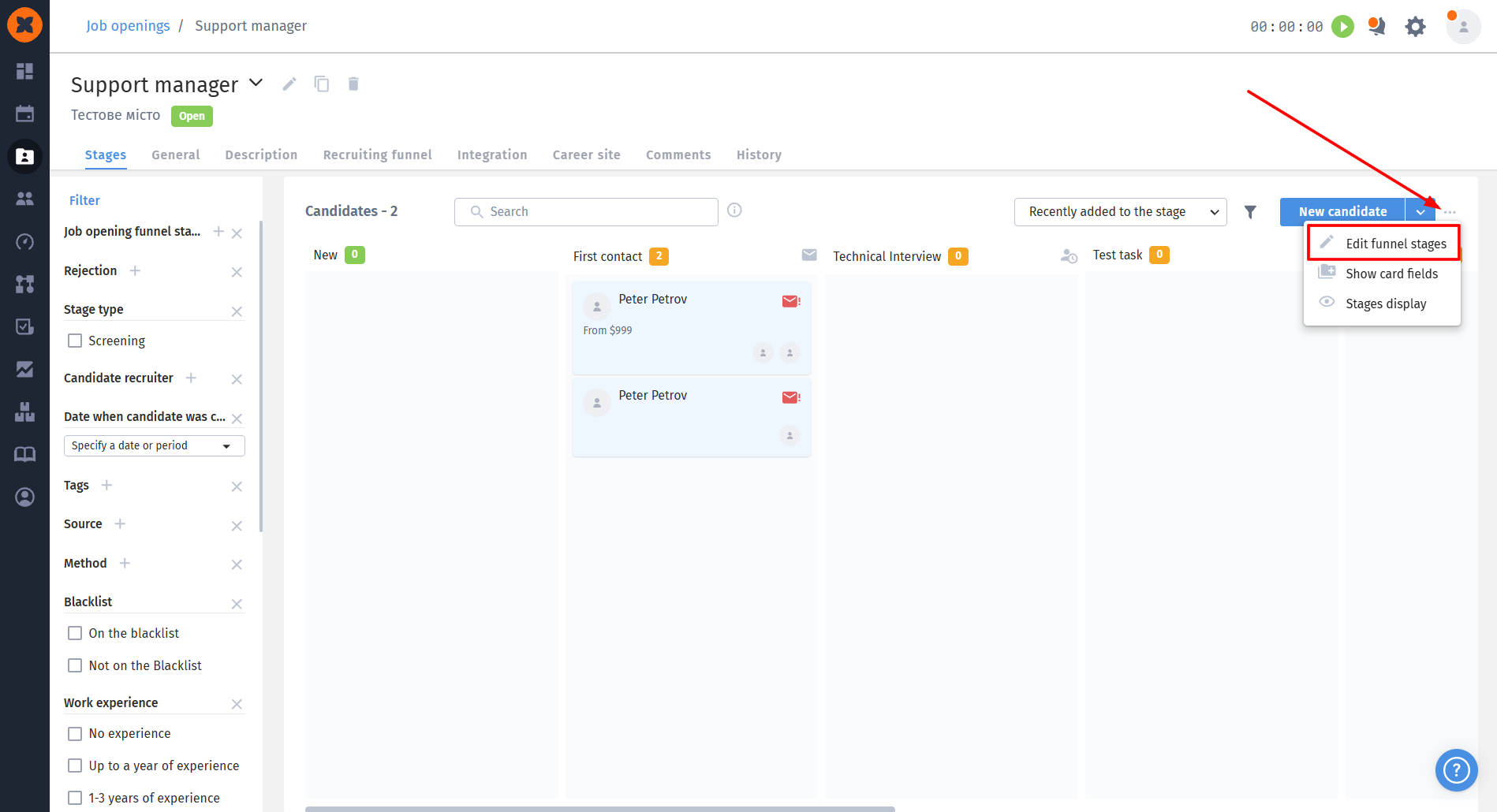
The Support manager job opening is on the Stages screen, with a red arrow pointing to the three-dot menu and Edit funnel stages option. Visible: Job openings, Support manager, Open, Stages, General, Description.
The Settings screen shows configuration sections, with a red box highlighting Hiring process under Recruiting and a red arrow pointing to the top-right gear icon. Visible: Settings, General, Content management, HRM, Recruiting, Hiring process.
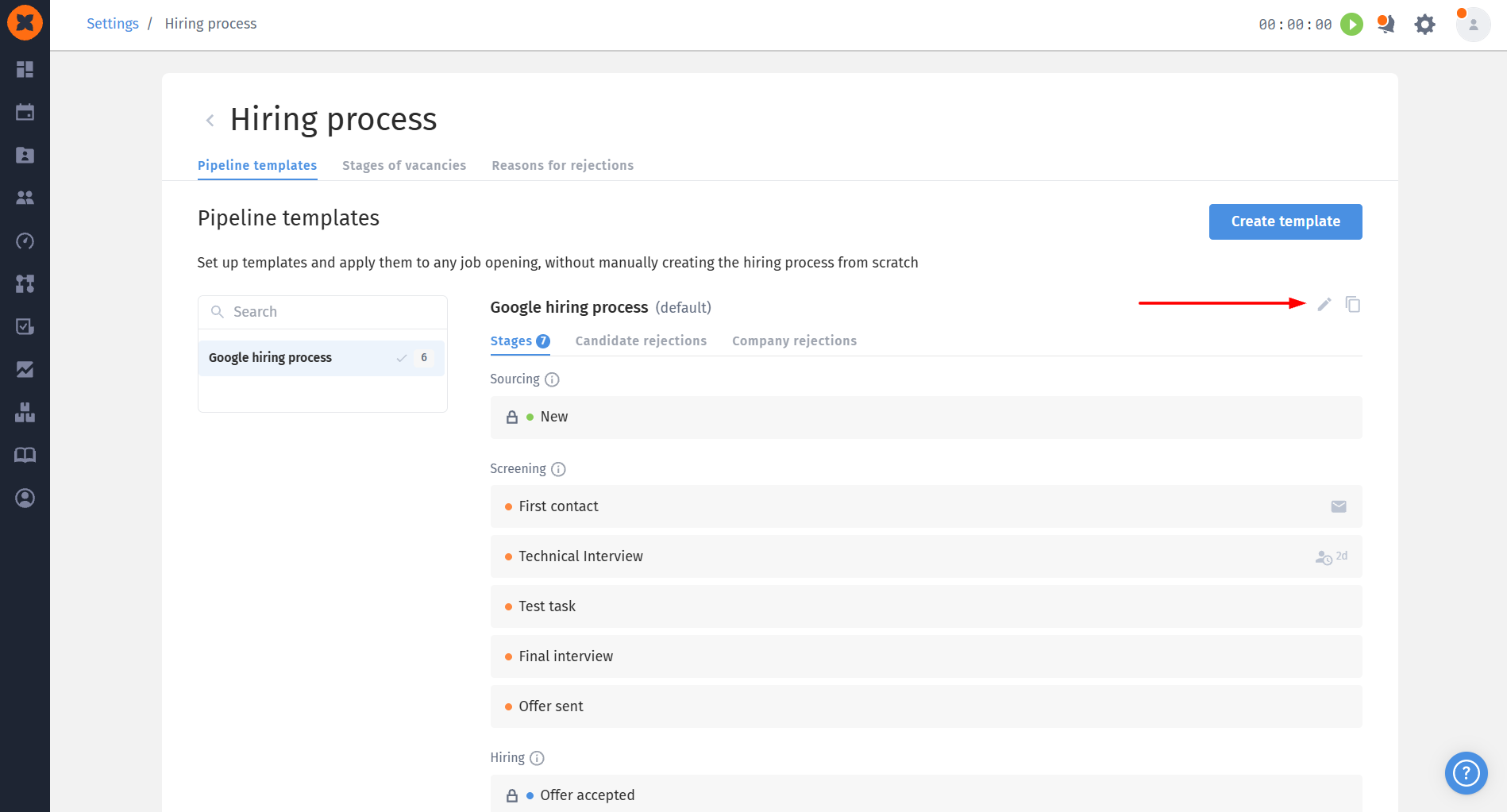
The Hiring process settings screen shows the Pipeline templates tab and Google hiring process stages; a red arrow points to the template’s edit pencil. Visible: Settings, Hiring process, Pipeline templates, Stages of vacancies, Reasons for rejections, Create template.
The Edit template screen for a Google hiring process shows stage settings, with a red arrow pointing to the edit menu option “Send a letter.”. Visible: Settings, Hiring process, Edit template, Google hiring process, Stages, Candidate rejections.
  1. Add an email template to the required stage (or open one that is already attached);
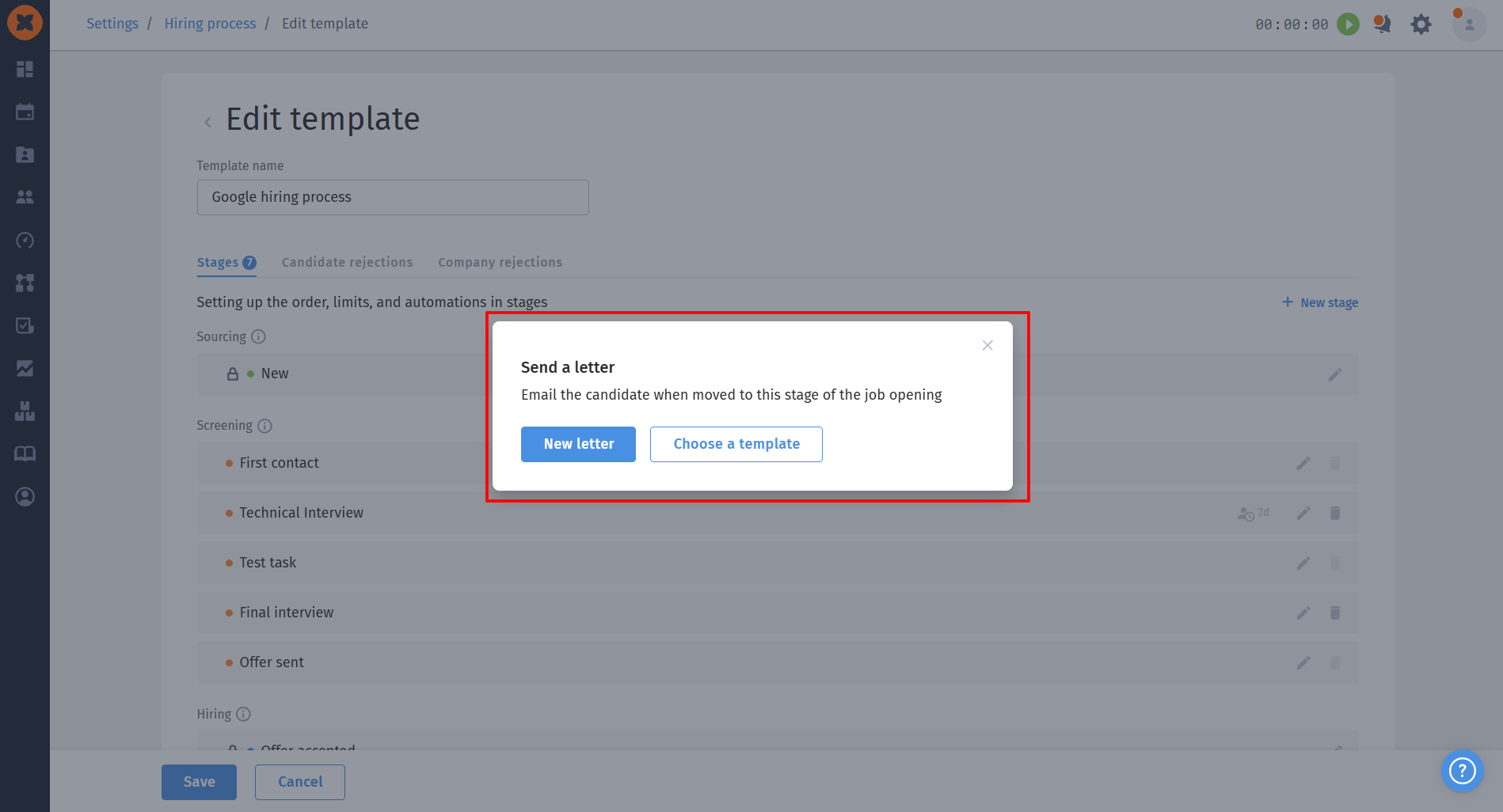
The Edit template screen for a hiring process shows a red outline around the “Send a letter” dialog with options to create a new letter or choose a template. Visible: Settings, Hiring process, Edit template, Google hiring process, Stages, Candidate rejections.
  1. Enable the “Automatic sending” checkbox;
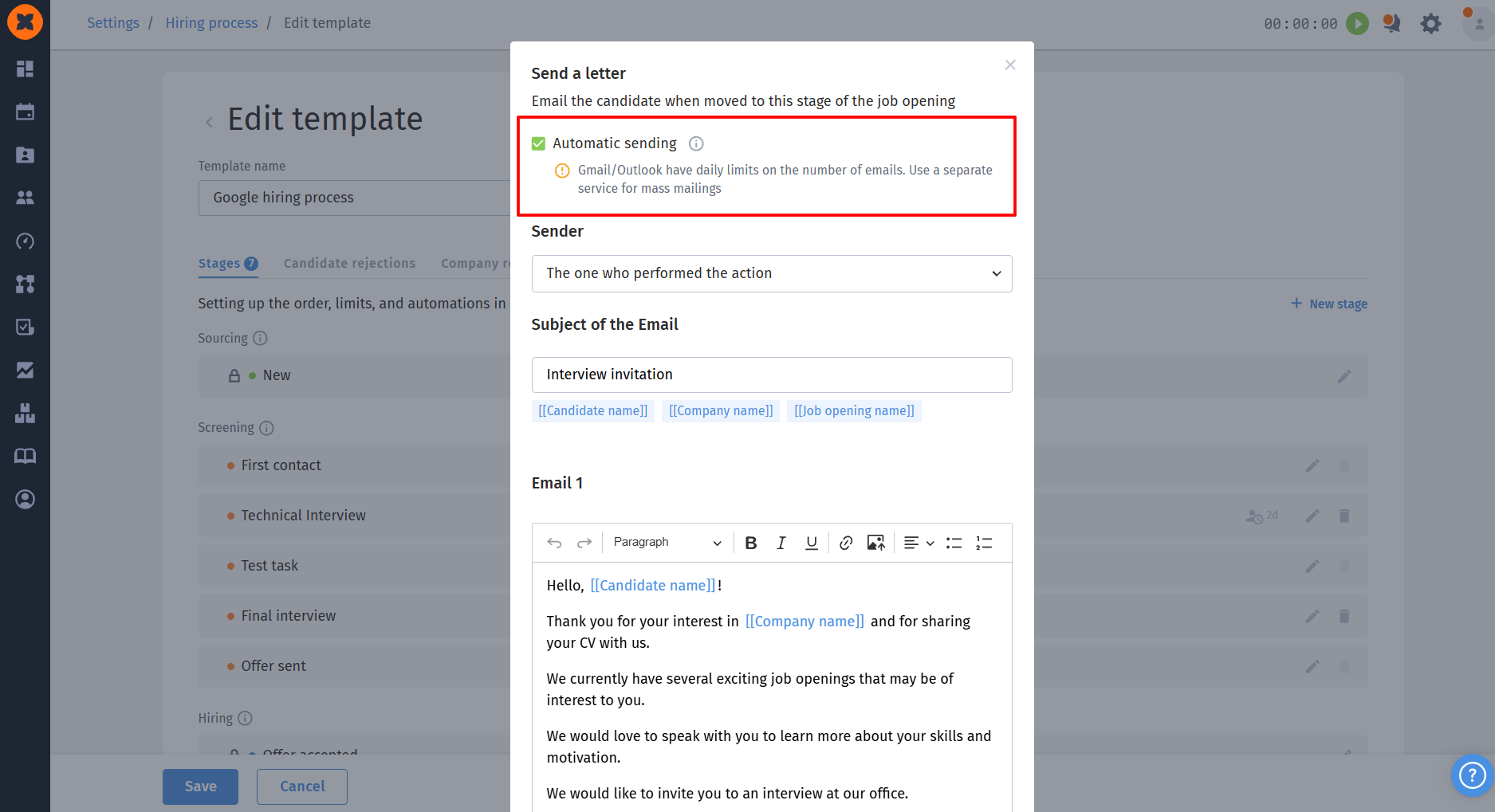
The Edit template hiring process screen has a Send a letter dialog, with a red rectangle highlighting the checked Automatic sending option and email limit warning. Visible: Settings, Hiring process, Edit template, Send a letter, Automatic sending, Gmail/Outlook have daily limits on the number of ema
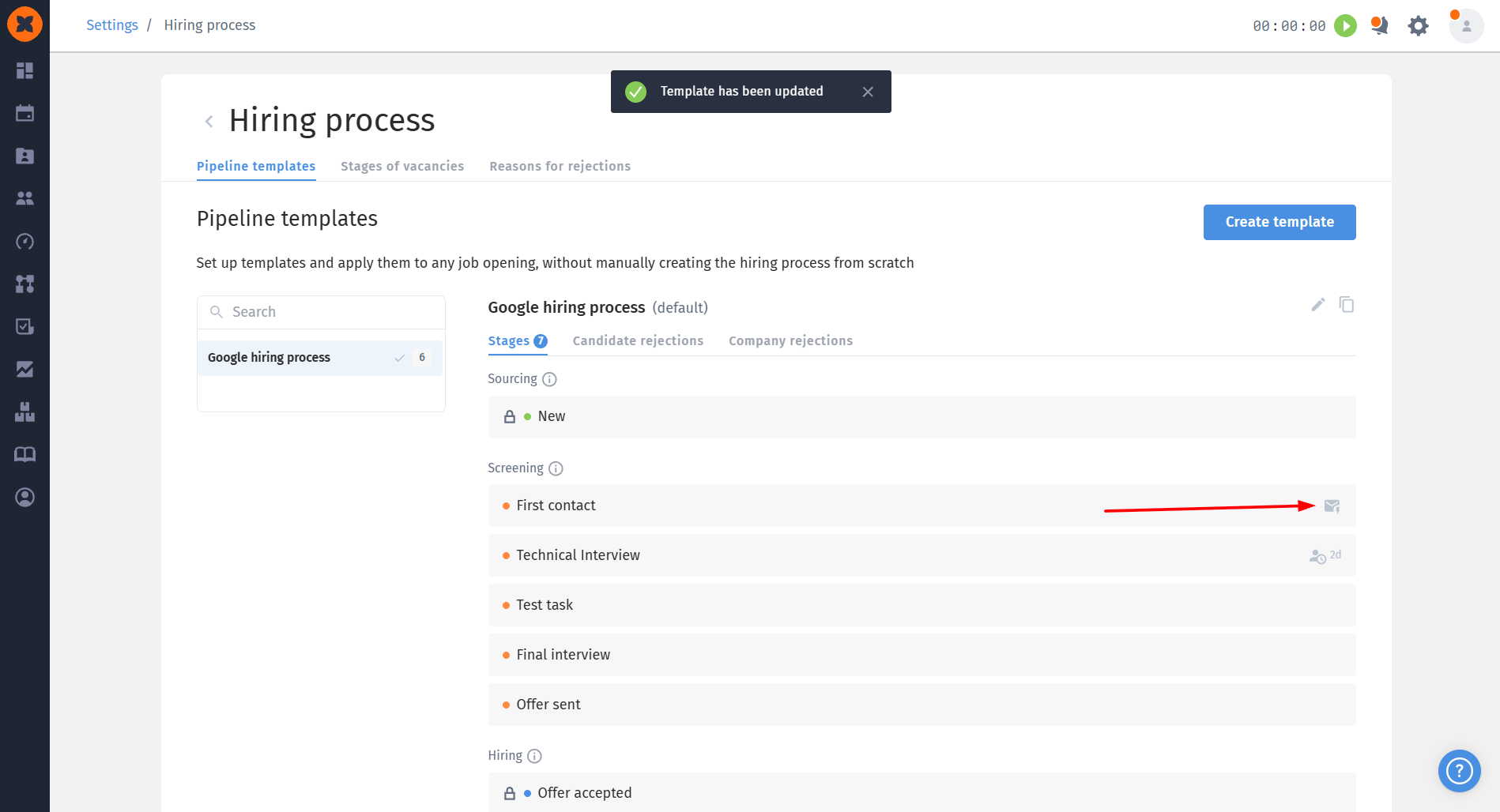
  1. Select the email sender and save the settings. A special icon indicating enabled automatic sending will appear next to the stage name.
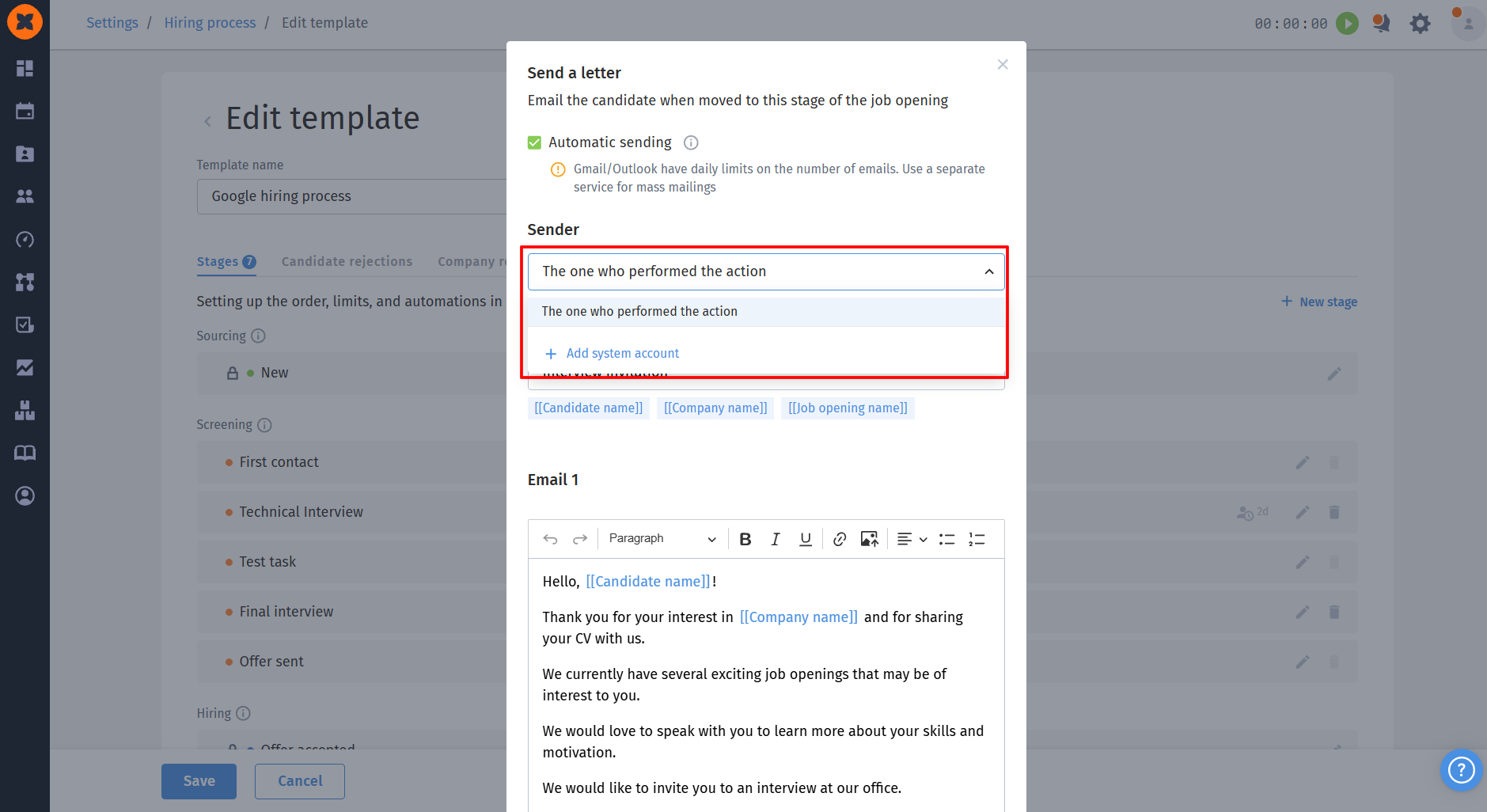
The Send a letter modal on the Hiring process Edit template screen shows the Sender dropdown expanded and outlined in red, with sender options. Visible: Send a letter, Automatic sending, Sender, The one who performed the action, Add system account, Email 1.
The Hiring process settings screen shows the Google hiring process pipeline template and its stages; a red arrow points to the envelope icon beside First contact. Visible: Settings, Hiring process, Template has been updated, Pipeline templates, Stages of vacancies, Reasons for rejections.
info icon
Please note the warning about limits: the limit on the number of emails depends exclusively on your email provider (there are no limits on HURMA's side).

Choosing the email sender

  • “The one who performed the action” (available when editing vacancy stages and pipeline template) - the email is sent from the connected personal email account of the user who moved the candidate to a stage or added them to the vacancy;

  • “System account” (available when editing vacancy stages and pipeline template) - the company's corporate mailbox connected in the email account settings. Emails are sent from this address, and the candidate's replies are also recorded in the system;

  • “Personal account” (available when editing vacancy stages) - the personal synchronized email account of a specific user. All automatic emails from this stage will be sent from this address, regardless of which colleague actually changed the candidate's stage.

Cancellation timer and sending queue

  • 15-second cancellation window: when a candidate is moved to a stage with automatic sending, a pop-up notification with a 15-second timer appears. Clicking the “Cancel” button completely cancels the creation of the email or the entire message sequence;
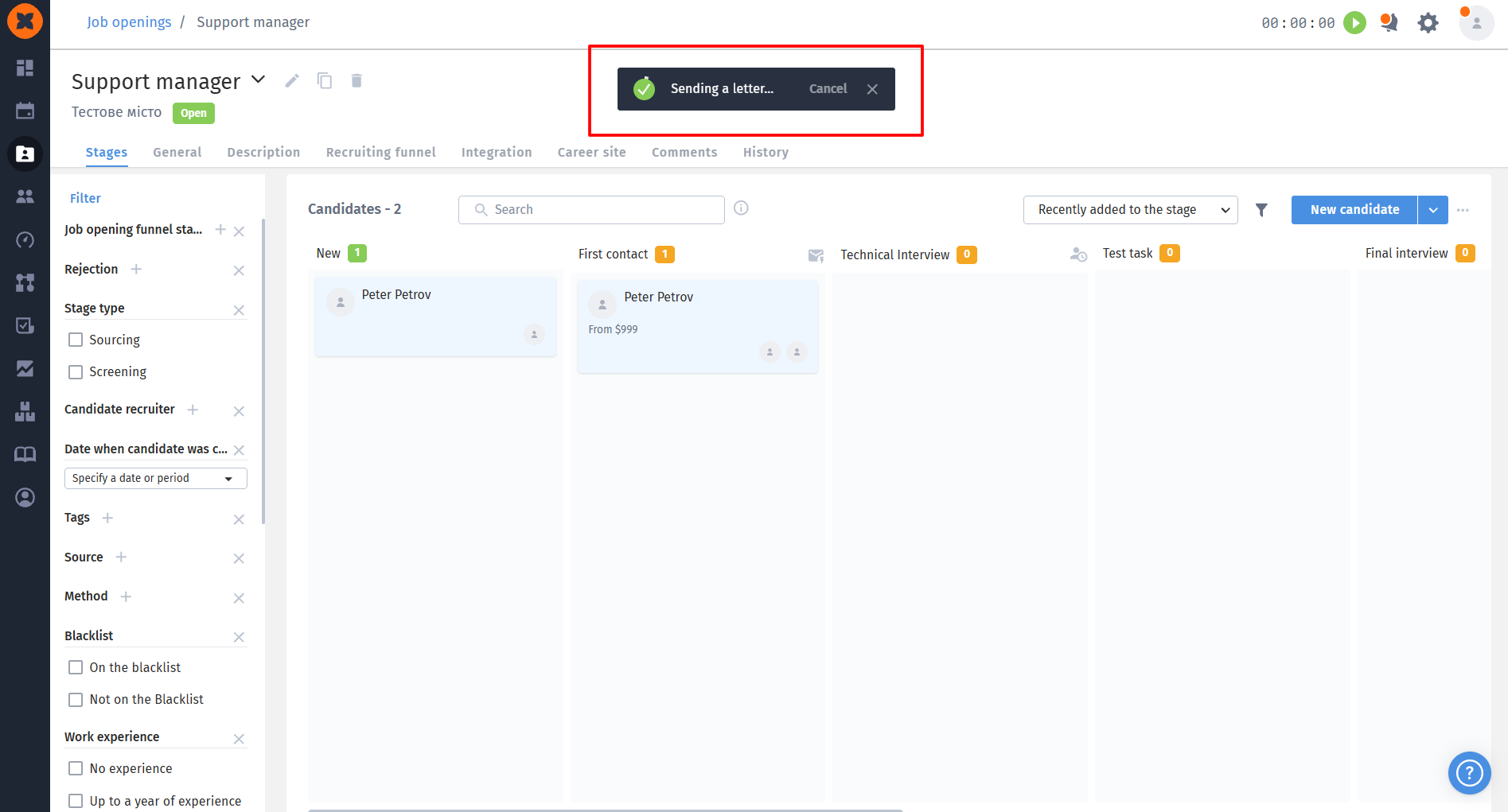
The Support manager job opening’s Stages screen shows a candidate pipeline, with a red rectangle highlighting the “Sending a letter...” notification at the top. Visible: Job openings, Support manager, Тестове місто, Open, Stages, General.
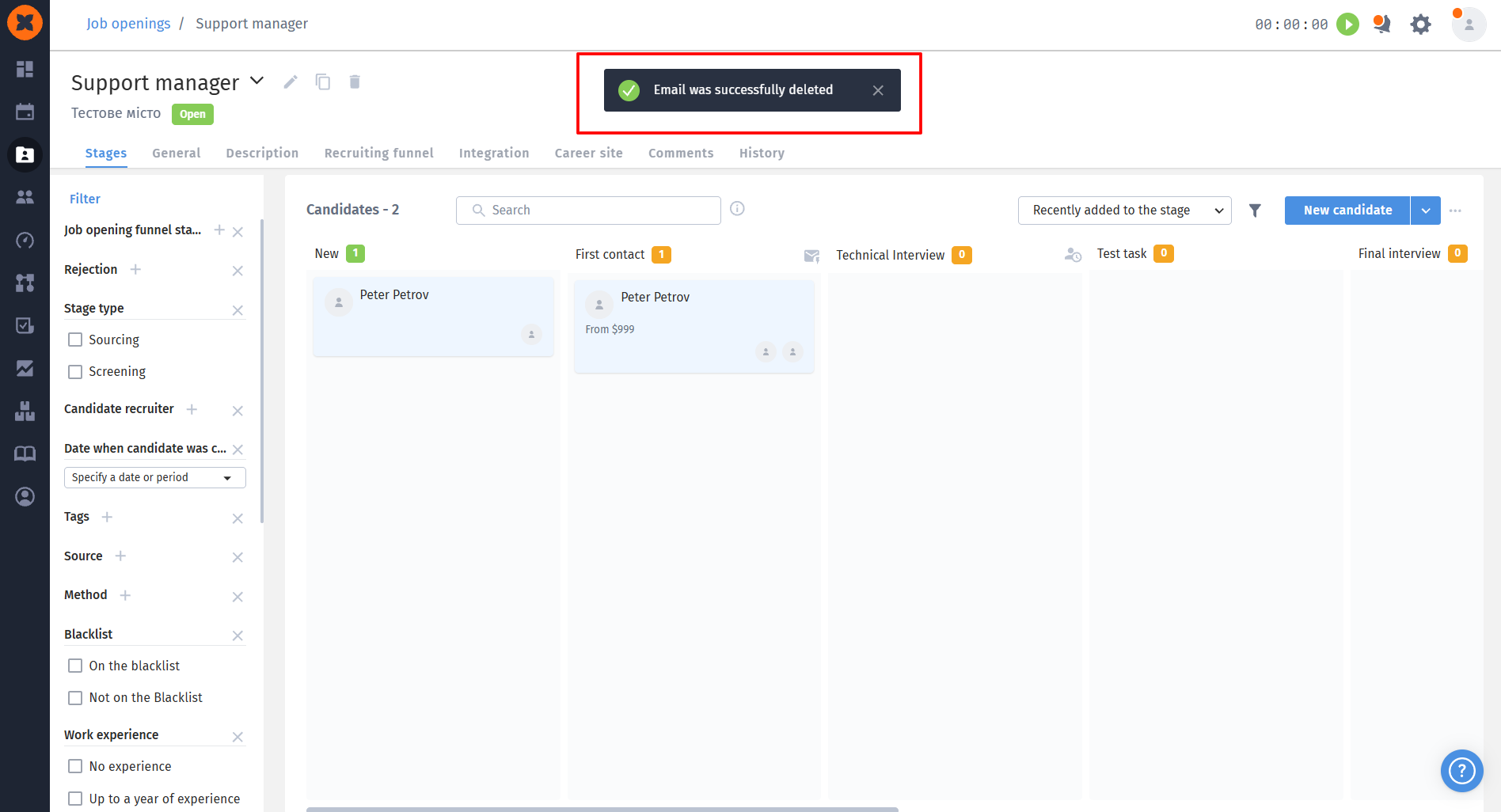
On the Support manager job opening’s Stages screen, a red rectangle highlights the success toast “Email was successfully deleted.”. Visible: Job openings, Support manager, Stages, General, Description, Recruiting funnel.
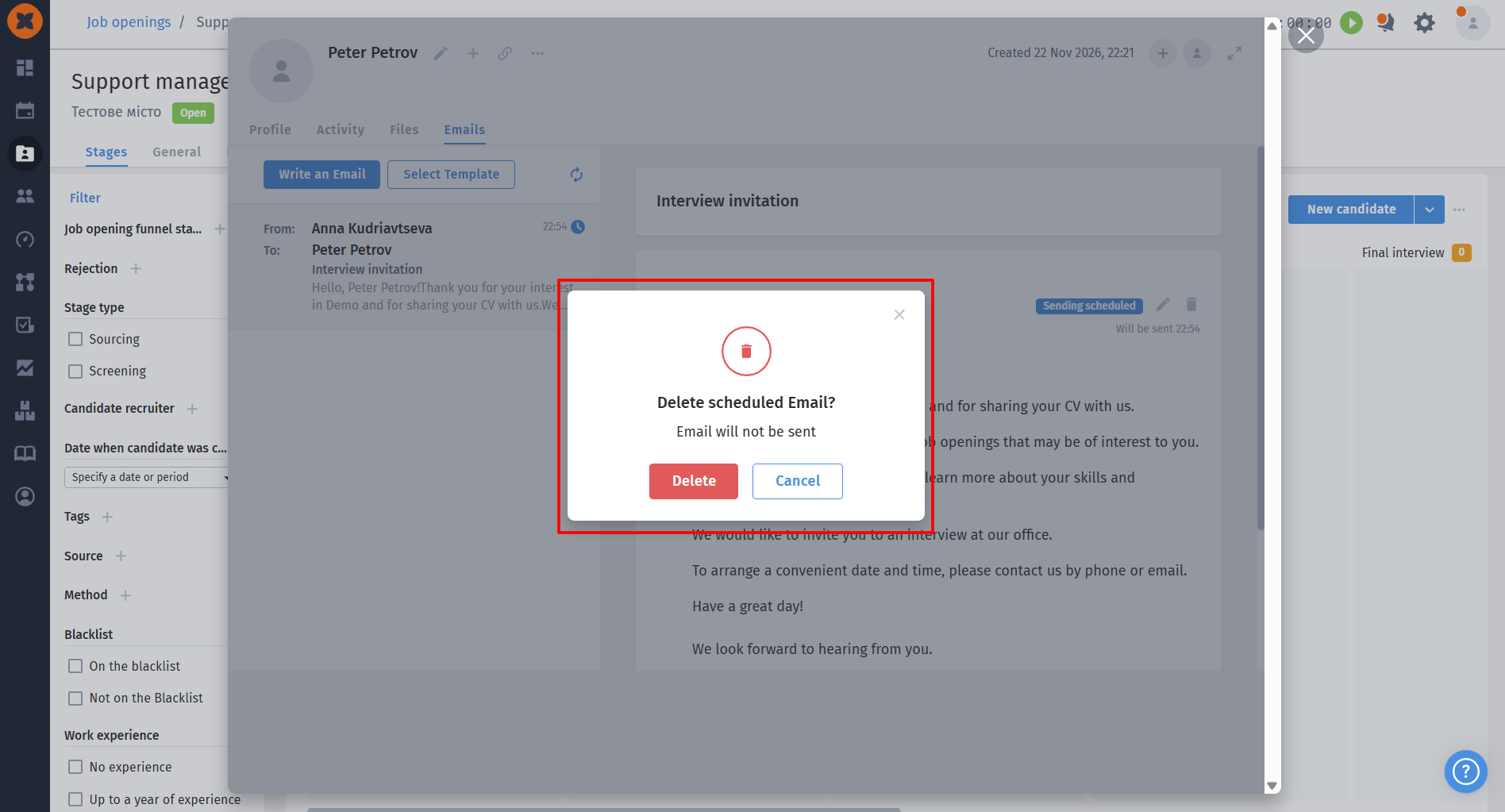
  • Delayed sending (15 minutes): if the timer expires or the notification is closed, the email is added to the queue and sent approximately 15 minutes after the move. Until it is actually sent, the email can be manually deleted in the candidate's profile.
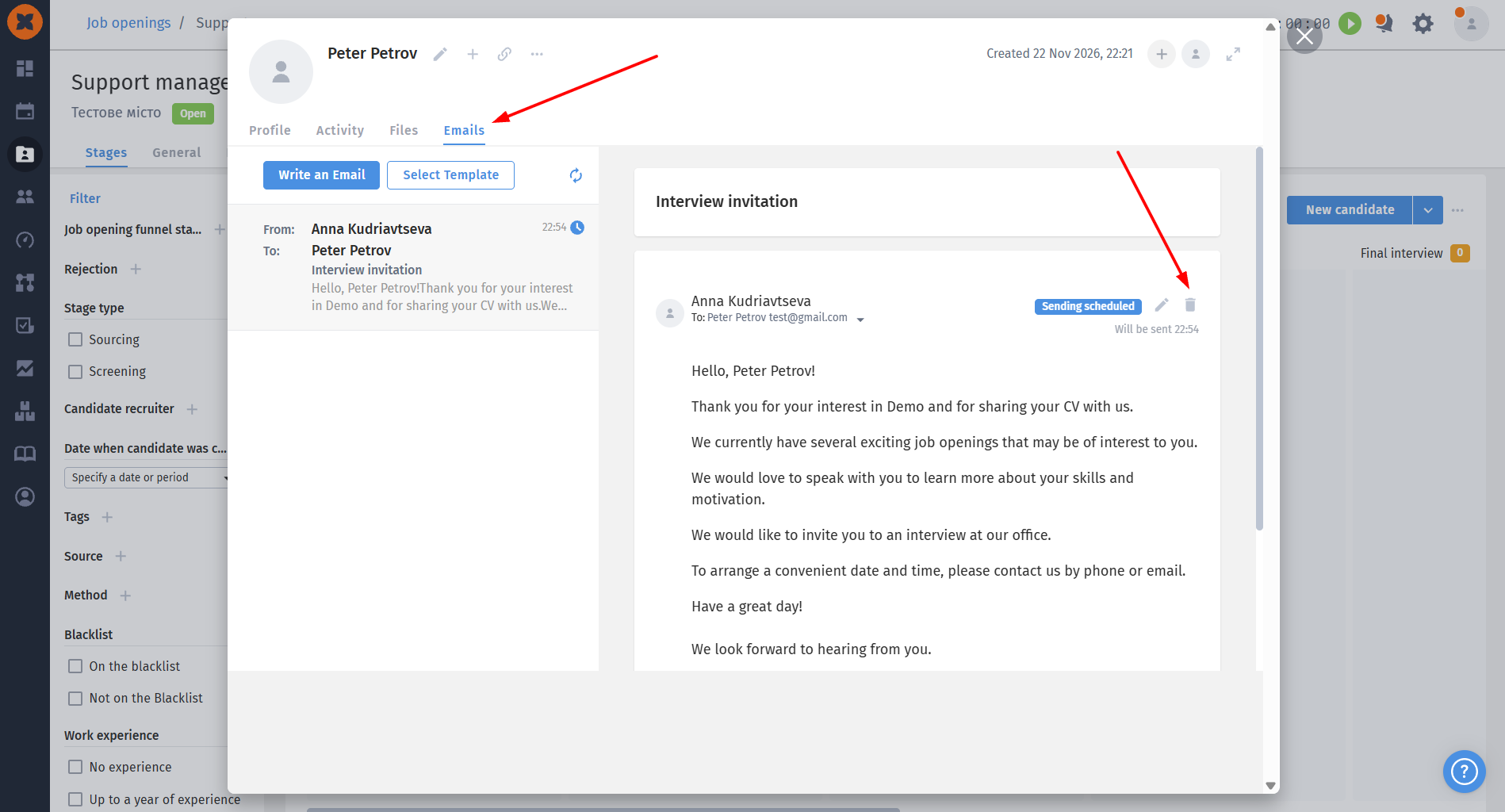
Peter Petrov’s candidate profile is open on the Emails tab, showing a scheduled interview invitation; red arrows point to the Emails tab and delete icon. Visible: Peter Petrov, Profile, Activity, Files, Emails, Write an Email.
A red outline highlights the “Delete scheduled Email?” confirmation dialog on Peter Petrov’s Emails screen, with a circle around the trash icon. Visible: Delete scheduled Email?, Email will not be sent, Delete, Cancel, Emails, Peter Petrov.

How automatic sending works

  • Trigger: sending is activated whenever a stage changes (on the kanban board, in the candidate profile, via the AI Fox plugin, through the API, when adding candidates in bulk, or when changing the funnel template);

  • Moving through multiple stages: if a candidate is moved through several stages with automatic sending at once, emails are created for each of them;

  • “New” stage: if an email is configured for the “New” stage, but a candidate is added directly to a later stage, the email for the “New” stage is canceled and only the email for the target stage is sent;

  • Retrospective behavior: enabling automatic sending does not send emails to candidates who were already at the stage before the option was enabled;

  • AI Screening: automatic movement via AI Screening sends an email only when the automatic sending checkbox is enabled for the target stage.

When the email will not be sent automatically

  • The candidate’s profile has no email address, or the email address provided is invalid;

  • The sender has not connected a personal email account, or the selected account has been deleted/deactivated;

  • For the sender “The one who performed the action,” the move occurred as a result of a system action (an application from a career site or job search site, AI Screening, or an import);

  • The email text contains tags for which the system could not automatically find data;

  • The candidate has already been at this stage before, and an email has already been sent to them or canceled.

If an email cannot be sent, the system displays a special warning icon next to the candidate.
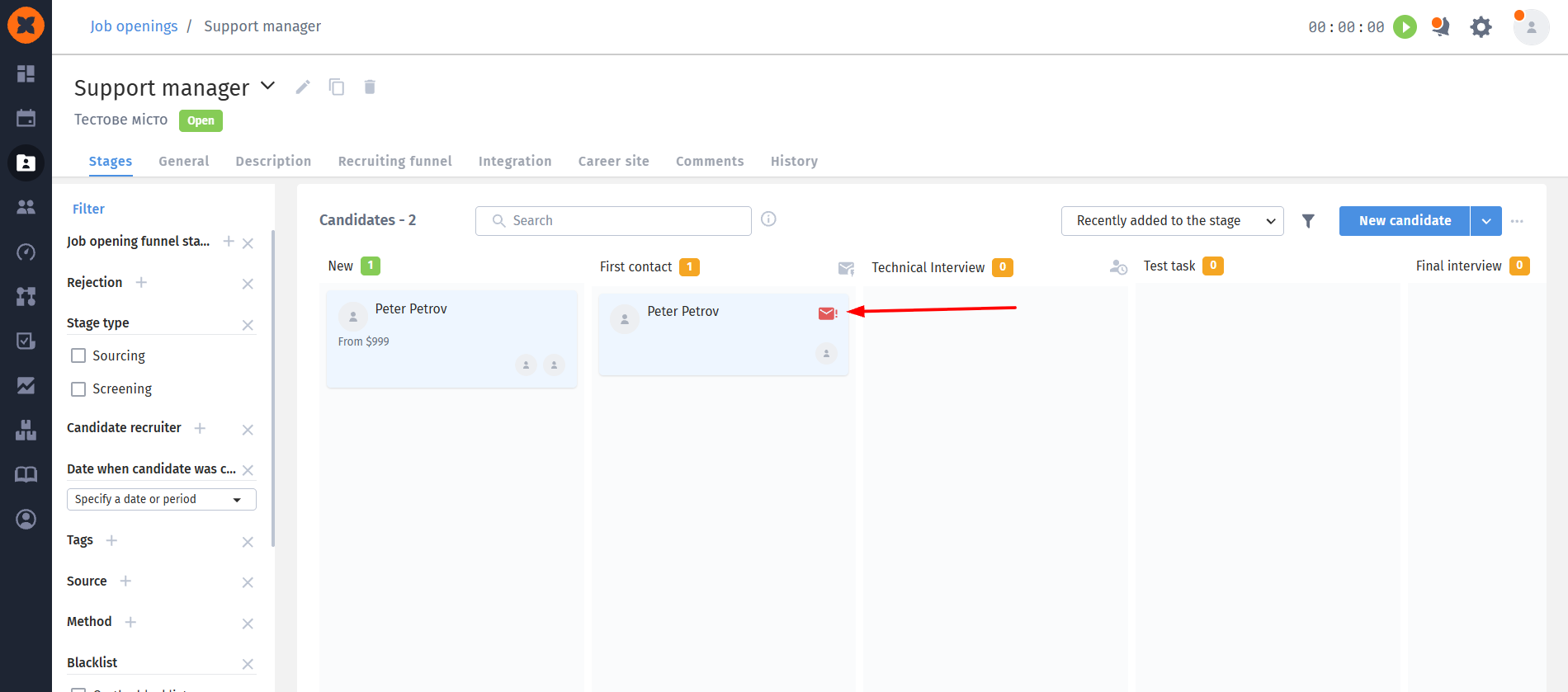
Recruiting job opening “Support manager” on the Stages board, with a red arrow pointing to the envelope icon on Peter Petrov’s First contact card. Visible: Job openings, Support manager, Тестове микро, Open, Stages, General.

Did this answer your question?
😞
😐
😁